
BIM Q&A | Revit Registration Machine Not Displaying
If your Revit registration machine is not displaying properly, here is a step-by-step guide to help you resolve the issue.
First, I recommend downloading the registration tool again.
Click on the Autodesk Revit 2016 registration machine to begin.
Revit 2016 Registration Steps:
1. Install the Revit 2016 software.
Enter the serial number: 066-666666666
Enter the product key (installation key): 829H1
2. Open the Revit 2016 registration tool and click on ‘Patch’.
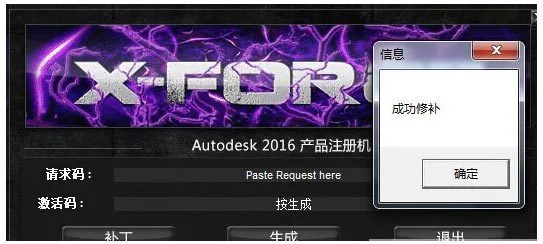
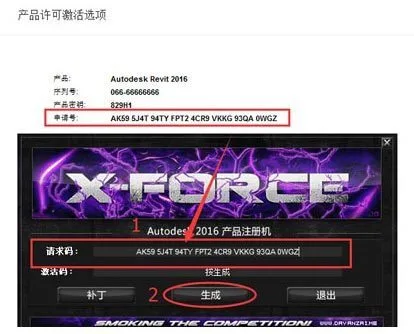
3. Once the patch is successful, copy the application number from the program into the request code field, then click “Generate”.
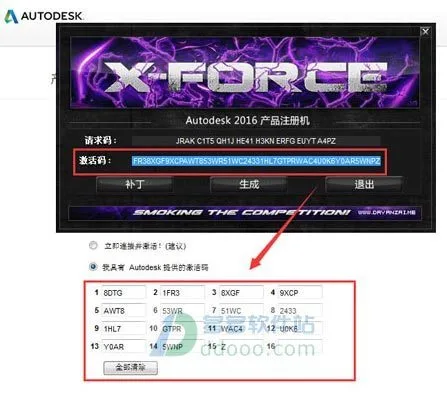
4. Copy the generated activation code into the registration interface and click ‘Next’.
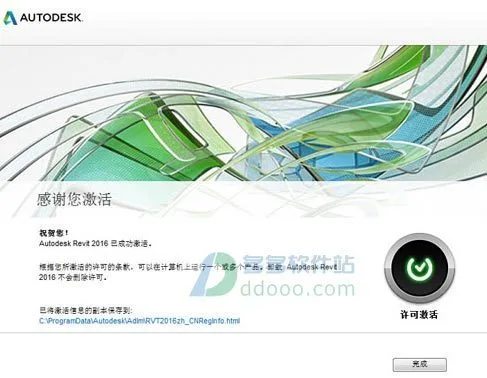
5. A pop-up window will confirm that the registration was successful. Installation and activation are now complete, as shown below:
















Must log in before commenting!
Sign Up