
BIM Q&A | How to Return to Revit for Modifications After Navisworks Collision Check
There are two main steps to follow.
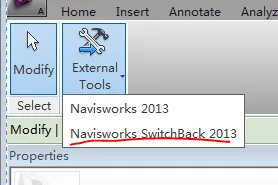
First, when exporting the Revit model in the NWC format, make sure to enable the Navisworks switch-back feature.
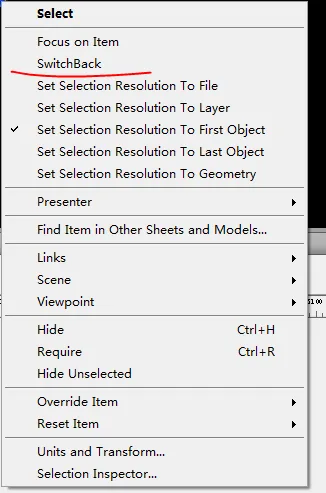
To return to Revit for editing after detecting collisions in Navisworks, follow these steps: select the collision object, right-click, and choose the switch-back option to return directly to Revit.
If this method does not work, you can also use the Revit ID table to locate the element. After selecting it, you will find it listed in the Navisworks properties bar.

xuebim
Follow the latest BIM developments in the architecture industry, explore innovative building technologies, and discover cutting-edge industry insights.
← Scan with WeChat















Must log in before commenting!
Sign Up