
BIM Q&A | Revit 2017 Installation Tip: “The system cannot find the specified device or file” Error
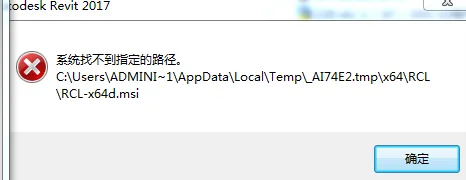
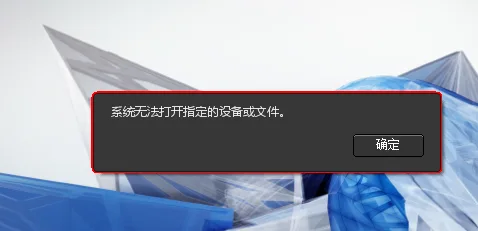
This issue might be caused by a problem with the software source files or the installation package. Please try downloading and installing the software again. If the problem persists, it could be due to computer compatibility or system issues. In such cases, a complete reinstallation may be necessary.
-
Begin by running the software installation package and selecting a decompression directory that does not contain any Chinese characters. Once decompression is complete, the installation interface will open automatically.
If the interface language is not in Chinese, choose “Simplified Chinese” from the language options at the top. Then, click “Install” at the bottom right to proceed.
Next, select “China” as the region above the license agreement. After agreeing to the terms, click “Next”.
At this stage, you can choose the features you wish to install and specify the installation path. Since the software is large, it is recommended not to install it on the C drive.
After installation, launch the program using the desktop shortcut. You will be prompted to enter a serial number. Click “Enter Serial Number”, and the software will offer a 30-day free trial.
If the network is disconnected, click “Activate” to open the activation interface.
Enter the software serial number “066-06666666” and key “829I1”, then click “Next”.
Place the registration tool in the installation directory, start it, and click the “Patch” button. If a confirmation prompt appears, the registration tool is working correctly.
Copy the application code from the software activation page into the first field of the registration tool, then click “Generate” to create the activation code.
Finally, return to the activation page, select “I have an activation code provided by Autodesk”, enter the activation code generated by the registration tool, and click “Next”. If a confirmation page appears, the software has been successfully activated.
















Must log in before commenting!
Sign Up