
BIM Q&A | Autodesk Revit 2016 Installation Error: Please Refer to the Installation Log
1. Ensure the file path is entirely in English without any Chinese characters. The installation package path must also contain no Chinese characters.
2. Open the Control Panel and uninstall all C++ programs, as they affect Autodesk software functionality. CAD, 3ds Max, and other related programs might stop working temporarily; you can uninstall and reinstall them later. Refer to step 5 for detailed instructions.
3. (Optional) Clean up any leftover Revit registry files. This step is not necessary if you are installing Revit for the first time.
4. Connect to the internet and disable all antivirus software, including Butler, Defender, and similar programs.
5. Key Step: Open the ‘Error Log’ and carefully review the last line of information. If you see errors related to MFC++ 2005, 2008, or 2010 Redistributable Packages (x86), identify which specific C++ version failed to install (e.g., 2005).
For example, if the 2005 package failed, navigate to the Revit installation folder, open the folder starting with “3D”, then continue following the path until you locate the problematic C++ installer (e.g., 2005). Right-click on it and select “Run as administrator” to manually install the package.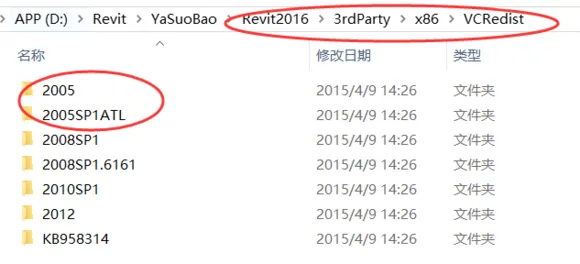
6. After successfully installing the required C++ package(s), proceed to reinstall Revit.
Summary: Carefully read the information in the ‘error log’ and apply the appropriate fix accordingly.
















Must log in before commenting!
Sign Up