
BIM Q&A | Magicad 2016.4 Installation Issue
What does it mean when this window appears during installation? It usually indicates that MagiCAD 2016.4 for AutoCAD (64-bit) or MagiCAD 2016.4 for MagiCAD (64-bit) – HotFix-1 is already installed.
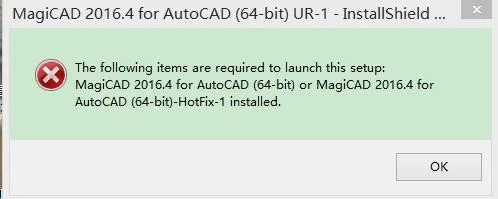
If you encounter this issue, it might be due to a problem with the installation package. We recommend downloading the installer again to ensure a clean setup.
Here is a detailed installation guide:
- Double-click to open the MagiCAD 2016 folder, then run “MagiCAD 2016.4 for AutoCAD (64 bit) UR-1.exe” to start the official installation.
- Select your preferred installation language. The default is Simplified Chinese.
- Begin installing the MagiCAD 2016 components and wait patiently as the process completes.
- The remaining installation steps are straightforward — simply follow the prompts and wait for the installation to finish.

xuebim
Follow the latest BIM developments in the architecture industry, explore innovative building technologies, and discover cutting-edge industry insights.
← Scan with WeChat















Must log in before commenting!
Sign Up