
BIM Q&A | Vray for Rhino: How to Avoid Dull White Walls in Renderings?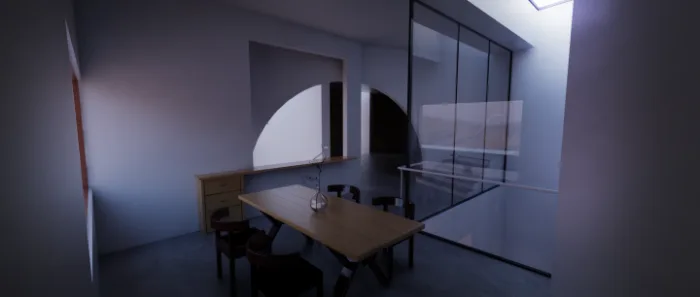
As shown above, the image is photoshopped. The floor has a darker texture, while the wall is a pure white surface. Both materials share almost identical reflection settings, with the wall’s highlight slightly higher than the floor’s. Despite using material IDs to adjust the Photoshop layers for both, the wall still doesn’t appear bright enough.
Increasing the light intensity or adding artificial lights doesn’t help because it flattens the floor’s depth. Additionally, using a Vray light source causes a strong grainy effect on surfaces directly hit by the light.
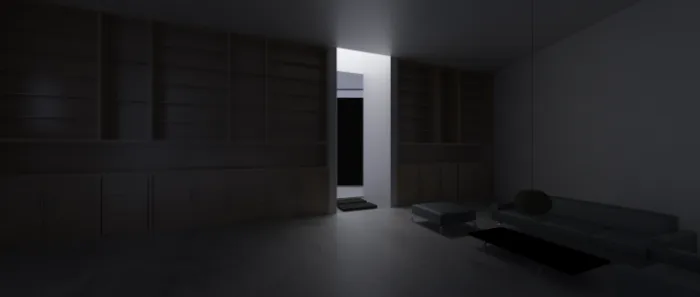
The image above is a raw Vray render without Photoshop editing. Notice how the bright areas are overexposed while the shadows look gray and flat, lacking depth and contrast.
My question is: How can I make an indoor rendering look like a photograph, with bright white walls and rich dark details that create strong contrast? What causes the dull gray appearance and lack of dynamic light and shadow in the renderings above? Is it due to parameters, lighting setup, or something else? What are the best practices for setting parameters and lighting to achieve realistic results? Is heavy Photoshop correction the only option?
Also, how can I reduce or eliminate the grainy noise caused by Vray light sources on surfaces they illuminate?
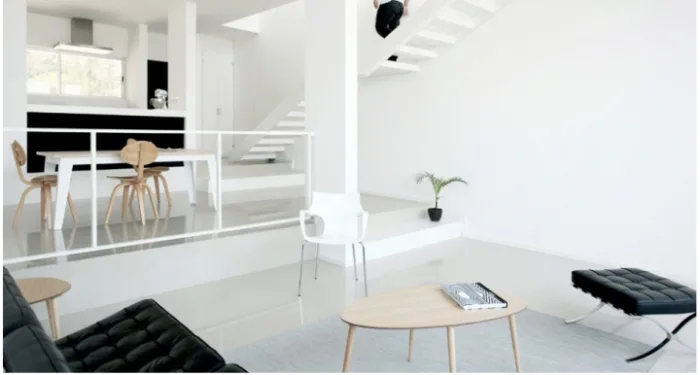
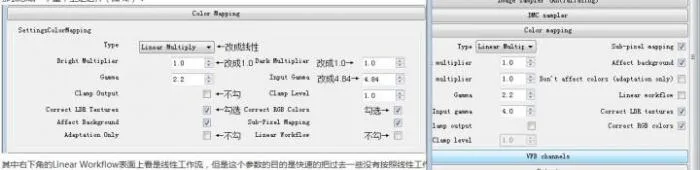
Additionally, I experimented with lowering the input gamma. The middle image below shows a strong blue tint when the input gamma is set to 4 (with 4.84 being even bluer). On the right is the sRGB result without gamma adjustment.
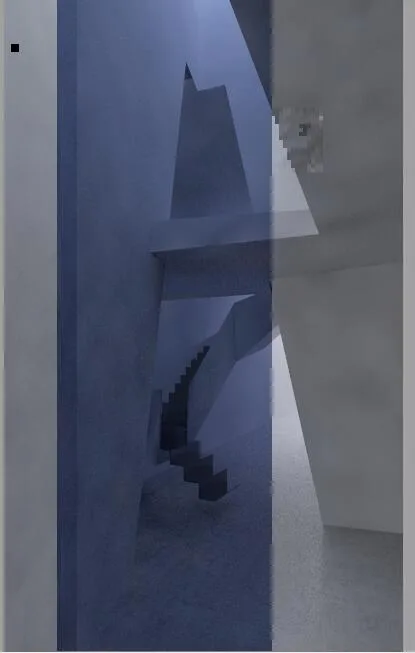
The parameter settings appear correct based on the screenshot below.
















Must log in before commenting!
Sign Up