
1. Plugin Introduction
Autodesk Revit Extensions, also known as the Revit Speed Bo plugin package, is a powerful enhancement toolkit designed to be used alongside Revit.
This plugin package offers a wide range of features that improve collaboration efficiency among designers. It also integrates practical web services and reliable design content. Please note, this version supports only 64-bit operating systems. If you are interested, give it a try!
Features of Speedy Plugins
– Additional product features that expand and enhance software functionality.
– Integrated web services that promote collaboration and support sustainable design practices.
– Trusted design content, including dedicated libraries and tools that enrich visualization and rendering capabilities.
Speedobo Plugin Functions
1. Draw Lines: This feature allows you to apply hand-drawn graphic styles to the current view or use a defined view template to apply styles across multiple views.
2. Anti-aliasing: In the “Options” dialog, the “Use Anti Aliasing” option has been updated to “Use Anti Aliasing to Smooth Lines.” You can now enable anti-aliasing for all views or select specific views in the project. These settings can also be predefined in the Revit.ini file for user convenience.
3. Ray Tracing Improvements: The interactive rendering style “ray tracing” has been enhanced to deliver faster, higher-quality, and smoother renderings with improved color accuracy and shadows on all backgrounds.
4. Formula Updates:
– Exp(x): In earlier versions, Exp(x) was calculated as 10^x. Starting with this version, it is correctly calculated as e^x.
– Ln(x): The natural logarithm (base e) is now expressed as ln(x) in formulas.
5. Revit Platform Enhancements: These improvements apply to all Revit versions.
Software Features
– Adaptive shelving creation
– Parameterized curved stairs and double helix stairs creation
– Building exterior skin creation
– Panel deformation and deformation statistics
– Force analysis
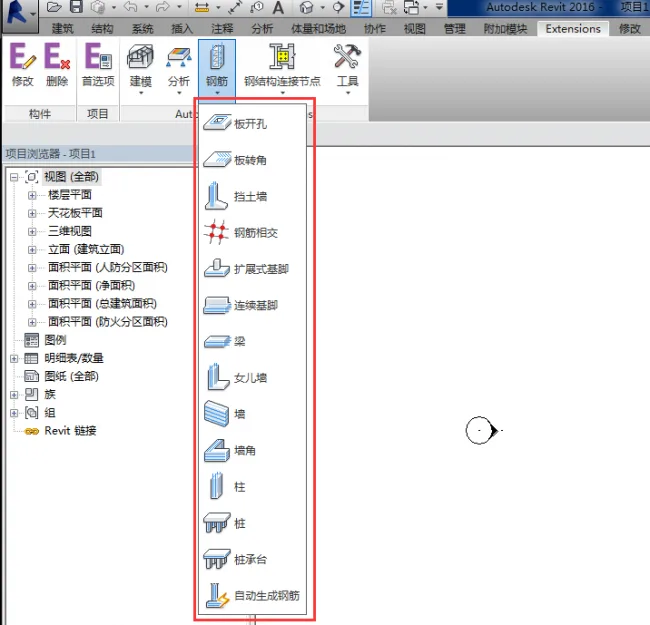
– Steel bar generation
– Steel structure connection nodes
– Various small tools
Instructions for Use
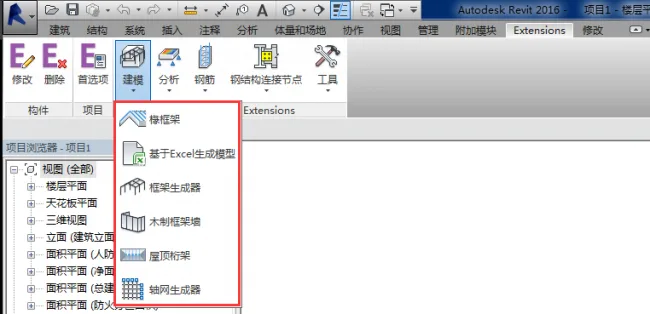
1. Open the required software and navigate to modeling, which includes models generated from Excel, framework generators, etc.
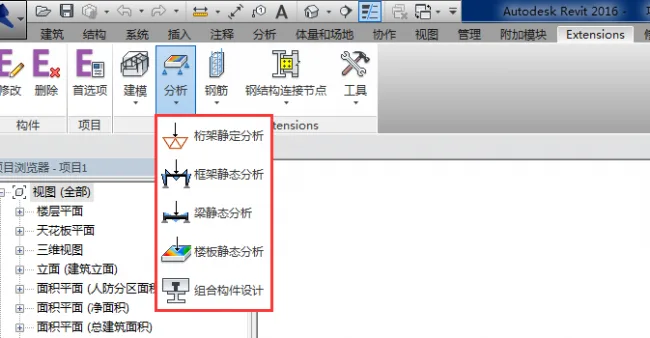
2. The analysis tools include frame static analysis, beam static analysis, transverse static analysis, composite component design, and more.
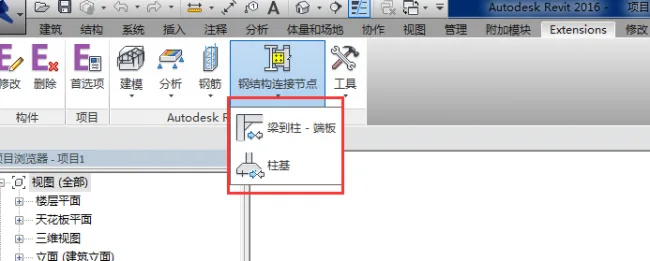
3. Steel structure connection points cover beam-to-hanging end plates, hanging foundations, and others.
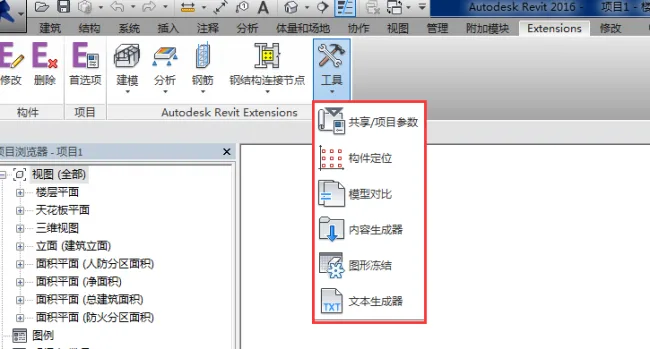
4. The tools section includes sharing options, project parameters, component positioning, model comparison, content generators, text generators, among others.
2. Plugin Installation Guide
Plugin Installation Overview
This guide uses the 2016 edition as an example:
– Plugin size: 211 MB (667 MB after extraction). The installer is a self-extracting EXE file.
Below is the Revit 2016 Turbo Plugin extraction interface:
Installation process:
After installation, the Revit interface will appear as shown in the screenshot below:
3. Demonstration of Rebar Generation using the Plugin
Quickly and automatically generate steel bars using the Revit plugin.
Step 1: Create a Simple Beam and Column Model
Step 2: Start Reinforcing Beams and Columns – Select the structural columns that require reinforcement, as shown in the image below:
Step 3: Set the Basic Parameters for Reinforcing Structural Columns
The plugin loads graphical information from the existing Revit model, including identification, size, and position of structural columns.
As a result, many parameters in this dialog box are greyed out and cannot be modified.
Note: If the option “Save data but do not save generated reinforcement” is unchecked, the reinforcement will be generated and displayed in Revit. If checked, reinforcement data is saved (usable after restarting the extension), but the reinforcement will not be shown.
Step 4: Click OK to sequentially add steel bars to other components.
Important: The reinforcement function is commonly used in the Superb plugin to enhance steel bar generation efficiency. However, it is recommended to use both Revit’s built-in reinforcement and the Superb plugin’s reinforcement for the best results. Unless necessary, it is not advisable to build all steel bar models.












I don’t know what’s going on, but it shows installation failure here
Why can’t I install it