
Instructions for Use:
1. This plugin was developed using the 2016 version of the API and has not been tested with other versions. While it is unlikely to encounter issues, please use the specified declaration method exactly as described. Alternative methods have not been tested and their effectiveness cannot be guaranteed.
2. Follow these instructions carefully when placing files and folders:
Add the YouFu bimTool folder Place this folder on drive C. The folder must remain intact at all times, as additional free features will be developed and released later. Please do not delete it. The folder can be found in the previously downloaded plugin package: __AI_ST_URL_0__
The folder contains four files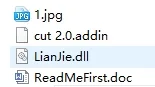
Place the Clear height analysis.addin file in the following path: C:ProgramDataAutodeskRevitAddins2016. This step registers the plugin in Revit. If you decide not to use the plugin, simply delete this file from the path.
3. After drawing the model, enter the floor number in the marking column.
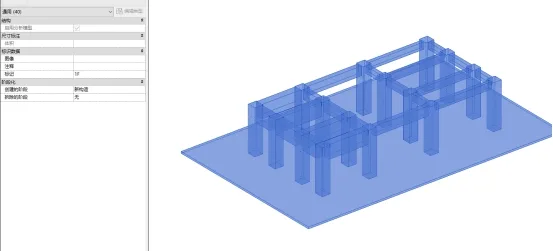
4. Click to open the Lucky Net Height Analysis Tool.

Plugin icon
5. Enter the floor code in the attributes, specify the beam height parameter name in the beam family, and set the height limit value.
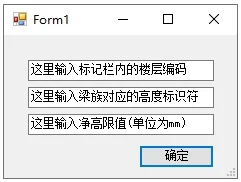
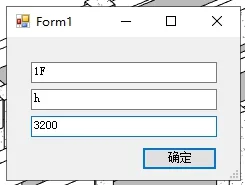
Example: The value entered in the column is “1F”, the beam height parameter name in the beam family is “h”, and the height limit is set to 3200. (Any net height below 3200 will be highlighted in red.)
6. The plugin will automatically calculate the quantities of all component types and perform the analysis.
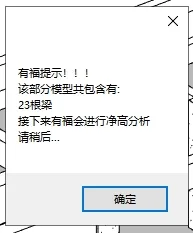
Counting all beams
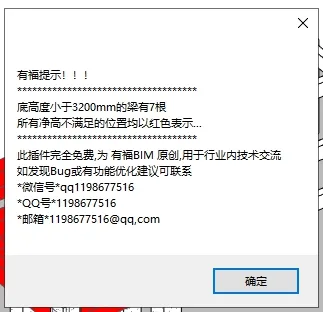
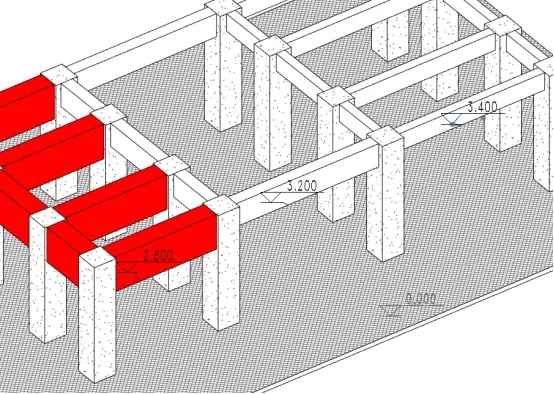
Output results: components that do not meet the requirements will be displayed in red.
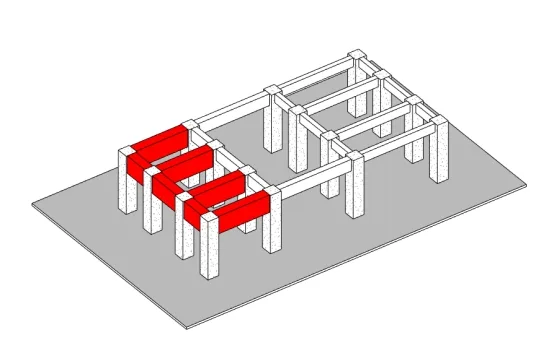
7. Final results demonstration:












Must log in before commenting!
Sign Up