

Autodesk NavisWorks 2020 is the latest version from Autodesk, providing a comprehensive project review solution that supports 5D simulation, coordination, analysis, and communication of design intent and constructability. The software boasts a flexible, upgradeable, and programmable user interface compatible with all major CAD data formats, including DWG, 3DS, NWD, and DWF.
NavisWorks 2020 consolidates multi-domain design data into a single unified project model, facilitating conflict management and collision detection. This integration helps design and construction professionals anticipate costs and identify potential issues early, significantly enhancing efficiency and reducing design errors.
NavisWorks Manage 2020 empowers architects, engineers, and construction professionals to thoroughly review integrated models and data alongside stakeholders, enabling better control over project outcomes.
As this is a licensed product, below you will find the NavisWorks 2020 serial numbers and keys along with the NavisWorks Manage 2020 keygen download. Using these together allows successful activation. These have been personally tested by the editor and are reliable. A detailed installation guide is also included.
NavisWorks 2020 Serial Numbers and Keys
Key: 666-669696969 (recommended), 667-98989898, 400-45455445, 066-666666666
NavisWorks 2020 Serial Numbers:
Autodesk Nastran 2020 986K1
Autodesk Nastran In-CAD 2020 987K1
Autodesk Navisworks Manage 2020 507K1
Autodesk Navisworks Simulate 2020 506K1
Key Features of Autodesk NavisWorks Manage 2020
- BIM 360 Glue Integration: Seamlessly connect with BIM 360 Glue to access cloud-hosted models and share data and workflows within BIM 360 projects.
- Conflict Detection and Model Coordination: Identify and minimize potential conflicts and disruptions before construction begins, helping avoid costly delays and rework.
- Data Aggregation: Utilize model publishing and aggregation tools to merge design and construction data into a single, integrated model.
- Model Simulation and Animation: Enhance model simulations with animations and interactive object manipulation.
Additional Features in NavisWorks Manage 2020
- Section Highlighting: Visualize cross-sections and highlight cutting planes with ease.
- Multi-threaded Conflict Detection: Experience faster and more efficient conflict detection (exclusive to NavisWorks Manage).
- Updated IFC File Reader: Improved IFC file processing using the same open-source code as Revit, supporting hierarchy and property set operations.
- New Beta DGN File Reader: Adds additional attributes and supports iModel features.
- BIM 360 Glue Integration: Leverage shared data and workflows within BIM 360 projects.
- Collaboration with AutoCAD, Revit, and ReCap: Open NavisWorks files directly within these Autodesk applications.
- Conflict Detection and Model Coordination: Identify and resolve conflicts within project environments (Manage only).
- BIM 360 Shared View: Create and share views via NavisWorks or BIM 360 Glue.
- Data Integration: Combine design and construction data into a cohesive project model.
- Model Simulation and Animation: Configure animations and interact with 3D models.
- Support for 60+ File Formats: Compatible with more than 60 third-party applications.
- Team-wide Project Review: Provide consistent access permissions for all team members.
- Publish and Share: Export models in NWD or DWF formats for easy sharing.
- Enhanced Collaboration: Promote clearer communication of design intent to improve teamwork.
- Measurement Tools: Utilize features such as face selection, snapshots, axis lock, and quick zoom for accurate measurements.
- Red Line Annotation: Improved clarity and usability when adding annotations.
- 5D Project Scheduling: Incorporates time and cost analysis for project planning.
- Realistic Rendering: Create photo-realistic 3D images and animations.
- Appearance Analyzer: Color-code project models by attributes for enhanced clarity.
- Quantitative Data Interaction: Seamlessly integrate quantitative data from models.
- Cloud Rendering: Render entire project models for cloud storage and sharing.
- Real-time Navigation: Navigate fully integrated project models upon completion.
- Autodesk Rendering Tools: Visualize models using Autodesk-integrated rendering tools.
- Enhanced Point Cloud Integration: Capture realistic data with advanced point cloud features.
- Quantitative Computation Support: Perform 2D and 3D project measurements.
- PDF Drawing Quantification: Measure dimensions directly from 2D PDF drawings.
Installation Guide for Autodesk NavisWorks Manage 2020
- Download and extract the Autodesk NavisWorks Manage 2020 package from Huajun Software Park, which includes the installer and the crack folder.
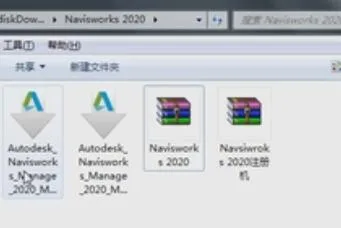
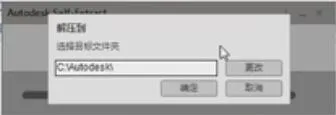
- Run
Autodesk_Navisworks_manage_2020_Sultilingual-Win_64bit-dlm_001_002.sfx.exeand choose the extraction directory.
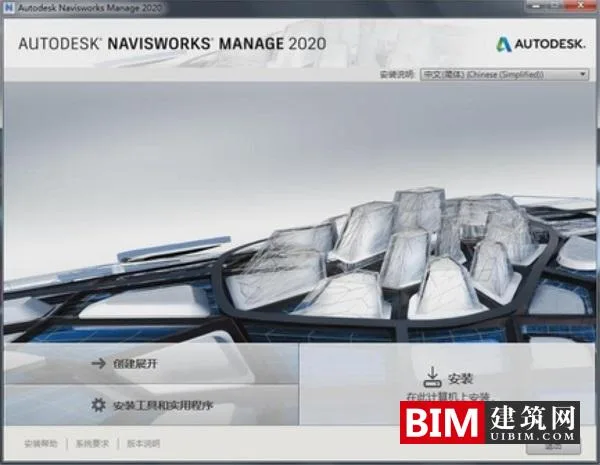
- Click ‘Install’ to start the setup process.
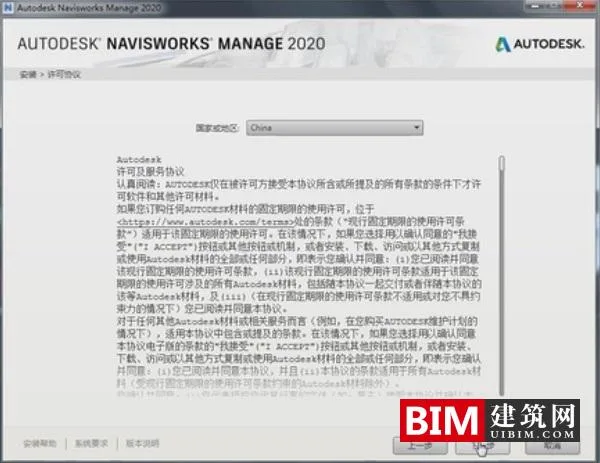
- Accept the license agreement by checking ‘I accept’ and then click ‘Next’.
- Choose your installation path and click ‘Install’.
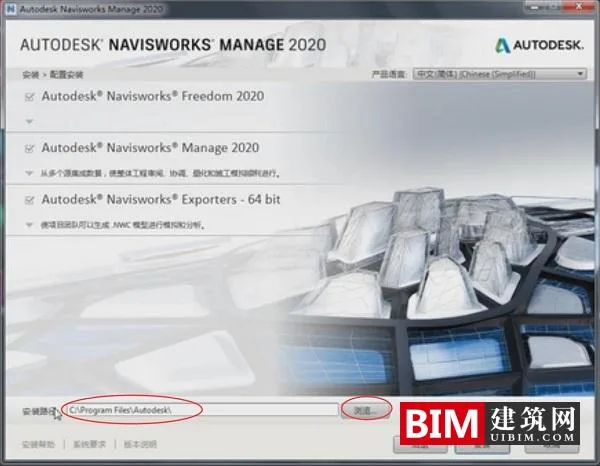
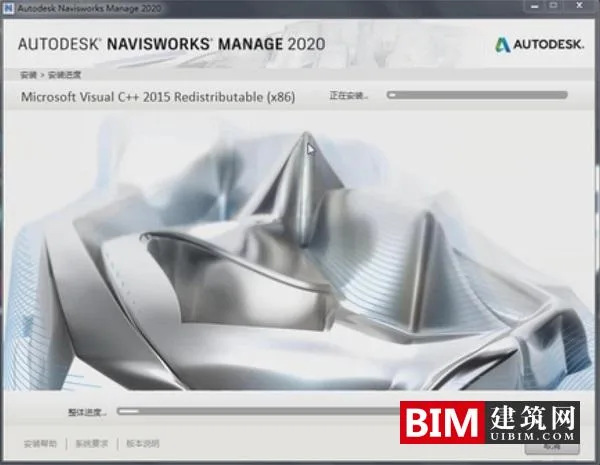
- Please be patient during installation, as it may take some time.
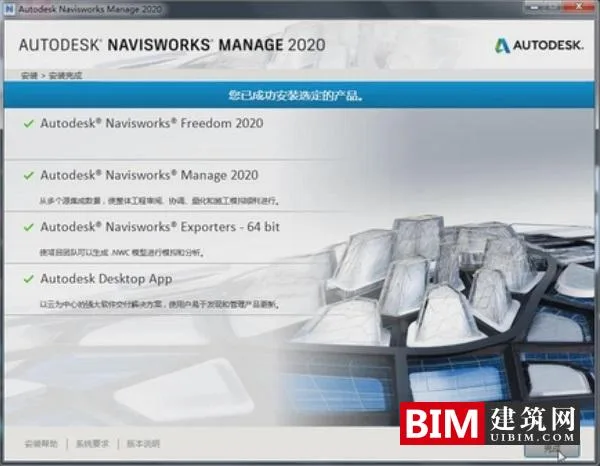
- Once installation finishes, you will see the confirmation screen.
- Launch the software and select the option to enter your serial number.
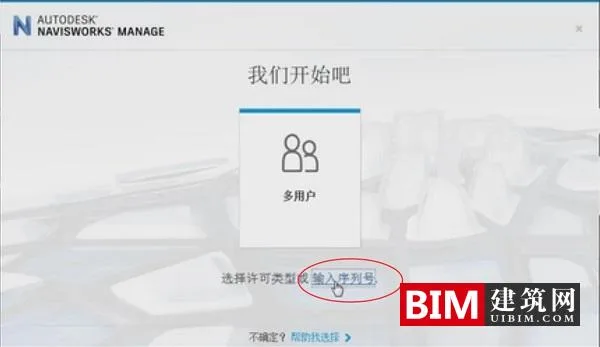
- Click the ‘Activate’ button.
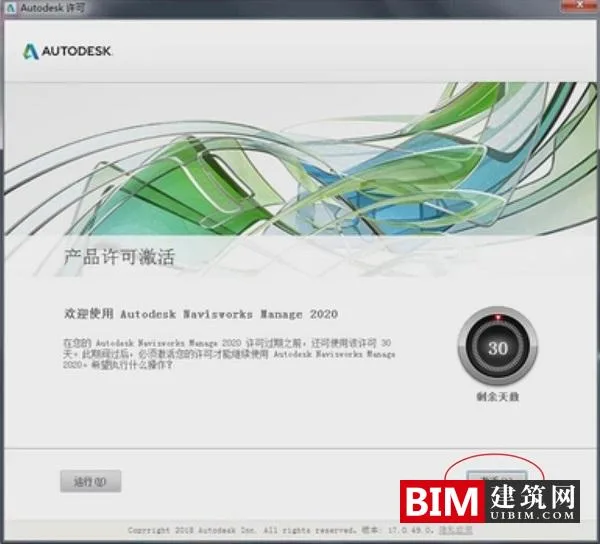
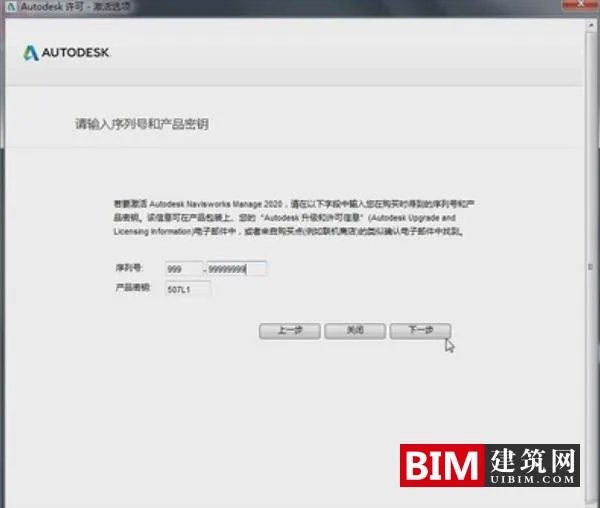
- Enter the serial number
999-9999999and the corresponding key (provided above), then click ‘Next’.
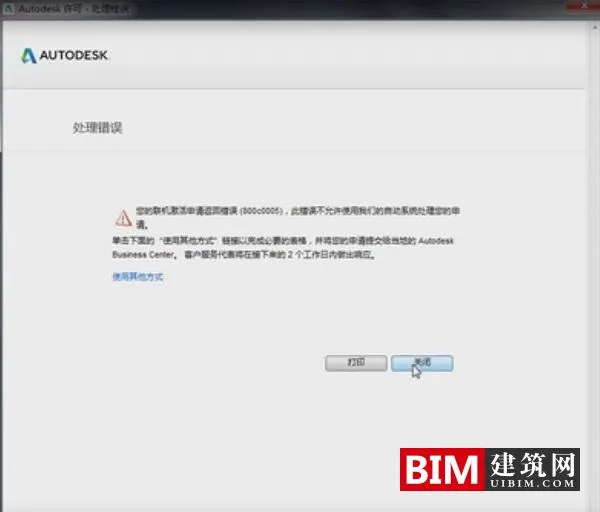
- If an error message appears, simply click ‘Close’ to proceed.
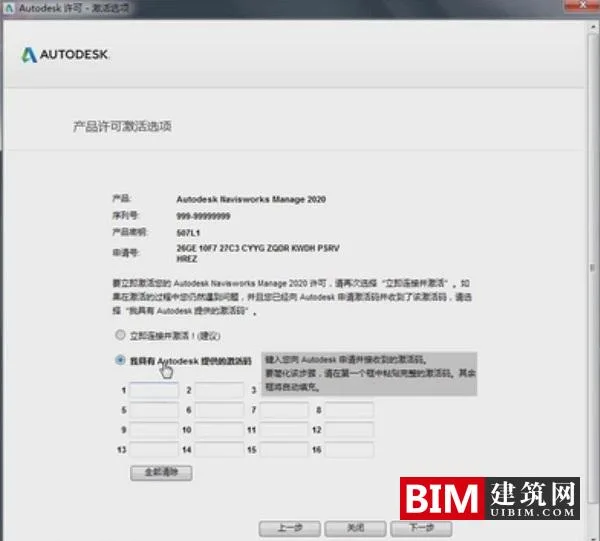
- You will return to the initial activation screen. Click ‘Activate’ again, enter the serial number, and check the box for ‘I have an activation code from Autodesk’.
- Run
xf-desk20.exefrom the crack folder as an administrator. Click the ‘Patch’ button, then confirm by clicking ‘OK’.
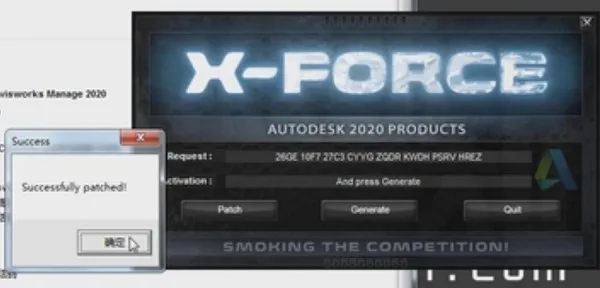
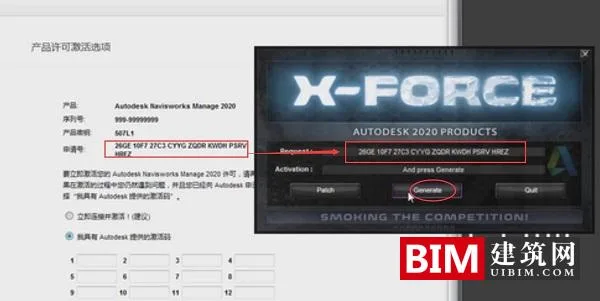
- Copy the application code from the software into the keygen, then click ‘Generate’ to create the activation code. Paste this activation code back into the software and click ‘Next’.
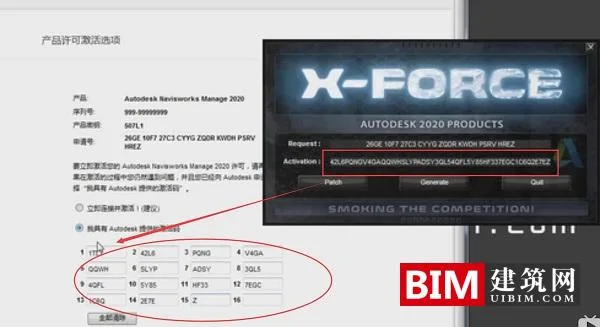
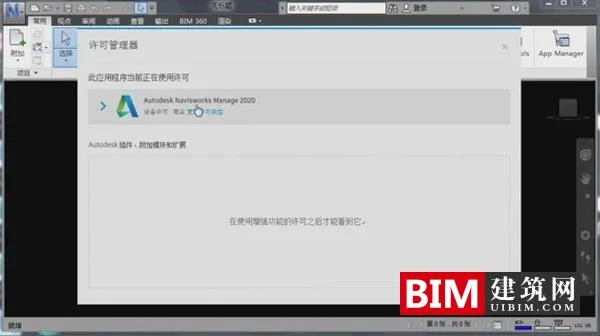
- Activation is successful. Close the activation wizard, and the software will launch automatically.
Autodesk NavisWorks Manage 2020 User Guide
1. Starting and Exiting Autodesk NavisWorks
After installation, launch Autodesk NavisWorks 2020 using the desktop shortcut or via the command line. By default, NavisWorks will launch in the language that matches your system settings, but you can start it in any other installed language.
To start Autodesk NavisWorks:
- Double-click the desktop shortcut created during installation.
- Or, go to Start > All Programs > Autodesk and select NavisWorks Manage 2020.
To launch in a different language:
- Right-click the NavisWorks shortcut and select ‘Properties’.
- In the ‘Target’ field on the Shortcut tab, add a space after
roamer.exefollowed by the language switch:
-Lang en-USfor English-Lang de-DEfor German-Lang es-ESfor Spanish-Lang fr-FRfor French-Lang it-ITfor Italian-Lang ja-JPfor Japanese-Lang ko-KRfor Korean-Lang pt-BRfor Brazilian Portuguese-Lang ru-RUfor Russian-Lang zh-CNfor Simplified Chinese
Click ‘OK’ to save your changes.
To exit Autodesk NavisWorks:
- Click the application menu button.
- Select ‘Exit Autodesk NavisWorks’.
- If you have unsaved changes, you will be prompted to save before exiting.
2. Auto Save and File Recovery
Unexpected shutdowns due to power loss, system crashes, or software errors can cause loss of unsaved work. To help prevent this, NavisWorks automatically saves backup copies to assist in recovering your progress.
Auto-save files use the .nwf extension and are named <filename>.AutoSave<number>.nwf, where <filename> is your project file name and the number increments with each autosave. For example, if your file is named Enviro-Dome.nwd, the autosave files would be Enviro-Dome.Autosave0.nwf, Enviro-Dome.Autosave1.nwf, and so on.
To configure Auto Save settings:
- Click the application button and select ‘Options’.
- In the Options Editor, expand ‘General’ and select ‘Auto Save’.
- Adjust settings such as save interval and backup location.
- Click ‘OK’ to apply the changes.
To restore work after an unexpected shutdown:
- Launch NavisWorks; it will prompt you to reload the last autosaved file.
- Click ‘Yes’ to open the latest autosave.
- If you choose not to restore, click ‘No’.
To manually open backup files:
- Launch NavisWorks and decline the prompt to reload the last file.
- Click the application button and select ‘Open’.
- Navigate to the folder where autosave files are stored (by default,
AppDataRoamingAutoSave). - Change the file type dropdown to ‘NavisWorks Filesets (*.nwf)’.
- Select the desired autosave file and click ‘Open’.
- If prompted, save the file with a new name and location.
Autodesk NavisWorks Manage 2020 Update Log
- Fixed bugs found in previous versions.
- Optimized various functionalities for improved performance.















Must log in before commenting!
Sign Up