
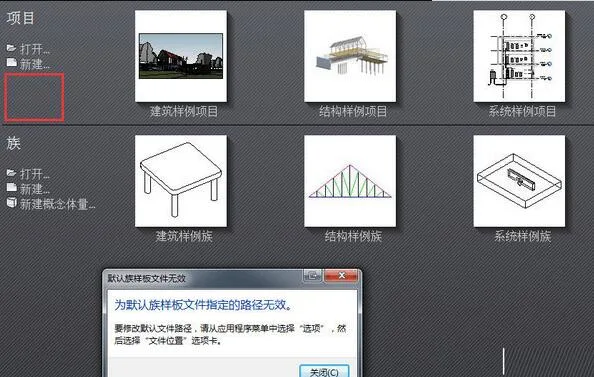
Revit 2019 has been available for quite some time and has been downloaded and used by a large number of users. Today, the editor brings you Revit 2019 family templates, family libraries, and project template files that are fully compatible with the latest Revit 2019 version. These files have been carefully organized, packaged, and uploaded to Baidu Cloud Drive. Don’t miss out if you need them!
Common reasons for missing templates or libraries include:
1. Installing Revit in an offline or unstable network environment.
2. Unchecking the ‘Autodesk Revit Content Libraries’ option during the Revit installation process.
1. Installing Revit in an offline or unstable network environment.
2. Unchecking the ‘Autodesk Revit Content Libraries’ option during the Revit installation process.
How to Install and Use Revit 2019 Family Templates, Family Libraries, and Project Template Files
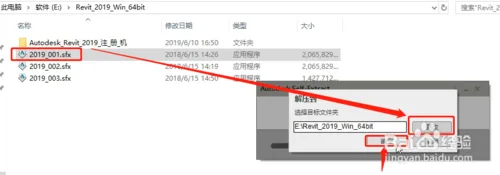
1. Download the compressed file from this website, unzip it, and double-click the executable named “Revit2019 Family Template Files, Project Template Files, and Download.exe with Built-in Family Libraries” to begin decompression and installation.
2. Since the file size is large, please be patient while it decompresses. After completion, you will find three folders: Project Template Files, Family Libraries, and Family Template Components.
3. To install the family templates, copy the Chinese folder to the location shown in the following image:

4. For project template installation, after decompression, copy the China folder to the directory shown below:
2. Since the file size is large, please be patient while it decompresses. After completion, you will find three folders: Project Template Files, Family Libraries, and Family Template Components.
3. To install the family templates, copy the Chinese folder to the location shown in the following image:
4. For project template installation, after decompression, copy the China folder to the directory shown below:

5. To install the family libraries, after decompressing, copy the China folder to the path illustrated in the image below:

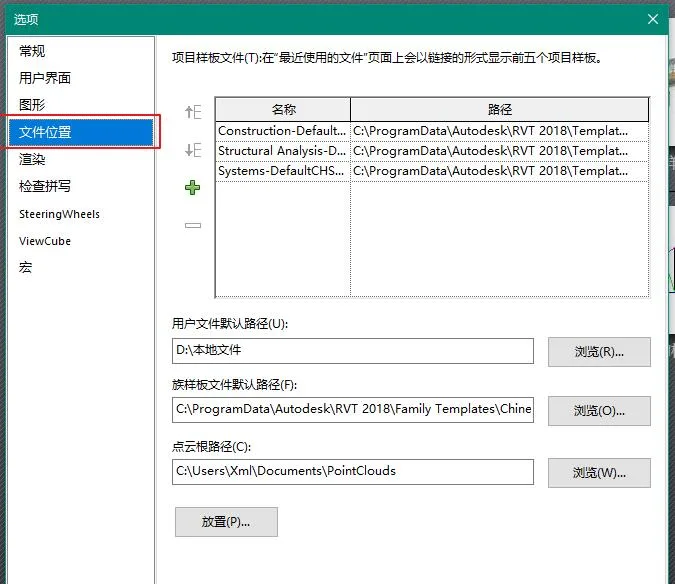
Setting the File Paths














What should I do if I can’t find RVT2019
How can I solve the problem that there are no Family templates templates libraries folders under my RVT2019 file
Normally, these three folders are located in the corresponding directory of c:/programdata/Autodesk.
Do I need to create a new folder without the three folders you mentioned? It’s still missing from the beginning
Normally, these three folders are located in the corresponding directory of c:/programdata/Autodesk.
After successfully setting the file options, reopening it restored the default settings
Set according to the prompts in the text, and the situation you mentioned will not occur.
Have you installed the template file and adjusted the path? Is it still showing.
Set the path, as shown in the figure: __AI_S_TURL_0__
Why? After installation, the template still hasn’t been displayed
You need to set the template path in the ‘Options’.
May I ask if Revit2020 can use version 19 of the family library?
Set the path.
After installing Revit 2019 software on the computer, the Program Data sub directory did not appear in the root directory of the C drive. After deleting Revit 2019 software, I tried to reinstall it but found that the “Autodesk Revit Content Libraries” option was already checked in the Revit configuration installation interface (meaning it was already installed on the computer). No matter how I tried to install it, I couldn’t install the family library. May I ask if there is a way to delete it completely and reinstall it to create a ProgramData subdirectories for copying offline family libraries?
Use this method to uninstall thoroughly.https://www.arcsh.com/201444.html
The ProgramData sub directory is a hidden directory. After clicking on the hidden directory on the computer, the ProgramData sub directory will be displayed. Thank you!
Can this ethnic pants version 17 be used
High version family libraries cannot be used on low versions.
The installation path is C: Pr0gramfiles AutodesK . If you can’t click on it, can you tell me how to click on it and change it from C to F drive?
Manually modify, if the directory does not exist, manually create a new one.
After installation, it still doesn’t display
Official original version