
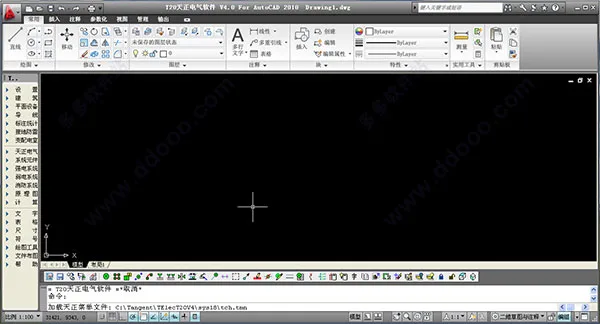
T20 Tianzheng Electric CAD (TR Elec) v4.0 is a cutting-edge 3D BIM-assisted design software developed by Tianzheng Software on Autodesk’s Revit platform. Tailored specifically for the Chinese market, it aligns with current standards and software usage, catering to the habits of design engineers.
The software maintains Tianzheng’s hallmark of a simple interface and convenient drawing tools, incorporating extensive feedback from numerous electrical design units. As a result, it offers a smart, intelligent electrical design solution that perfectly balances systematic functionality with operational flexibility, closely mimicking real-world engineering design processes.
T20 Tianzheng Electric CAD is suitable not only for civil building electrical design but also for industrial electrical design.
The software is divided into nine modules: settings, flat equipment, wires, conduits, cable trays, transformer and distribution rooms, annotation statistics, calculations, and other tools. Each module organizes functions to follow the designer’s workflow, seamlessly integrating specialized design features with BIM platform intelligence. This integration significantly reduces the learning curve for designers using the BIM platform and greatly improves design efficiency. The software embodies the philosophy of combining professional design with rapid modeling.
It supports Windows XP, Windows 7 (32/64 bit), Windows 10 (64 bit) and CAD platforms including 32-bit AutoCAD 2007–2016 and 64-bit AutoCAD 2010–2017.
Duoduo editor offers the following:
T20 Tianzheng Electric CAD v4.0
Download and accompanying registration tool that enables successful activation of the software. Users in need are encouraged to download and use it!

T20 Tianzheng Electric CAD v4.0 Installation Tutorial
1. Download the original T20 Tianzheng Electric CAD v4.0 installation package (compressed file). Run T20 Tianzheng Electric CADV4.0-Download Version.exe to start the installation wizard.
2. Choose your preferred installation location.
3. Select the program folder.
4. During setup, the software will automatically install MSXML 4.0, which can be accepted by default.
5. Launch the T20 Tianzheng Electric CAD v4.0 program from the desktop, select the appropriate AutoCAD version, and choose a launch platform. Click OK to proceed.
6. For activation, open the installed software. A prompt will appear requesting a registration code. Ignore this and copy the displayed installed ID number.
7. Double-click the registration tool T20Keygen-v2.00.exe found in the downloaded compressed file.
8. Paste the copied ID number into the registration machine’s machine code field, then click “Generate Registration Code.” A registration code will be produced.
9. Copy this registration code and paste it into the registration prompt in the software, then click OK to complete the activation successfully.
New Features in T20 Tianzheng Electrical CAD Software v4.0
- Supports 64-bit CAD 2017 platform.
- Includes optimized commands aligned with the “Industrial and Civil Power Supply and Distribution Design Manual” (Fourth Edition), such as Annual Lightning Strike Count, Reactive Power Compensation, Voltage Loss, Load Calculation, and Relay Protection.
- Supports the “Lighting Design Manual” (Third Edition), updating data related to Illumination Calculation, Multi-line Illumination, and Point-by-Point Illumination.
- Introduces the ‘Line Generated Bridge’ function, which converts L/PL/ARC elements in the diagram into Tianzheng Electric CAD bridge entities.
- Considers maximum sag in lightning protection lines and can automatically generate protection ranges in both 2D and 3D, supporting calculation sheets and lightning protection meters.
- New ‘Plug in Flash Tower’ command allows insertion of 3D lightning rod towers into diagrams.
- Optimized [Component Labeling] with custom functions for component models, manufacturers, and supports batch importing data from Excel.
- [Arbitrary Arrangement] now includes device category page flipping shortcut keys and up/down page flipping within the current gallery category via the command line; image block scaling optimized by typing E or D; device insertion methods for wiring improved.
- Improved display effects for diagonal three-way components and horizontal end bridge specifications after modification.
- Bridge component optimization now automatically generates reducing components.
- Fixed issue where a single row with zero margin could not be arranged in a rectangular layout.
- [Device Replacement]: Optimized to maintain the original proportion after replacement.
- Double-clicking inserted fire equipment allows modification of fire attribute words. When changing the value to 1, the attribute word remains visible.
- Fixed incorrect layout caused when both block and wire line widths are set to zero.
- Addressed issues with cable trenches: moving or copying entities within large cable trenches previously caused entity changes; improved display when two cable trenches with different chamfer radii intersect.
- [Illuminance Calculation] and [Multi-row Illuminance] calculation tables no longer crash when exporting to Word.
- Fixed block line width resetting to zero when locking non-electrical layers and modifying default block line width during device layout commands.
- Resolved an issue on platform 20 where locking or unlocking layers triggered an unavailable option interface.
- [Bridge Annotation] and [Bridge Setting]: After modifying annotation system classification, saving and reopening the drawing preserves classification keywords correctly.
- [Equipment Replacement]: Fixed incorrect direction of replaced flipped blocks.











Tianzheng Electric v4.0 cannot find the registration machine in the compressed file after downloading