
In comprehensive BIM modeling projects, it is common for the number of components to exceed 100,000. Typically, the modeling process is a collaborative team effort. However, due to differences in modeling skills, individual habits, or occasional lapses in focus, team members may introduce various errors. Despite this, manually inspecting each component during model review is impractical—it is time-consuming, labor-intensive, and inefficient. Few would undertake such a reckless approach.
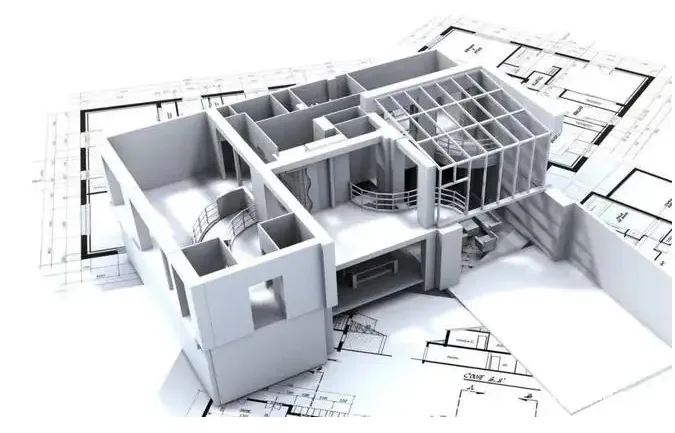
Construction sample
Traditionally, model checking involves navigating through the model using software like Fuzor or Navisworks to identify obvious mistakes, such as misaligned components. However, this visual inspection method struggles to detect hidden issues, such as incorrect material assignments.
So, what is the model checking approach based on BIM engineering calculations? Whenever project managers are asked about quantities for the first time during a BIM project, the inevitable question arises: Are your quantities accurate? Often, the answer is uncertain because the model’s precision and accuracy are unclear. Therefore, the initial step must be to verify and measure quantities.
Currently, most projects use Revit for modeling. It is essential to understand how Revit calculates quantities and what the process entails.
Step 1: Build a BIM Model
To enable quantity calculation, create a BIM model at LOD 300. This model should include fundamental elements such as columns, beams, slabs, walls, and others. Additionally, to facilitate the calculation of decoration quantities, room components should also be incorporated during modeling. The BIM model can provide relevant information for quantity takeoff—for example, the quantities of finishing materials like wall paint can be estimated from room data (room perimeter multiplied by ceiling height). Complex components, such as steel reinforcement and formwork that cannot easily be modeled during the construction process, should be added parametrically to the BIM model.
Step 2: Add Work Item Names and Size Parameters
To calculate material quantities accurately, assign work item names to BIM components and supplement any missing dimensions and parameters. For instance, in a project, quantities for structural elements are calculated using components like columns, beams, slabs, and walls, while decoration quantities rely on room components and door or window elements. Each work item’s relevant data should be assigned to the corresponding model component. Note that since Revit cannot define complex measurement units (such as kg/m), these parameters are often stored as numerical values with units indicated in the parameter names.
Step 3: Create Detailed Schedules and Filter Components
Enable the schedule function in Revit and filter components by work items to classify them accordingly. Not all fields can serve as filters; if a field cannot be filtered, the associated item may not be included in the quantity calculation. Due to limitations within Revit, separate schedules must be created for different components such as columns, beams, slabs, walls, and rooms. Consequently, the same material may need to be accounted for in multiple schedules and manually consolidated.
Step 4: Establish Quantity Calculation Formulas
Add calculation formulas within the schedules to quantify the work items. Revit imposes constraints on formula units, requiring that unit settings be established before defining formulas. All parameters must be consistent with these units. However, quantity calculation formulas can be complex, and since Revit offers limited unit options, some formulas cannot be directly expressed and must be adapted creatively.
It is undeniable that BIM technology is increasingly embedded in the construction industry. In China, BIM application has evolved from isolated phases to a comprehensive industry-wide approach spanning the entire lifecycle and involving full collaboration among stakeholders. Mastery of BIM modeling has become an essential skill for construction companies and professionals.
Source: Author: BIM Website Source: BIM Website
















Must log in before commenting!
Sign Up