
Source: Jizhi Numerical Science

In project workflows, models are typically divided into various disciplines such as architecture, structural engineering, and mechanical and electrical systems. These are usually separated into different files. When linking these models together, it’s often necessary to adjust and differentiate the linked models. Therefore, mastering some essential techniques for setting up linked models is crucial.
Let’s take building walls as an example:
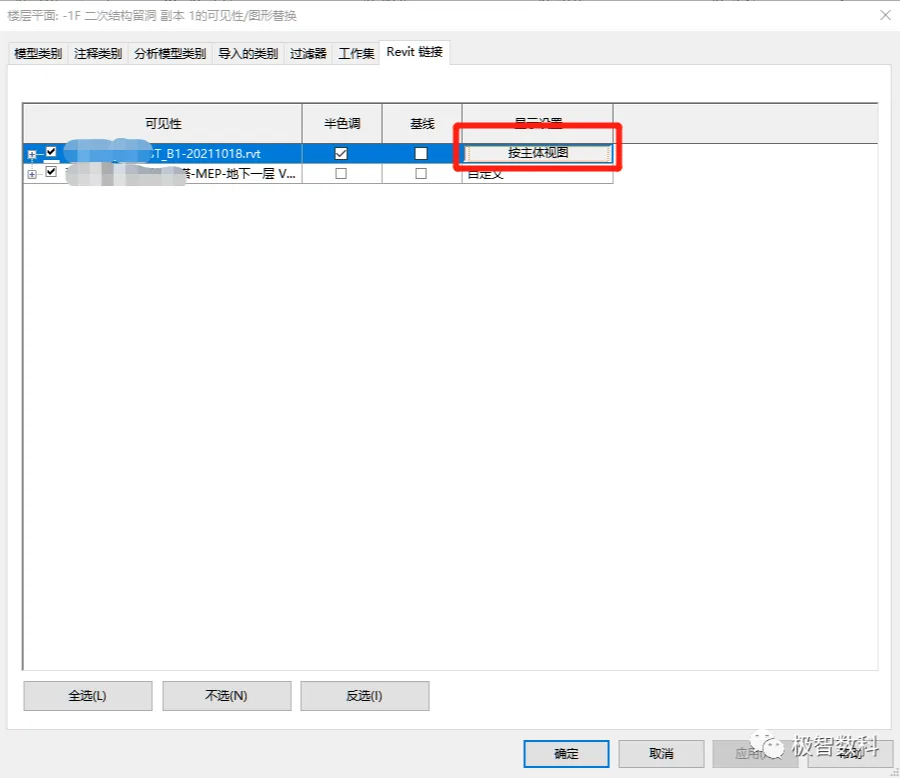
Step 1:
Press the shortcut key VV to open the “Visibility/Graphics Overrides” for linked Revit models. Then, click on “Host View” and change the setting from By Host View to Custom.
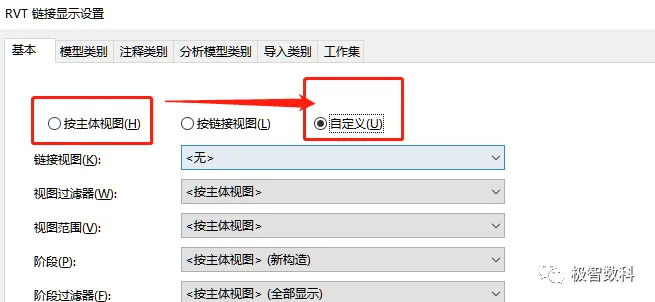
Step 2:
Within the model category section, also change the model category setting to Custom.
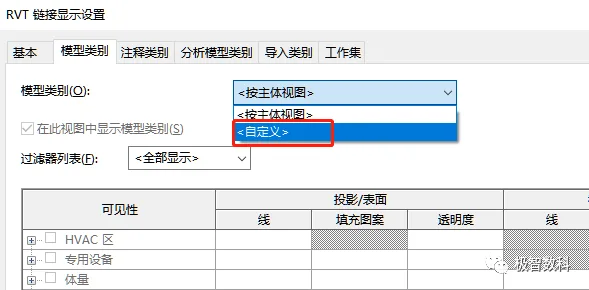
Step 3:
Adjust the visibility and section fill settings in the linked file. This allows you to modify components within the linked model independently!
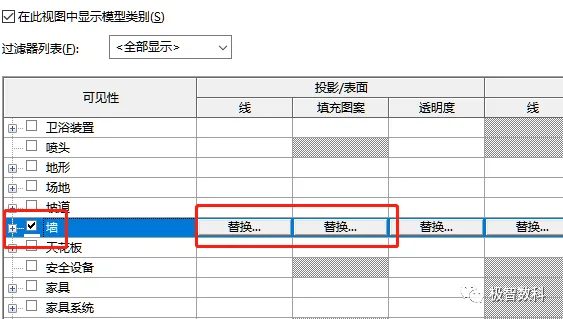
















Must log in before commenting!
Sign Up