
Article source: CATIA Practical Operation Tips

Installing CATIA software is the first step to getting started. However, many users face various issues during installation, or may feel confused about some functions after installation. To address these common concerns, this article provides clear answers and solutions.
Q1: How to fix environment conflicts caused by multiple CATIA versions installed on one computer?
The main reason for environment confusion when multiple CATIA versions are installed is that all environment settings point to the same folder.
To avoid this, each version must have its own environment storage file path, as illustrated below:
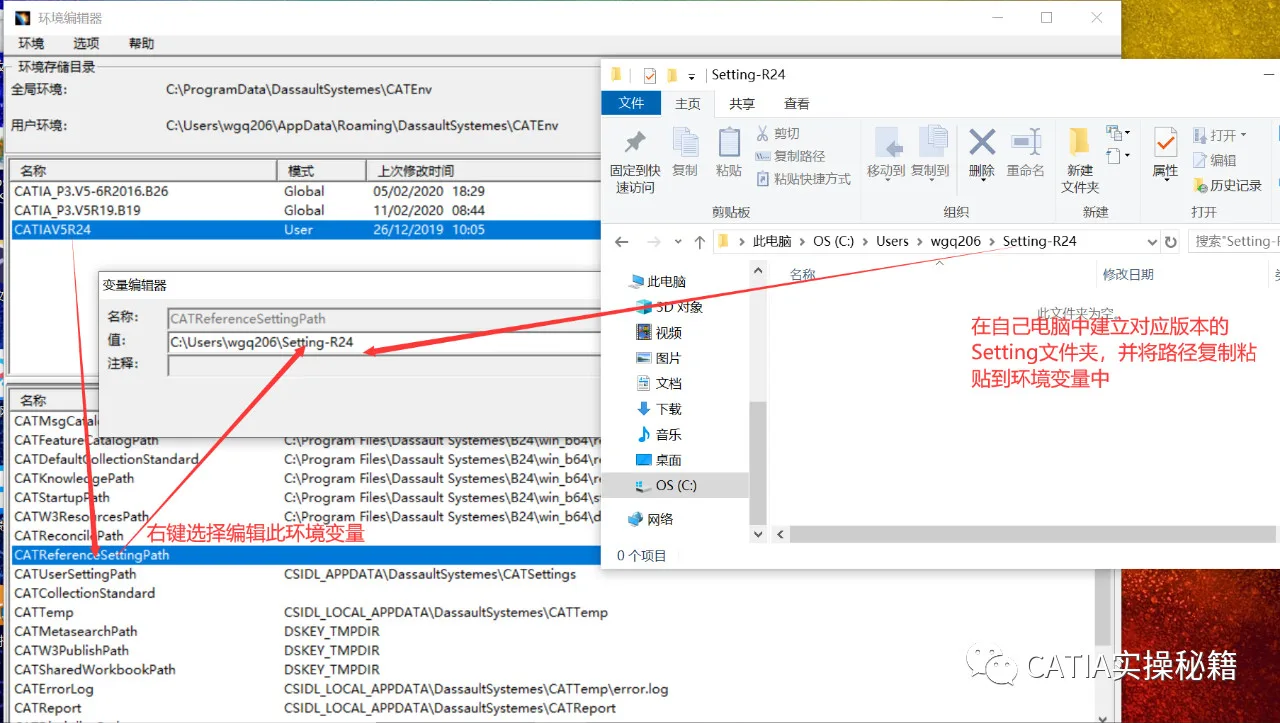
This way, environment variables for different versions are stored separately, preventing conflicts.
Q2: What to do if environment files on office computers cannot be modified?
In many large companies, user permissions on office computers are restricted, so you may not be able to modify CATIA environment variable files.
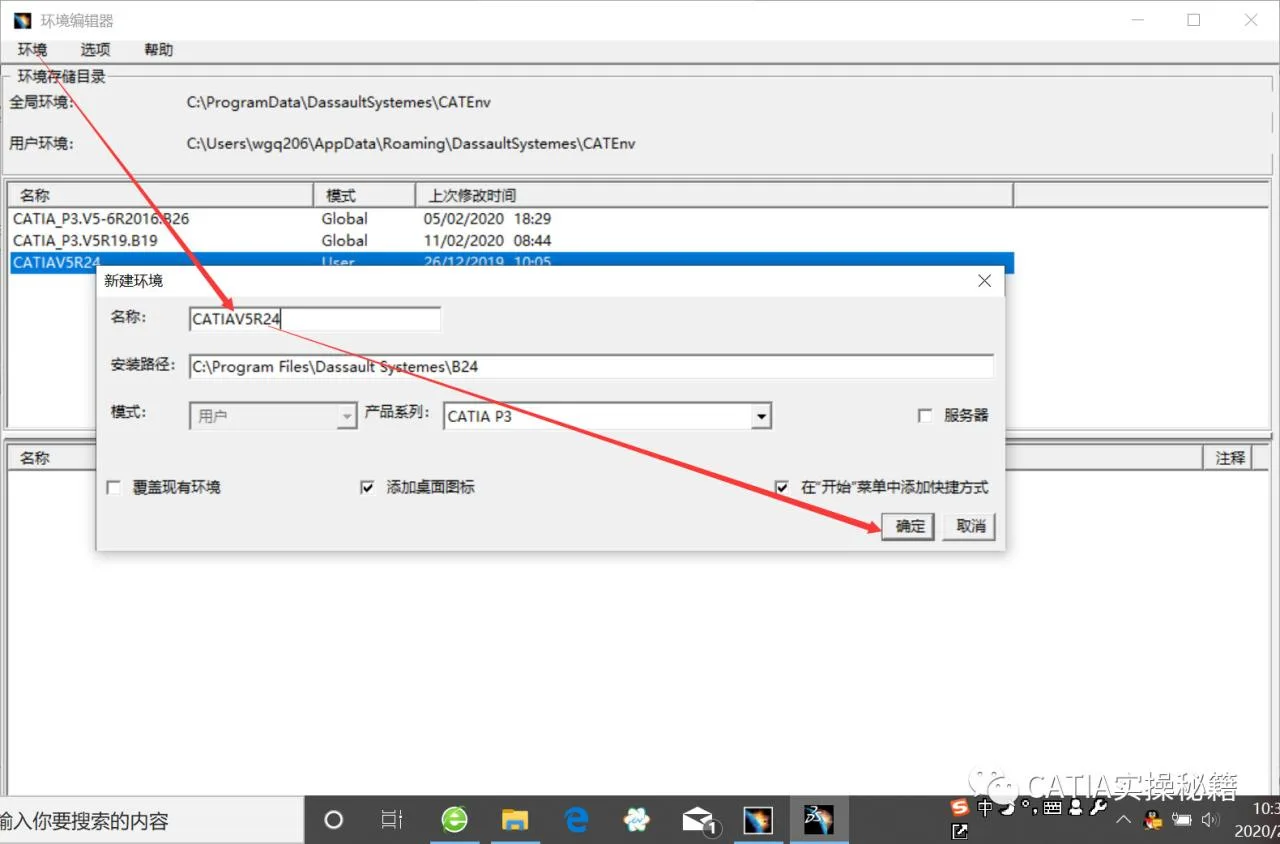
Solution: Navigate to the CATIA installation directory, usually C:Program FilesDassaultSystemesB24win_b64codein. Find and double-click the CATIA ENV file to open it. Then create a new environment with your own variables. A new CATIA startup icon with your environment name will appear on the desktop, allowing you to launch CATIA with your custom settings.
Q3: What if 3CATIA files don’t show thumbnails?
Sometimes, CATIA files may not display thumbnails. This usually happens if CATIA was not properly installed, if the software package was copied from another computer without proper installation, or if registry information was corrupted.
Solution: Re-register CATIA in the Windows registry.
Open the Run dialog with Windows+R, type cmd, and open the command prompt as administrator. Enter the full CATIA path followed by /regserver. For example, for CATIA R24:
C:Program FilesDassaultSystemesB24win_b64codeincnext.exe /regserver
Note: There is a space before /regserver.
Q4: How to enter CATIA Administrator Mode and why use it?
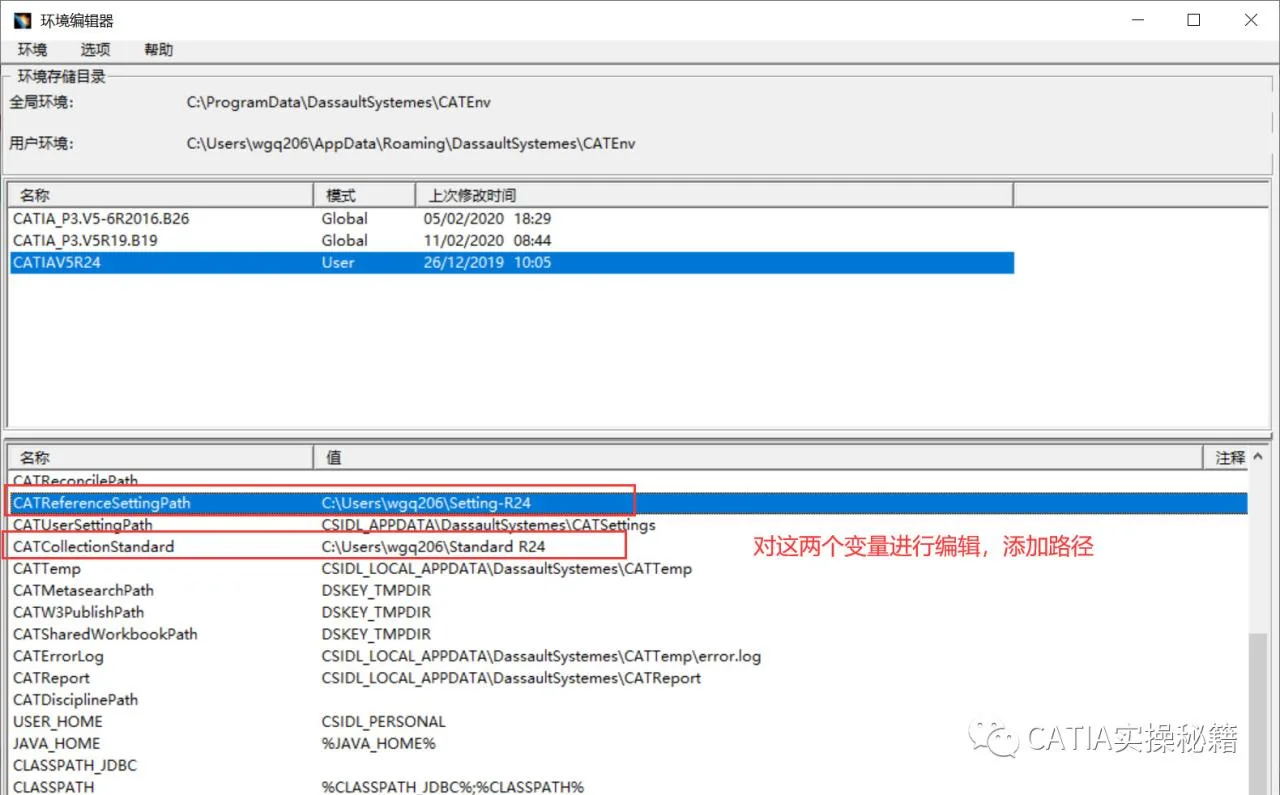
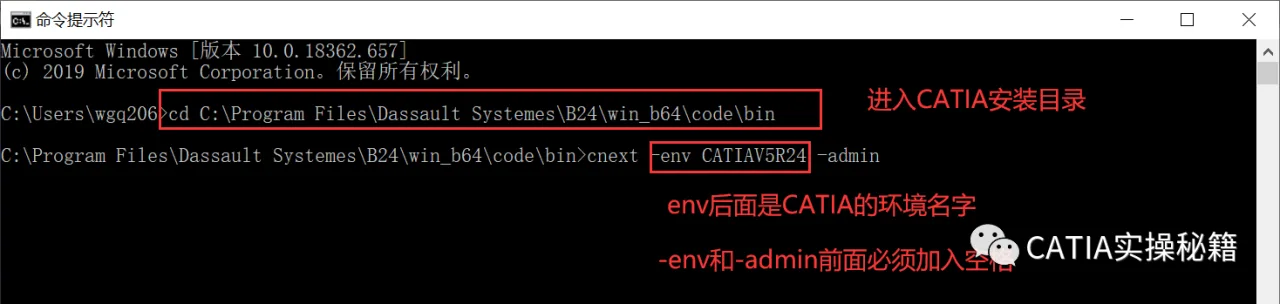
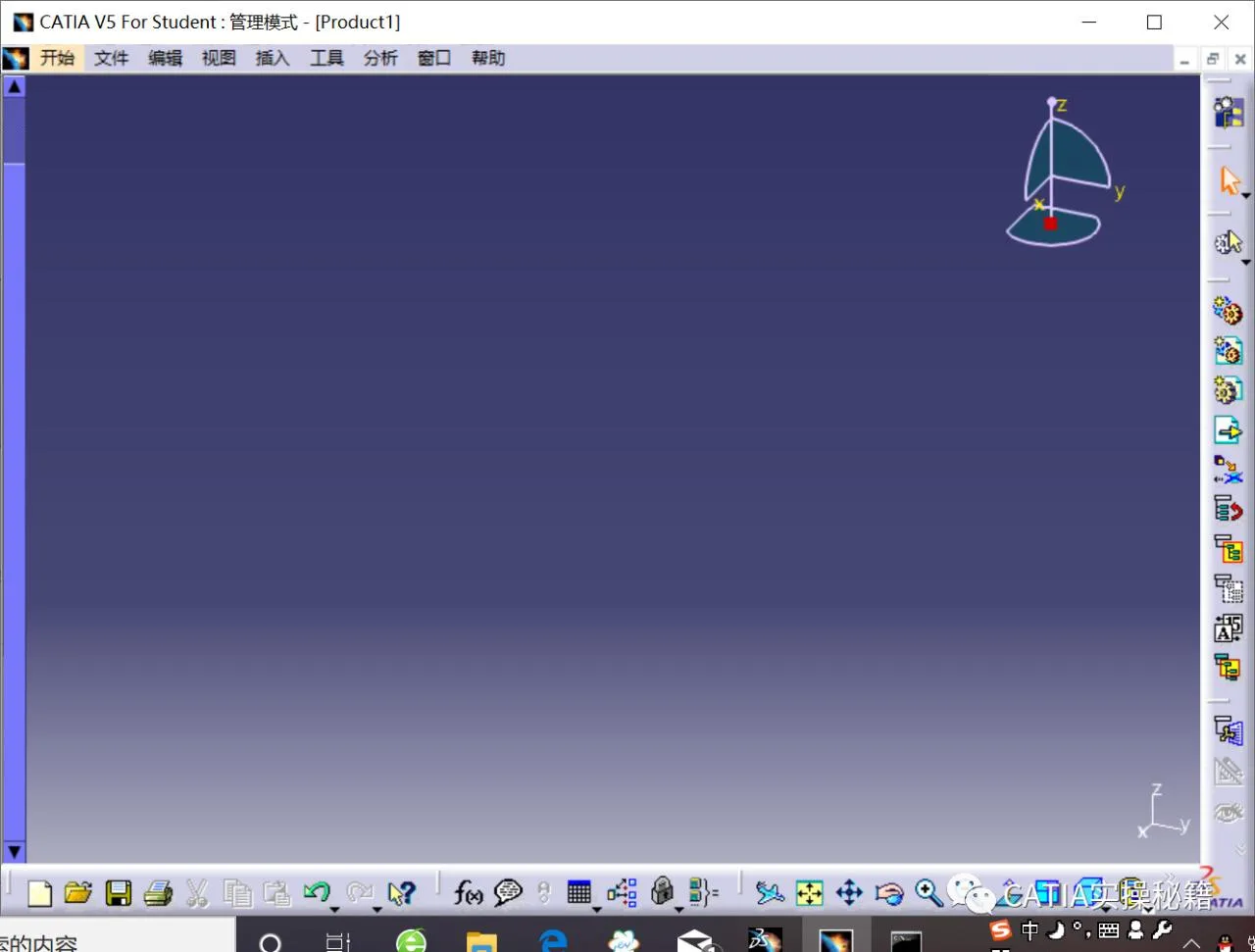
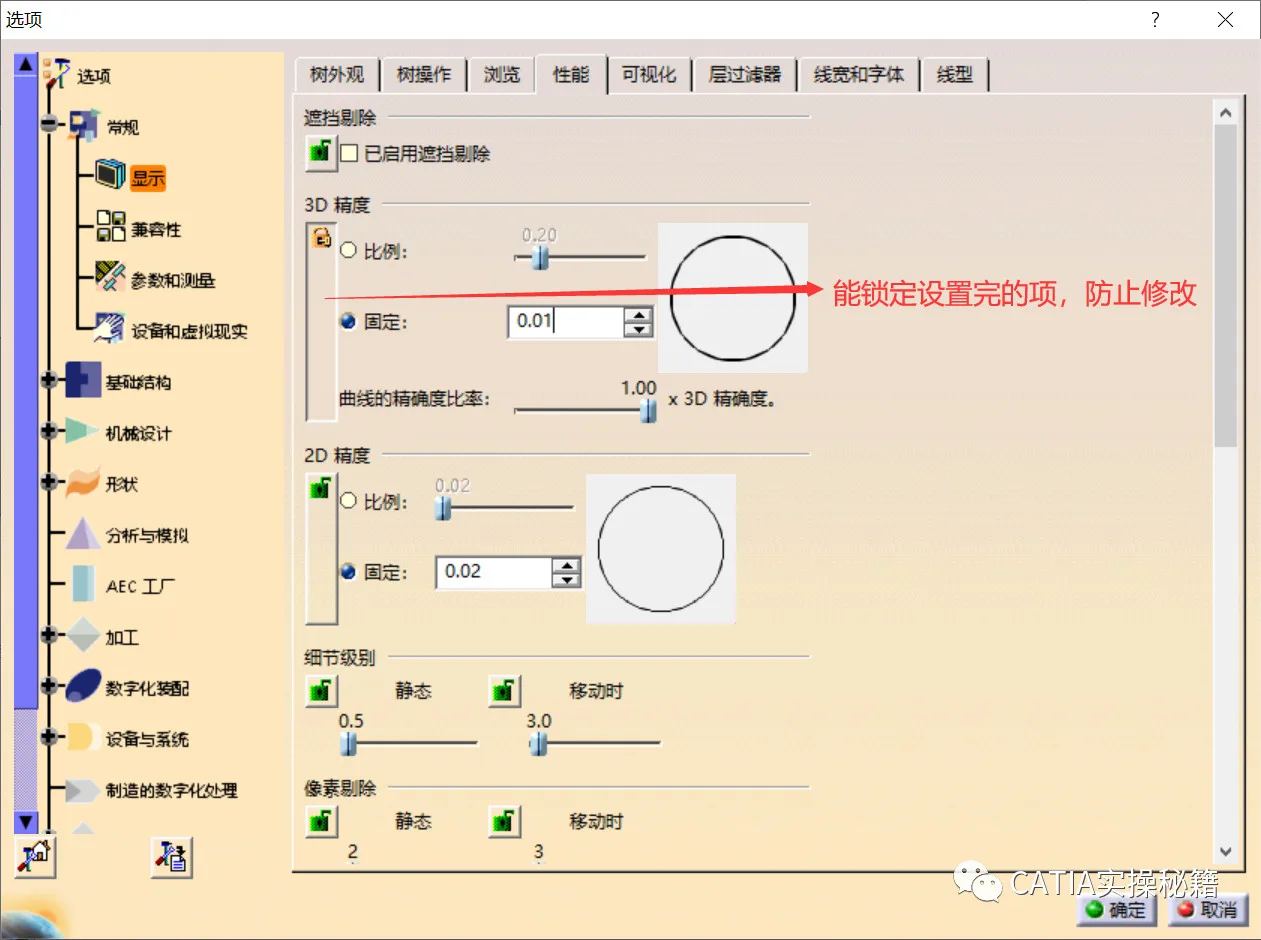
Administrator mode allows you to set user standard preferences within the Options menu and apply unified default settings across all users.
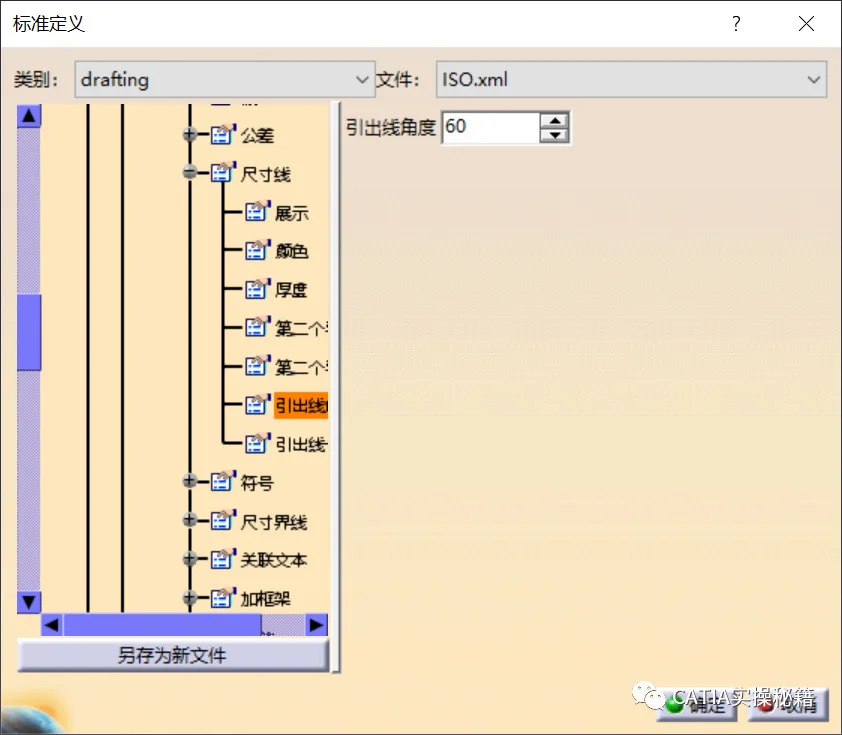
Additionally, you can establish 2D graphic standards tailored to your company’s requirements.
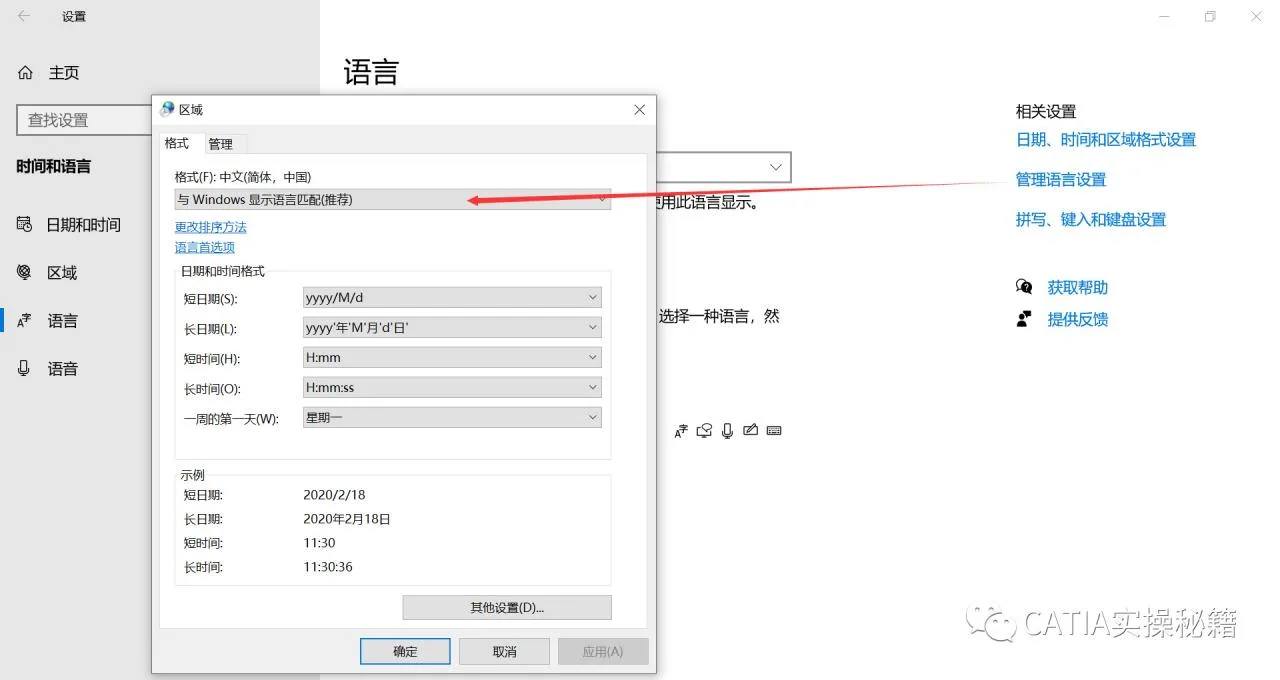
Q5: Unable to open files located in paths with Chinese characters?
This issue often relates to system language settings. Changing your system language to English or Simplified Chinese can resolve the problem. While this was common in Windows XP, it is rare on modern operating systems.
















Must log in before commenting!
Sign Up