
When learning CATIA, users often encounter various challenges. Some solutions can be found online, while others remain elusive, leaving learners unsure of how to proceed. To assist beginners, we have compiled some common questions and answers to help you navigate these issues more effectively.
1. Part Graphics Appear Dark or Low Brightness
Sometimes, you may find that you cannot perform graphic operations, and the part graphics appear darker than usual, as shown below:
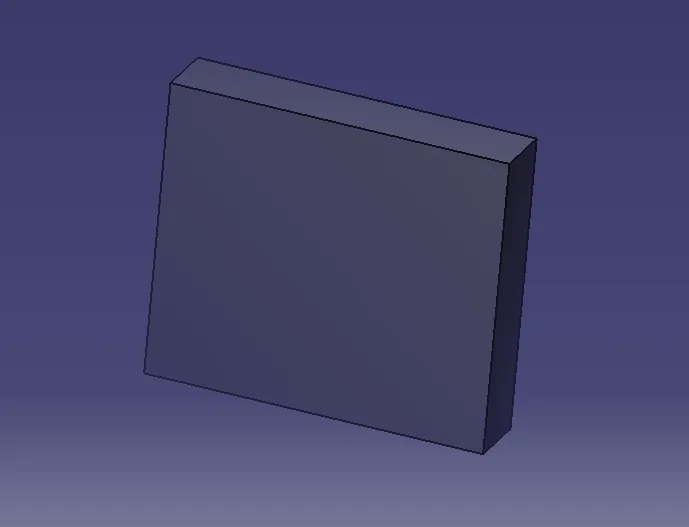
This issue typically occurs when you accidentally click on the branch line or the world coordinate system in the feature tree during your operations. To restore the highlighted state, you can try one of the following methods:
- Click on the relevant branch within the feature tree.
- Click on the origin point of the world coordinate system.
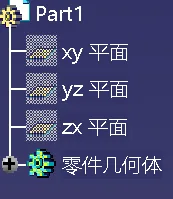
Feature tree
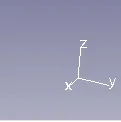
World coordinate system
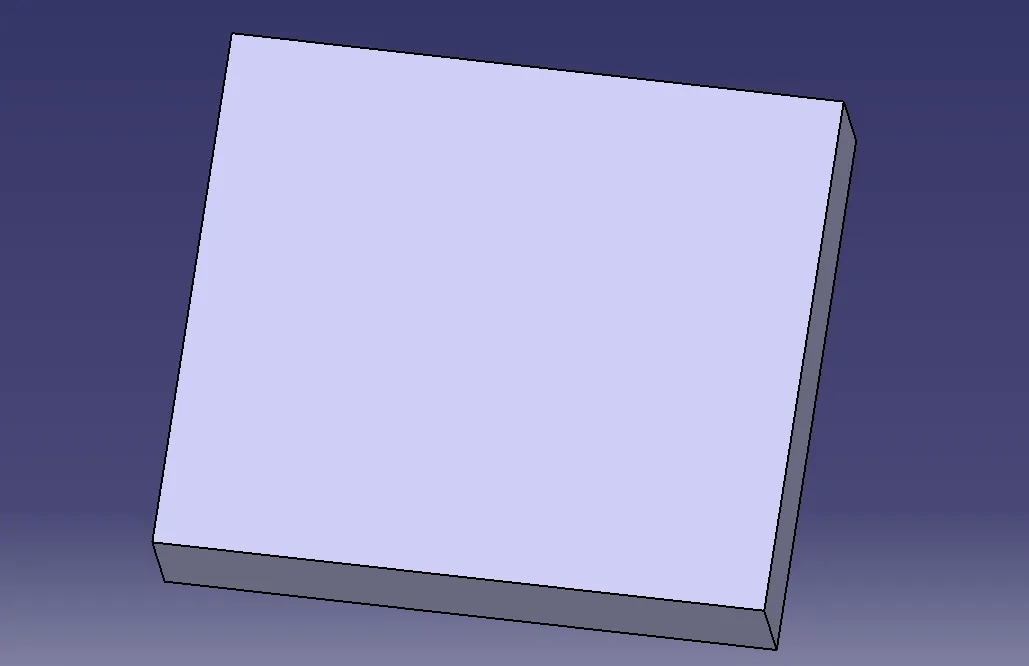
Highlighted status restored
2. Feature Tree Disappears
Some users notice that the feature tree on the left side of the screen seems to have vanished while using CATIA, causing confusion. Here are some quick ways to check and fix this:
- Try scrolling the mouse wheel to see if the feature tree has been inadvertently shifted off the screen.
- Press the F3 key or select the View Specification option from the menu to check if the feature tree is hidden.
3. Resetting the Compass
The compass is an essential tool for moving parts within CATIA. However, many users forget to reset it after use, which can lead to confusion. Here are three effective ways to reset the compass:
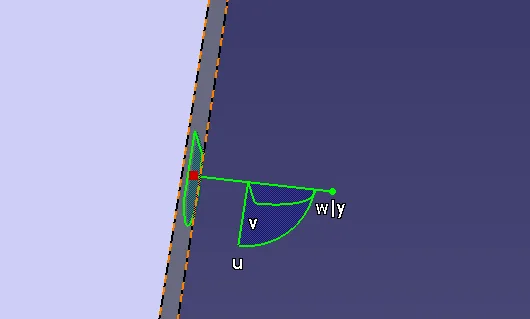
- Hold down the Shift key, click on the red dot at the center of the compass, and drag it back to its original position.
- Click on the red dot in the middle of the compass, drag it onto the world coordinate system, and release it.
- Select the View > Reset Compass option from the menu to reset it automatically.
















Must log in before commenting!
Sign Up