
Source: CATIA Little Ant

Super replicas are the ideal solution for batch design, significantly boosting efficiency!
Here’s an introduction to three methods for instantiating super replicas in CATIA.
Before you can instantiate, you first need to create a super replica. Let’s start with a simple example.
How to create a super copy in the Part Design module:
In this example, we’ll create a super replica of a regular octagon.
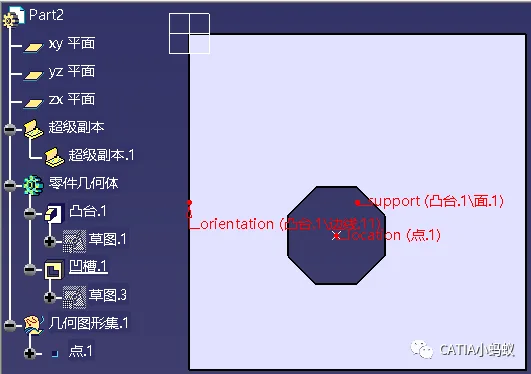
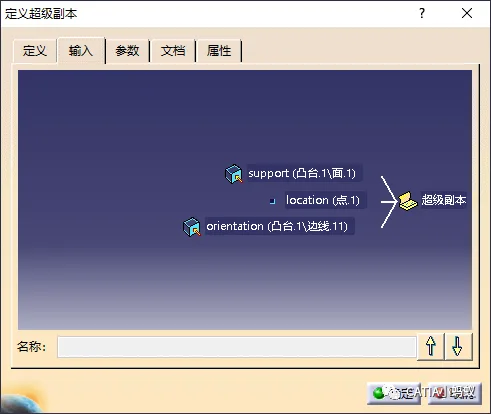
When defining a super replica, you need to specify three input elements: support, location, and orientation of the regular octagon.
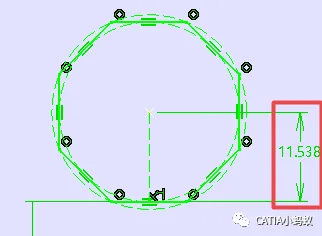
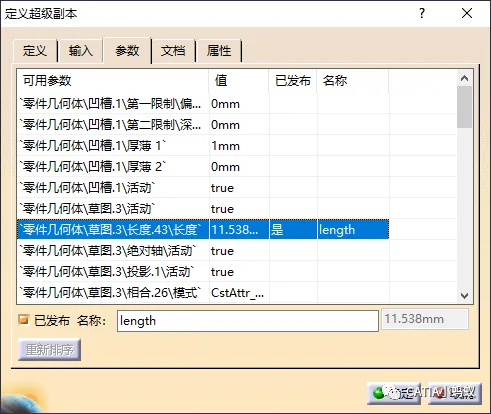
At the same time, publish a parameter that controls the size of the regular octagon.
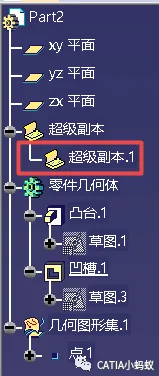
Finally, we get the following structure tree that includes the super replica. Groove.1 and its sketch are the output elements we want to instantiate.
Next, let’s explore how to instantiate a super replica.
Method 1: Instantiating by Selecting Instantiation
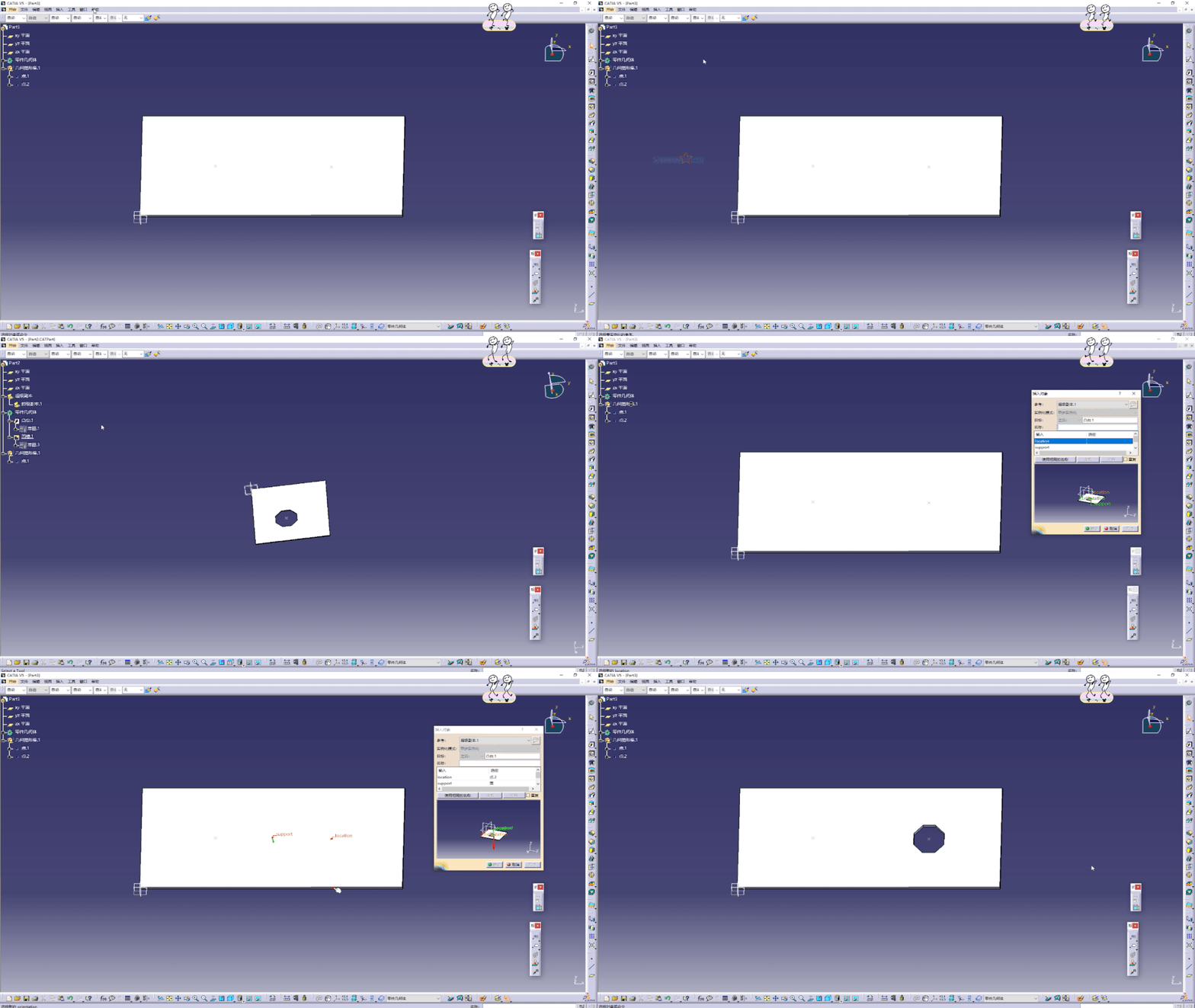
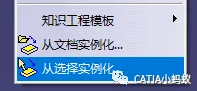
First, click to select ‘Instantiation.’ Then switch to the part where the super replica is defined. Select the corresponding super replica, and it will automatically switch back to the part model where you want to instantiate. You can also select the relevant inputs and published parameters on the target model.
Refer to the following GIF demonstration for details.
Method 2: Instantiating from a Document
Before instantiating, make sure the document is saved and closed.
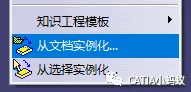
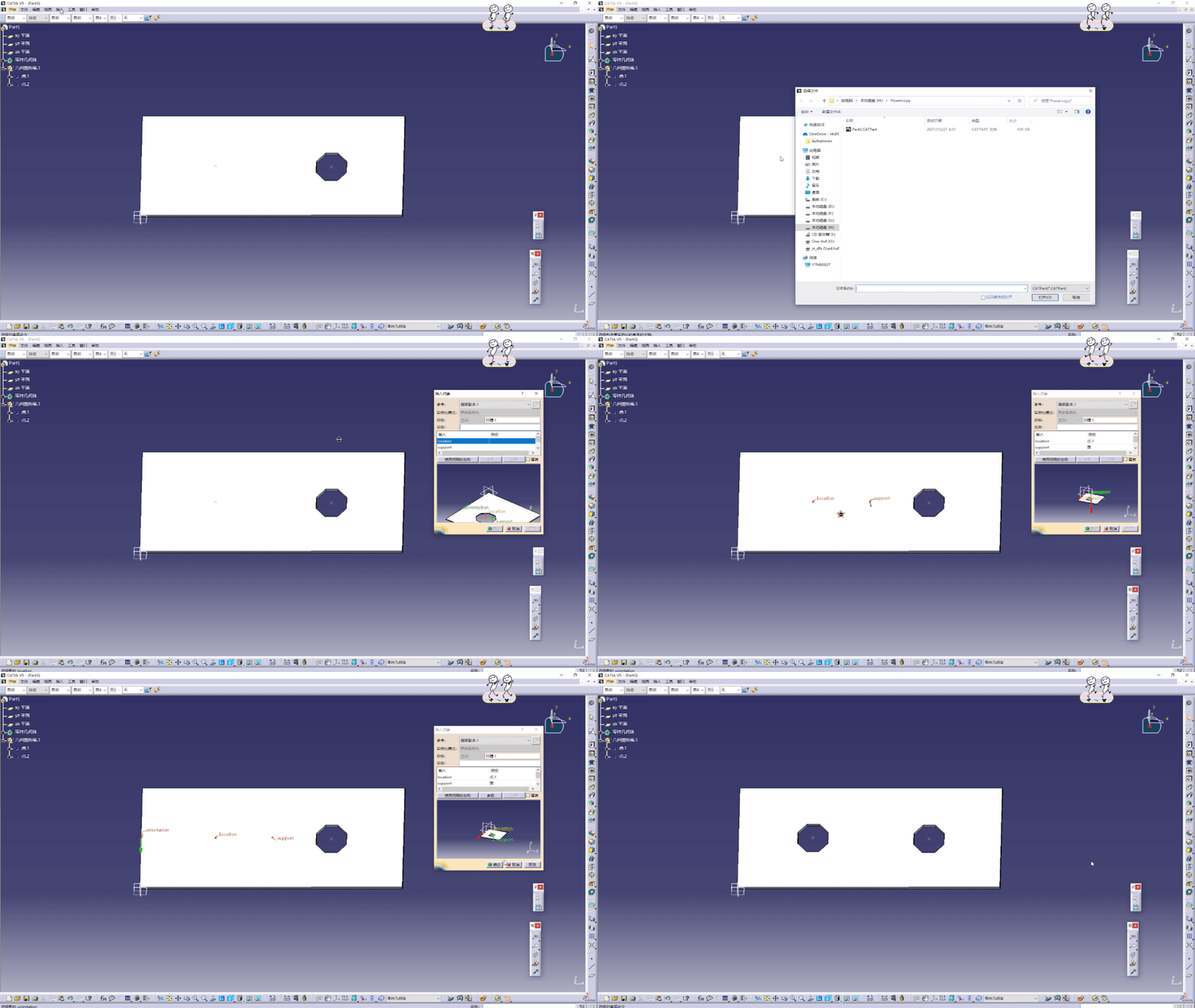
Click to instantiate from a document, define the save path for the super copy parts, and select the corresponding part file. A window similar to the one above will open. Proceed to select the relevant inputs and parameters step-by-step to complete the instantiation.
See the GIF demonstration below for guidance.
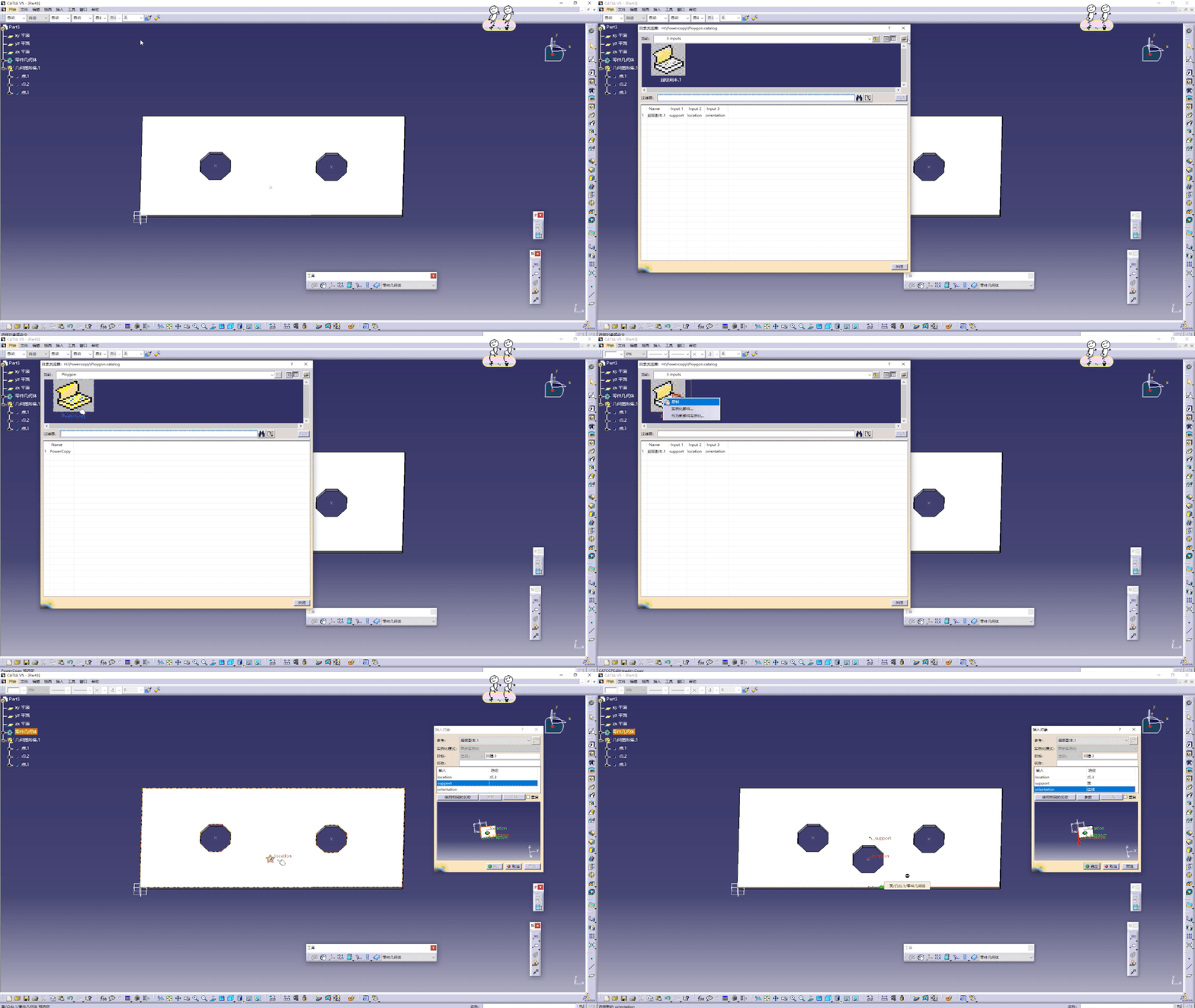
Method 3: Instantiating from Catalog
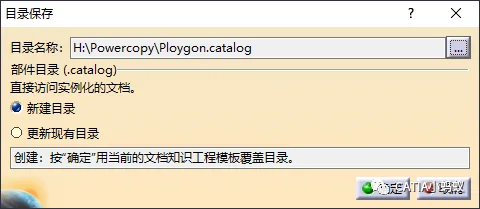
To instantiate from the directory browser, you first need to save the powercopy as a catalog. Select the option below to save it to a directory for easy access later.
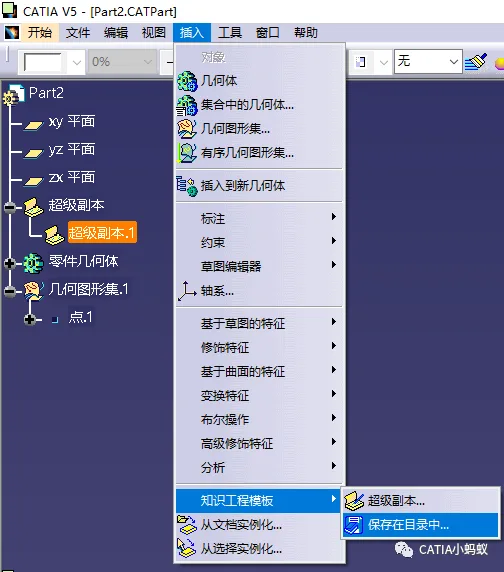
Save it in the directory shown below.

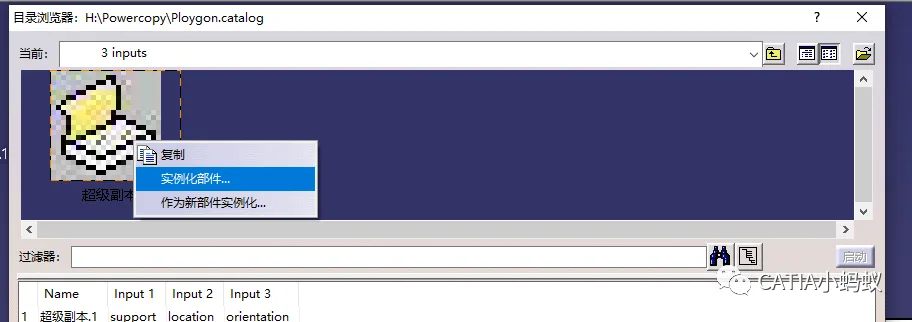
To instantiate a super copy, simply click the Catalog Browser button on the toolbar and navigate to the previously saved catalog file. In the Catalog Browser window, locate the desired powercopy and initialize it. Once the familiar window opens, select the appropriate inputs and enter the necessary parameters to complete the instantiation.

Refer to the GIF demonstration below for a visual guide.
To summarize, here are the three methods to instantiate super replicas:
1. Select Instantiation: Switch directly to the part file and click on the powercopy.
2. Instantiate from Document: Choose a part document containing the powercopy from a specific location.
3. Instantiate from Catalog: Use the Catalog Editor to organize PowerCopy items into a catalog for easy access.
















Must log in before commenting!
Sign Up