
This article is from the WeChat official account: McGonagall.
Registering for the Tekla Campus trial version only requires 7 simple steps. If you haven’t registered yet, follow along with us to complete the process.
Step 1: Visit Campus.tekla.com and you will see the interface shown below:
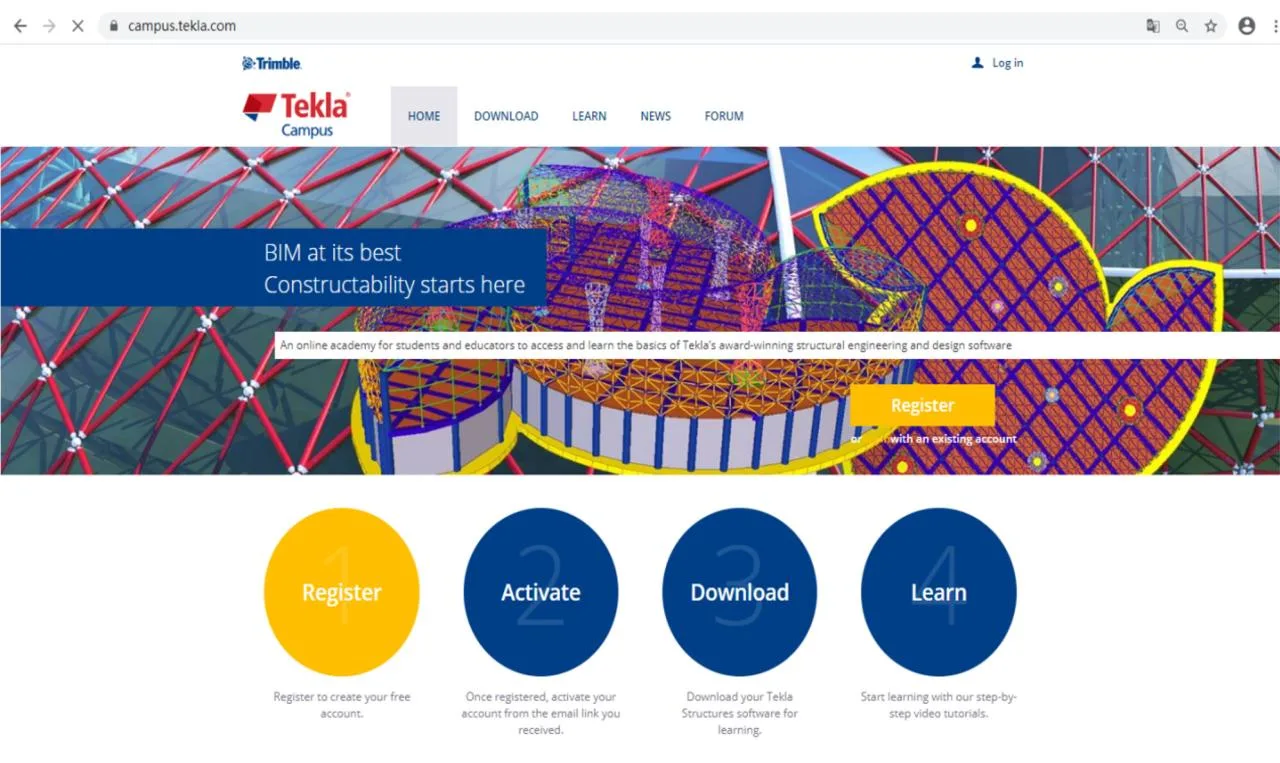
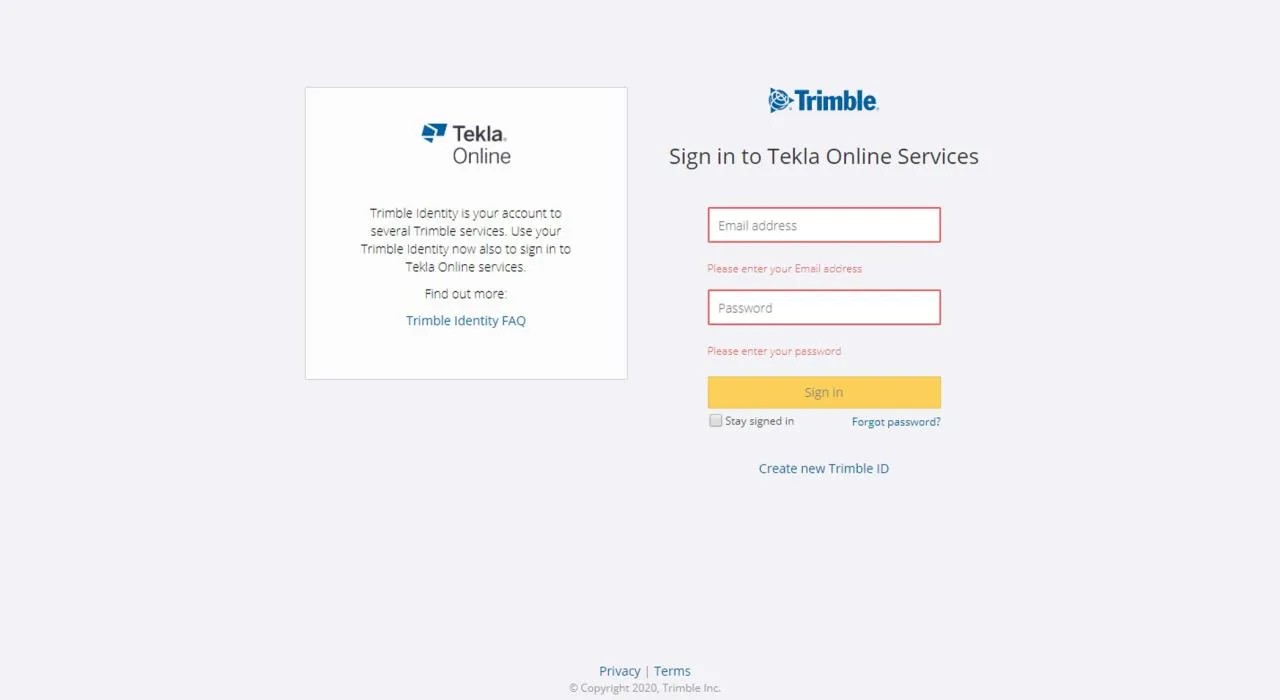
Step 2: Click the “Login” button in the upper right corner. You will be redirected to the login page below. Here, select “New Trimble ID” to create a new account.
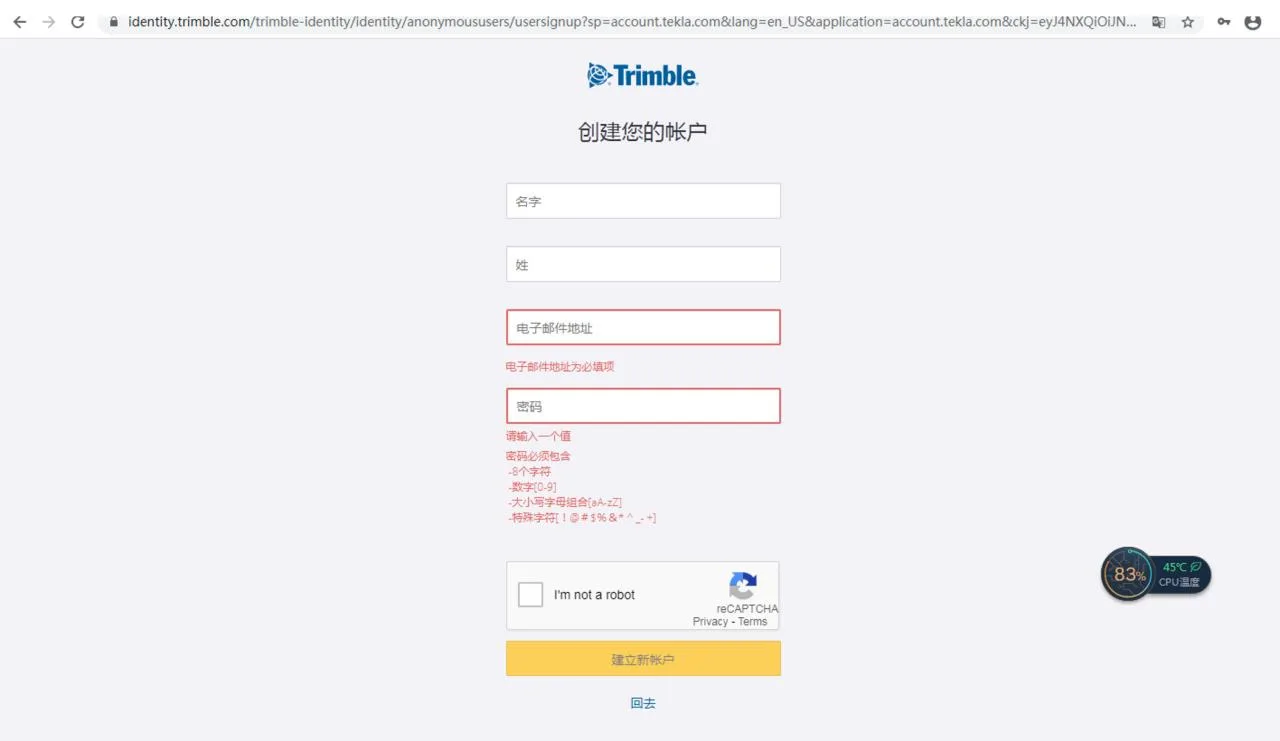
Step 3: On the account creation page, fill in your first and last name. Enter a valid email address that can receive messages. Set a password using a combination of uppercase and lowercase letters, numbers, and special characters (please note: this password is for your Tekla Campus account and is not linked to your email password). After completing the form, click on the “I’m not a robot” checkbox and follow the prompts to select the correct images.
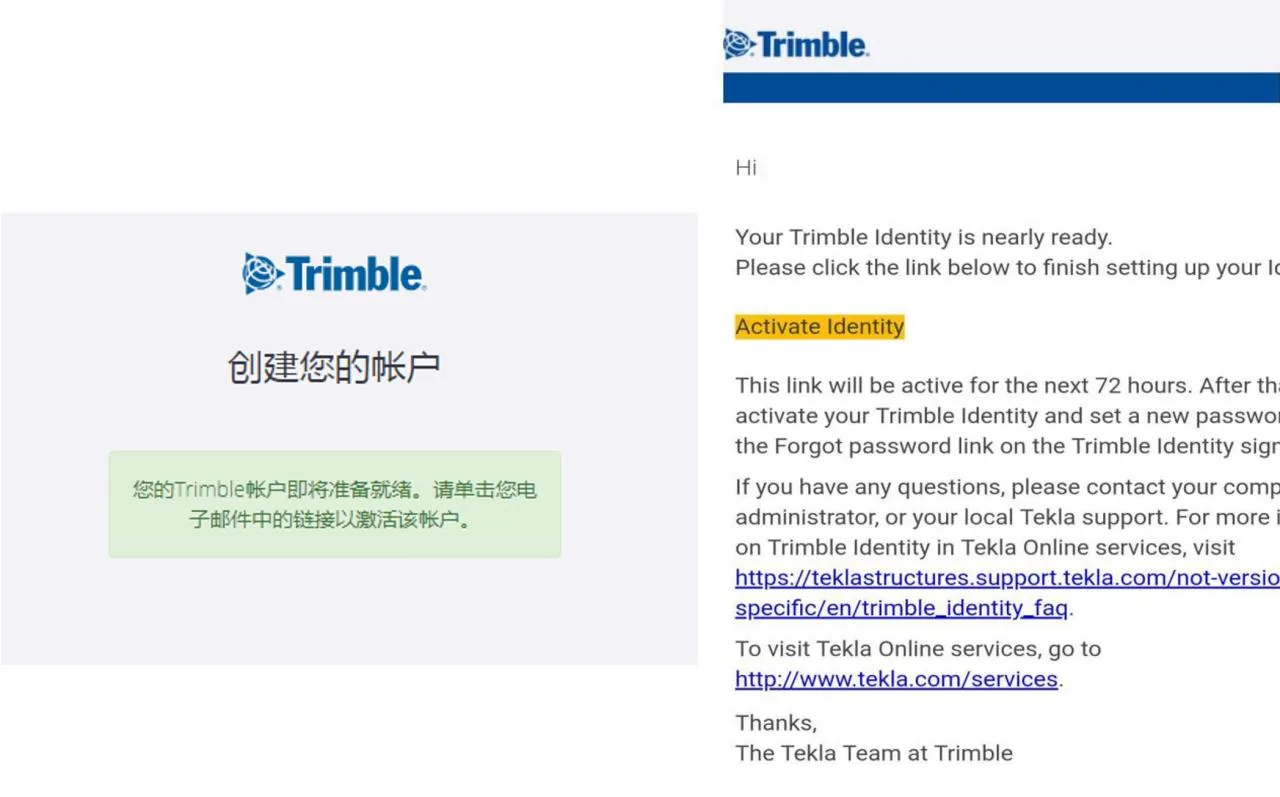
Step 4: Check your email inbox for a verification email. Click the “Activate Identity” link in the email to activate your account.
Step 5: Once your account is activated, return to Campus.tekla.com and log in. After logging in, hover over your username, click on “My Profile,” then scroll to the bottom right of your profile page. Select “Chinese” as the language and “China” as the country, agree to the terms and conditions, and save your settings.
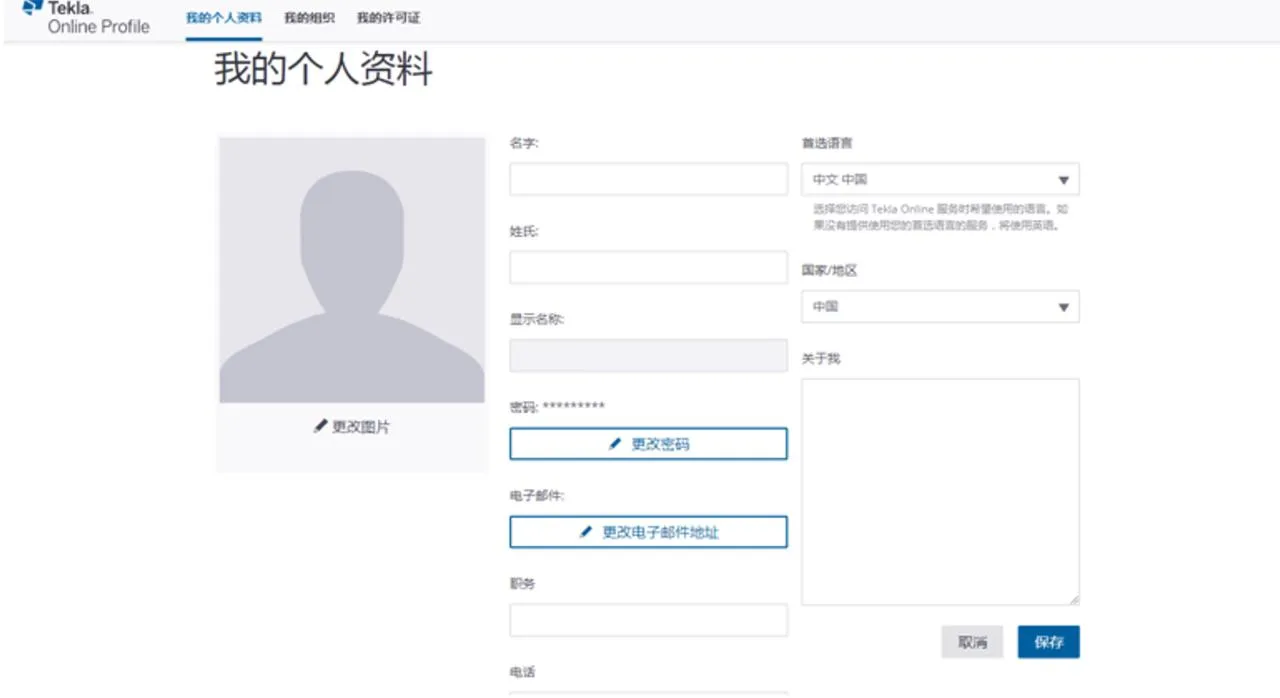
Step 6: Log in again to Campus.tekla.com and follow the prompts on the screen. You will receive a notification confirming that your license has been successfully generated. This means your account application is complete.
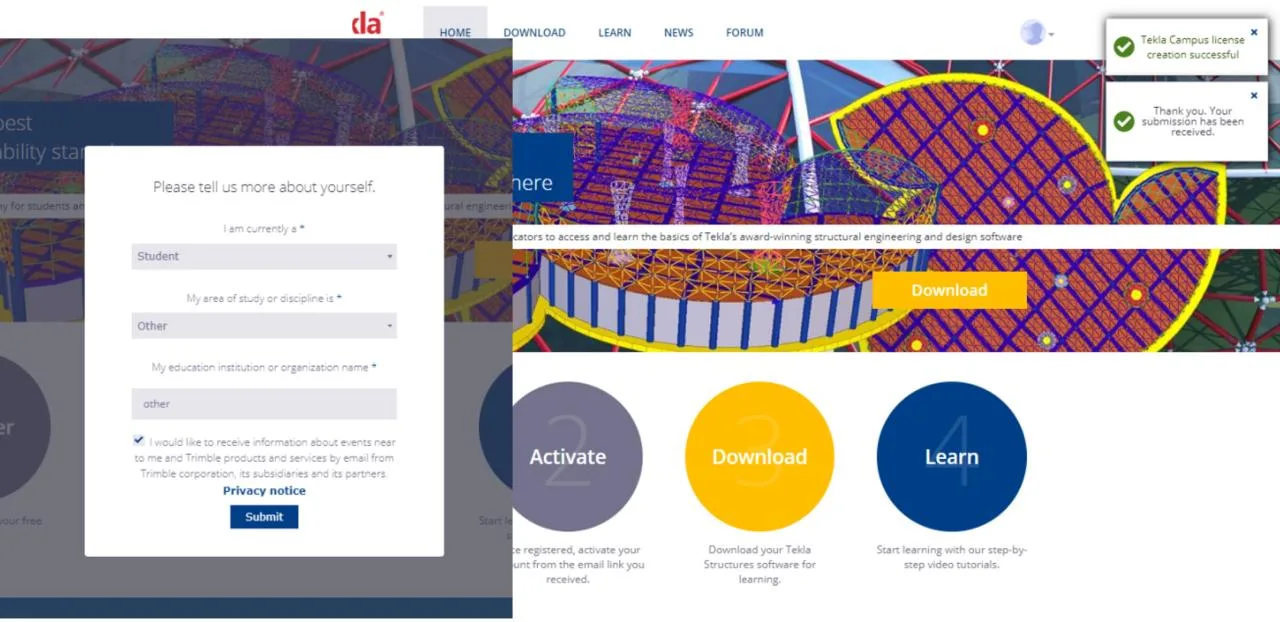
Step 7: Click the download button on the campus website, select your role, and download the software. During installation, first install the software in the proper environment. When you launch the software, choose “Use Online License” and log in with the account you just created.
Congratulations, you have successfully completed your registration!
















Must log in before commenting!
Sign Up