
This article is sourced from the WeChat official account: Xiao Jiang said BIM.

In the REVIT modeling interface, whether working in a 2D plan view or 3D view, pipelines such as air ducts, water pipes, and cable trays are usually drawn in gray by default. As more pipelines are added one by one, the number of gray pipes increases, resulting in multiple pipelines from various disciplines overlapping in the same gray color on the screen, making it difficult to distinguish between them (see image below).
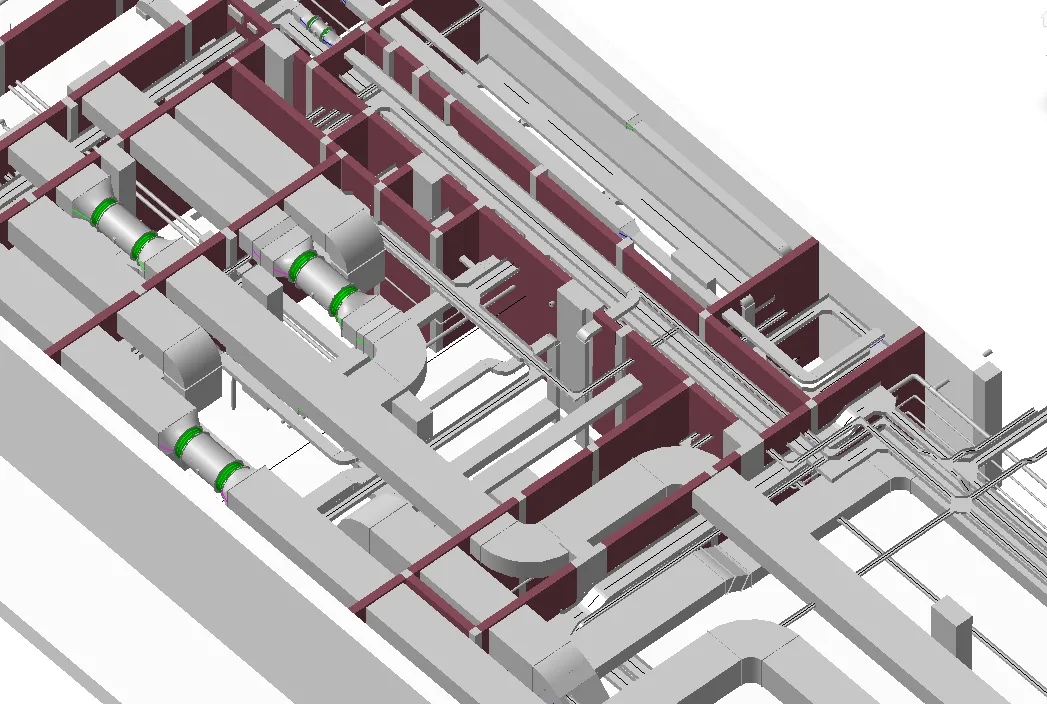
To improve visibility, REVIT offers a “Filter” feature that allows you to selectively hide or display different pipeline types. More importantly, it enables you to assign distinct colors to various pipelines, making them easy to identify.
Below is a brief overview of how to set up these filters.
1. Air Ducts and Water Pipes
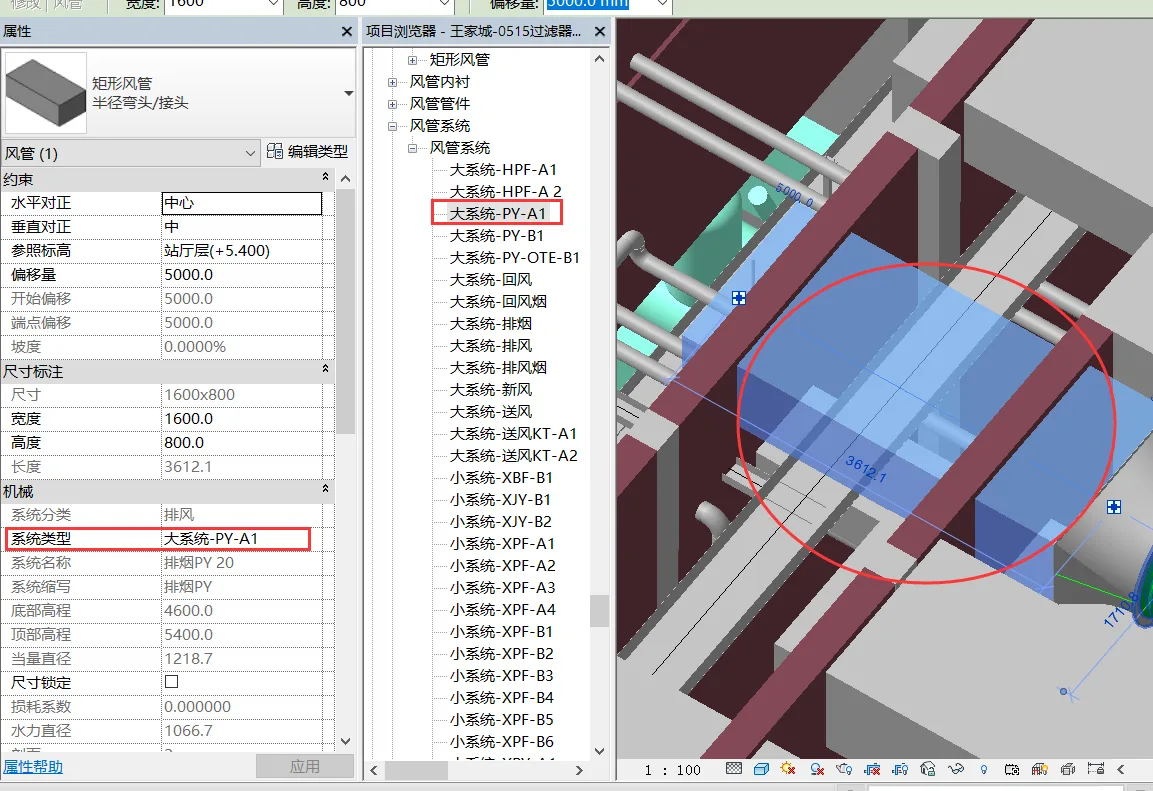
1. When starting duct modeling, it is essential to classify and select the duct system type. For example, if a duct belongs to a large system and another to a small system, you should identify the detailed fan numbers from the design drawings to name each duct accordingly. In the example below, the selected duct is an exhaust duct labeled “Large System-PY-A1” within the duct system (or pipeline system for water pipes). Naming the system type properly during air duct modeling is key. This applies similarly to all other types of air ducts and water pipes.
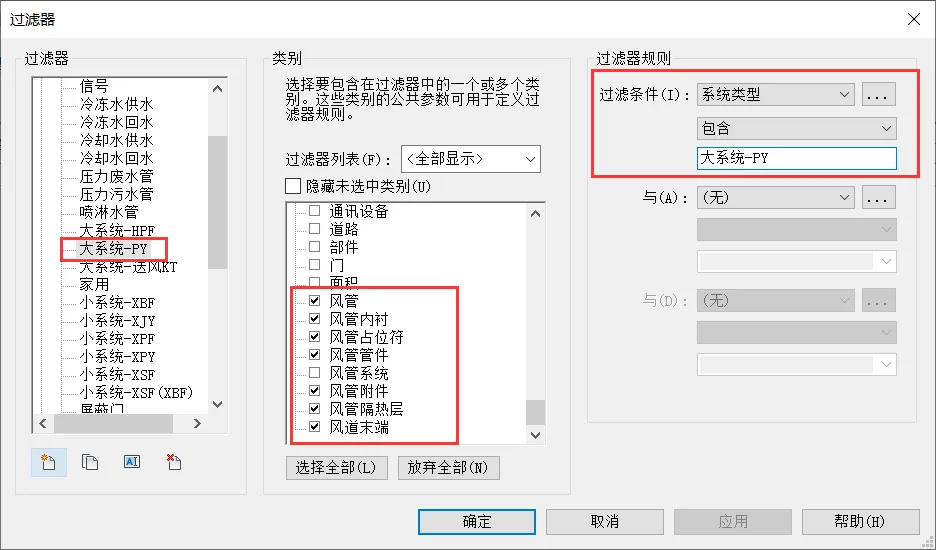
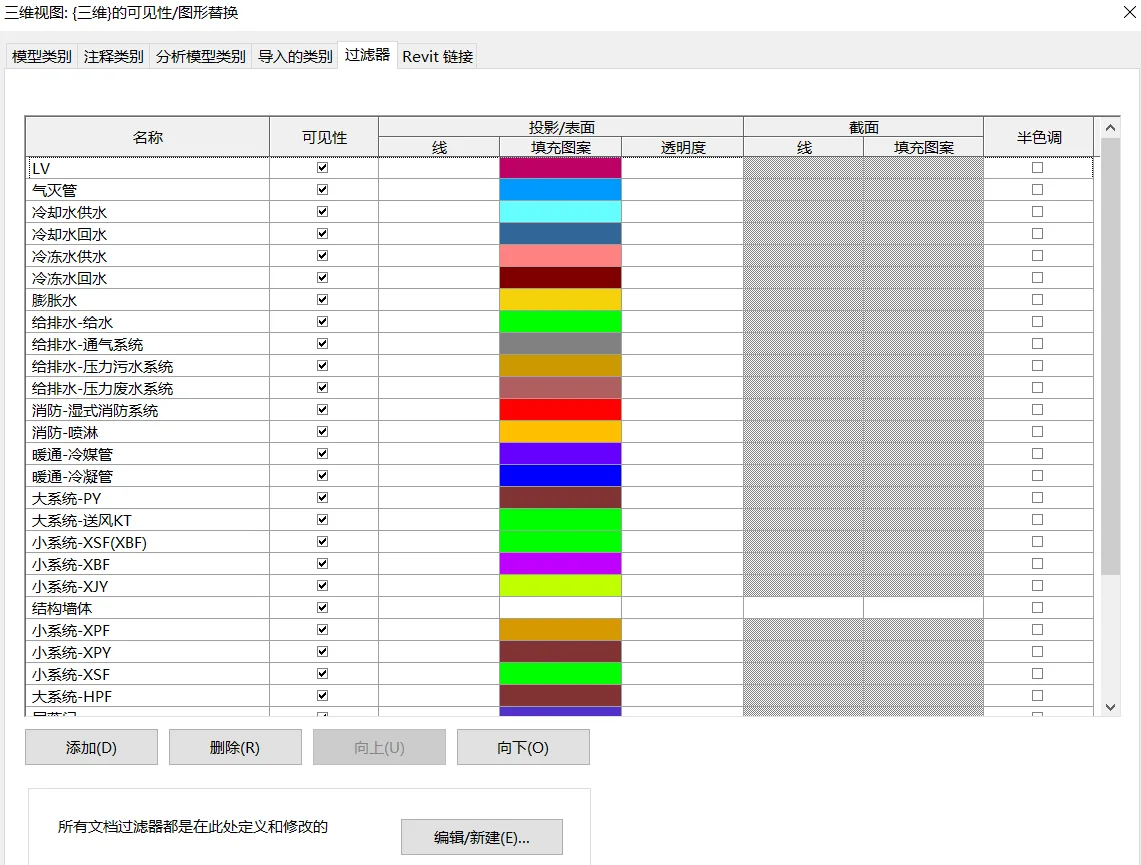
2. In the 3D view, press VV to open the Visibility/Graphics Overrides dialog. Click “Edit/New” to create a new filter named “Large System PY” in the filters list. Check all relevant categories from duct to air duct end (excluding duct system), and set the filter condition to System Type – Contains – Large System PY. Click OK to save. Then, add the “Large System PY” filter and specify the fill color as 128-51, Solid Fill according to the model delivery standards.
2. Cable Trays
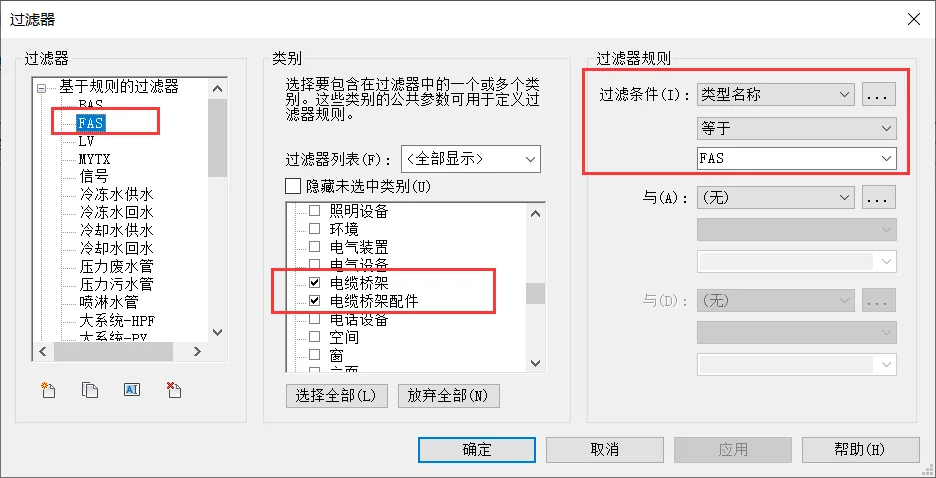
1. Unlike air ducts and water pipes, cable trays require duplicating a new tray type in their type properties and renaming it, for example, “FAS”.
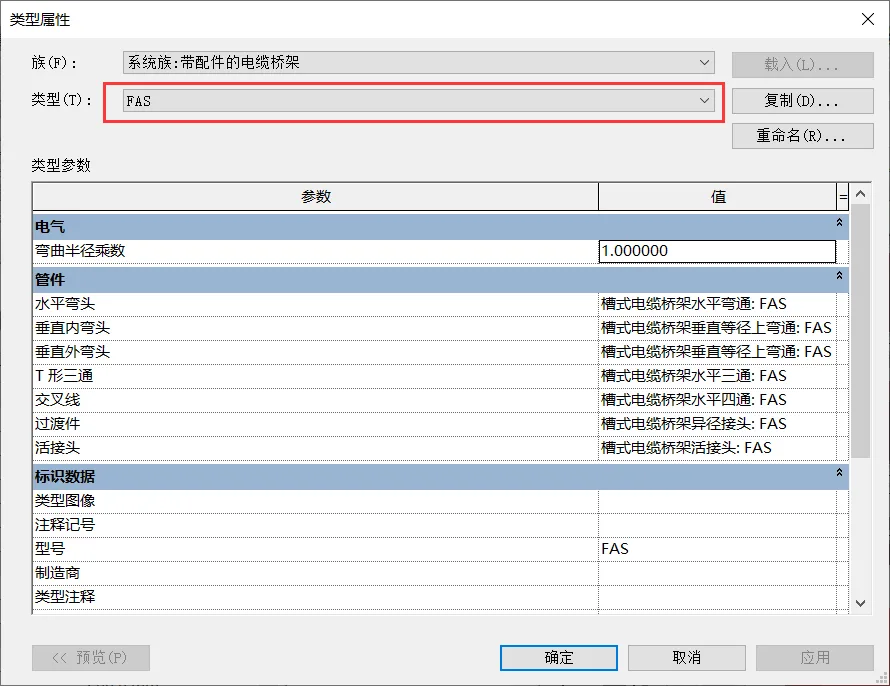
2. In the 3D view, press VV to access the Visibility/Graphics Overrides. Click “Edit/New” and create a new filter called “FAS.” Select the category “Cable Tray and Cable Tray Accessories,” and set the filter condition to Type Name – Equal to – FAS. Click OK to save. Add the “FAS” filter and assign the fill color 000-102-155, Solid Fill following the model delivery standards.
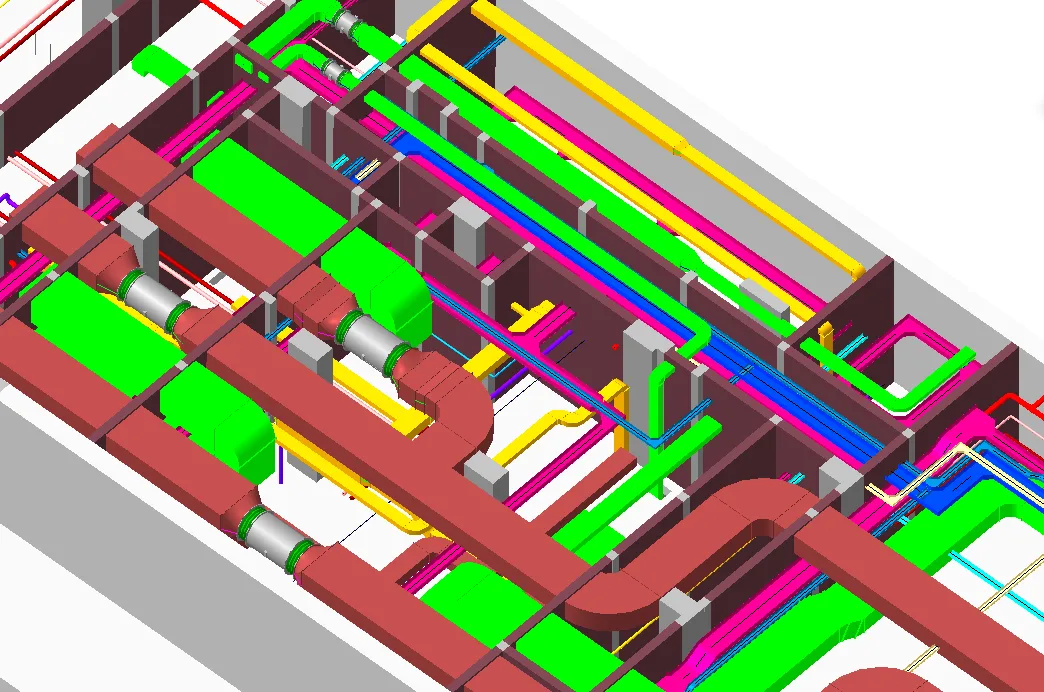
Once filters are added and air, water, and electrical pipelines are standardized, each pipeline will display its corresponding professional color. The model’s pipelines will no longer appear as gray.
















Must log in before commenting!
Sign Up