
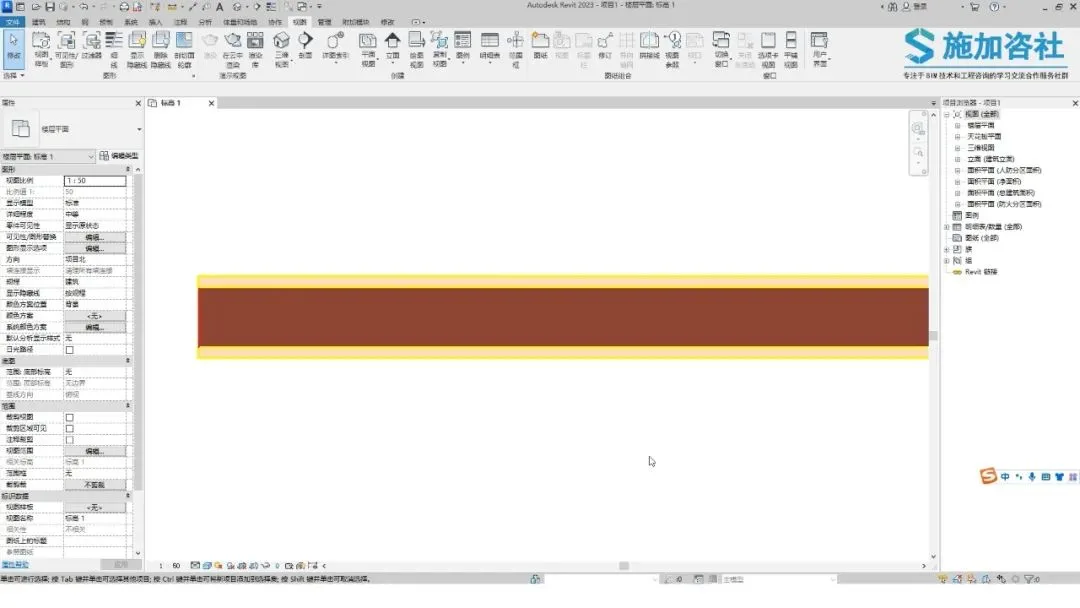
Today, the Architecture Network editor is back to share more Revit tips! This time, we’ll address the issue where the line widths of the structural and surface layers of a wall differ when the Fine Lines feature is turned off (as shown below). How can you modify the styles of these two lines? It only takes one simple step.
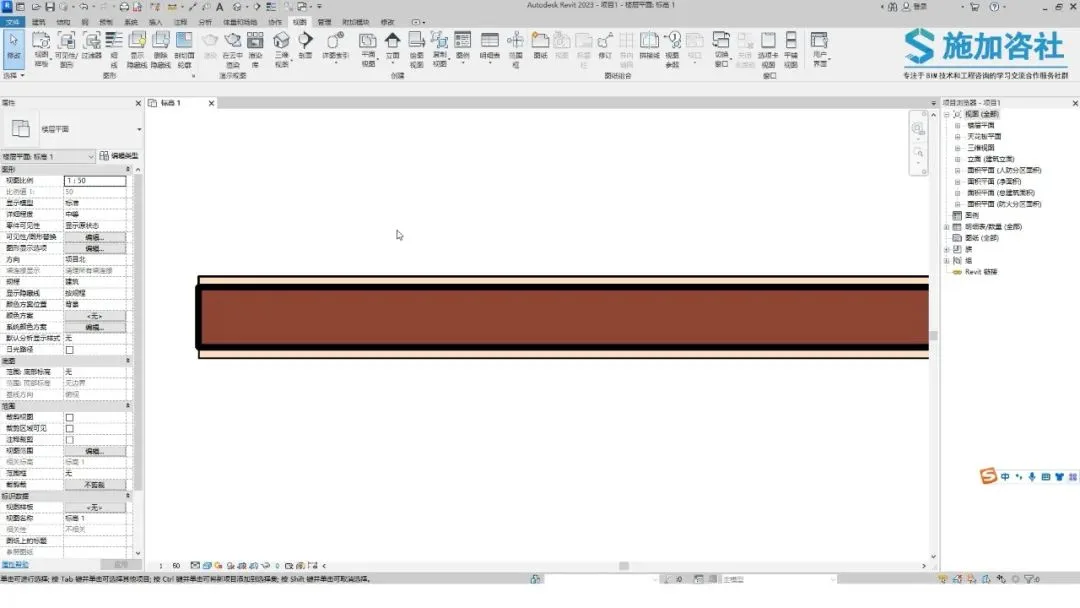
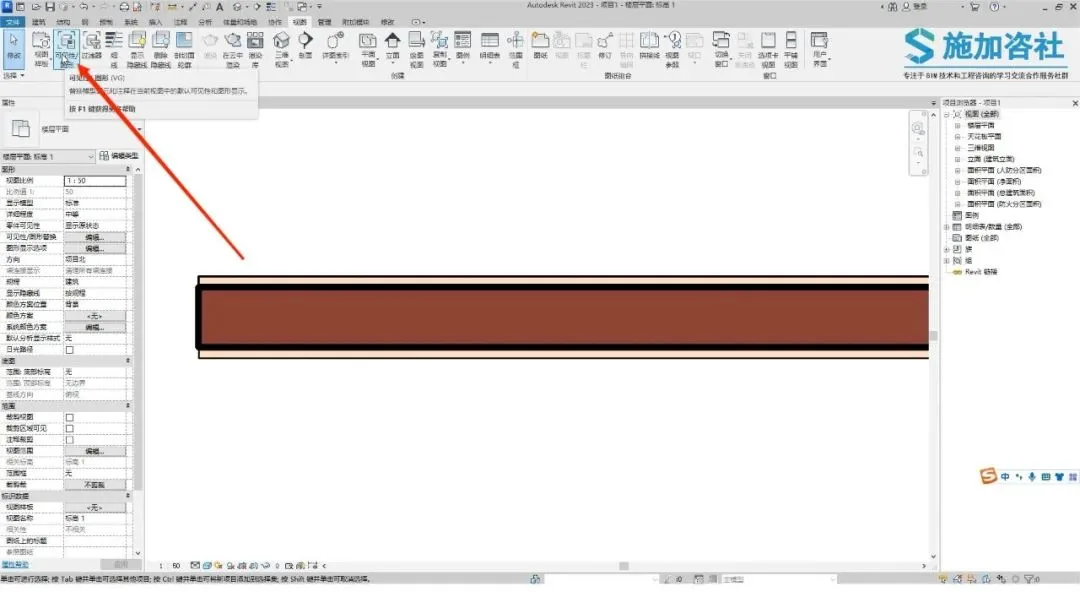
First, click the Visibility/Graphics button located on the View tab.
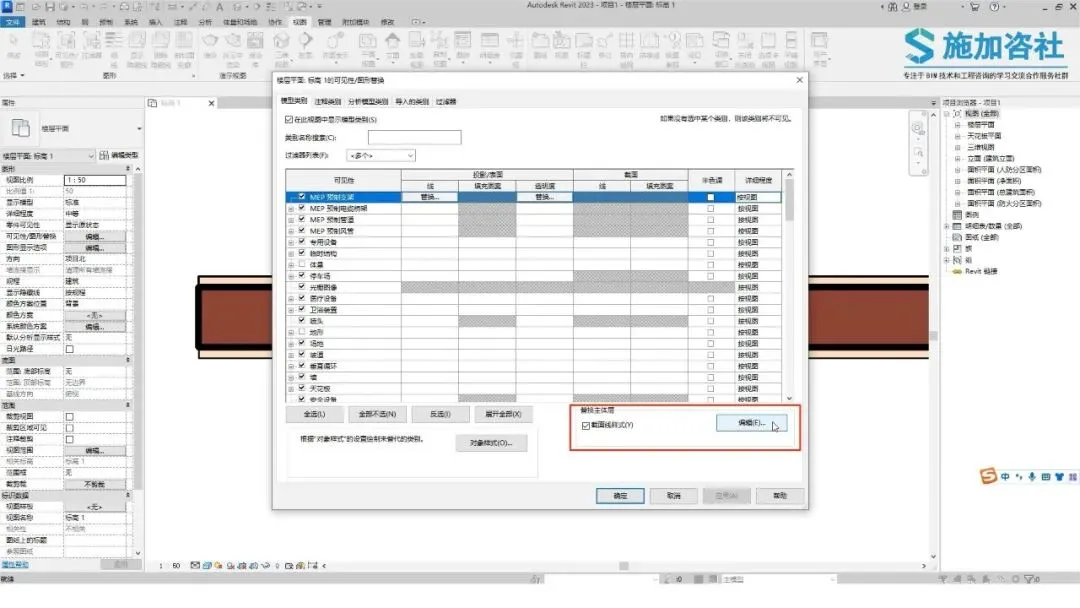
In the dialog box that opens, look for the option bar in the lower right corner labeled Replace Host Layer. Click here to edit the line styles.
The Main Layer Line Style dialog allows you to customize the section line styles of the wall.
Try modifying the styles of the structural and surface layers, then observe the changes.
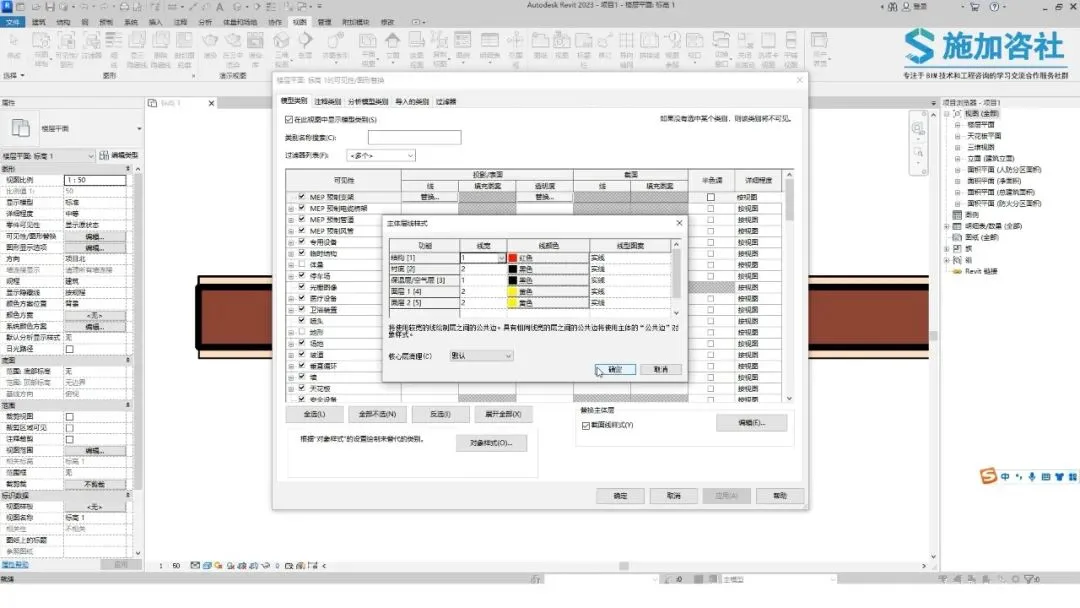
Once finished, click OK, then Apply, and finally OK to complete the process.
Content source: Applied Consultation Society

















Must log in before commenting!
Sign Up