BIM World
A Professional BIM Learning Platform


BIM Q&A: Step-by-Step Guide to Installing Civil 3D 2015 with Graphics

To install Civil3D 2015, ensure your computer is running Windows 7, Windows 8.1, or Windows 10. Note that Civil3D 2015 supports only 64-bit systems; it is not compatible with Windows XP or 32-bit systems. If your system meets these requirements, follow the steps below:

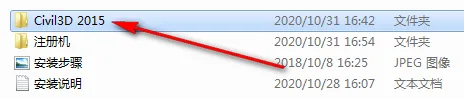
1. Right-click on the downloaded Civil3D 2015 file and unzip it to a folder named Civil3D 2015.
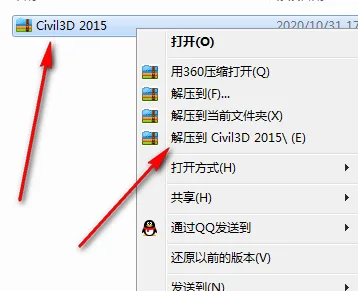
BIM Q&A | How to install Civil3D 2015? Civil3D 2015 Graphic Installation Tutorial

2. Open the unzipped Civil3D 2015 folder by double-clicking it.
BIM Q&A | How to install Civil3D 2015? Civil3D 2015 Graphic Installation Tutorial

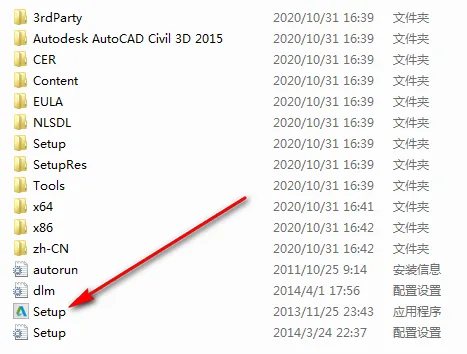
3. Double-click Setup to start the installation process.
BIM Q&A | How to install Civil3D 2015? Civil3D 2015 Graphic Installation Tutorial

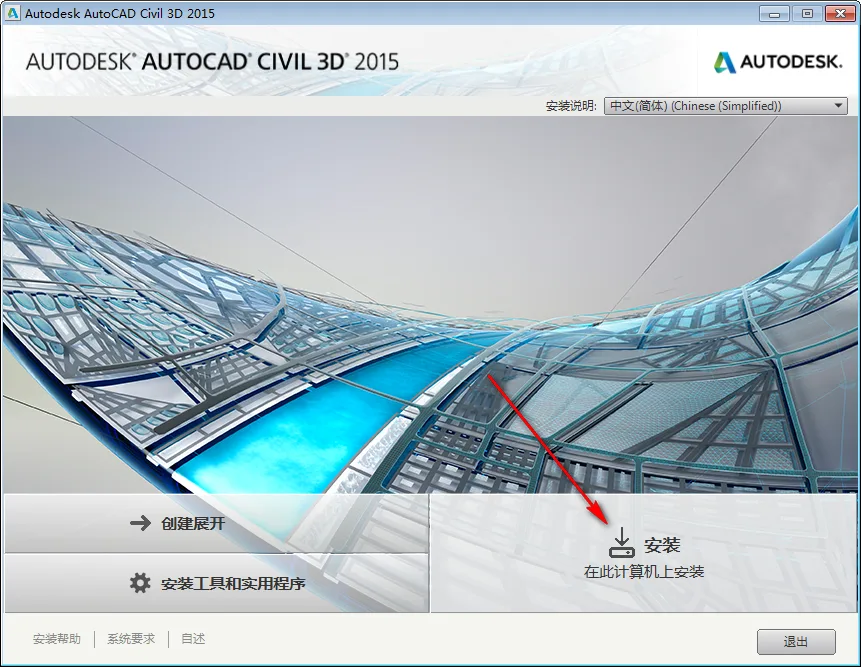
4. Click the button to begin installation.
BIM Q&A | How to install Civil3D 2015? Civil3D 2015 Graphic Installation Tutorial

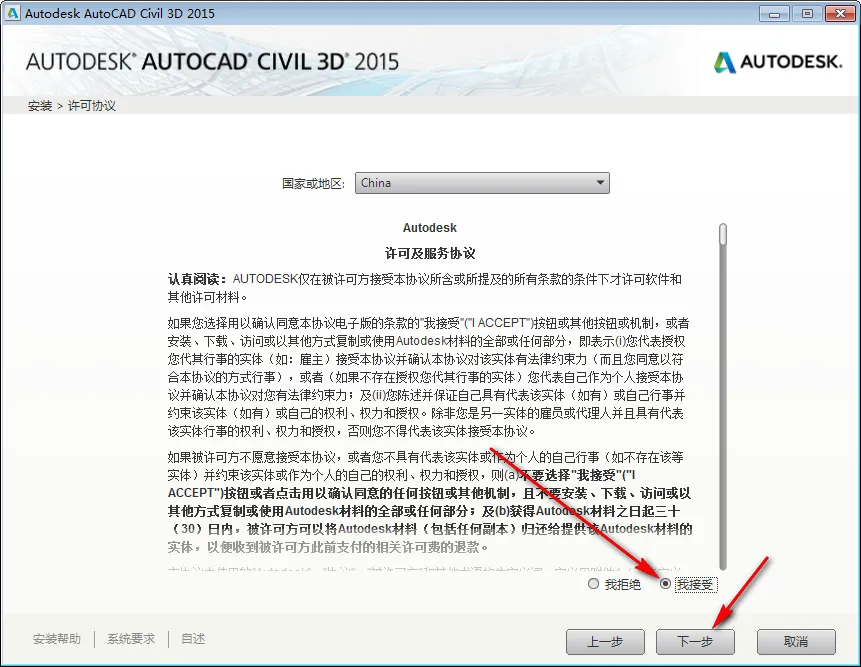
5. Accept the license agreement by clicking Accept, then proceed to the next step.
BIM Q&A | How to install Civil3D 2015? Civil3D 2015 Graphic Installation Tutorial

6. Enter the serial number and product key, then click Next.
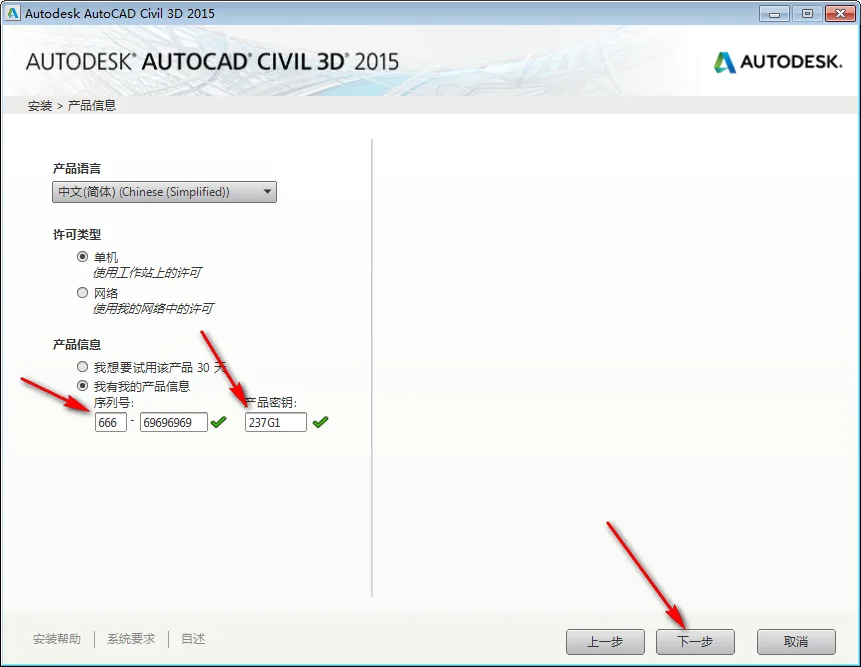
BIM Q&A | How to install Civil3D 2015? Civil3D 2015 Graphic Installation Tutorial

7. Change the installation drive to your preferred location (for example, from C: to D:) as indicated by the arrow, then click Install.
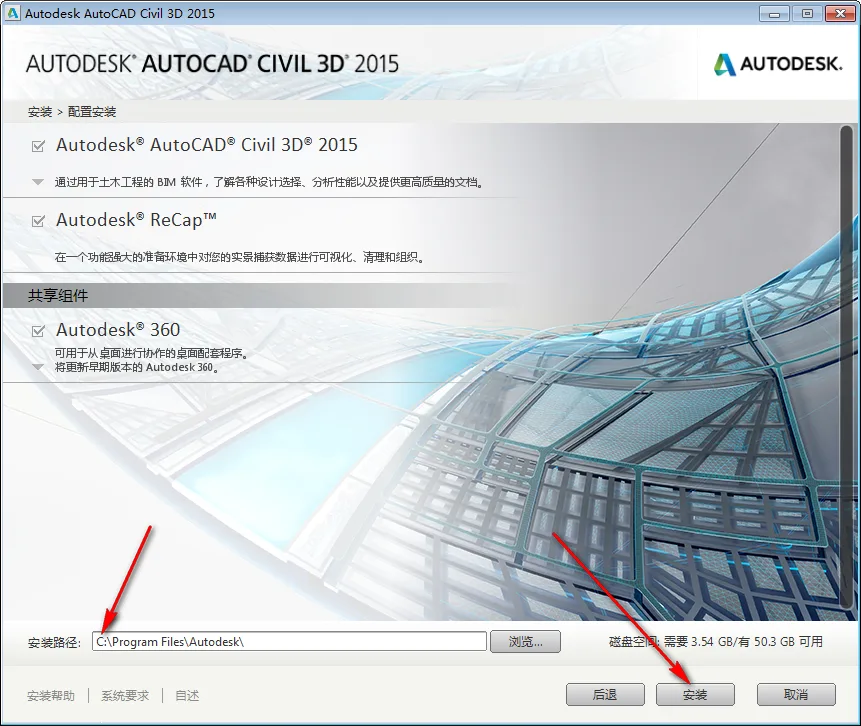
BIM Q&A | How to install Civil3D 2015? Civil3D 2015 Graphic Installation Tutorial

8. The installation is in progress. Please wait…
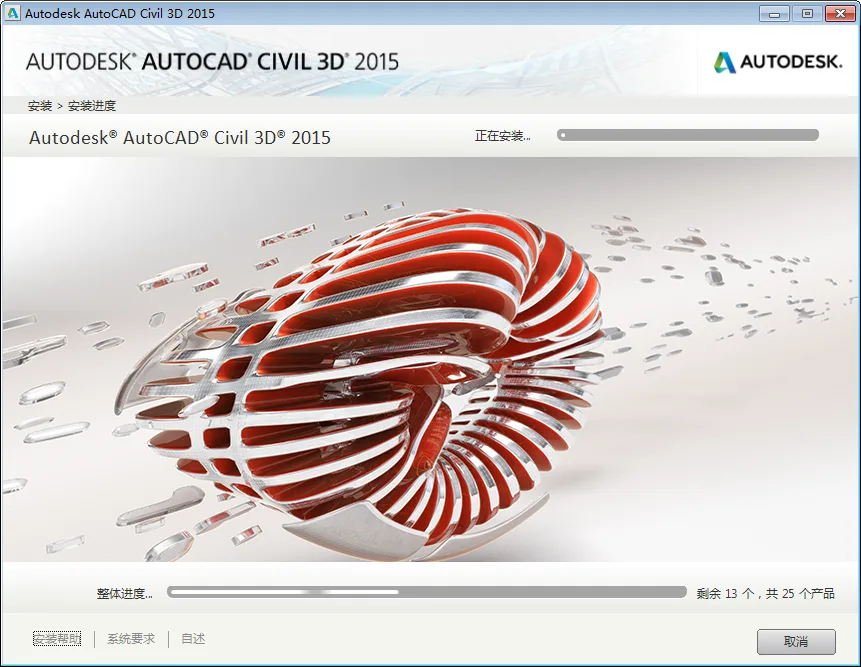
BIM Q&A | How to install Civil3D 2015? Civil3D 2015 Graphic Installation Tutorial

9. Once installation completes, click Finish.
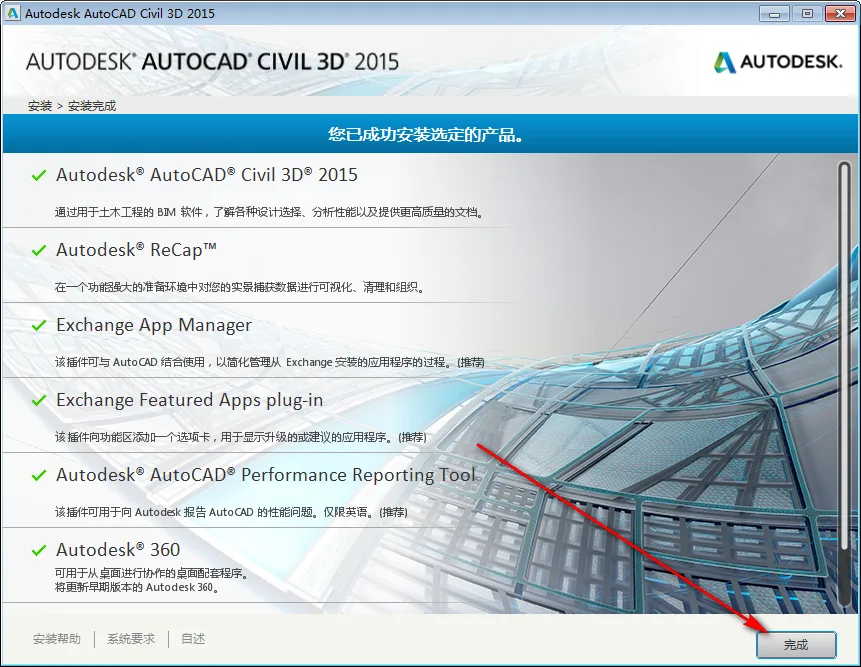
BIM Q&A | How to install Civil3D 2015? Civil3D 2015 Graphic Installation Tutorial

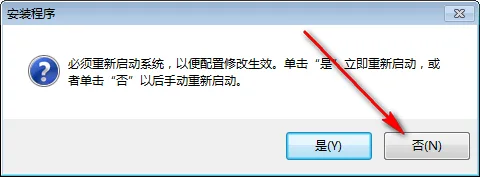
10. When prompted, select No.

BIM Q&A | How to install Civil3D 2015? Civil3D 2015 Graphic Installation Tutorial

11. Double-click the Civil 3D 2015 icon on your desktop to launch the program.
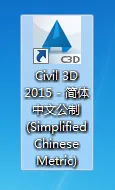
BIM Q&A | How to install Civil3D 2015? Civil3D 2015 Graphic Installation Tutorial

12. Check the box labeled I Agree to Autodesk Privacy Statement, then click I Agree.
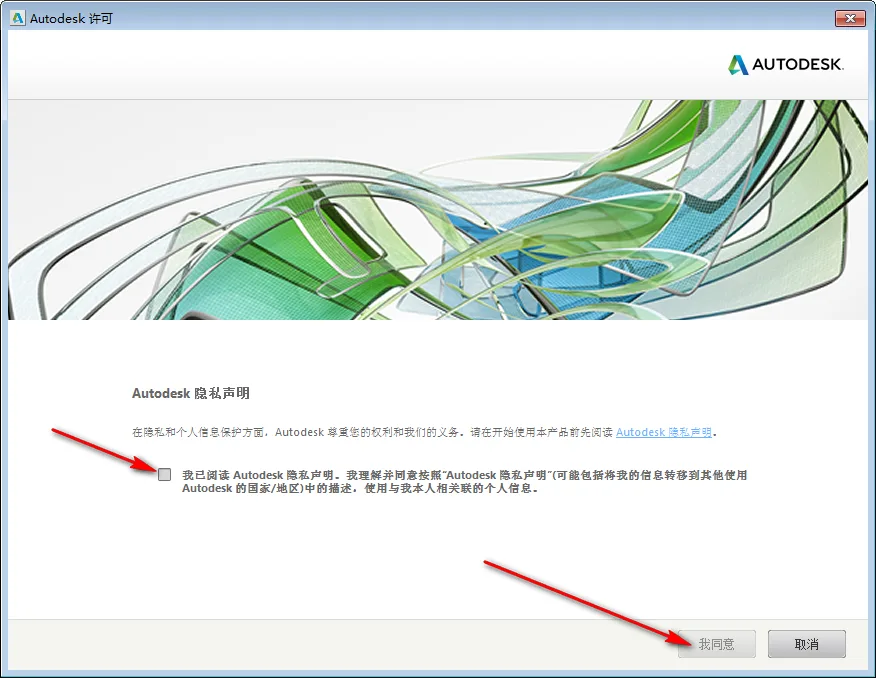
BIM Q&A | How to install Civil3D 2015? Civil3D 2015 Graphic Installation Tutorial

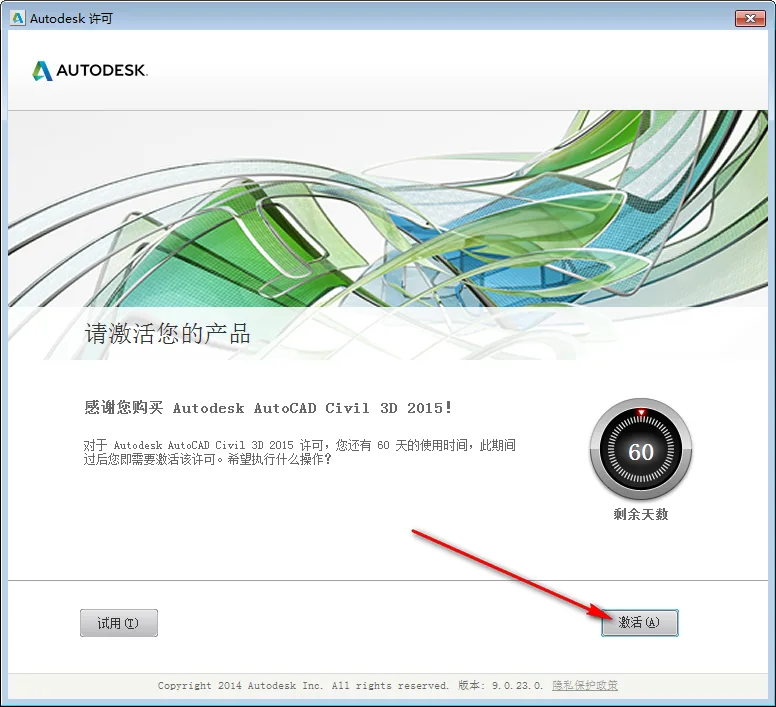
13. Click Activate to proceed.

BIM Q&A | How to install Civil3D 2015? Civil3D 2015 Graphic Installation Tutorial

14. Close the activation window by clicking the upper-right corner.
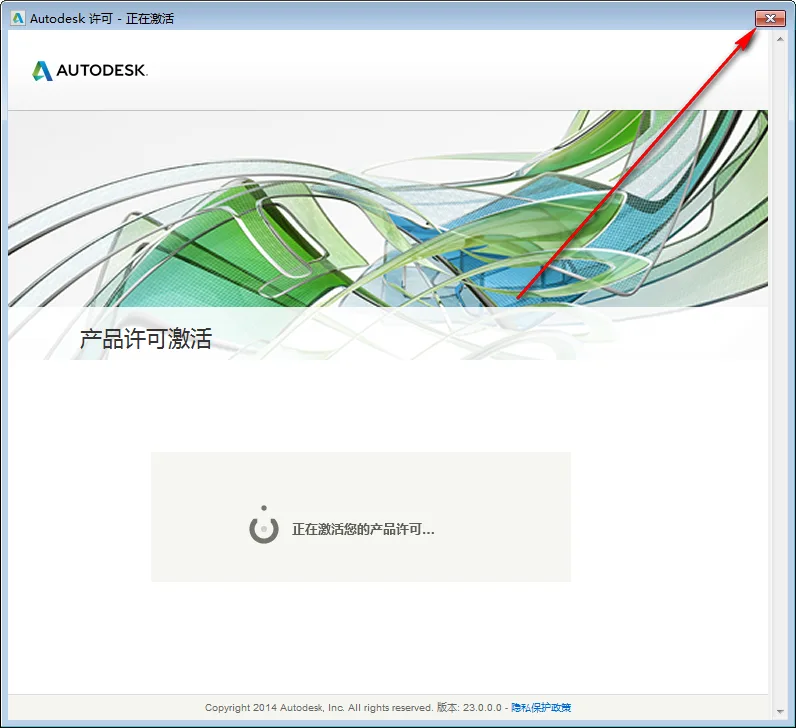
BIM Q&A | How to install Civil3D 2015? Civil3D 2015 Graphic Installation Tutorial

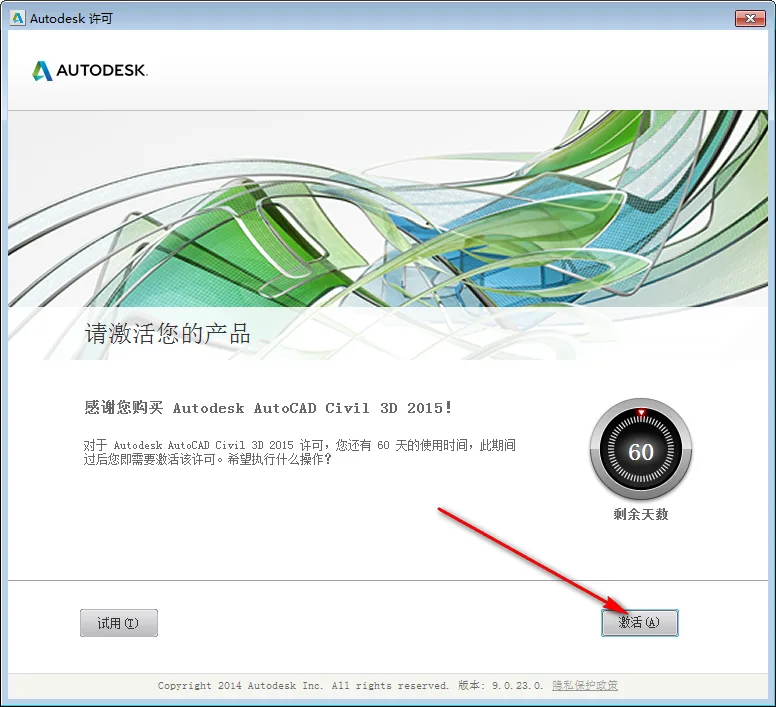
15. Click Activate again.

BIM Q&A | How to install Civil3D 2015? Civil3D 2015 Graphic Installation Tutorial

16. Select I have an activation code from Autodesk.
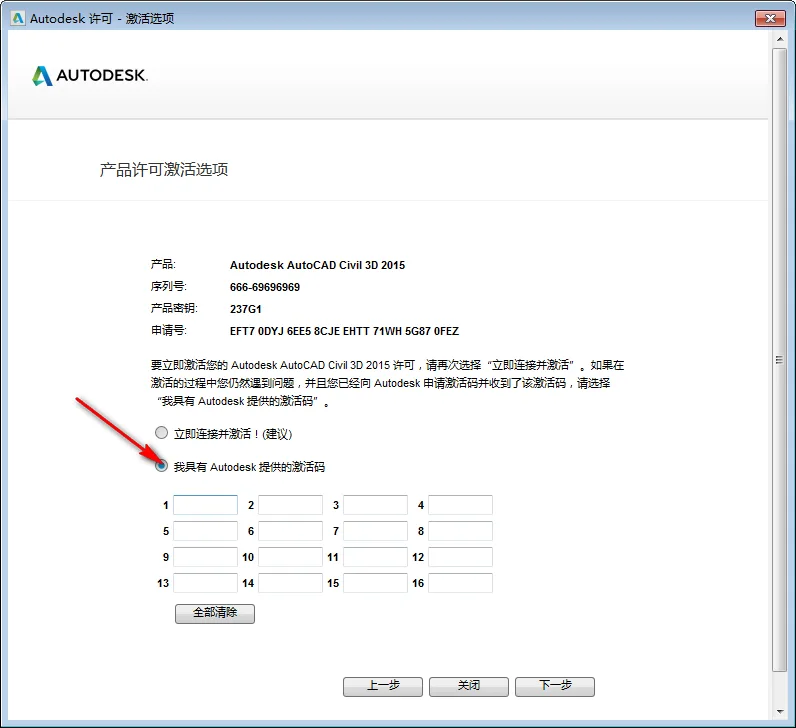
BIM Q&A | How to install Civil3D 2015? Civil3D 2015 Graphic Installation Tutorial

17. Return to the Civil3D 2015 folder, then open the Registry folder by double-clicking it.
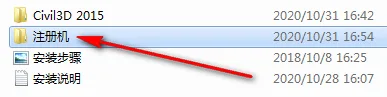
BIM Q&A | How to install Civil3D 2015? Civil3D 2015 Graphic Installation Tutorial

18. Right-click on 2015 x64 and select Run as administrator.
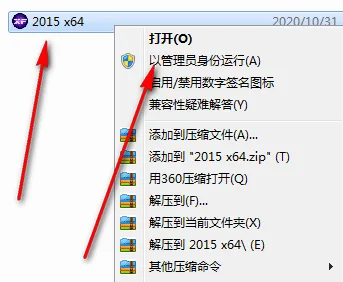
BIM Q&A | How to install Civil3D 2015? Civil3D 2015 Graphic Installation Tutorial

19. Click Patch and confirm by clicking OK.
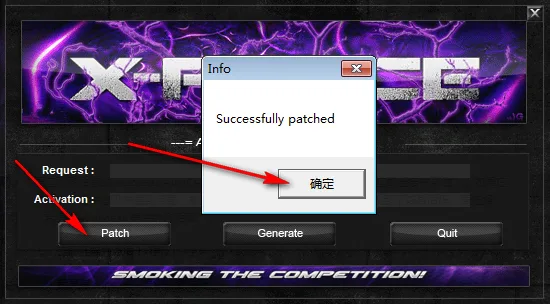
BIM Q&A | How to install Civil3D 2015? Civil3D 2015 Graphic Installation Tutorial

20. Copy the request code shown in step 1, paste it into the box indicated by the arrow in step 2, then click Generate. Next, copy the activation code generated in step 4 and paste it into the box indicated by the arrow in step 5. Finally, click Next.
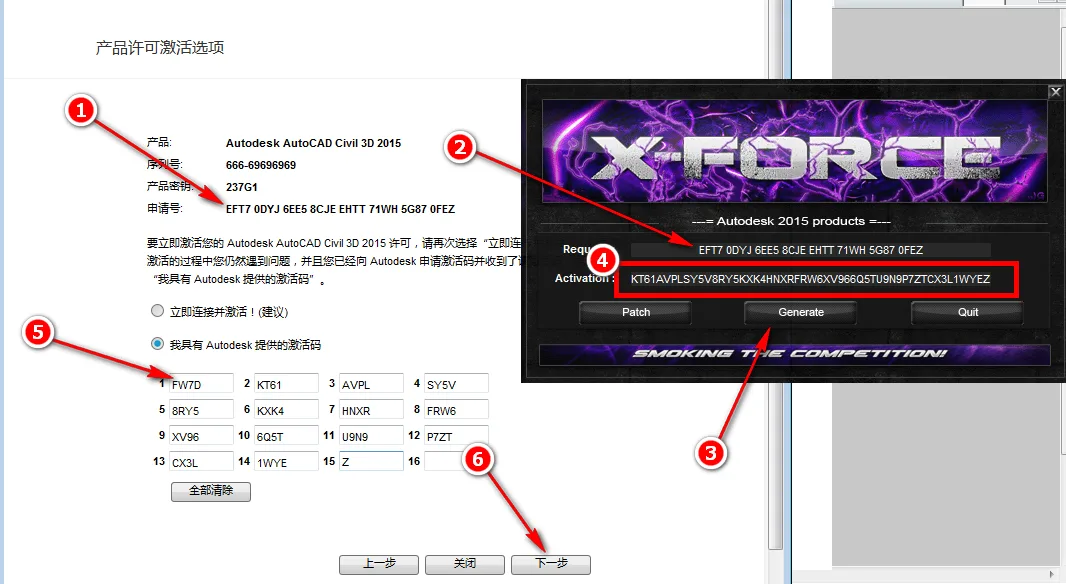
BIM Q&A | How to install Civil3D 2015? Civil3D 2015 Graphic Installation Tutorial

21. Click Finish to complete activation.
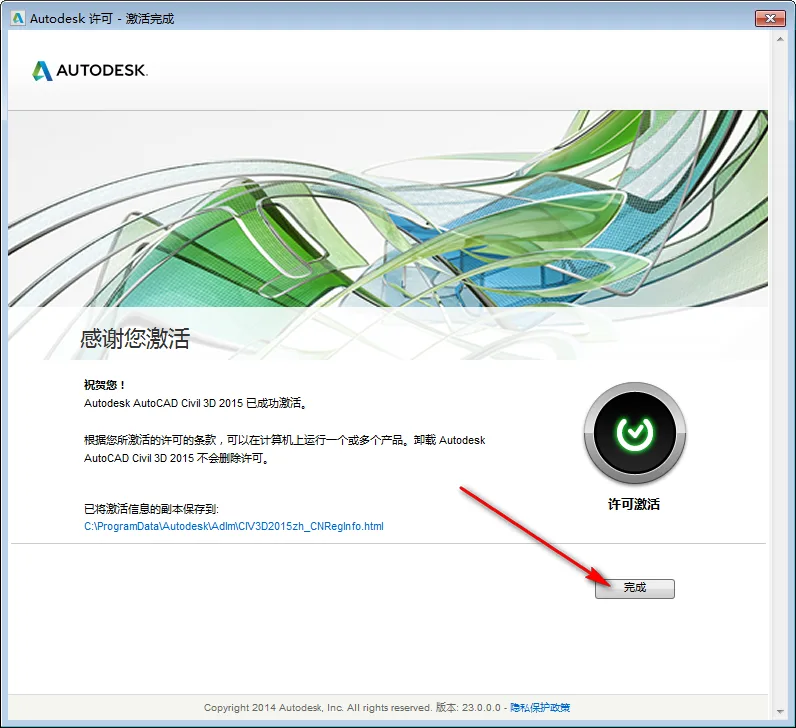
BIM Q&A | How to install Civil3D 2015? Civil3D 2015 Graphic Installation Tutorial

22. The installation is now complete. Thank you for following this guide!

xuebim
Follow the latest BIM developments in the architecture industry, explore innovative building technologies, and discover cutting-edge industry insights.
← Scan with WeChat
Like(0) 打赏
BIM WORLD » BIM Q&A: Step-by-Step Guide to Installing Civil 3D 2015 with Graphics

Comment Get first!

Must log in before commenting!


BIM World, A Professional BIM Learning Platform

Stay updated on the latest architecture trends and share new building technologies.

Contact UsAbout Us

觉得文章有用就打赏一下小编吧

非常感谢你的打赏,我们将继续提供更多优质内容,让我们一起创建更加美好的网络世界!

支付宝扫一扫

微信扫一扫

Account Login

By signing in, you agree toUser Agreement

Sign Up