
This article is from the WeChat official account: Tekla Technology Learning.

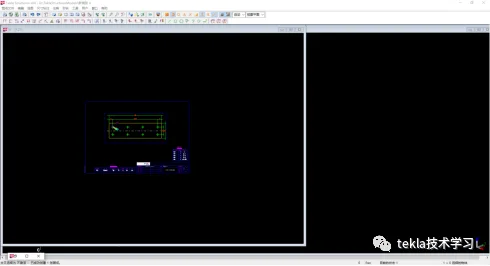
When working on drawing adjustments, a common issue is that the drawing dialog box always opens minimized to the left side of the software window (as shown below). This results in a very small view window, making it difficult to adjust the drawing efficiently. This is especially frustrating when dealing with complex component drawings, requiring you to click the maximize button in the top-right corner each time to expand the drawing window fully.
While clicking to maximize each time is possible, having to do it for every drawing is inconvenient and can quickly become annoying.
Don’t worry—here are some tips to help you set Tekla to automatically open drawings maximized.
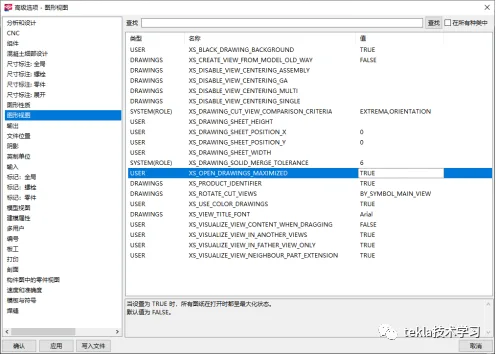
Step 1: Open the Advanced Options settings page by navigating to Tools > Options > Advanced Options, or simply press CTRL+E.
Step 2: In the left menu, locate and select graphic view.
Step 3: On the right panel, find the option named XSOPENDRAWINGSMAXIMED and set its value to TRUE.
Step 4: Click Apply at the bottom of the window, then confirm and close the settings.
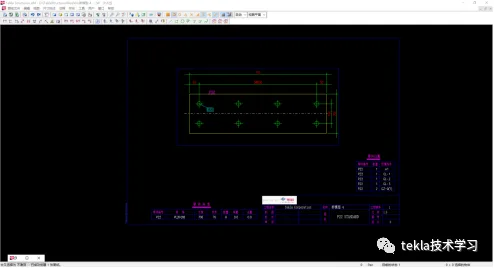
Now, when you open a drawing, it will automatically open in a maximized window.
Have you found today’s tip helpful?
















Must log in before commenting!
Sign Up