BIM World
A Professional BIM Learning Platform


BIM Q&A: Three Effective Ways to Fix Tekla Mouse Ghosting Issues

This article is from the WeChat official account: Shenyang Chunmei Technology.

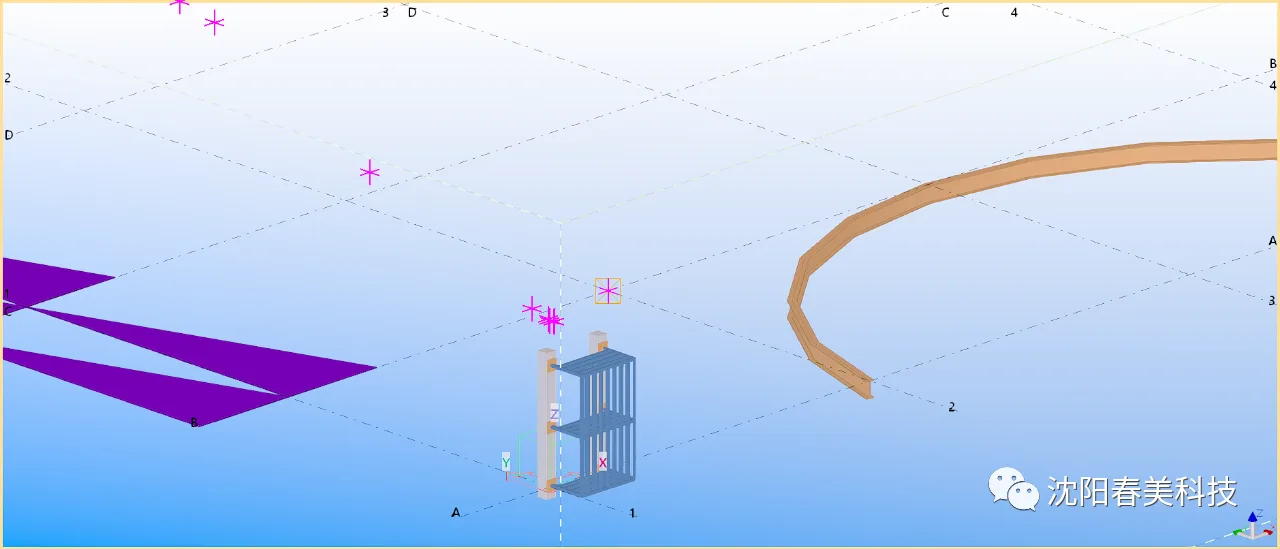
BIM Q&A | How to solve Tekla mouse ghosting? Three methods to solve Tekla mouse ghosting problem

BIM Q&A | How to solve Tekla mouse ghosting? Three methods to solve Tekla mouse ghosting problem

Mouse ghosting issues in model views when using Tekla software have become a growing concern among industry professionals, especially with newer software versions and high-end computers. What are some effective solutions to this problem? Below, we share three practical methods to address Tekla mouse ghosting.

BIM Q&A | How to solve Tekla mouse ghosting? Three methods to solve Tekla mouse ghosting problem

First, the root cause of ghosting is often that your graphics card driver is too new, and the software updates have not kept pace. One solution is to downgrade the driver to an older version and use driver management software to stabilize performance.
BIM Q&A | How to solve Tekla mouse ghosting? Three methods to solve Tekla mouse ghosting problem

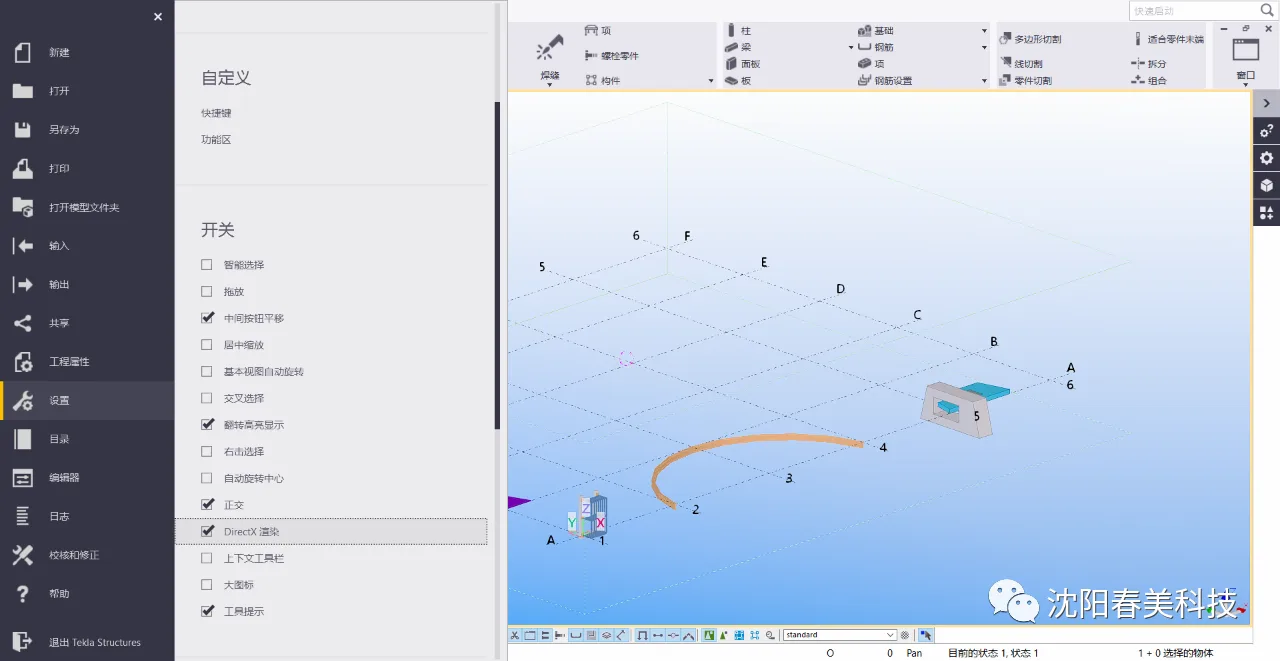
The second method involves enabling DirectX rendering within Tekla’s software settings.
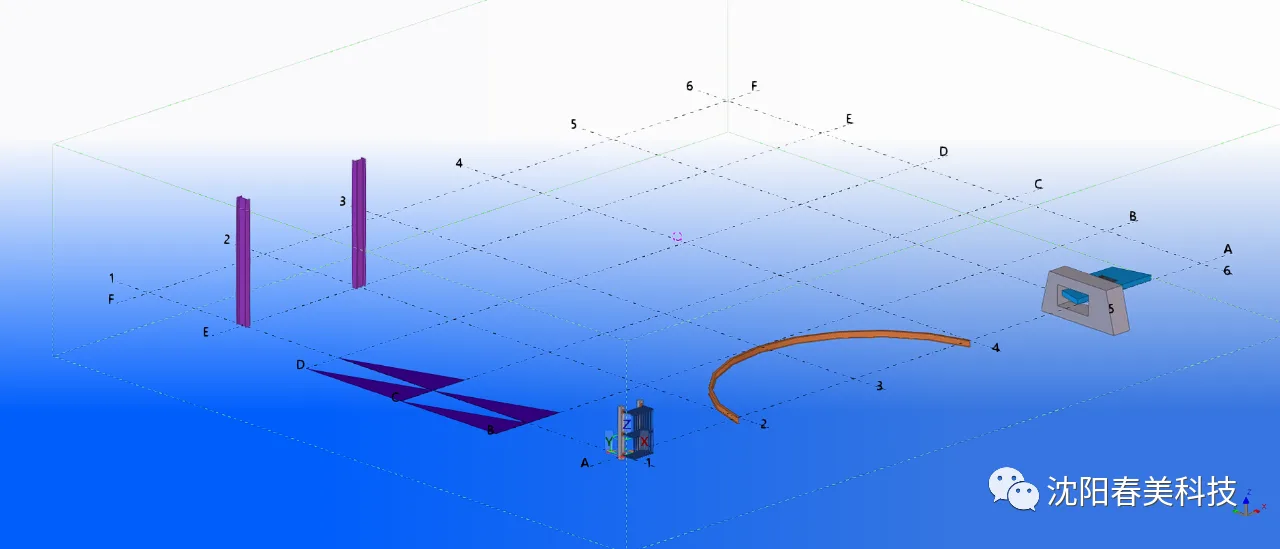
BIM Q&A | How to solve Tekla mouse ghosting? Three methods to solve Tekla mouse ghosting problem

After reopening the model view, you might notice the colors have darkened.
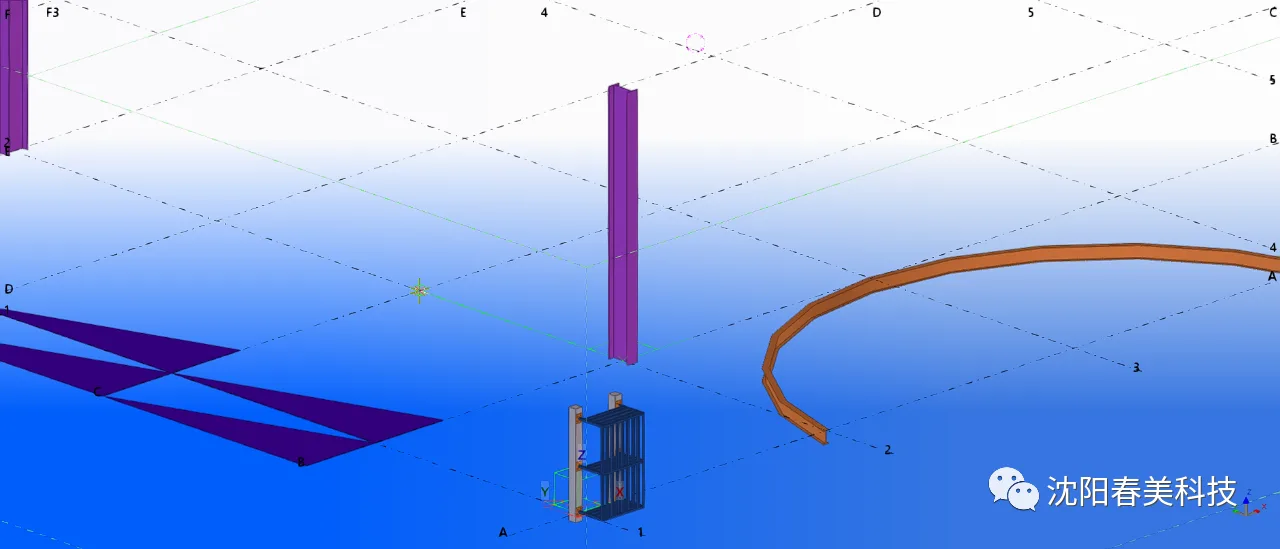
BIM Q&A | How to solve Tekla mouse ghosting? Three methods to solve Tekla mouse ghosting problem

During modeling, there will be no shadows left visible.
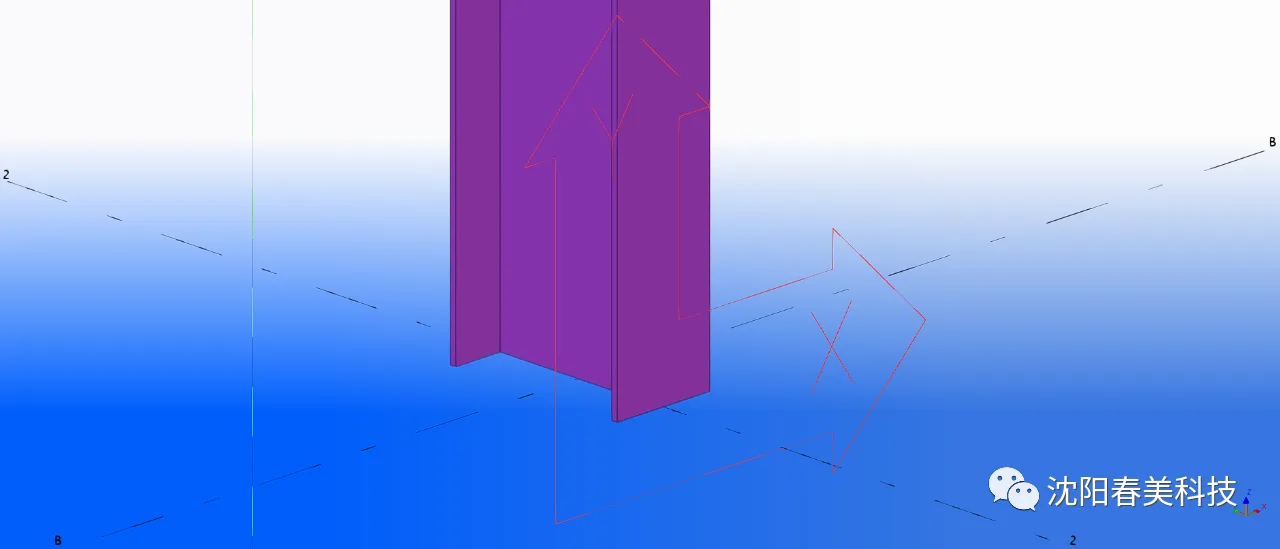
BIM Q&A | How to solve Tekla mouse ghosting? Three methods to solve Tekla mouse ghosting problem

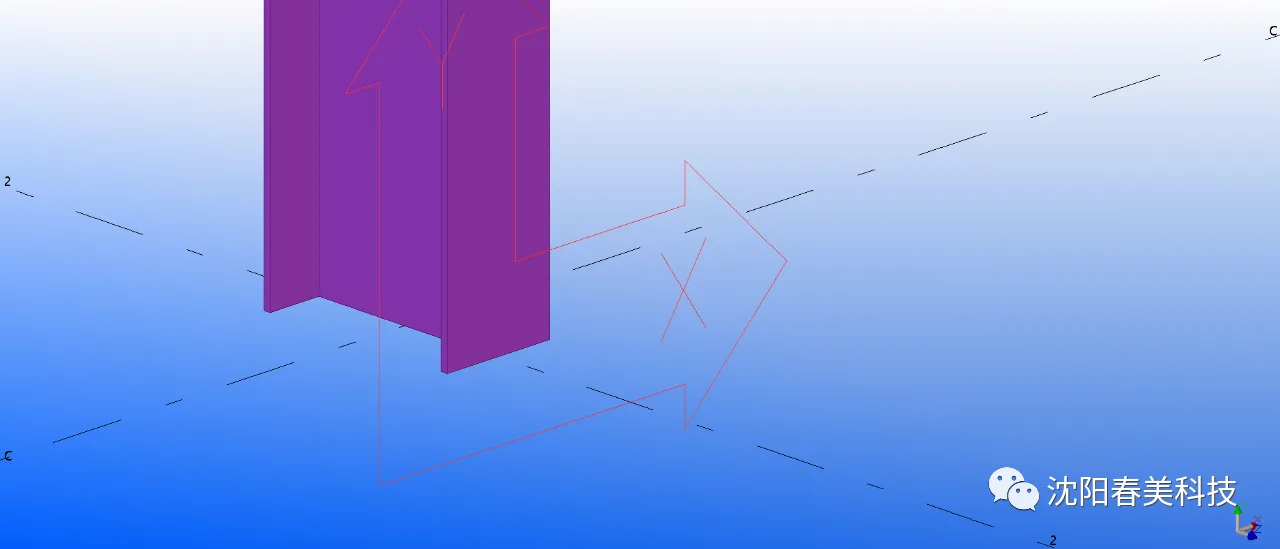
However, this method causes the work plane linkage to disappear, and the XY directional indicator no longer aligns with the 3D coordinates shown in the lower right corner. This mismatch complicates modeling, so this approach is generally not recommended.
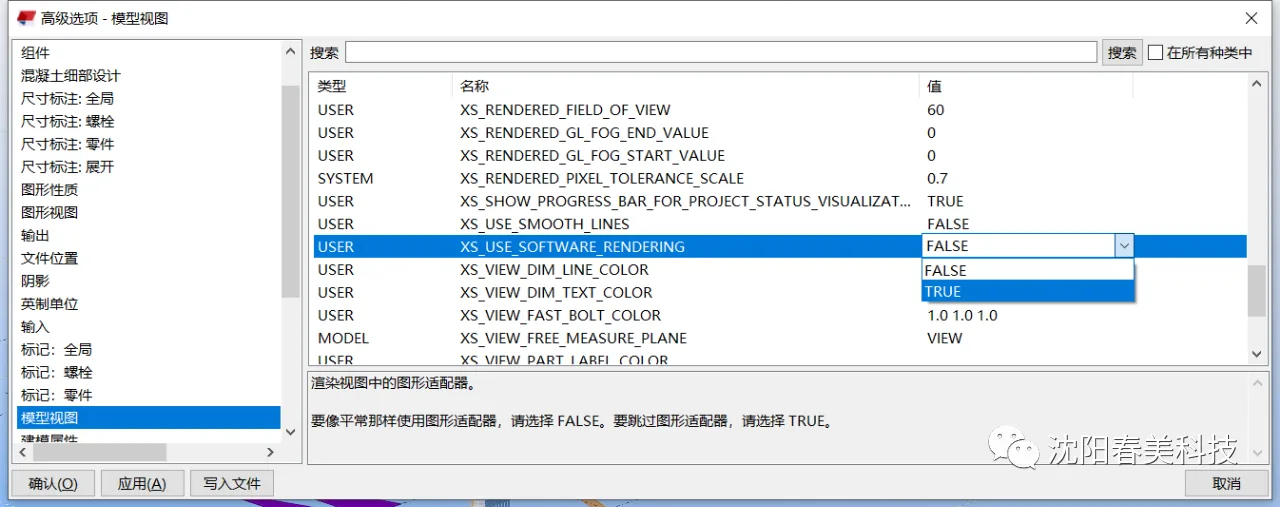
BIM Q&A | How to solve Tekla mouse ghosting? Three methods to solve Tekla mouse ghosting problem

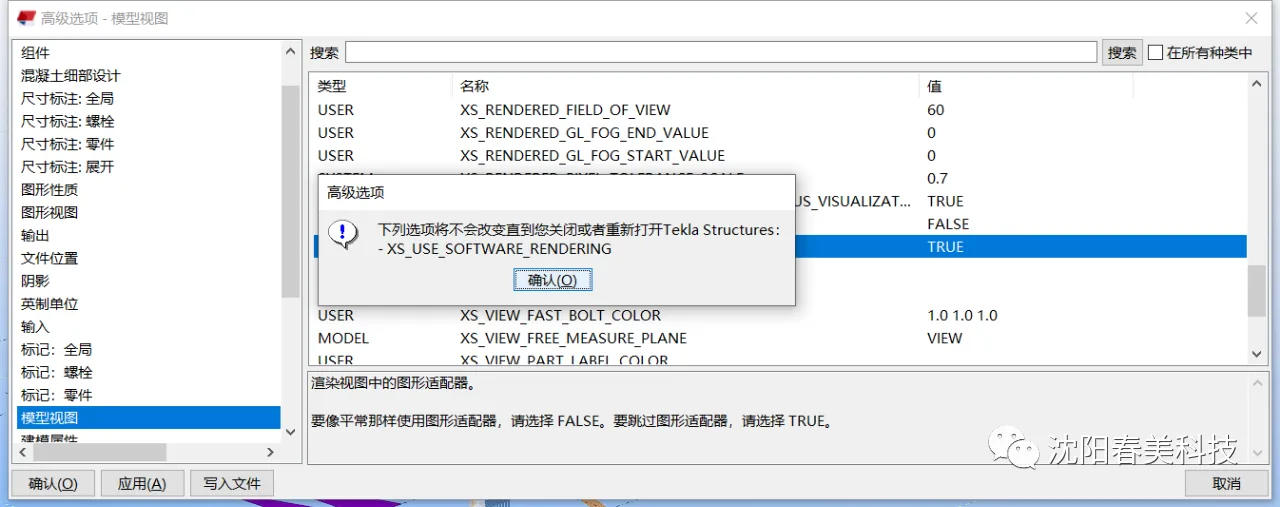
The third and recommended method involves adjusting the advanced options by disabling the graphics adapter and using Tekla’s internal rendering engine instead, as shown above.
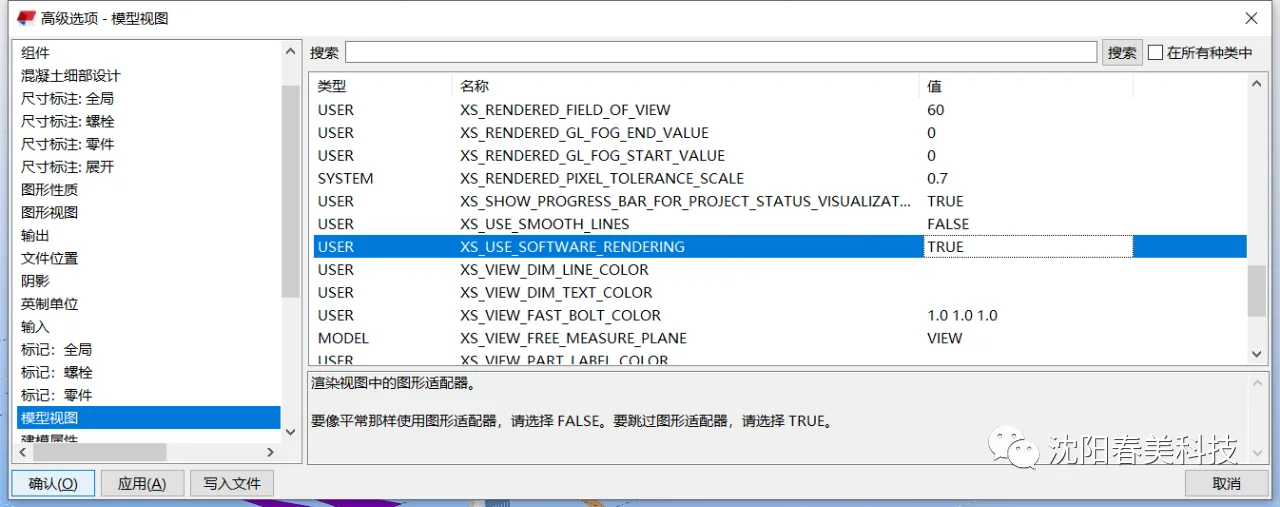
BIM Q&A | How to solve Tekla mouse ghosting? Three methods to solve Tekla mouse ghosting problem

Select ‘TRUE’ and click ‘Confirm’.

BIM Q&A | How to solve Tekla mouse ghosting? Three methods to solve Tekla mouse ghosting problem

After making this change, you will need to restart the software.
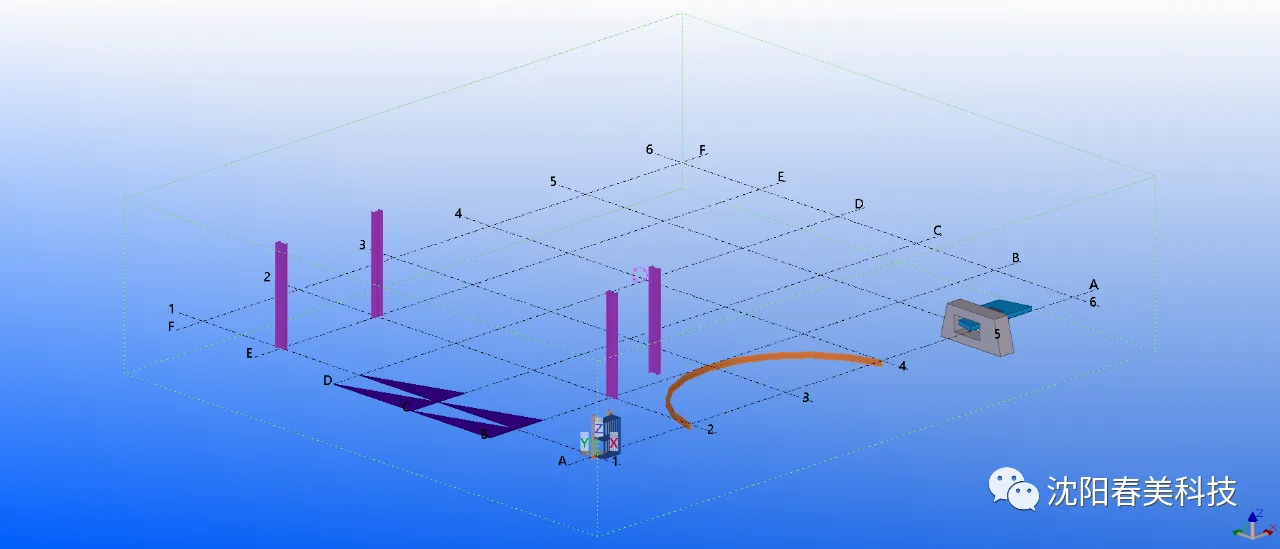
BIM Q&A | How to solve Tekla mouse ghosting? Three methods to solve Tekla mouse ghosting problem

With this setting, the colors are not overly dark and remain acceptable.
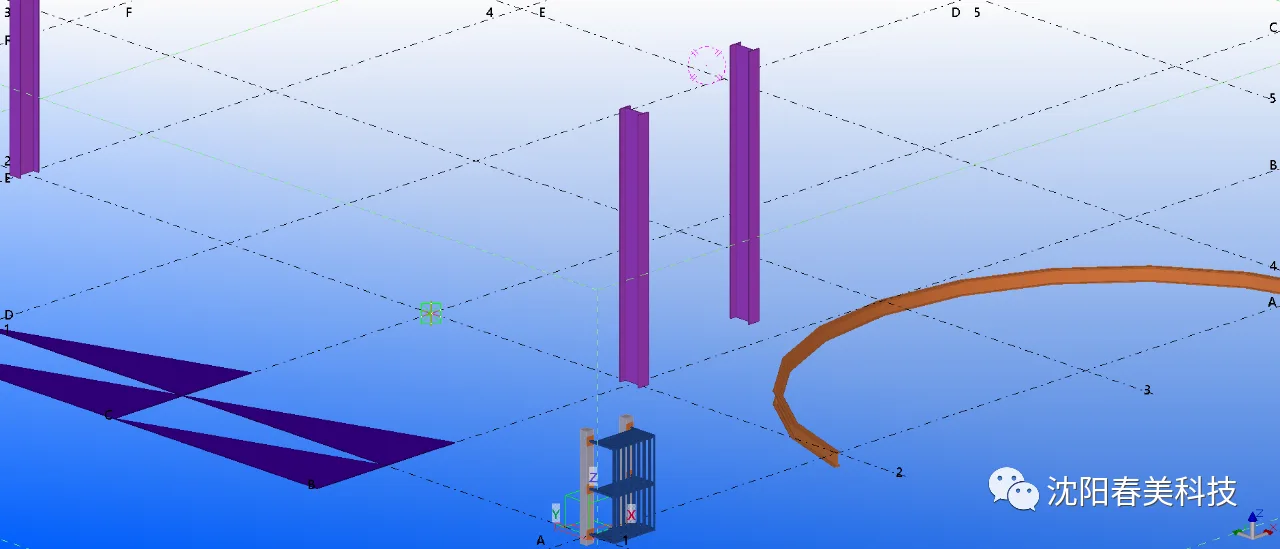
BIM Q&A | How to solve Tekla mouse ghosting? Three methods to solve Tekla mouse ghosting problem

Mouse dragging issues are resolved.

BIM Q&A | How to solve Tekla mouse ghosting? Three methods to solve Tekla mouse ghosting problem

The work plane linkage is preserved, ensuring smooth modeling workflow.

These are the three methods we introduced today for solving the Tekla mouse ghosting problem. Additionally, you can also download official patches from Tekla’s website. Among these, we recommend the third method for its balance of performance and usability. What do you think?

xuebim
Follow the latest BIM developments in the architecture industry, explore innovative building technologies, and discover cutting-edge industry insights.
← Scan with WeChat
Like(1) 打赏
BIM WORLD » BIM Q&A: Three Effective Ways to Fix Tekla Mouse Ghosting Issues

Comment Get first!

Must log in before commenting!


BIM World, A Professional BIM Learning Platform

Stay updated on the latest architecture trends and share new building technologies.

Contact UsAbout Us

觉得文章有用就打赏一下小编吧

非常感谢你的打赏,我们将继续提供更多优质内容,让我们一起创建更加美好的网络世界!

支付宝扫一扫

微信扫一扫

Account Login

By signing in, you agree toUser Agreement

Sign Up