
This article is from the WeChat official account: BimLearning.
1. Changing the Model View Background Color
In older versions of Tekla (21.0 and earlier), the default background color for the model view is light blue. From Tekla 2016 onwards, the default background color has changed to white, as shown below:

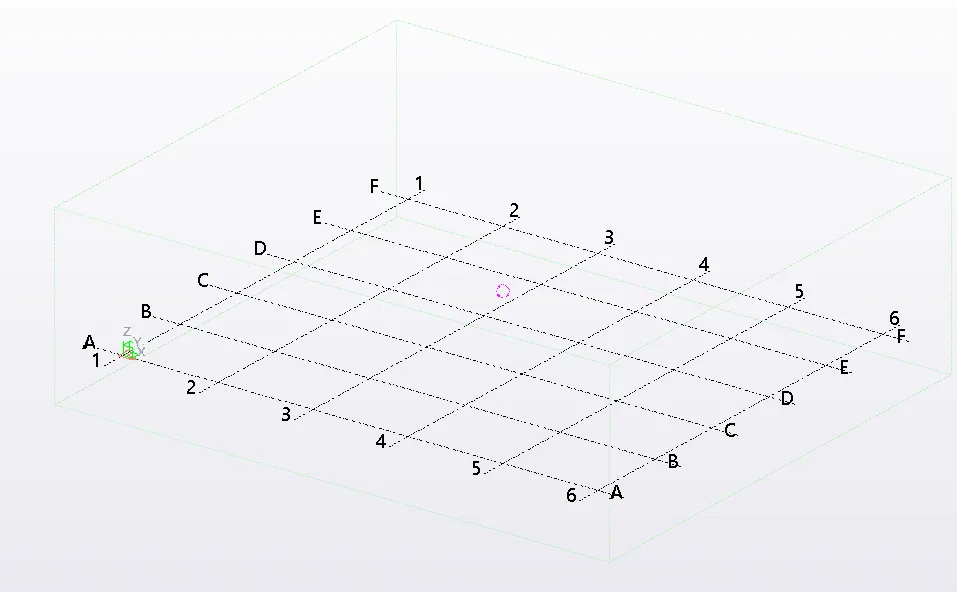
To customize the model view background color, navigate to Settings > Advanced Options > Model View.
Look for the following options:
- XS_BACKGROUND_COLOR1 – controls the color in the upper-left corner of the model view
- XS_BACKGROUND_COLOR2 – controls the color in the upper-right corner
- XS_BACKGROUND_COLOR3 – controls the color in the bottom-left corner
- XS_BACKGROUND_COLOR4 – controls the color in the bottom-right corner
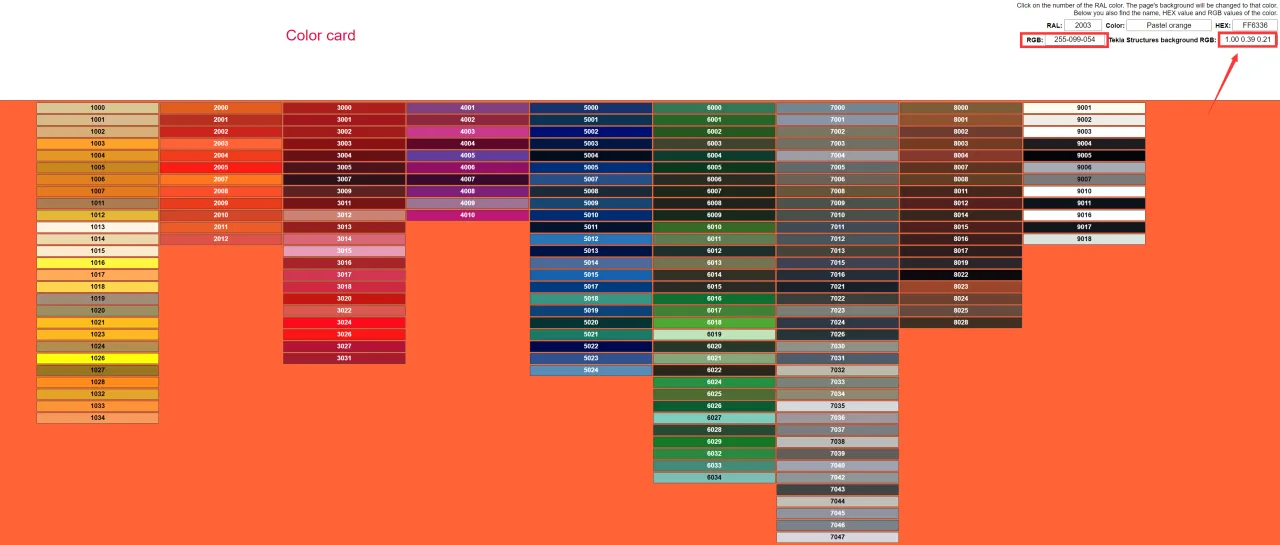
To find the corresponding color values, visit this color picker tool:
Here, you can select color values to define the advanced options in Tekla.
2. Changing the Drawing View Background Color
For drawing views, the default background color in Tekla Structures 21.1 and earlier is white, and it remains white in Tekla 2016 and later versions. However, Tekla provides an option to choose between two background colors based on user preference.
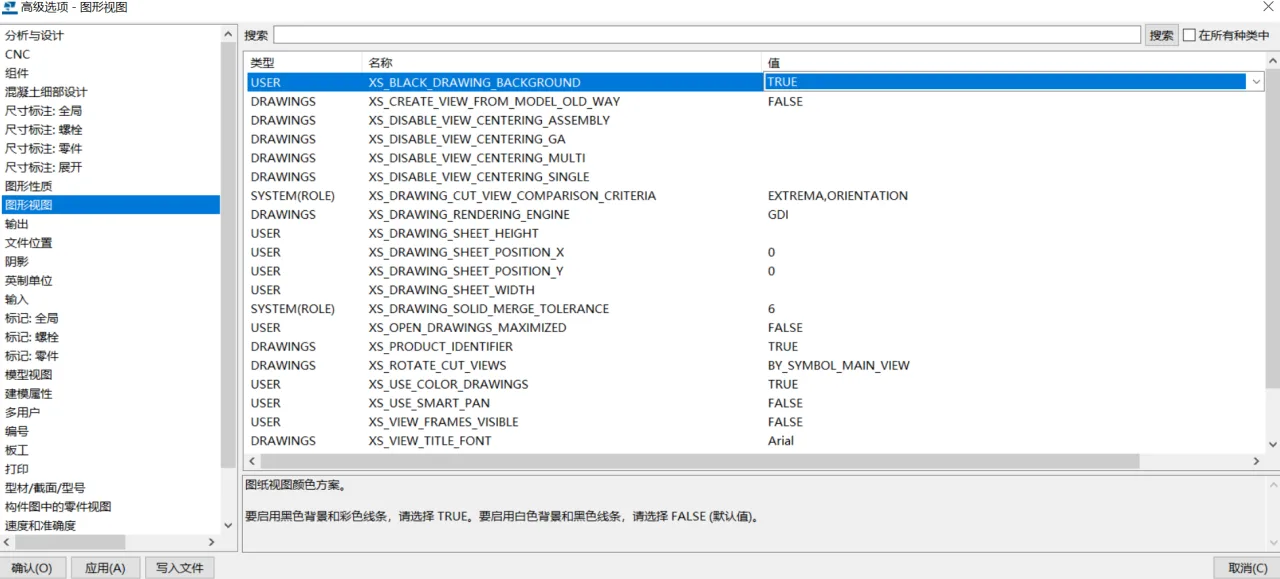
To switch to a black background for drawing views, go to Settings > Advanced Options > Drawing Views and set XS_BLACK_DRAWING_BACKGROUND=TRUE (the default is FALSE). Note that this change will only take effect after closing and reopening all drawing views.
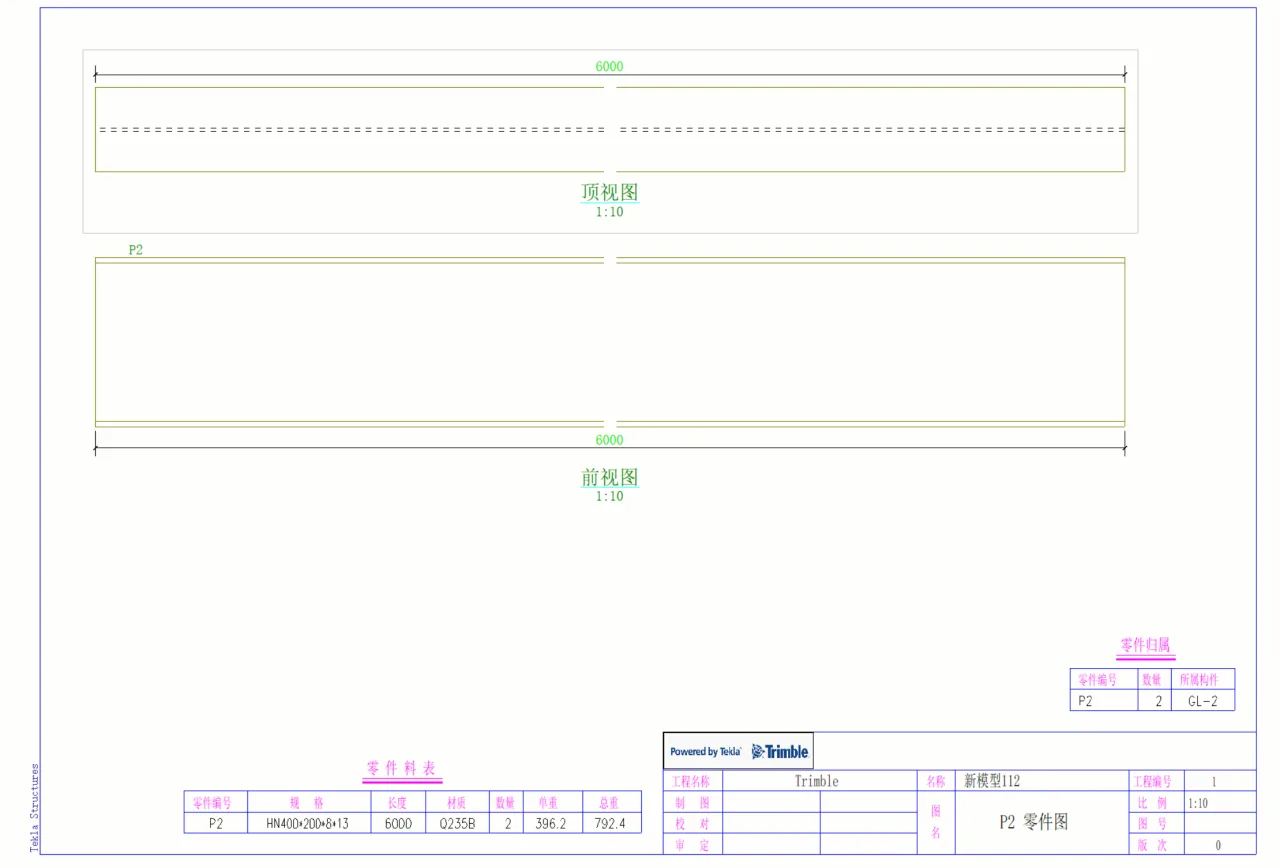
Tip: You can toggle the drawing view background color by pressing the B key while in the drawing view.
Note: This article is shared for personal use only and is not intended for commercial purposes. If there are any issues regarding copyright, please contact us promptly.
















Must log in before commenting!
Sign Up