
This article is from the WeChat official account: BIM Steel Structure Technology.
The component parts list plays a crucial role in the engineering settlement process. A well-prepared component parts list not only facilitates smooth settlement work but also builds trust with the other party involved. Today, we will discuss how to create a standardized component parts list.
Component Parts List: This is a detailed list including the names, part numbers, specifications, units, quantities, weights, surface areas, and bolts (studs) of each component used in steel structure engineering. For engineering settlement purposes, the component parts list must also include formulas to calculate the weight of the parts.
Depending on the calculation rules, component parts lists are divided into gross weight lists and net weight lists. The details are summarized in the table below:
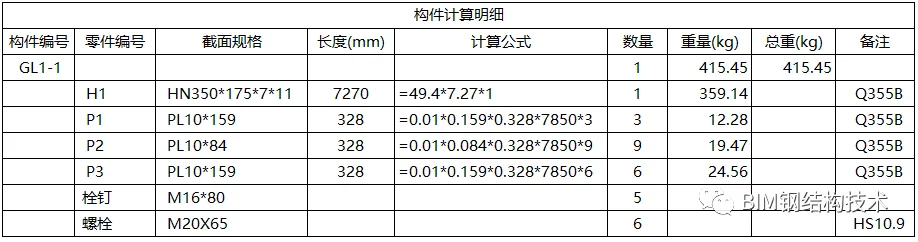
Key Insight: To create such a table, it is essential to list different calculation formulas separately for steel parts and plate parts, based on their meter weight and volume.
Solution: Since parts require different calculation formulas depending on meter weight or volume, define output rules for these formulas. For parts with a plate section type, use the formula thickness * width * length * 7850. For other parts, use meter weight * length.
1. Creating a TEKLA Gross Weight Component Parts List
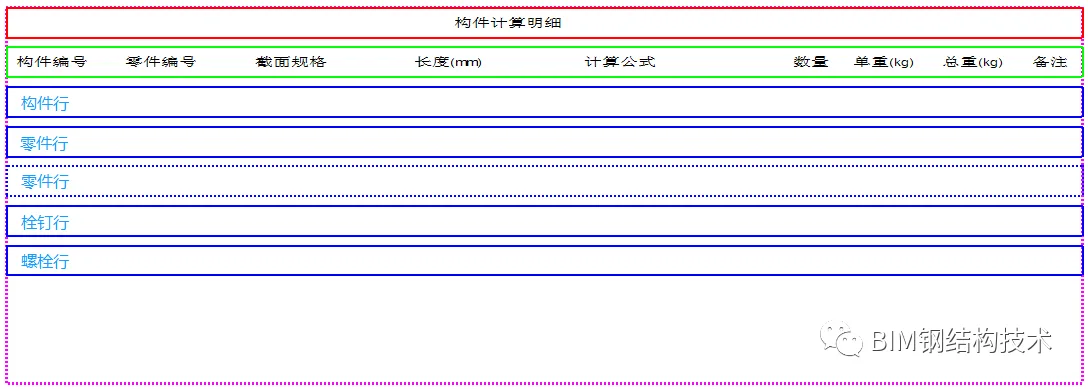
Step 1: Create a New Template
- Open the TEKLA template editor;
- Create a new text template;
- Add a new header;
- Add a new component row;
- Add a new part line (Level 2);
- Add another part line (Level 2, hidden in output);
- Add a new bolt row (Level 3);
- Add another bolt row (Level 3);
- Finally, add a footer.
The template structure is illustrated below:
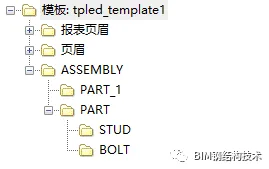
The template tree structure is shown here:
Step 2: Set Attributes for Component Fields
- Component Number:
GetValue("ASSEMBLY-POS") - Quantity:
GetValue("NUMBER")
Note: Set the component numbering sequence to “rising” and all others to “none”. When components are combined and parallel, set to “not summarized”.
The weight and total weight of components should be calculated using formulas. Setting these directly in the template is ineffective, so it is best to calculate them manually after exporting the list, as shown below:
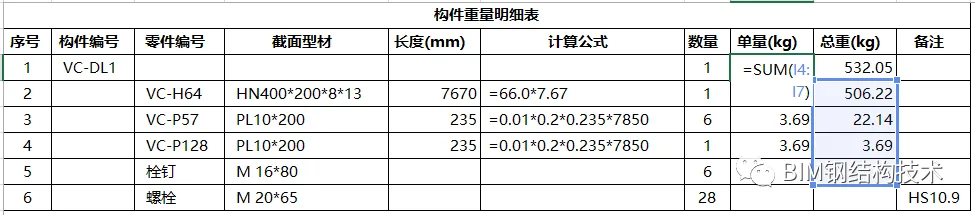
Figure 1: Formula for calculating component weight
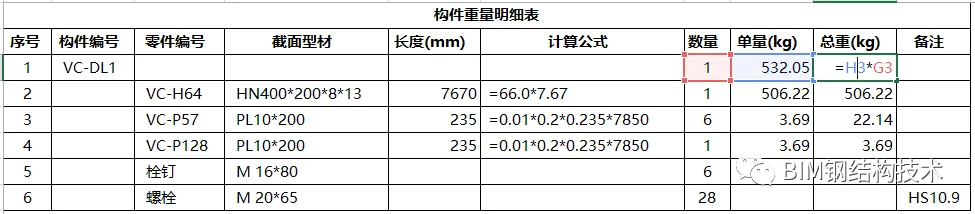
Figure 2: Formula for calculating the total weight of components
Step 3: Set Attributes for Part Row Number Field Values
-
Set part field value attributes:
Part number:GetValue("PART-POS")
Section specification:GetValue("PROFILE")
Length:GetValue("LENGTH")
Quantity:GetValue("NUMBER")
Note: Except for the part number sequence, which should be “ascending,” set the rest to “none”. Set the length unit to “mm” and “do not summarize” when merging rows. When parts are combined in parallel, set to “summarize in one line”. -
Set the formula for calculating part weight:
Define an output rule for part weight calculation. If the part section type is plate, output:
thickness * width * length * 7850
Otherwise, output:
weight per meter * length
The conditional formula is:
    if (mid(GetValue("PROFILE_TYPE"),0,1)=="B") then

      "=" + round((GetValue("WIDTH")/1000),0.001) + "*" + round((GetValue("HEIGHT")/1000),0.001) + "*" + round((GetValue("LENGTH")/1000),0.001) + "*" + "7850"

    else

      "=" + round(GetValue("PROFILE.WEIGHT_PER_UNIT_LENGTH")) + "*" + round((GetValue("LENGTH")/1000),0.001)

    endif
Note: Theroundfunction rounds to the specified precision. The length is divided by 1000 because TEKLA’s default length unit is millimeters, and the formula requires meters. -
Set the part weight attribute:
According to the above formula:
    if (mid(GetValue("PROFILE_TYPE"),0,1)=="B") then

      round((GetValue("WIDTH")/1000),0.001) * round((GetValue("HEIGHT")/1000),0.001) * round((GetValue("LENGTH")/1000),0.001) * 7850

    else

      round(GetValue("PROFILE.WEIGHT_PER_UNIT_LENGTH")) * round((GetValue("LENGTH")/1000),0.001)

    endif
Step 4: Set Attributes for Bolt Row Number Field Values
- Bolt specification:
"M" + int(GetValue("DIAMETER")) + "x" + int(GetValue("LENGTH")) - Number of bolts:
GetValue("NUMBER")
Step 5: Set Bolt Row Number Field Value Attributes
- Bolt specification:
"M" + int(GetValue("PROFILE.DIAMETER")) + "*" + int(GetValue("LENGTH")) - Number of bolts:
GetValue("NUMBER")
Note: When the number of bolt rows and bolt rows are combined in parallel, set to “summarize all rows” to avoid duplicate calculations when filtering model quantities in the table.
We specialize in producing various graphic templates and checklists professionally!
















Must log in before commenting!
Sign Up