
This article is from the WeChat official account: BimLearning.
Occasionally, your computer may crash unexpectedly, or you might need to reinstall the operating system. If the license file is not properly backed up and returned before reinstalling, it risks becoming corrupted or lost.
Without a backup license file, if the license becomes damaged, you will need to provide proof materials to Tekla technical engineers or their affiliated companies. This process can take time and may delay your project. To avoid this, it’s essential to create a backup of your license file while the software is still functioning properly. Follow these steps to recover your license through backup files:
Step 1: Backup the License File
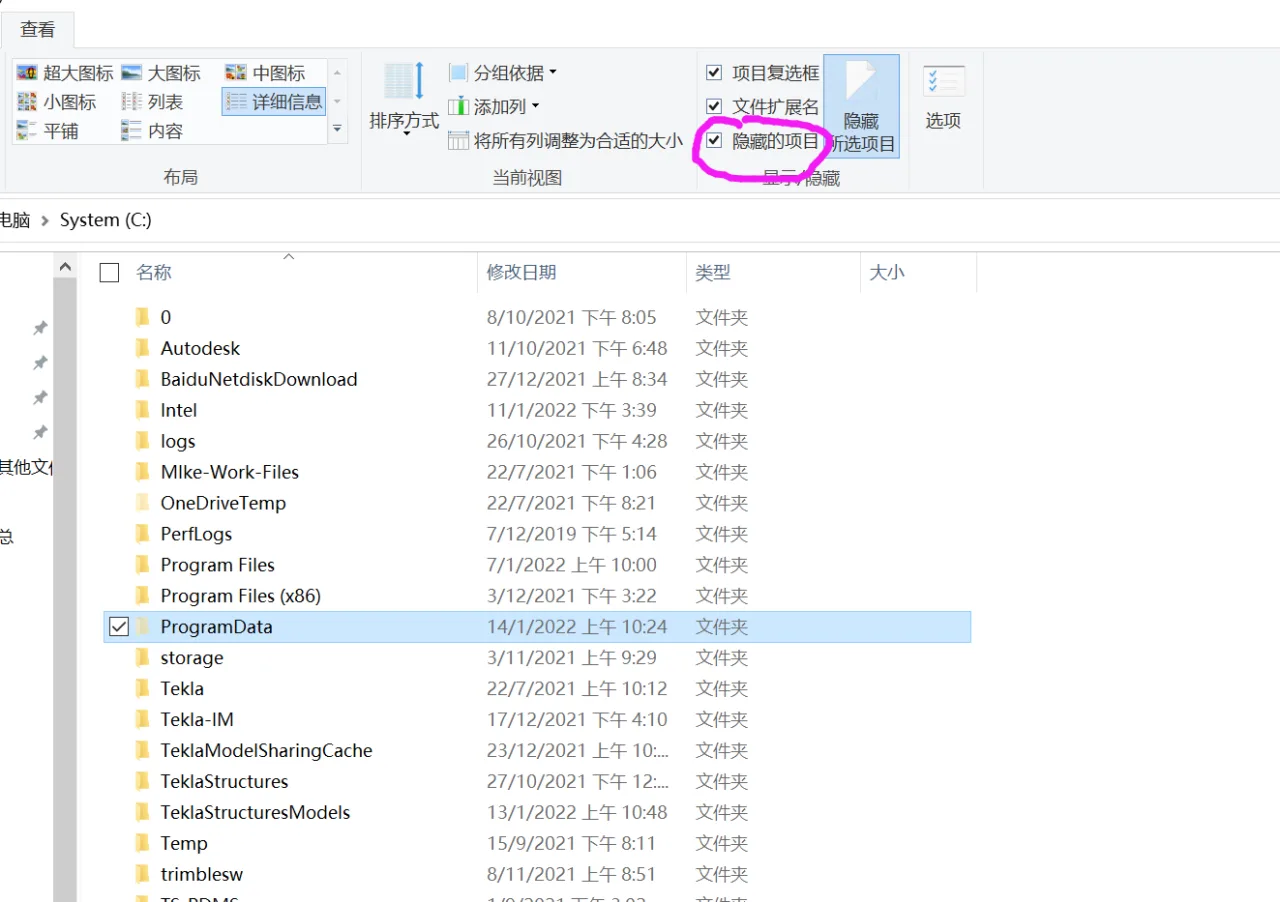
While your Tekla software is activated and running correctly, open the C drive on your computer. Make sure to enable viewing of hidden files and folders so you can access the ProgramData folder.
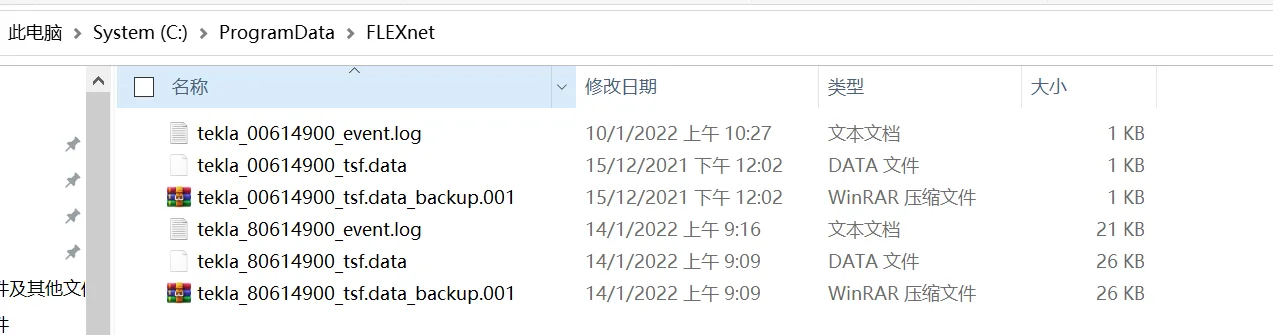
Inside ProgramData, find the FLEXnet folder and back up all files contained within it to a secure location.
Step 2: Repair the Damaged License Files
To restore a damaged license, navigate back to the FLEXnet folder in ProgramData. Copy the previously backed-up license files into this folder, replacing the existing corrupted files. Save your changes.
Step 3: Verify the License File Restoration
Open the Tekla License Administration Tool to check the status of your license.
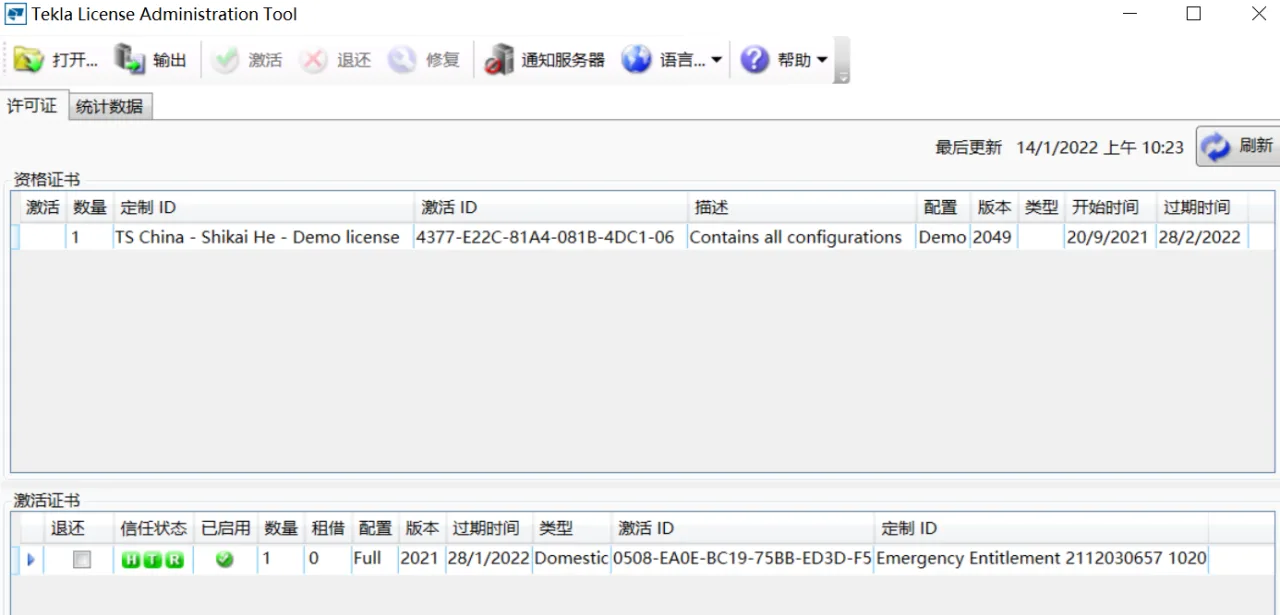
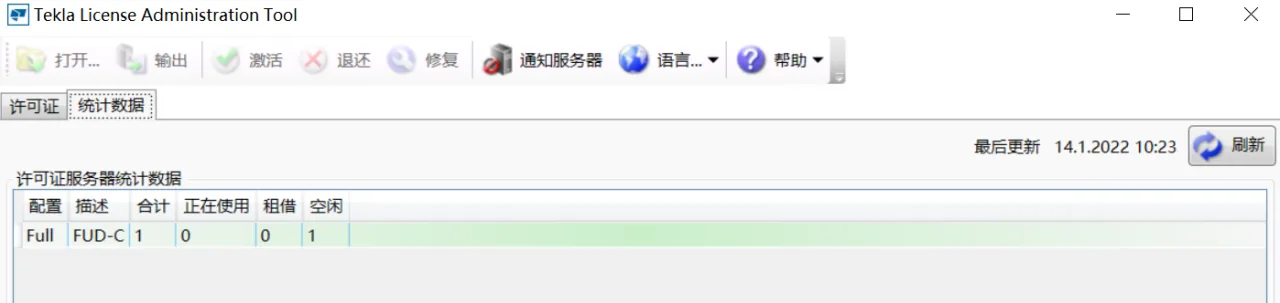
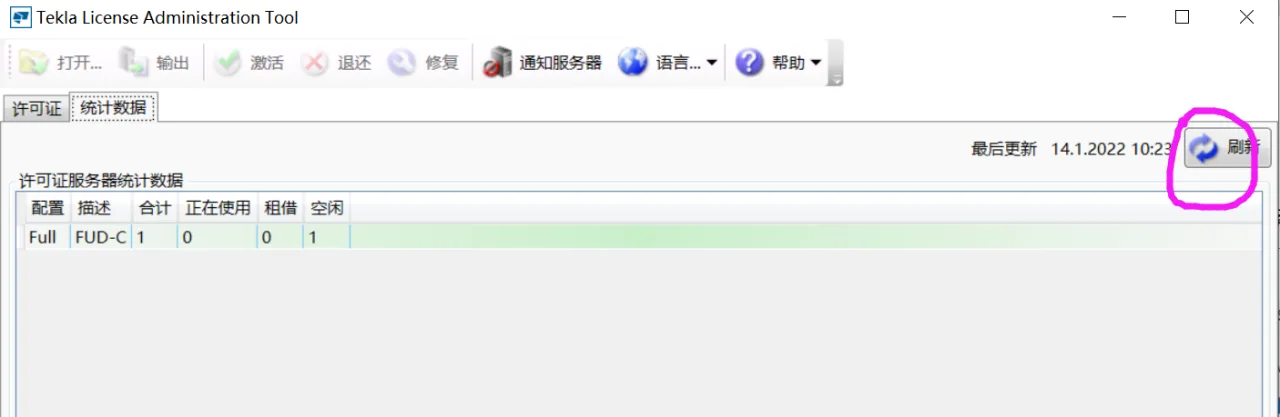
Check the activation status and license statistics. If the status shows as “Activated” and the statistics resemble the screenshot above, your license is active and the server is functioning normally — meaning your software is ready to use.
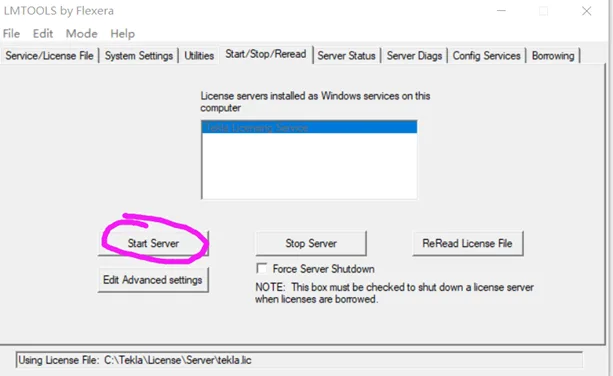
If the statistics show as “Unavailable,” you will need to restart the license server. To do this, locate the Lmtools utility in the tekla/license/server folder.
Click on “Start Server” (if the server is already running, click “Stop Server” first, then “Start Server”). When you see “Successful” in the status column, the license server has started correctly.
After restarting, refresh the data in the Tekla License Administration Tool. If the license status updates to active, your license file is restored, the server is running, and your software is fully functional.
Note: The information above is based on personal experience and shared for educational purposes only. If any content infringes on rights, please contact us promptly.
















Must log in before commenting!
Sign Up