
This article is sourced from the WeChat official account: BimLearning.
Sometimes, license files cannot be returned using the Tekla License Administration Tool. In such cases, you can try returning them manually by following the steps below:
Step 1: Open the Command Prompt as an administrator. To do this, press the Windows logo key on your keyboard or click the “Start” button on your desktop. Type “Command Prompt” in the search bar, then right-click on the Command Prompt app in the results and select Run as Administrator.
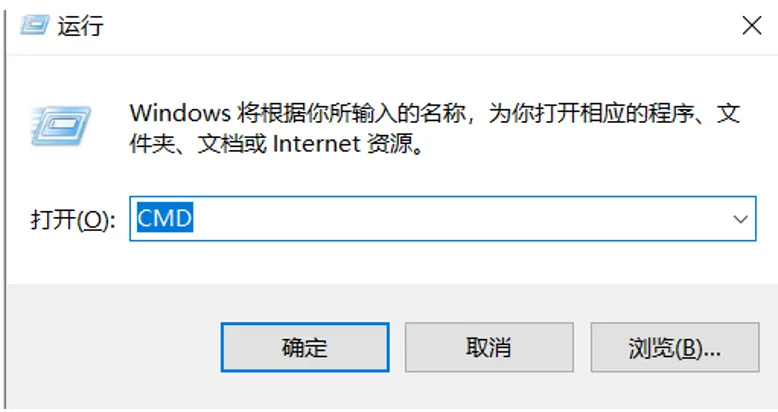
Step 2: Navigate to your Tekla Structures License Server installation folder using the command line. The default path is usually:
C:TeklaLicensingServer or C:TeklaStructuresLicensingServer
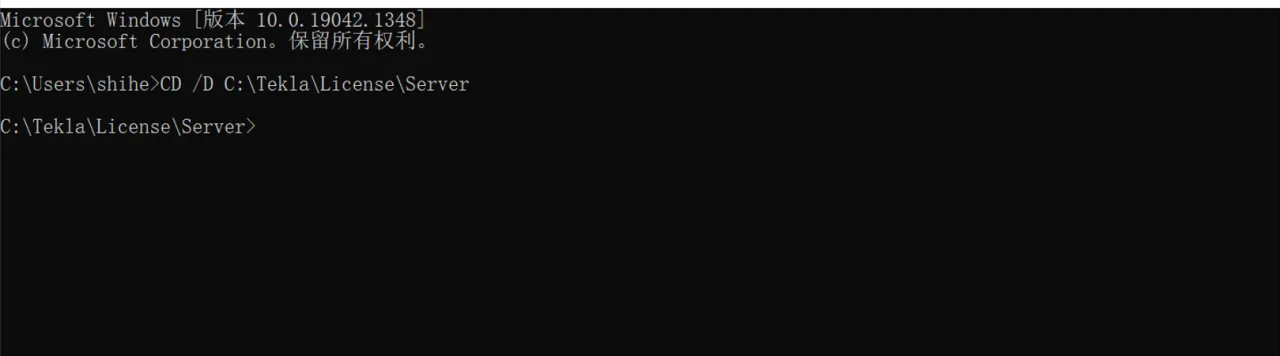
Use the following command to move to the folder (adjust the path if your installation location is different):
CD /D C:TeklaLicensingServer
Then press Enter. Your command prompt should now look like this:
Step 3: Identify the activated licenses on your server.
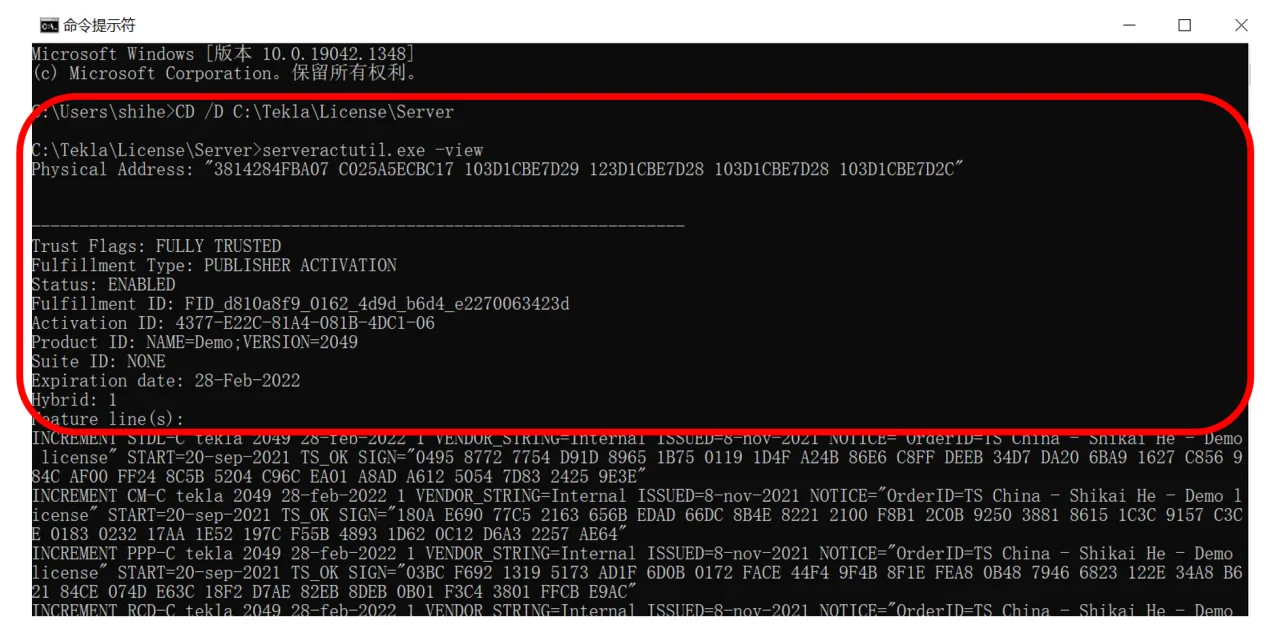
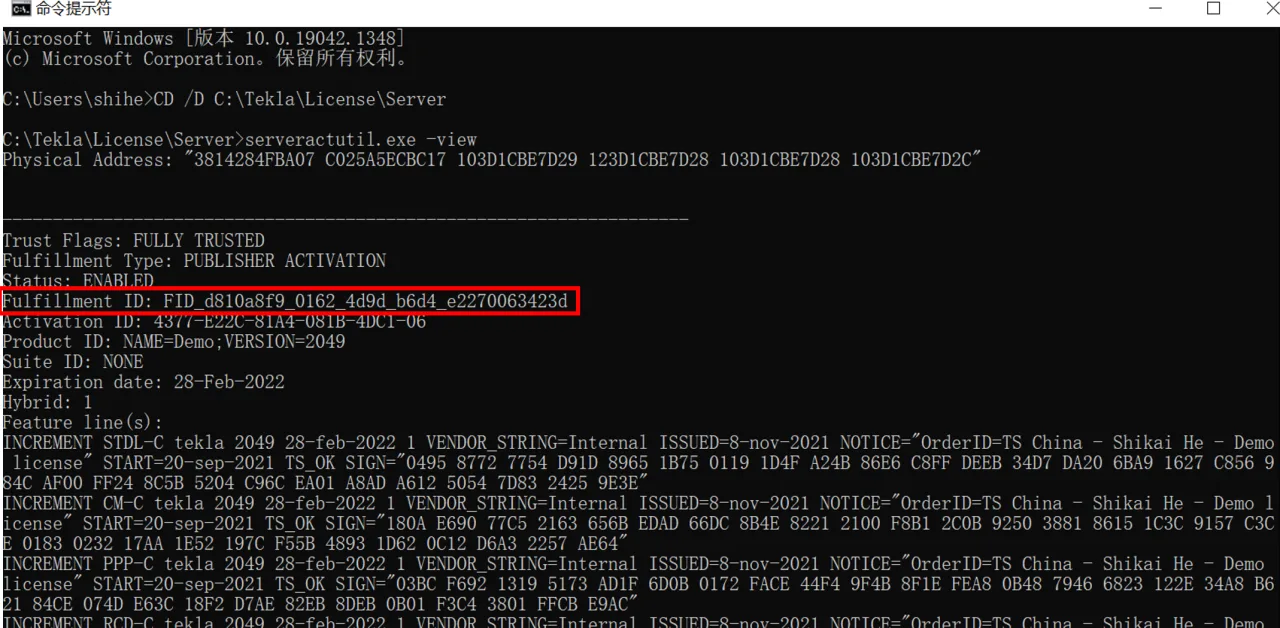
To determine which license you want to deactivate, you need the fulfillment ID for that specific license.
At the command prompt, within the Tekla License Server installation folder, enter the following command and press Enter:
serveractutil.exe view
This will display a list of all activated licenses on the server, similar to the image below:
Step 4: Generate a deactivation request file to send to Trimble.
In the Tekla License Server installation folder, use the following command to create the request file (replace <fulfillmentID> with the actual fulfillment ID, without the angle brackets):
serveractutil.exe -return <fulfillmentID> -gen returnRequest.xml
For example:
serveractutil.exe -return FID_d810a8f9_0162_4d9d_b6d4_e2270063423d -gen returnRequest.xml
If you have multiple licenses to deactivate, assign unique names to each request file, such as returnRequest1.xml, returnRequest2.xml, etc., and create each XML file separately.
After entering the command, press Enter.

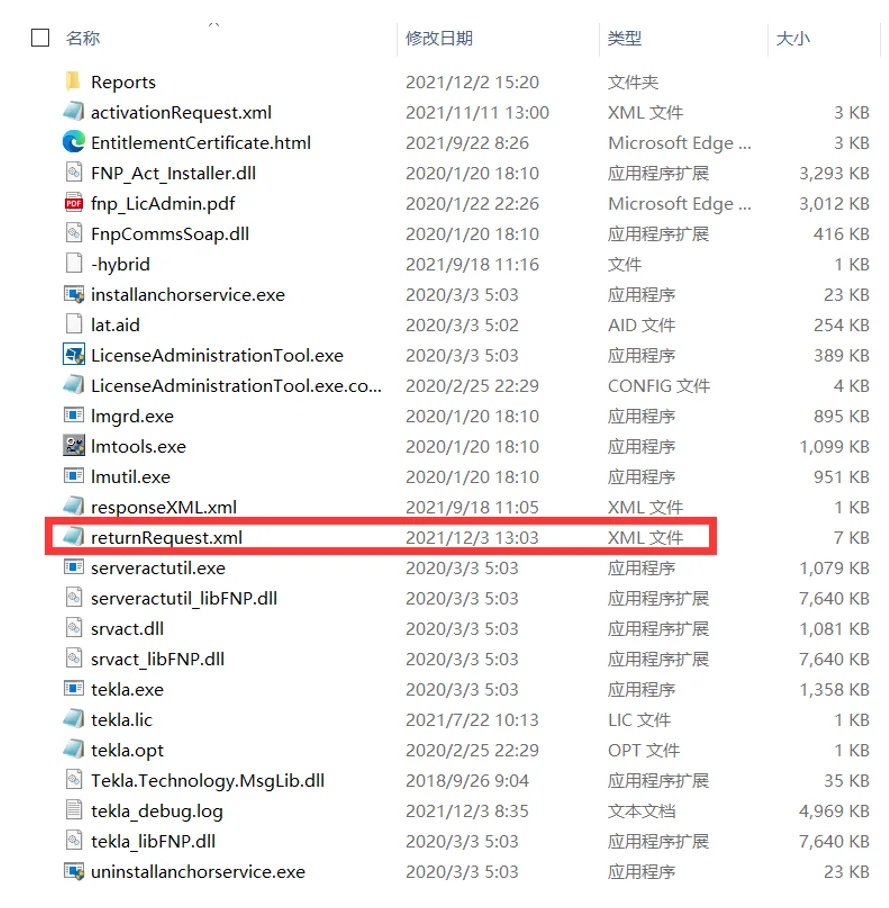
Step 5: Send the generated returnRequest.xml file to Trimble.
This file will be created in your Tekla License Server installation folder.
Send it as an email attachment to Structures.CN@trimble.com or share it via WeChat with your Tekla technician. If email is not available, you can burn the file onto a CD and mail it to Trimble.
Step 6: Process the deactivation response file from Trimble.
After Trimble processes your return request, they will send back a response file named responsiveXML.xml (or a similar name), which you need to process on your server to complete the license deactivation.
Save the response XML file to the Tekla License Server installation folder.
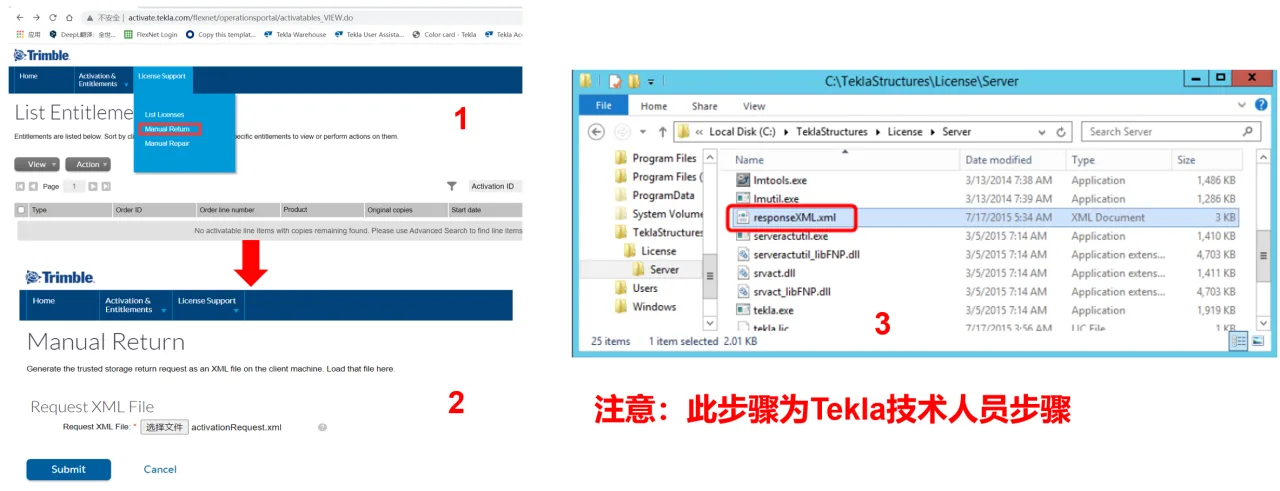
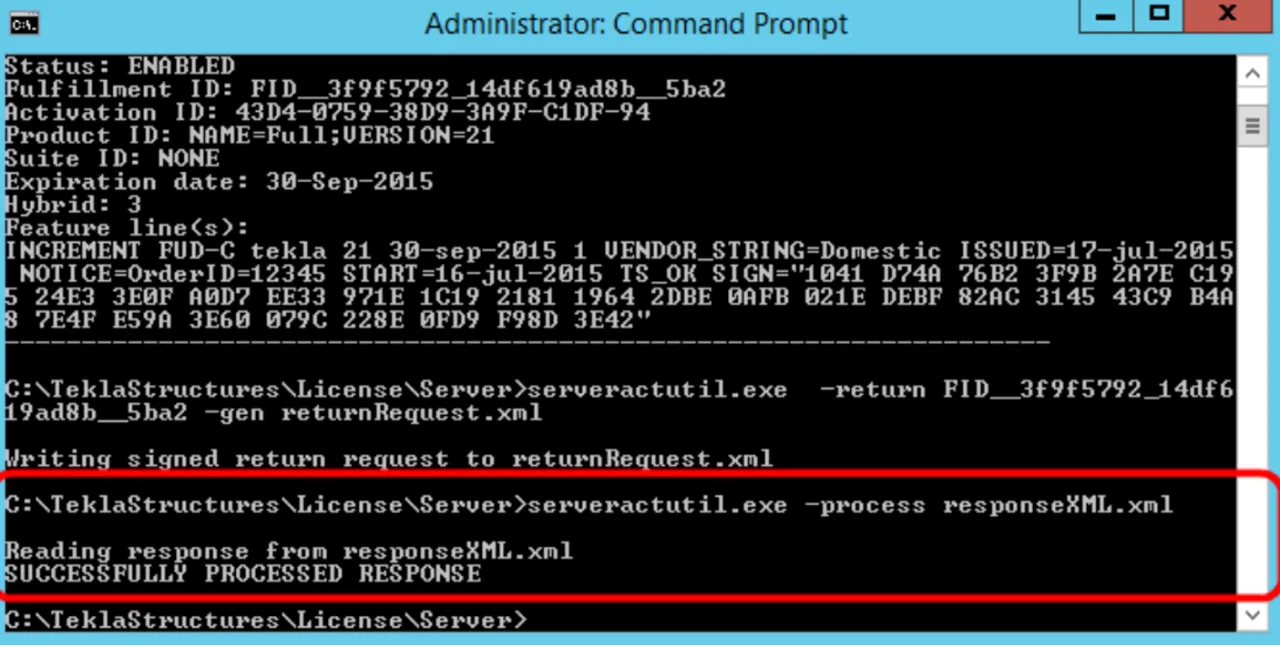
Then, in the command prompt, run the following command (replace responsiveXML.xml with the actual filename):
serveractutil.exe process responsiveXML.xml
If you have closed the command prompt, reopen it as administrator and navigate back to the license server folder using the command:
CD /D C:TeklaLicenseServer
After processing, you should see a message indicating “SUCCESSFULLY PROCESSED Reply”.
Step 7: Verify that the license has been returned.
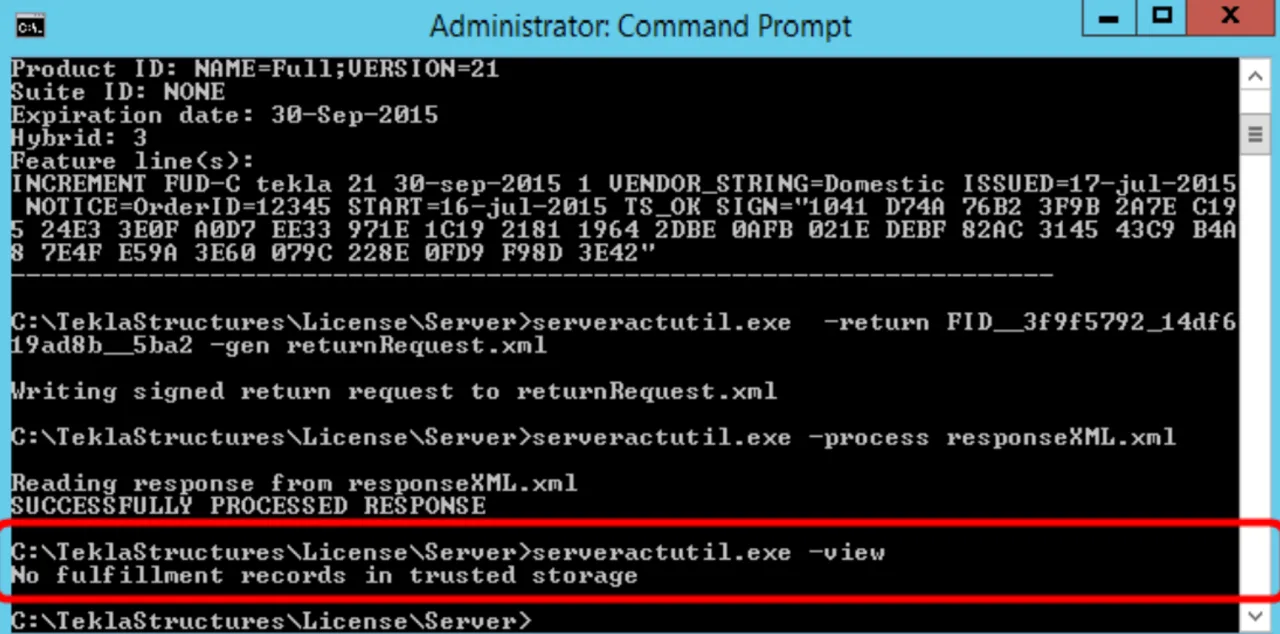
To confirm the license has been successfully returned, run:
serveractutil.exe view
If the license no longer appears in the list, the manual return process is complete.
Note: The information above is based on personal experience and is not intended for commercial use. If any infringement occurs, please contact us promptly.
















Must log in before commenting!
Sign Up