
This article is from the WeChat official account: BimLearning.
If the Tekla license server crashes or temporarily shuts down, you won’t be able to activate the license file using the Tekla License Administration Tool. In this situation, you must activate the license file manually. Below are the steps for manual activation:
Manual Activation – Step One:
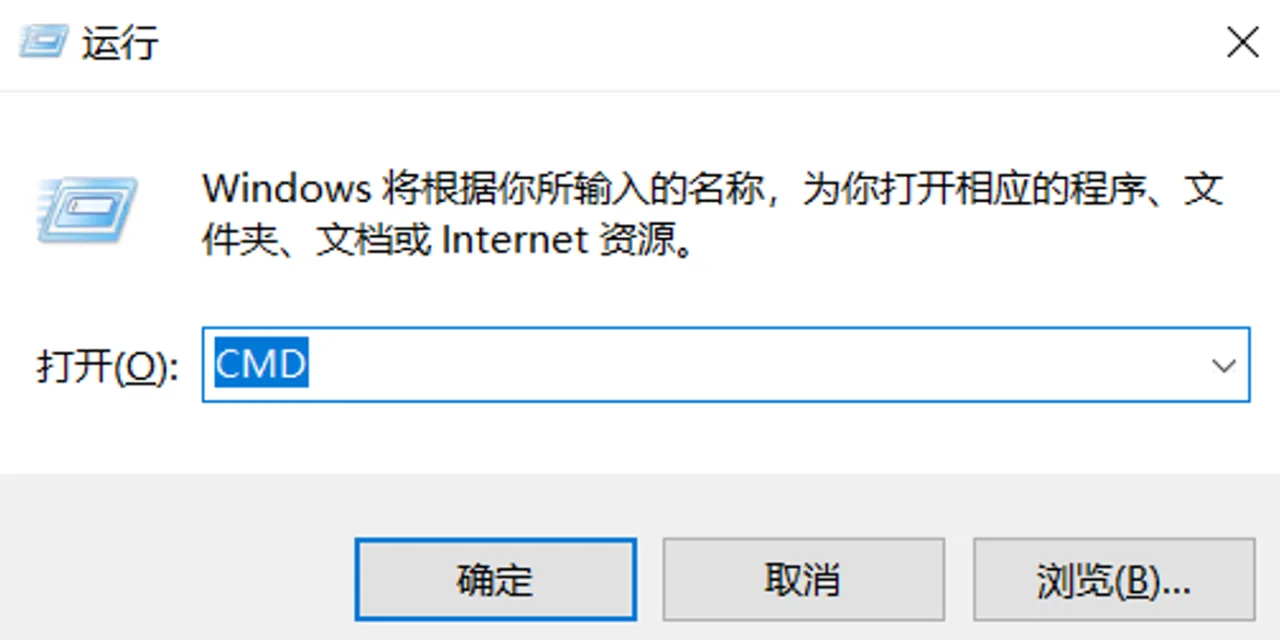
Step 1: Press Windows + R to open the Run dialog, type cmd, and press Enter to open the command prompt.
Step 2: Navigate to the folder where the license server is installed.
If the default installation is on the C drive, enter:CD /D C:TeklaLicensed Server
If installed on another drive, such as D, replace C: with the appropriate drive letter.
Then enter the command:server actutil - service - activationID 0508-EA0E-BC19-75BB-ED3D-XX - hybrid 1 - gen yourname.xml
(Note: The activation ID is unique for each user or company and can be found in your license files. Use different pinyin for different users if multiple manual activations are needed.)
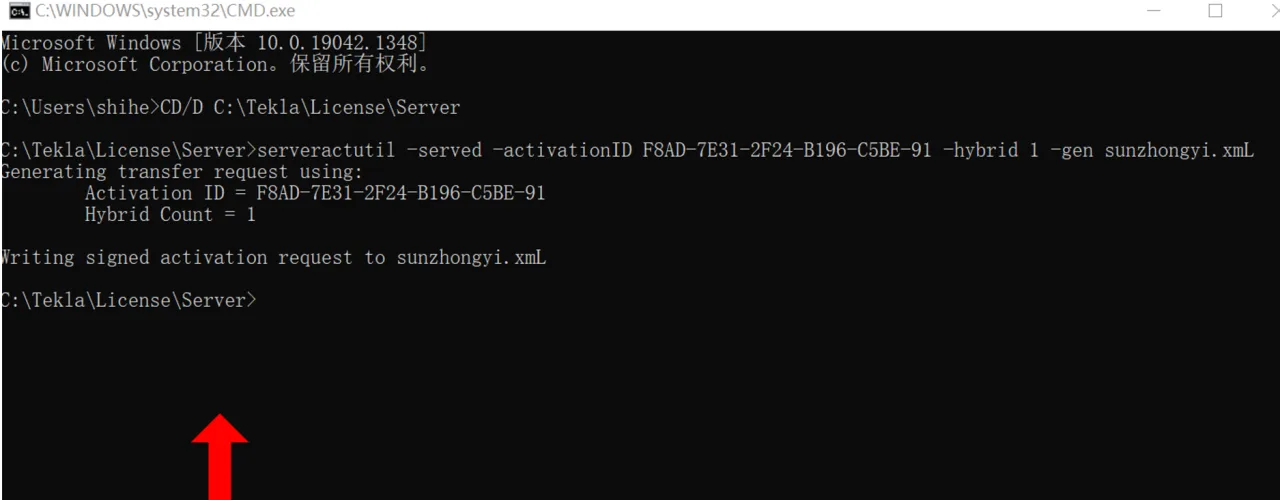
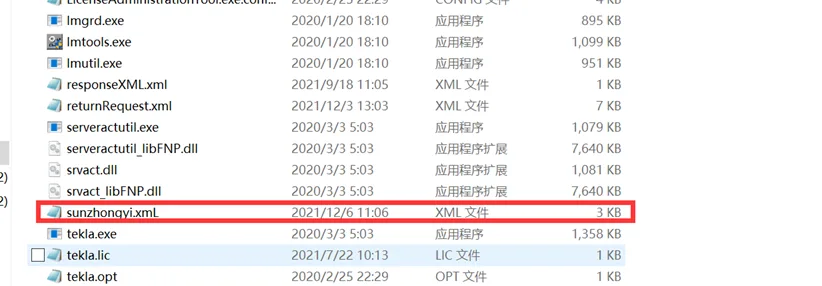
Step 3: Send the screenshot above and the .xml file from the tekla/license/server folder to Tekla technicians. They will generate the corresponding responsiveXML.xml file using their tools and systems.
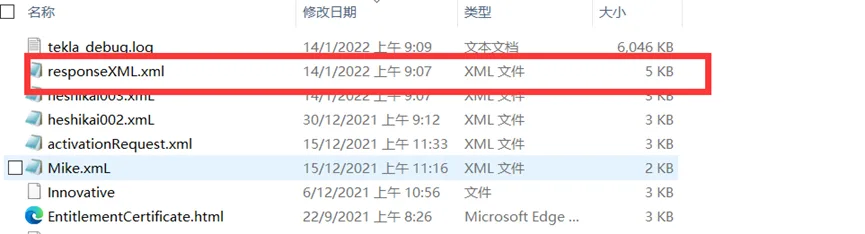
Step 4: Place the responsiveXML.xml file returned by the technician into the license folder, then run:server actutil - process responsiveXML.xml
(Make sure the filename matches exactly.)
If the command prompt shows “SUCCESSFULLY PROCESSED”, the license has been activated successfully.
Step 5: Open the Tekla License Administration Tool.
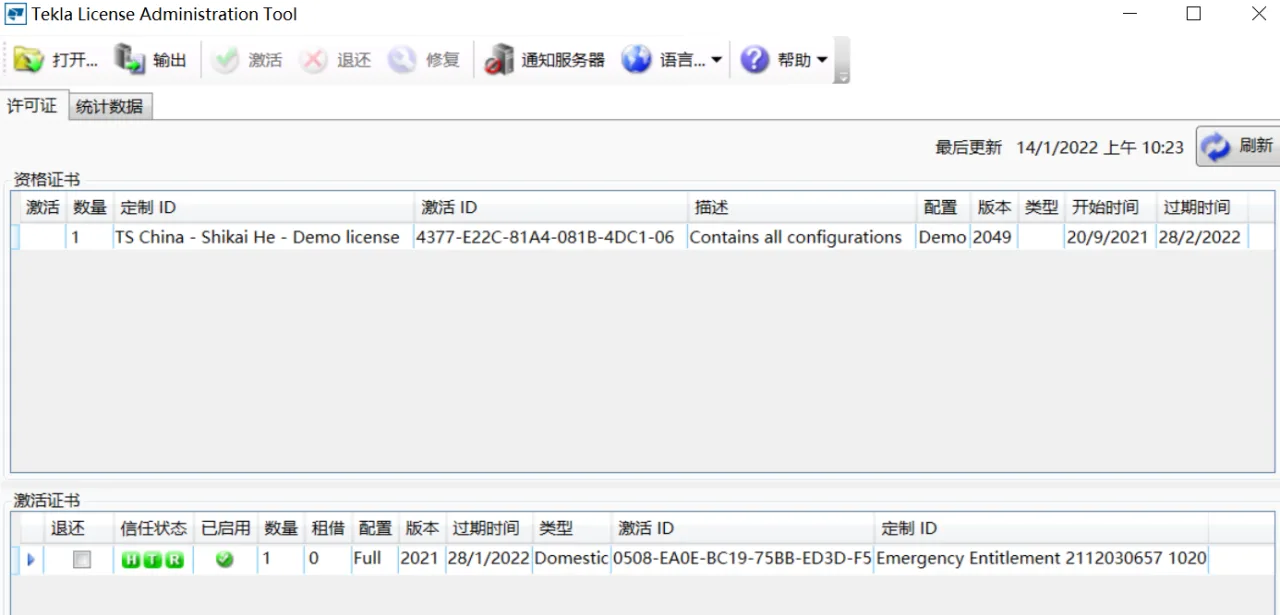
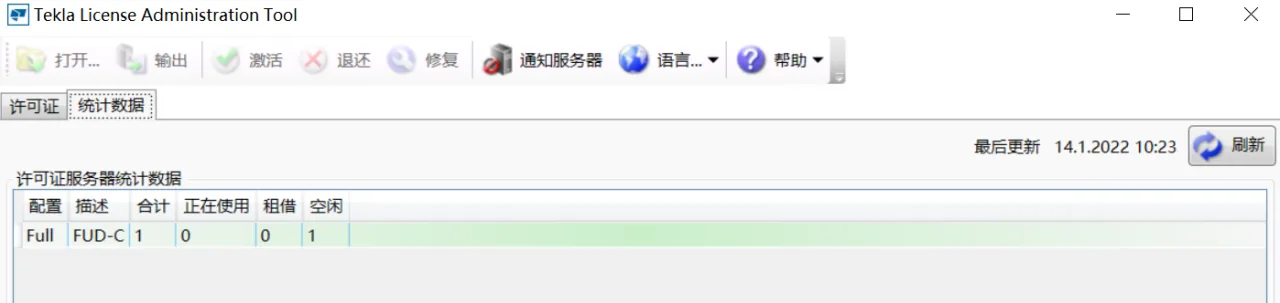
Check the activation status and license statistics. If it shows as activated and the statistics resemble the image above, the license is activated properly, and the server is running. You can now use the software normally.
If the statistics show “Unavailable”, restart the license server:
- Open
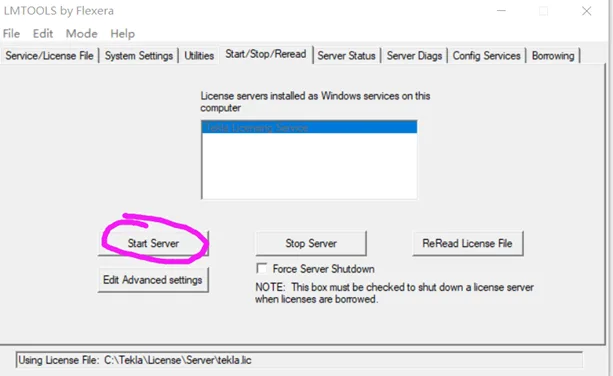
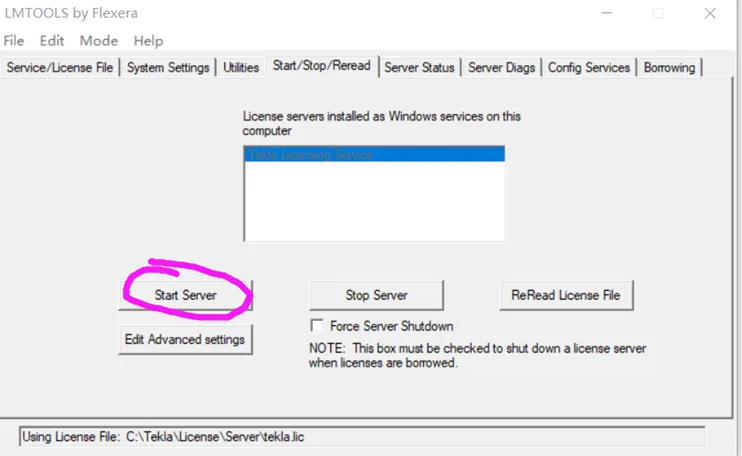
Lmtoolslocated in thetekla/license/serverfolder. - Click Start Server (or click Stop Server first, then Start Server).
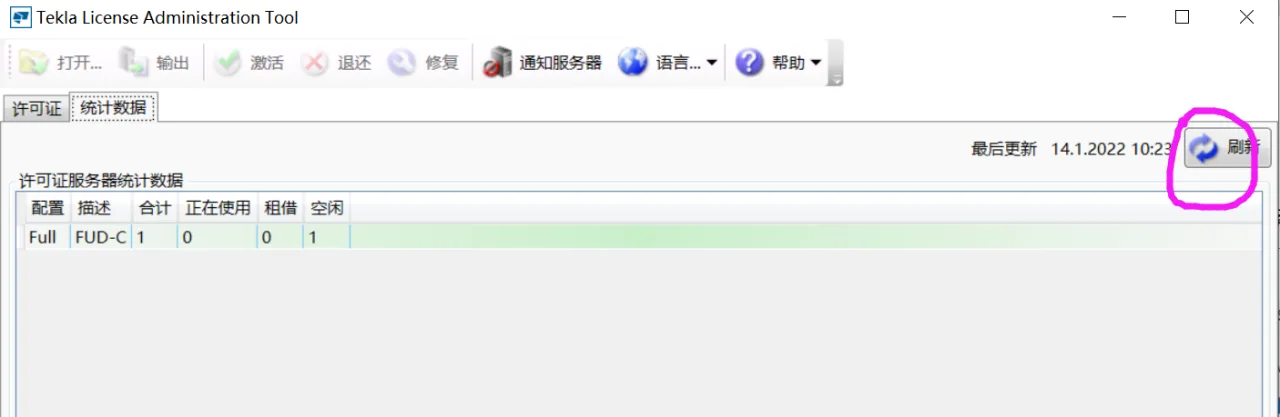
If you see “Successful” in the status column, the license server has started successfully. Refresh the statistics in the Tekla License Administration Tool to verify the license status. Once confirmed, the license file is activated, and the server is running normally, allowing software use.
Manual Secondary Activation Steps:
If you see the message “SUCCESSFULL PROCESS TRUSTED CONFIG RESPONSE, RESUBMIT REQ” (usually after the first manual activation), you will need to perform a secondary manual activation. The steps are:
Step 1: Enter the command:server actutil - activationID 0508-EA0E-BC19-75BB-ED3D-XX - hybrid 1 - gen activationRequest2.xml
(Remember to adjust the activation ID and use different pinyin for different users.)
Step 2: Send the generated .xml file from the tekla/license/server folder to Tekla technicians.
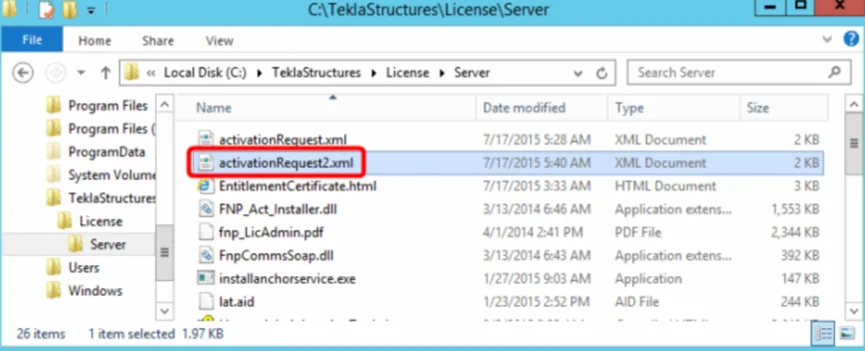
Step 3: Place the files returned by the technicians into the tekla/license/server folder.
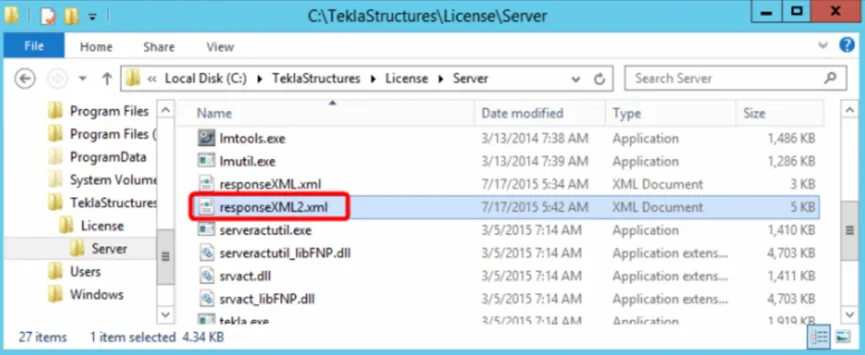
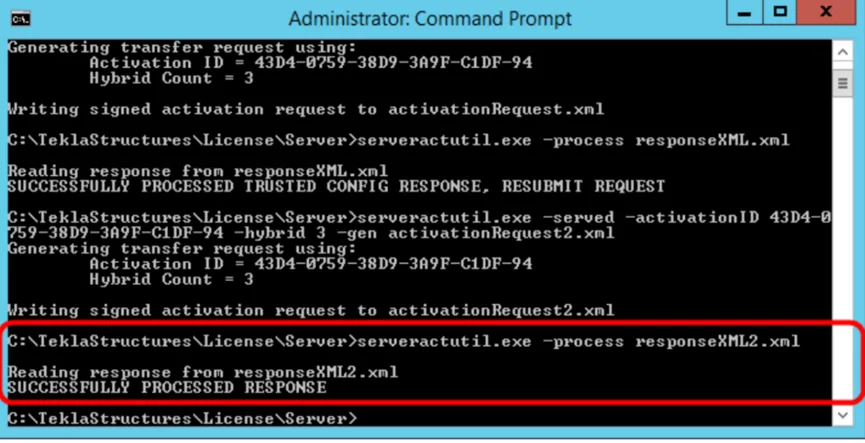
Step 4: Run the command:server actutil - process responsiveXML2.xml
The interface should display “SUCCESSFULLY PROCESSED RESPONSE”, indicating the license file is activated.
Step 5: Open the Tekla License Administration Tool.
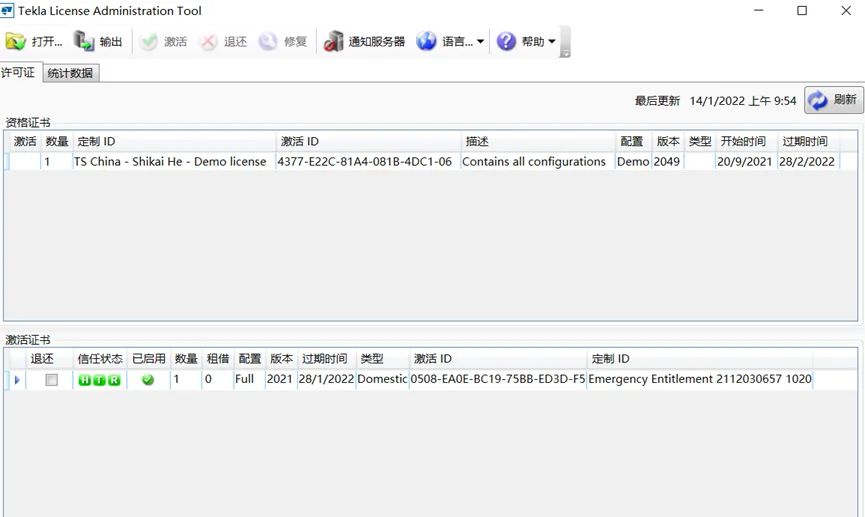
Check the activation status and statistics. If it shows activated and the statistics look similar to the image below, the license is activated normally and the server is ready for use.
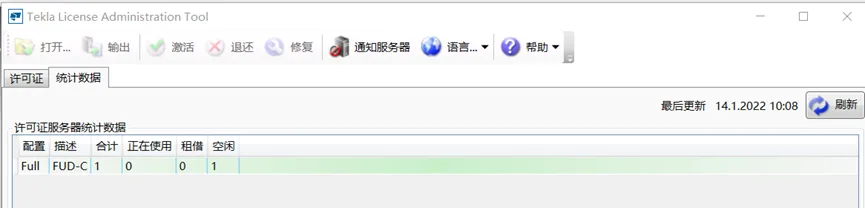
If the statistics show as unavailable, restart the license server using Lmtools as described earlier. Once restarted successfully, refresh the statistics to confirm the license is active and the software is ready to use.
Note: The above steps are shared based on personal experience and are not intended for commercial use. If any infringement occurs, please contact us promptly.
















Must log in before commenting!
Sign Up