
Sometimes, the created slope object requires editing or modification. To do this, select the slope object and click on the slope editor. In the panoramic dialog box that appears, you can set and adjust the slope standards, as illustrated in Figure 1. Use the “Edit Slope” command to change the slope value. Additionally, the “Create Surface” command allows you to generate a sloping surface that remains dynamically linked with the slope group command.
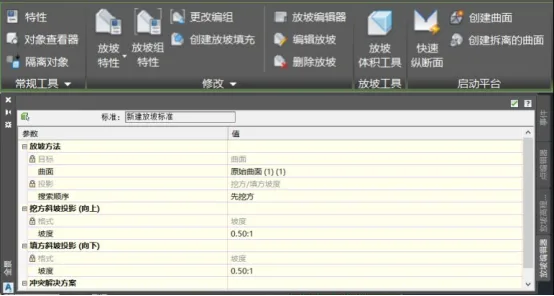
Figure 1: Slope Editor Command
In the slope group properties dialog box, set the volume reference surface to the original terrain surface. Then, click the slope volume tool located on the command bar above, as shown in Figure 2.
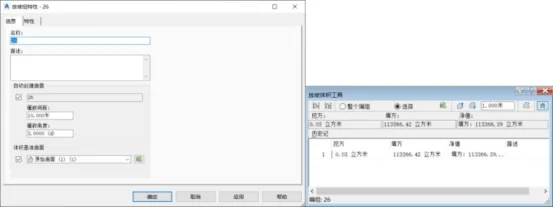
Figure 2: Slope Volume Calculation
The detailed excavation and fill data for the slope can be viewed within the slope volume tool’s dialog box. You can adjust the elevation of the leveled site by raising or lowering selected feature lines in this dialog. The “Automatic Balance Volume” command helps balance the overall earthwork quantities for the slope group. By fine-tuning these adjustments, the net fill and excavation volumes on the site can be minimized to achieve optimal earthwork balance, as shown in Figure 3.
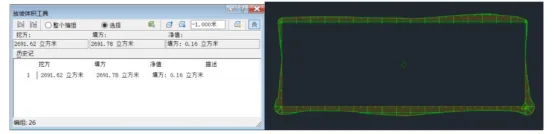
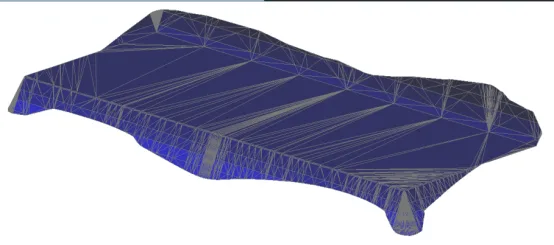
Figure 3: Earthwork Balance Optimization on the Site
For the final earthwork quantity calculations, you can also use the volume surface created from a triangular mesh via the Volume panel. Select the “Volume and Material” panel under the Analysis tab, as depicted in Figure 4.
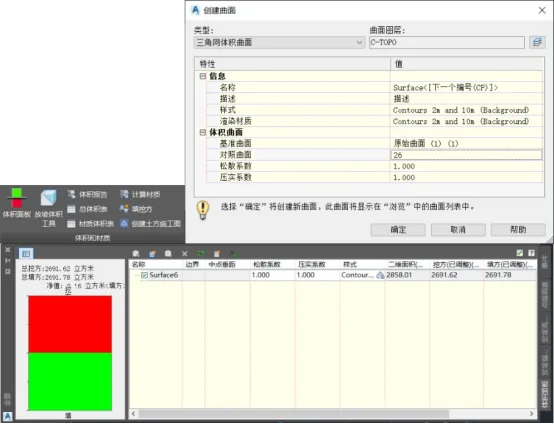
Figure 4: Volume Panel Command
Within the panoramic dialog box of the Volume panel, click “Create New Volume Surface.” In the pop-up “Create Surface” dialog, set the baseline surface as the original terrain and the reference surface as the sloping surface. You can also configure parameters such as looseness and compaction coefficients. Click “OK” to generate the triangular mesh volume surface. Returning to the panoramic dialog box, you will see excavation and fill calculation results that match those from the slope volume calculation tool.
Author: Yang Long (Jilin University of Architecture)
For learning and communication purposes only. Copyright belongs to the original author. If there is any infringement, please contact us for removal.
















Must log in before commenting!
Sign Up