
Have you ever spent hours working on a model or file, only to accidentally delete it? Would you choose to recreate it from scratch or find a way to recover it? Most people would opt for the latter. So, how can you recover a mistakenly deleted file? The following guide will help you do just that!
How to Recover a Mistakenly Deleted Revit File
Typically, when you accidentally delete a file, it first goes to the Recycle Bin, where you can easily restore it. This is common knowledge, so we won’t dwell on it.
However, if you are working in Revit’s collaborative mode—designing and modeling using a central file—there’s good news. Even if the local or central Revit file is deleted, you can still recover it if the backup folder remains intact.
Here’s how to check if your backup folder is still available:
When you create a local copy from the central file, Revit saves it in a folder with the suffix “basicup” appended to the local file name, as shown below:
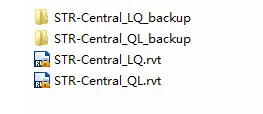
If your backup folder is still there, congratulations! Your work is safe.
Follow these steps to restore your Revit files:
1. Open Revit without loading any project. Click on the Collaboration tab, then navigate to Manage Models > Restore Backup, as shown below:
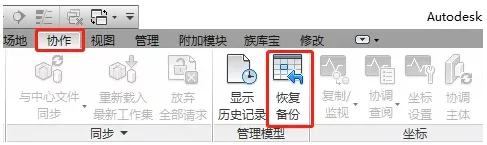
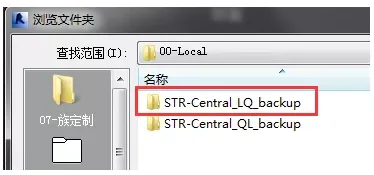
2. Select the path to the backup folder for the files you want to restore.
3. A prompt will appear—click Yes. A list of saved historical versions will then be displayed. Choose the version from the desired date and click Restore.
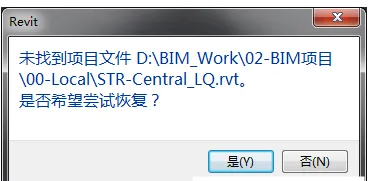
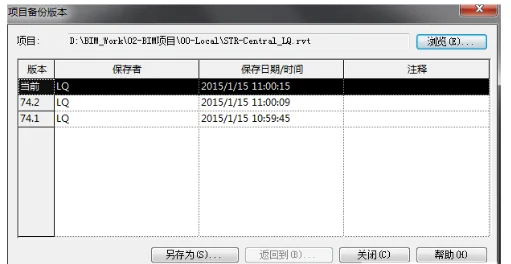
This process will restore the Revit file to its original location.
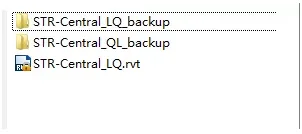
Important: The backup folder is essential and should never be deleted or moved. If the backup folder is missing or relocated, unfortunately, you will need to start over from scratch.
















Must log in before commenting!
Sign Up