
This article is from the official account TopsBIM.
Each version of ARCHICAD comes with hundreds of pre-configured, editable objects—also known as GDL objects or gallery components—that greatly enhance our modeling and design process. However, during real project workflows, we often find that the built-in ARCHICAD gallery does not fully meet our specific needs. In such cases, we can download additional galleries from external websites and add them to our project. Below is a brief guide on how to add a gallery to ARCHICAD.
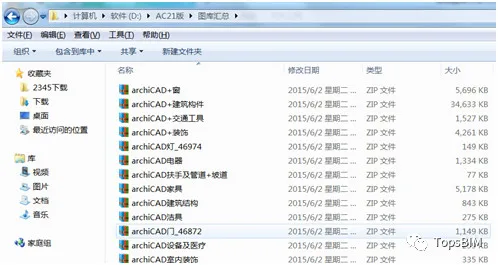
First, locate the folder containing the gallery you want to add or reload. For example, this could be the gallery folder for the AC21 version on your D: drive.
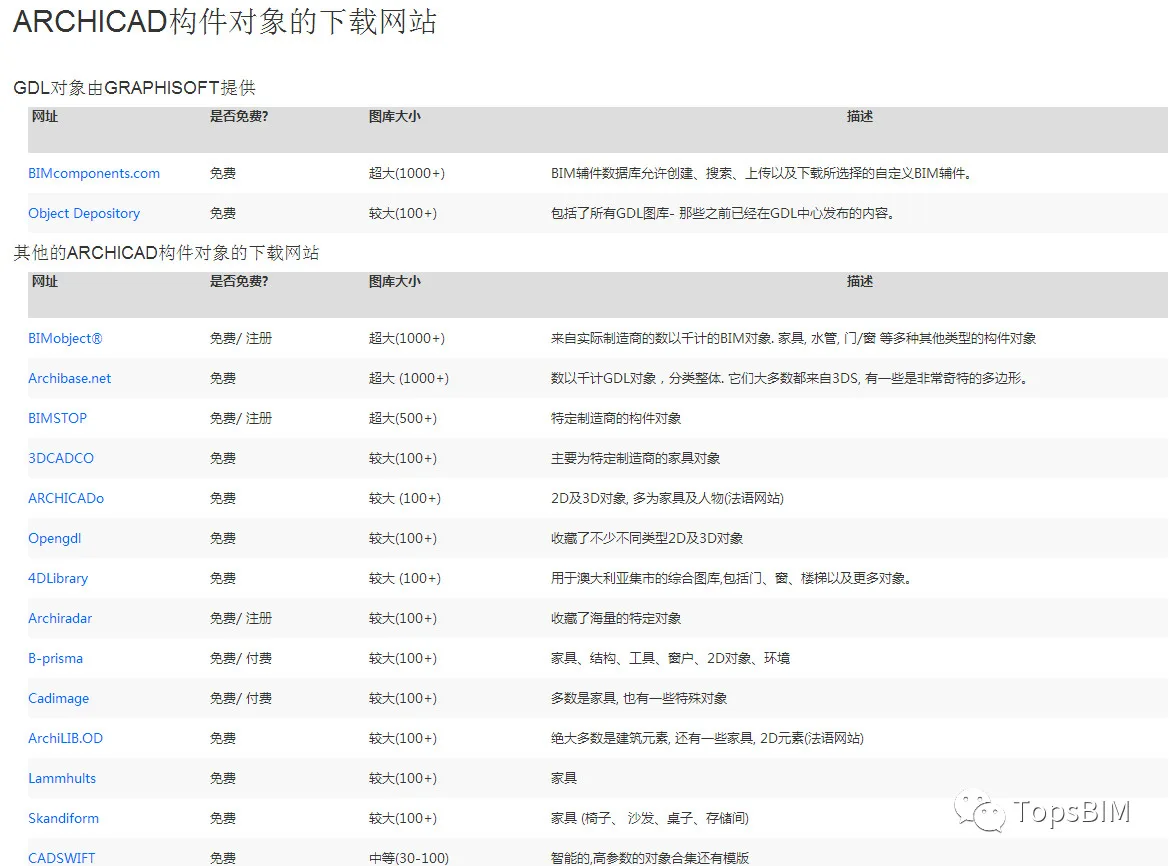
Tip: The official TuSoft website offers download links for numerous GDL objects (__AI_ST_URL_0)__.
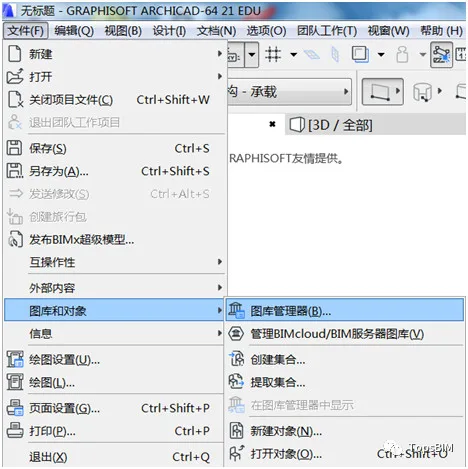
Next, go to the menu and select File > Libraries and Objects > Library Manager to open the Library Manager window.
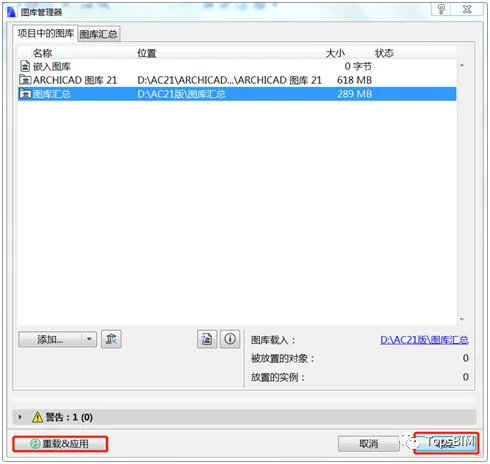
In the Library Manager dialog box, click the Add button, then browse to and select the gallery you want to add. Click Select to confirm.
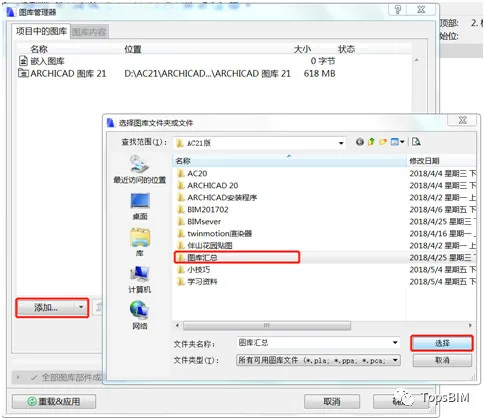
You will now see the new gallery listed among your project libraries. Finally, click Reload & Apply and then OK to add the gallery to your project.
















Must log in before commenting!
Sign Up