
This article is from the official account: BIM Center of Guangdong Heavy Industry Institute.
Today’s tip focuses on trimming elements to the roof or shell, a useful technique that helps you quickly create roofs. Make sure to follow along carefully!
Tip: Trim elements to the roof or shell
Default shortcut key: None (can be customized)
To trim an element to a specific position on the roof or shell, select the shell extending beyond the roof, then right-click and choose Trim element to roof/shell.
First, open ARCHICAD and locate the model where you want to create a sloping roof. Then, follow these steps to draw the sloping roof.
There are two ways to draw sloping roofs depending on the number of partition walls inside the house:
- Few partition walls: Select the Roof tool, place the cursor inside the enclosed space, hold down the spacebar, and a contour line of the sloping roof will appear. Click the left mouse button to place the roof.
- Many partition walls: Select the Roof tool, then choose the Comprehensive Roof option from the construction method menu at the top of the interface. Draw a circle along the outer frame of the space to complete the sloping roof.
(Roof tool icon is shown in the image above)
(Roof construction method icon is shown in the image above)
After drawing the sloping roof, if you notice that walls extend beyond the roof, you can trim them as follows: left-click the wall that extends beyond, right-click, select Link > Trim element to roof/shell, then click on the roof. Moving the mouse down will display a blue box; if the box is below the wall, it means the wall has been successfully trimmed.
You can also select multiple walls that exceed the roof and apply the same trimming method once for all.
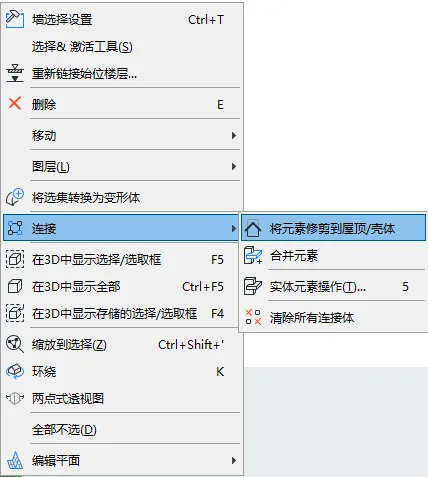
(The image above illustrates trimming elements precisely to the roof or shell.)
















Must log in before commenting!
Sign Up