
This article is brought to you by the BIM Center of Guangdong Heavy Industry Institute.
Today, we’re sharing a handy tip about the 3D slicing tool in ARCHICAD. This tool allows you to slice through your model at any angle, giving you a clear view of the elements inside. It’s a feature worth mastering!
Tip of the Day: 3D Cutting Tool
Default Shortcut Key: None (you can assign one yourself)
To find the 3D cutting tool, right-click on any empty space in the menu bar above the interface and select “Standard” from the dropdown menu.
Start by opening ARCHICAD and loading your model. If you don’t see the 3D cutting tool in the menu bar, use the method above to enable it.
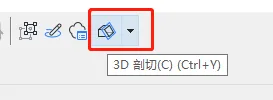
(The image above shows the 3D cutting tool.)
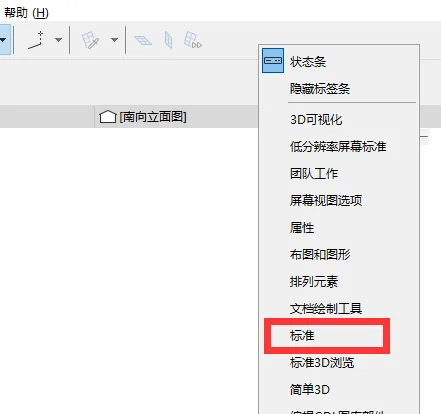
(This image highlights the exact location of the 3D cutting tool within the interface.)
When you click on the 3D cutting tool, scissor icons will appear around your model from all directions.
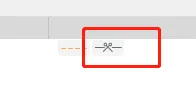
(The scissors icon of the 3D cutting tool, as shown above.)
Clicking on any scissor icon activates a cutting plane. You can then move your mouse to position the cutting plane anywhere—up, down, left, right, or on multiple faces—to slice through the model. Note: The cutting surface must face the scissor icon to perform the cut.
There are three ways to manage cutting surfaces:
- Delete a single cutting plane: Right-click the specific cutting plane you wish to remove, then choose Delete Cutting Plane from the menu.
- Delete all cutting planes: Right-click any cutting plane and select Delete All Cutting Faces to clear all cuts.
- Hide cutting surfaces without deleting: Simply close the 3D cutting tool. The cutting surfaces will become invisible but will still exist when you reopen the tool.
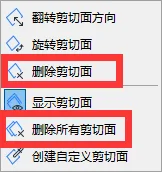
(The image above shows how to delete a specific cutting plane.)
















Must log in before commenting!
Sign Up