
This article is brought to you by the BIM Center of Guangdong Heavy Industry Institute.
Today, we’re sharing a useful tip about the Section Manager feature, which allows you to create custom irregular cross-sections. Let’s take a closer look!
Tip of the Day: Section Manager
Default shortcut key: None (you can assign one yourself)
To access the Section Manager, navigate to the menu bar and select Options > Complex Section > Section Manager.
First, launch ARCHICAD and open the model where you want to create irregular cross-sections.
At the top menu bar, locate and click on the Section Manager option.
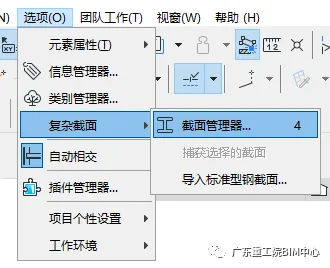
(The image above shows the location of the Section Manager.)
Clicking on Section Manager will open a dialog box.
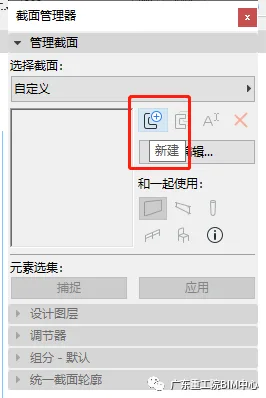
(Here’s the Section Manager dialog box.)
Click “New” in the dialog to create a new section. Enter a name for your section in the pop-up window, then click OK.
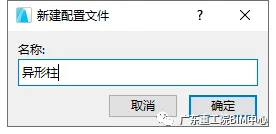
(This image shows the new section dialog box.)
Next, draw your section using the fill tool, or first sketch the outline with the line tool and then fill it. Note: If you only draw the lines, you cannot save the section. You must fill the shape to save it properly.
Under the “Use with” options, select the applicable elements such as walls, beams, or columns. For example, check the column option if your section applies only to columns, or the beam option if it applies to beams.
You can also adjust the extension width and height to allow your section to stretch as needed. These settings are optional and can be left unchecked if not required.
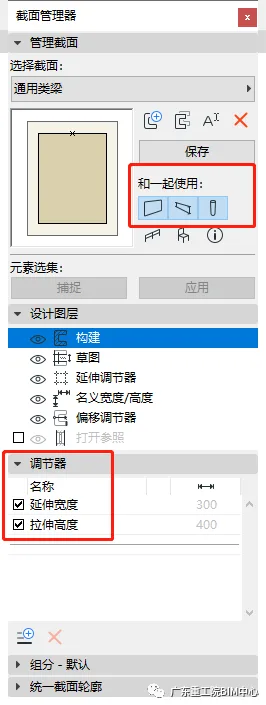
(Another view of the Section Manager dialog box with these settings.)
Once you’re done, click Save to finalize your irregular cross-section.
To use your new section, double-click the Column tool, select the Complex Section option on the dialog page, then check the Custom box. Find and select your newly created section, then click OK to apply it.
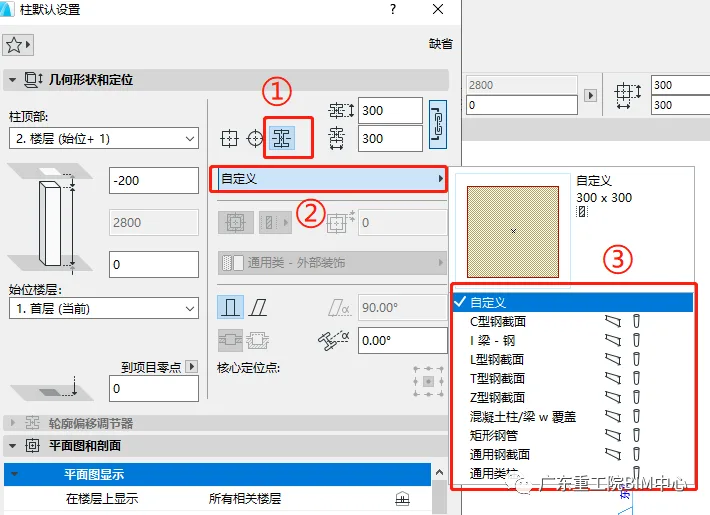
(Column tool settings dialog box as shown above.)
That’s all it takes to use the Section Manager! Give it a try and explore the possibilities.
















Must log in before commenting!
Sign Up