
This article is brought to you by the BIM Center of Guangdong Heavy Industry Institute.
Today, I’m excited to share a useful tip about the Selection Set tool in ARCHICAD. This handy feature helps you quickly isolate and view specific parts of your model, which is especially helpful when working with large projects.
Tip of the day: Using the Selection Set Tool
Default shortcut key: None (you can customize it yourself)
To access the Selection Set tool, navigate to Menu > Window > Panels > Selection.
Here’s how to get started:
First, open your ARCHICAD software.
Next, select the part of the model you want to isolate. Then, go to Menu > Window > Panels > Selection. A “Selection” dialog box will appear.
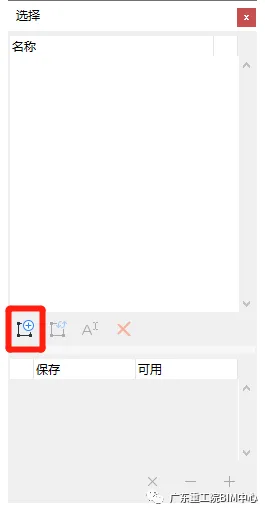
(The Selection dialog box as shown above)
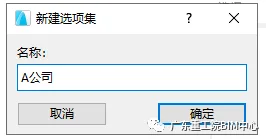
(The dialog box for creating a new Selection Set, shown above)
Click on “New Selection Set,” enter a name in the pop-up dialog, and click “OK.”
For example, if you want to name the selected part “Company A,” simply enter “Company A” in the dialog box.
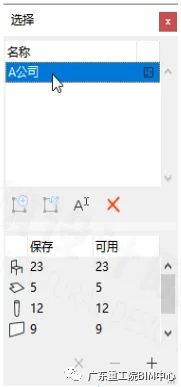
(The Selection dialog box after setting the new Selection Set, as shown above)
Now your Selection Set is created. To access it later, just go to Menu > Window > Panels > Selection and double-click the Selection Set you created.
















Must log in before commenting!
Sign Up