
Source: BIM Center of Guangdong Heavy Industry Institute
Today’s Tip: How to Draw Blinds Using Window Tools
Default Shortcut Key: None
Window Tool Location: Vertical menu bar on the far left – Design – Window Tool
Wall Tool Location: Vertical menu bar on the far left – Design – Wall Tool
01. Drawing Walls and Standard Windows
Start by using the Wall Tool to draw a wall. Then, double-click the Window Tool to open the “Window Default Settings Panel”. In the ARCHICAD gallery, locate the basic window options and select Window 22. Enter the desired window parameters, click OK, and place the window onto the wall.
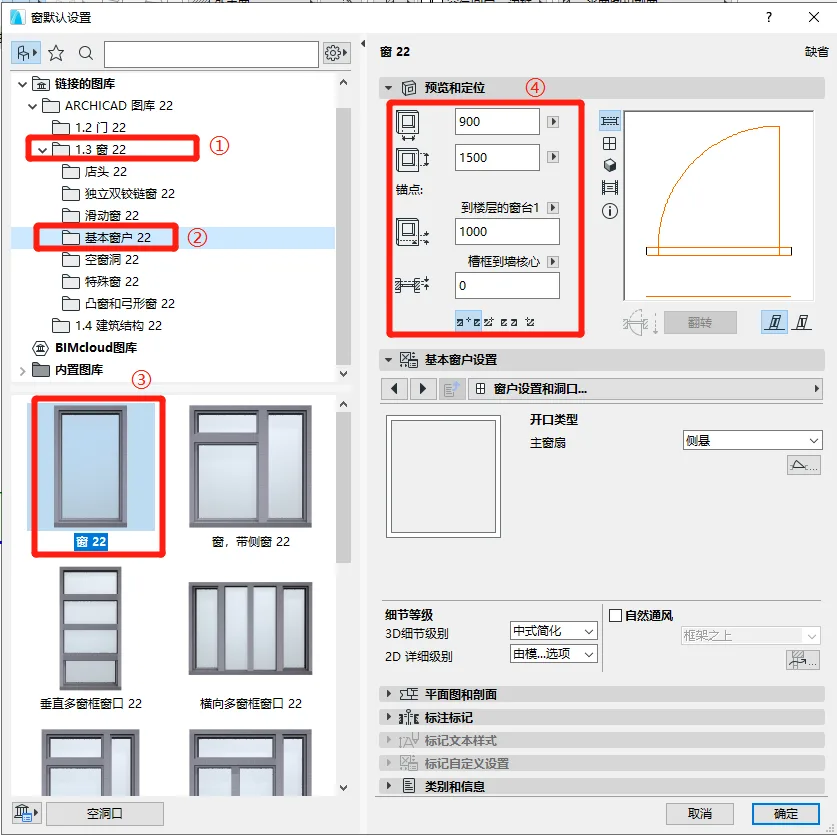
(The default settings panel is shown above)
02. Adding Blinds to Standard Windows
Select the previously drawn standard window and open the “Window Default Settings Panel” again. Under the “Basic Window Settings,” find the “Window Fan Options”. From the “Window Fan Type” dropdown, choose the ventilation fan option.
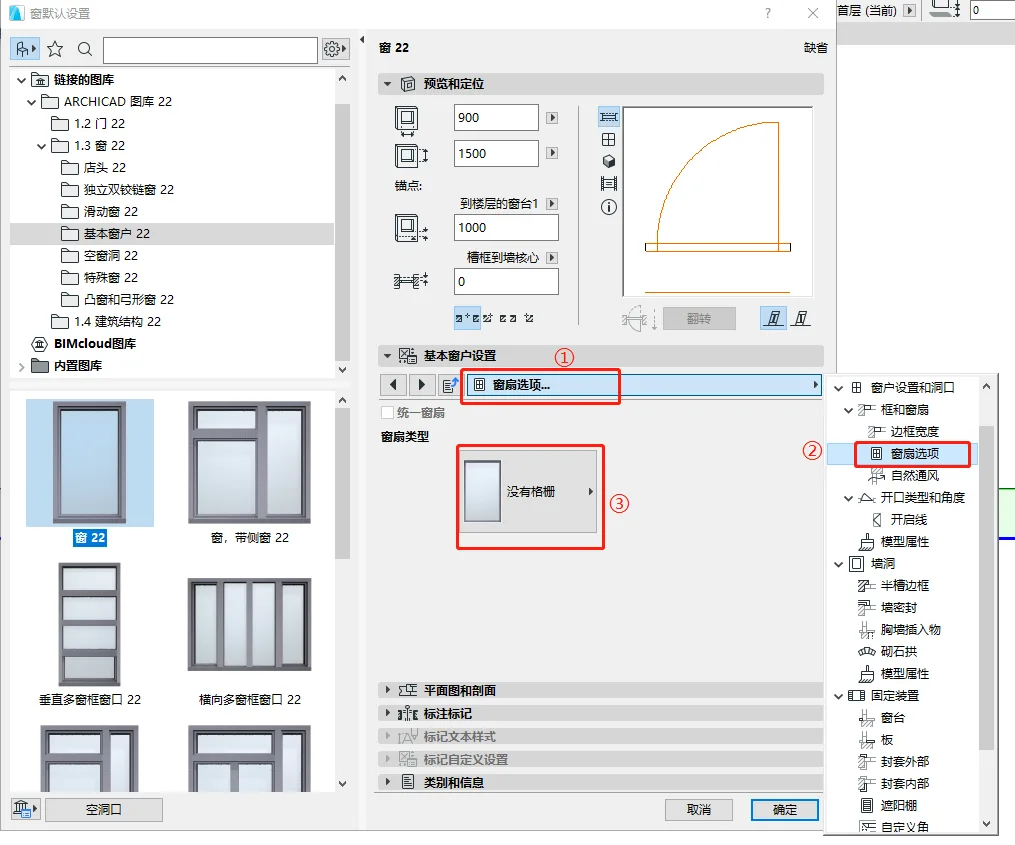
(Follow the ventilation fan selection steps as illustrated above)
At this point, the louvers are not angled. To adjust the angle, locate the window sash type options, enter 45° for the louver angle, and apply the change.
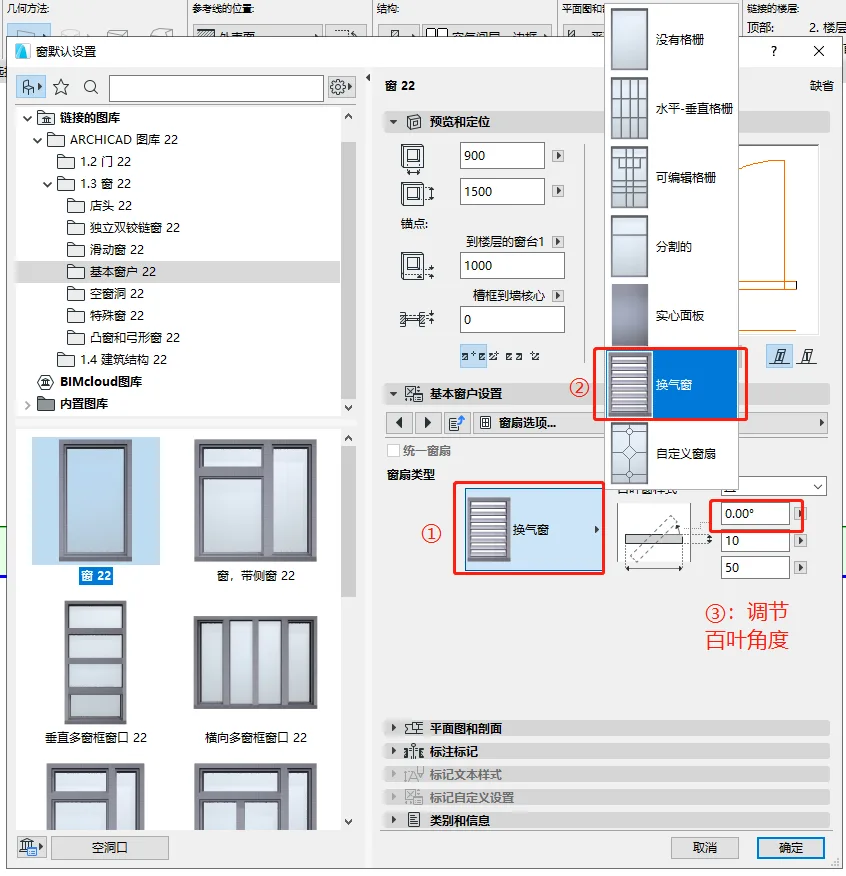
(The louver angle adjustment process is shown above)
03. Changing the Color of the Blinds
With the blinds selected, reopen the “Window Default Settings Panel” and go to “Model Properties” under the “Basic Window Settings”. Here, you can modify the color of the blinds by adjusting the “Frame and Window Surface” options.
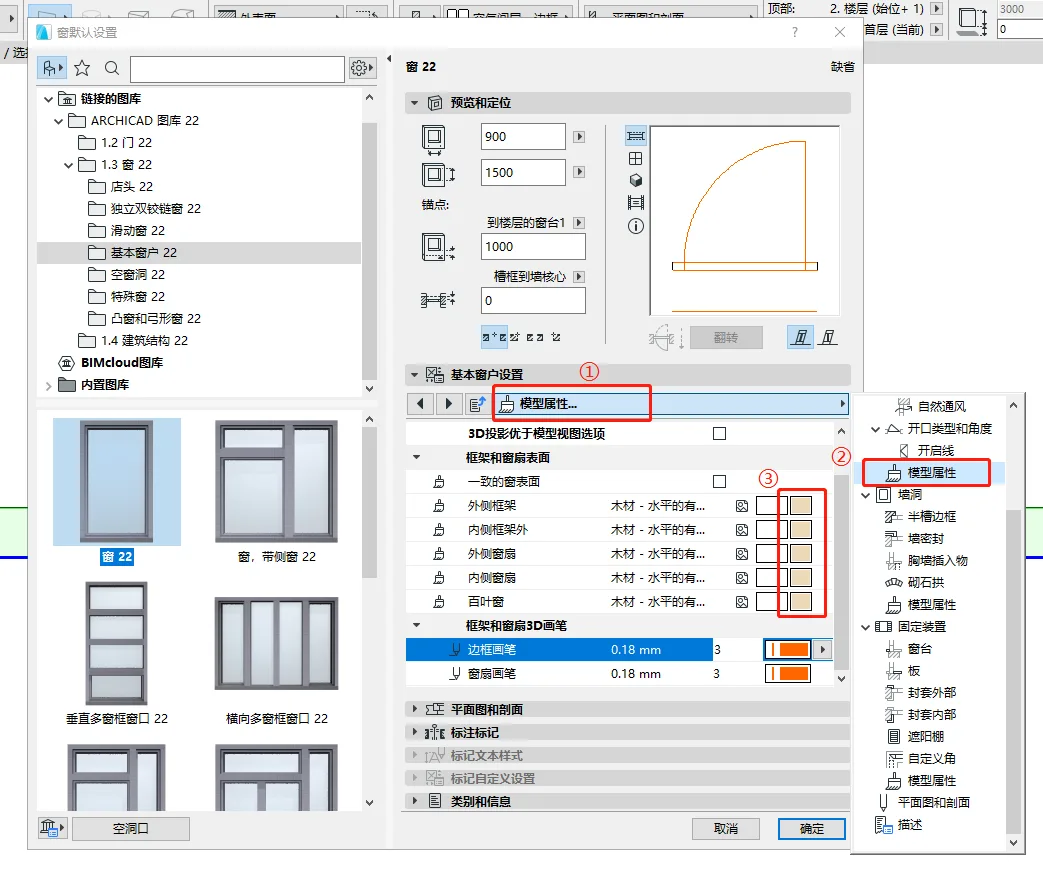
(The color modification steps for the blinds are illustrated above)
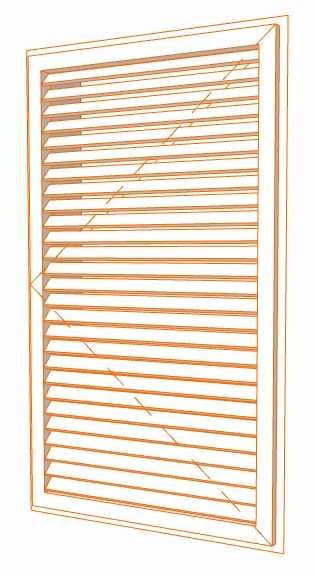
(The final appearance of the drawn blinds is shown above)
















Must log in before commenting!
Sign Up