
Article from the official account: BIM Love Building
Collaboration refers to the process or capability of coordinating two or more different resources or individuals to achieve a shared goal efficiently, producing a result greater than the sum of its parts—essentially, achieving “1+1>2”.
For instance, when you modify a Revit model, the corresponding model loaded into Navisworks updates automatically. This ensures that the latest version is always used for subsequent tasks.
Another example is after completing clash detection in Navisworks. If you need to address the detected issues, you can use the external tool Navisworks SwitchBack within the Revit add-in. This tool allows you to directly transfer the selected element from Navisworks back to the matching element in Revit and highlights it. This enables quick and accurate modifications to construction elements with clashes.
Below, we will explain and demonstrate some of the key collaborative workflows between Revit and Navisworks.
Relationship Between Navisworks File Formats and Revit
Common Navisworks file extensions: .nwc, .nwf, .nwd
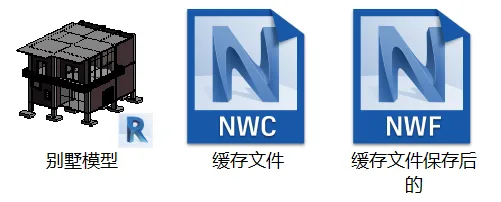
The .nwc file is cached data derived from the original source model. When you load a 3D model into Navisworks for the first time, this cache file is automatically generated to speed up future loading. When the source model is modified and reloaded in Navisworks, the old .nwc file is deleted, the updated source is retrieved, and a new .nwc file is created, ensuring the latest data is always used.
If Navisworks is not refreshed after changes are made in Revit, however, the .nwc file will not update. It’s important to note that .nwc files cannot be edited directly; only new .nwf files can be saved after modifications.
Additionally, when the model changes, reopening the original .nwf file will automatically reload the updates.
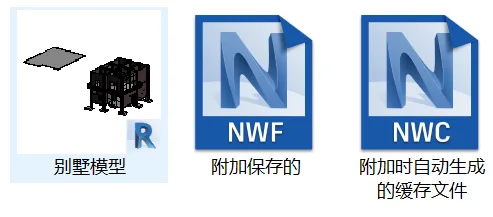
If you open the model using Navisworks’ additional features (which also generate cached .nwc files automatically), you can refresh the model inside Navisworks after modifying it in Revit. The file saved when using these additional features is in the .nwf format.
As for the .nwd format, I have not yet explored its editing capabilities fully. I will share more insights after completing my study of Navisworks’ information integration and management functions.
Revit Add-in – External Tools: Navisworks SwitchBack
Navisworks SwitchBack allows you to open your model simultaneously in Revit and Navisworks. When connected, selecting an element in Navisworks will highlight and select the corresponding element in Revit, enabling seamless coordination between the two programs.
Here are the steps to use Navisworks SwitchBack:
1. In Revit, click on the Navisworks SwitchBack button.
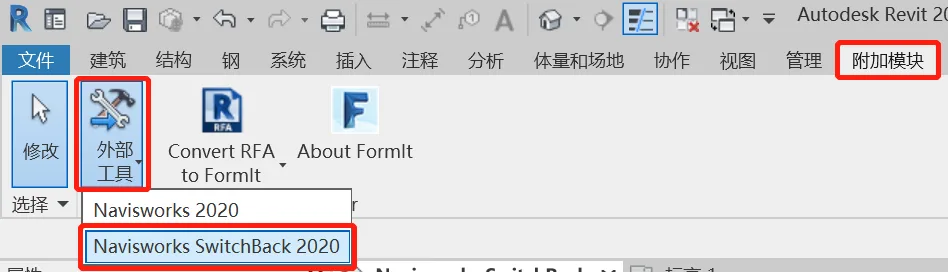
2. Switch back to Navisworks and select the desired element.
3. Click the ‘Return’ button in the project tools.
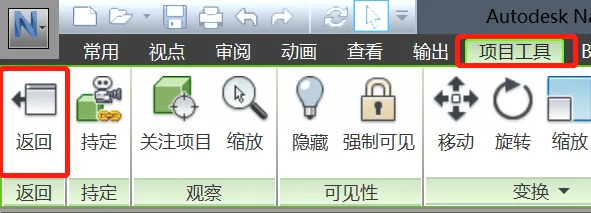
4. Back in Revit, the corresponding element will be automatically selected, allowing you to make changes quickly and accurately.
















Must log in before commenting!
Sign Up