
Source: Geek BIM Workshop
Discover the magnetic attraction tool, officially known as Quick Select. Once activated, it allows you to quickly select objects in the drawing order without having to click precisely on their edges.
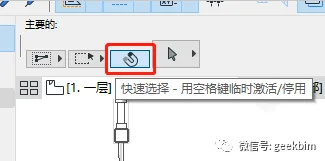
Since it’s easy to make mistakes, the tool is usually turned off by default and only activated temporarily by holding the space bar when needed.
When it comes to editing text, entering edit mode usually involves double-clicking, whether in Tianzheng or Photoshop. However, in ArchiCAD, the standard method is more cumbersome: you click the text, right-click to open the shortcut menu, then click the text again to start editing.
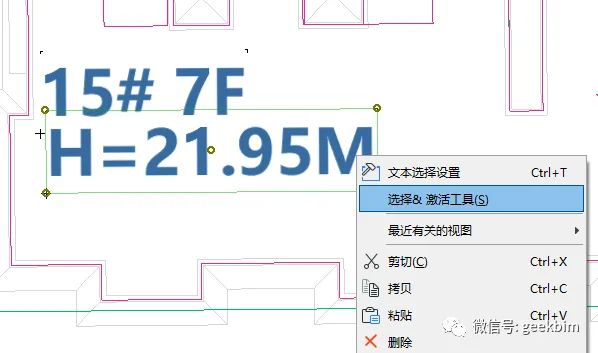
Another method is to hold down Shift to switch to selection mode when not already in it, then press the space bar to activate the magnetic selection tool. This lets you directly select text.
Note: If the tool is inactive, pressing Shift will quickly switch to selection mode, eliminating the need to manually click the mouse to select it.
Start as shown in the image below:
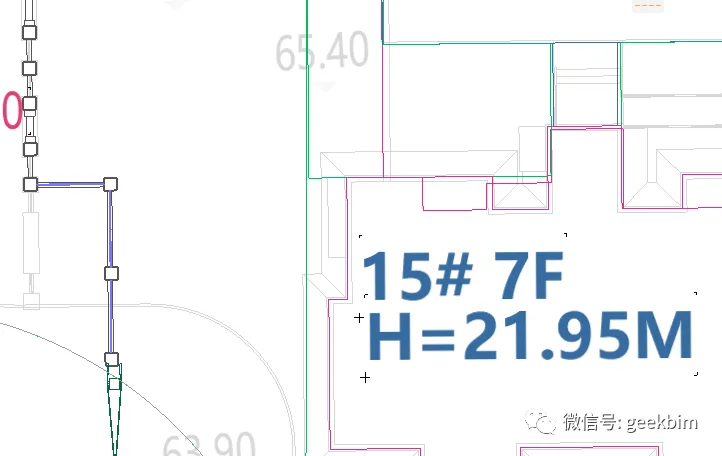
However, if you don’t release the space bar quickly enough after selecting, extra spaces will appear in the text, as shown below:
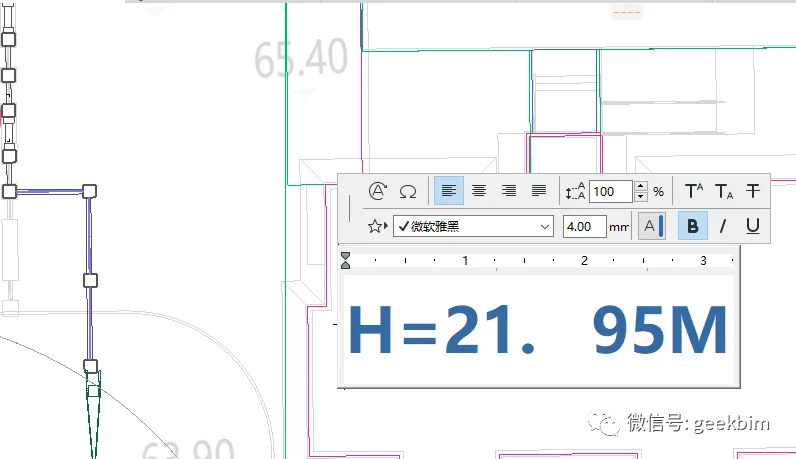
Here are the key solutions:
1. Press Shift + Spacebar, click the text, then click the exact position to enter edit mode. This method is ideal for quickly modifying individual text elements.
2. Activate the magnetic tool beforehand and double-click the text to enter editing mode. This approach is better suited for editing multiple text blocks within a document.
That’s all for now—happy editing!
















Must log in before commenting!
Sign Up