
This handy tip was featured in AEC’s daily tips. Do you find it useful? Feel free to share it.
AEC Tip of the Day
To switch frame positions, navigate to: View > Screen View Options > Sample Layout Items.
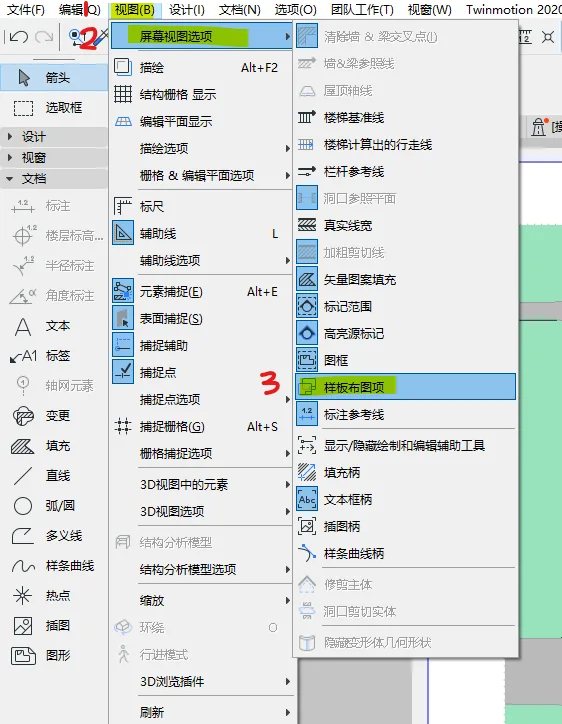
The image above demonstrates the layout in its expanded state.
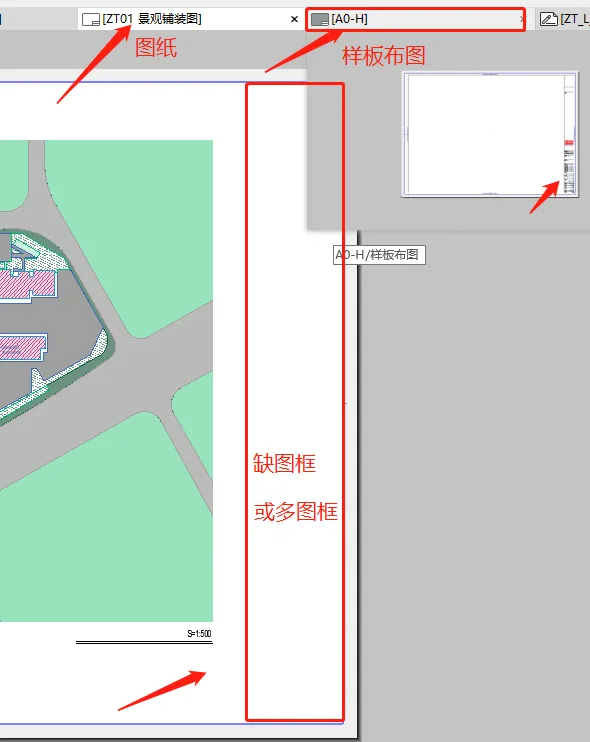
The image shows the layout when the frame is collapsed.
The border toggle allows you to hide the screen display of the border without affecting how it prints. If you want to exclude the border from printing, you will need to create a new frameless layout.
Commonly used screen display menu options include:
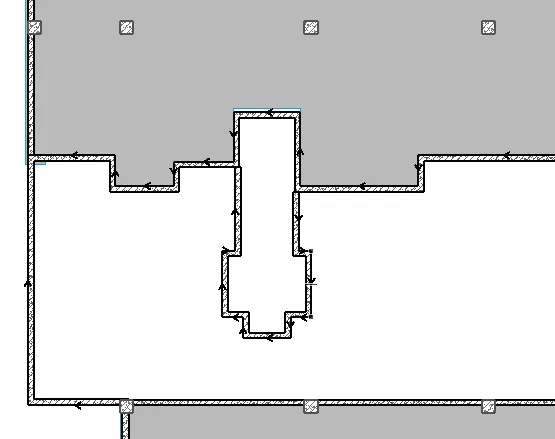
The reference line toggle displays the baseline and wall direction indicators.
The section symbol’s highlight and range visuals can be quite distracting, so I usually turn them off.
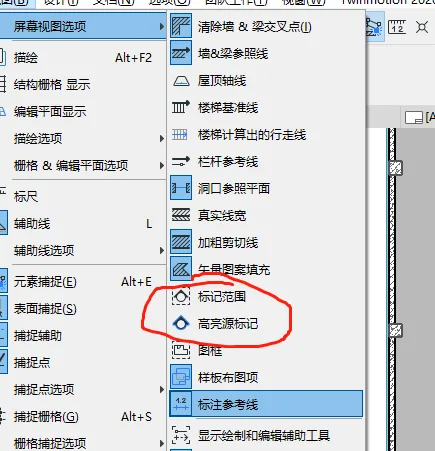
When screen options are available, take a moment to review and disable any drawing elements you find unnecessary to improve the clarity of your drawings.
















Must log in before commenting!
Sign Up