BIM World
A Professional BIM Learning Platform


BIM Q&A: How to Show the R-Angle of Steel Parts in Tekla Software

This article is from the WeChat official account: Tekla Technology Learning.

Many Tekla software users and professionals in the steel structure industry have noticed a common issue: steel profiles created using Tekla’s profile library show a discrepancy between gross and net weight, even without any cutting. This has caused some minor challenges during project settlement.
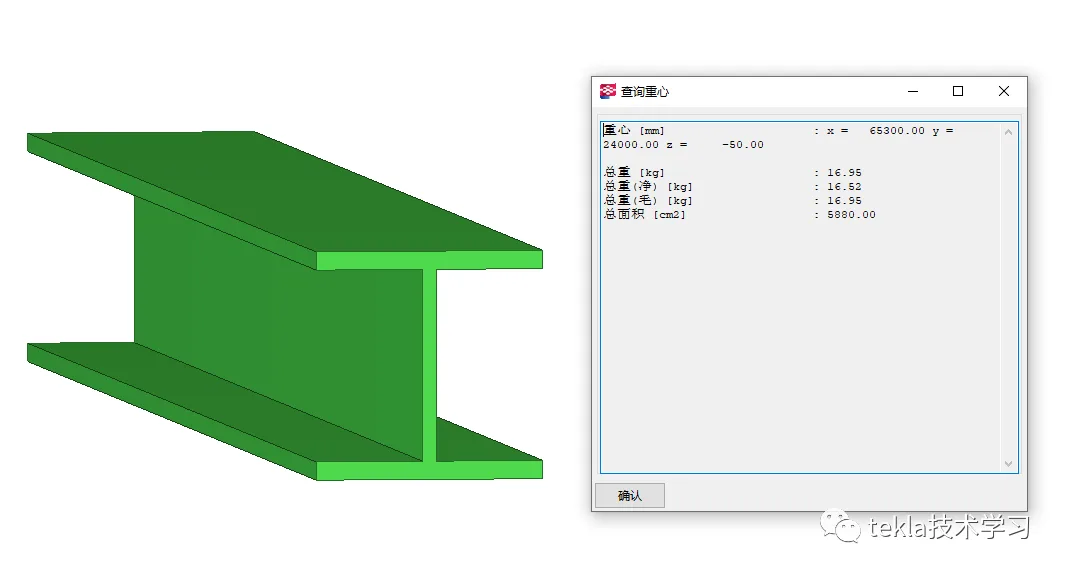
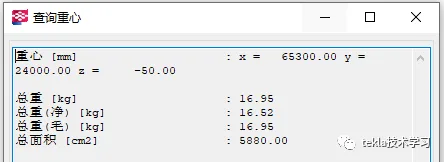
BIM Q&A | Tekla Software Technology Sharing: How to display the R-angle of steel parts in Tekla?

BIM Q&A | Tekla Software Technology Sharing: How to display the R-angle of steel parts in Tekla?

Now, let me show you a useful tip to address this!

Step 1:

Open the folder containing your model and locate the file named options.ini.
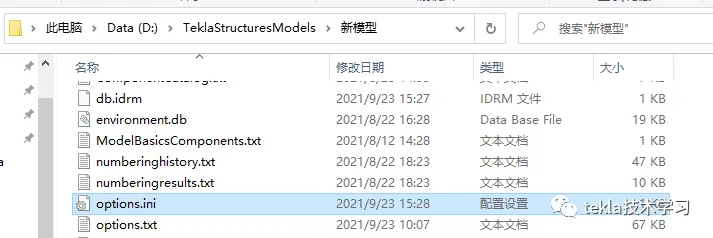
BIM Q&A | Tekla Software Technology Sharing: How to display the R-angle of steel parts in Tekla?

Step 2:

Open the options.ini file in Notepad and add the following setting:

XS_SOLID_USE.HIGHER-ACCURACY=TRUE

Save the file after editing.
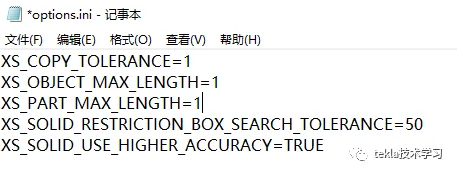
BIM Q&A | Tekla Software Technology Sharing: How to display the R-angle of steel parts in Tekla?

Important Note:

Make sure both the Tekla model and the software are completely closed before performing these steps. Failing to do so will cause the changes to be ineffective.

Have you mastered today’s tip?

xuebim
Follow the latest BIM developments in the architecture industry, explore innovative building technologies, and discover cutting-edge industry insights.
← Scan with WeChat
Like(0) 打赏
BIM WORLD » BIM Q&A: How to Show the R-Angle of Steel Parts in Tekla Software

Comment Get first!

Must log in before commenting!


BIM World, A Professional BIM Learning Platform

Stay updated on the latest architecture trends and share new building technologies.

Contact UsAbout Us

觉得文章有用就打赏一下小编吧

非常感谢你的打赏,我们将继续提供更多优质内容,让我们一起创建更加美好的网络世界!

支付宝扫一扫

微信扫一扫

Account Login

By signing in, you agree toUser Agreement

Sign Up













