
This article is from the WeChat official account: PCers.
Tekla software allows users to import custom frame files into Tekla drawings using drawing templates. This feature enables users to print PDFs directly from Tekla without converting files to CAD, adding frames, and then printing PDFs, significantly improving detailing efficiency.
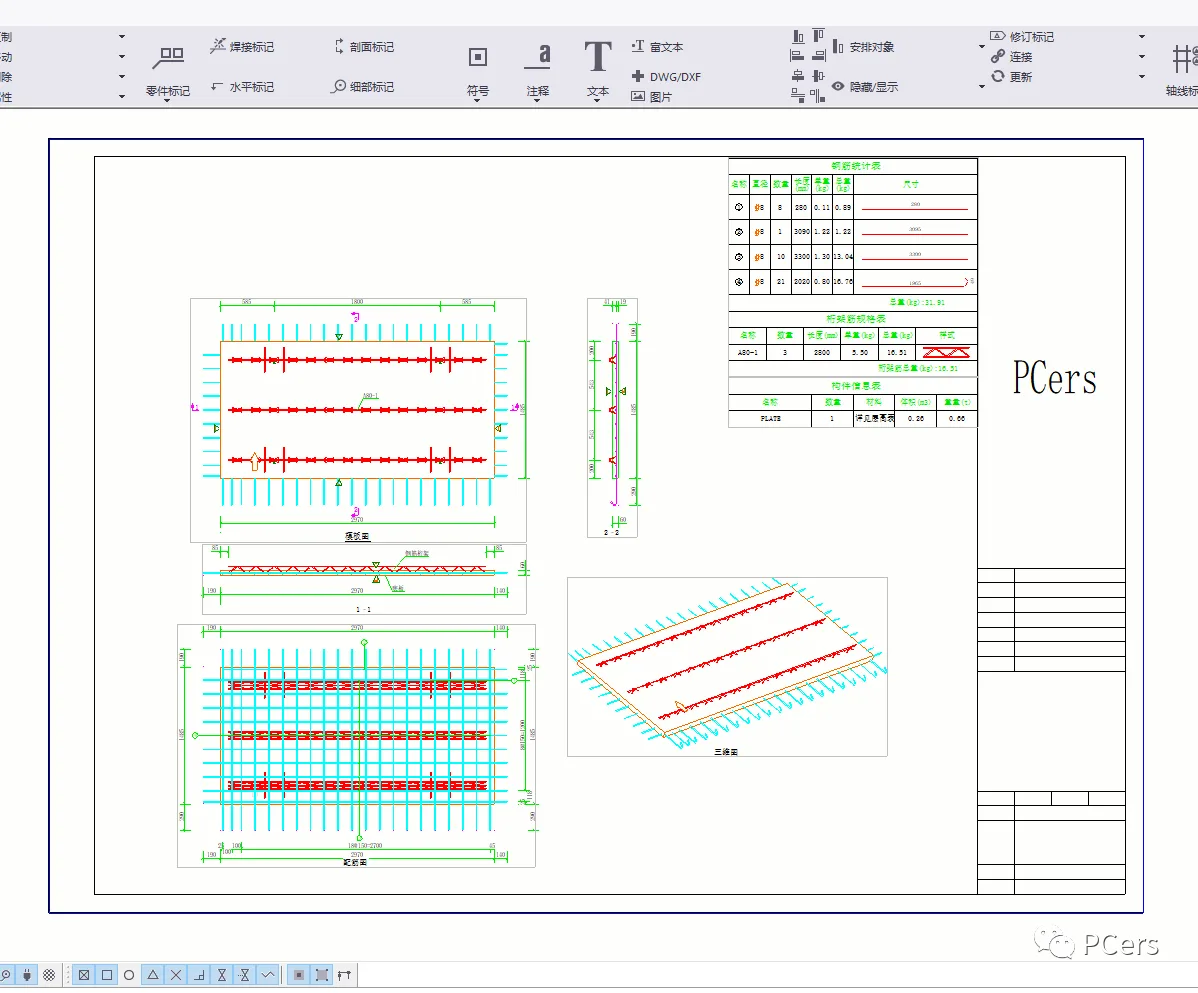
Tekla drawing interface
1. Prepare a Frame CAD Drawing
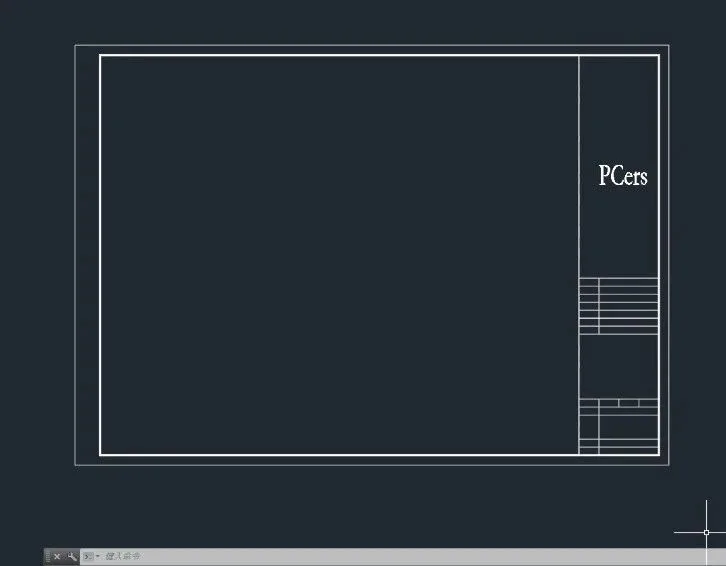
Create the required CAD frames separately.
2. Create a Frame Graphic Template
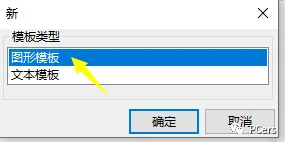
Open your Tekla file, then navigate to Editor > Template Editor > File > New.
Select Graphic Template to enter the graphic template editor.
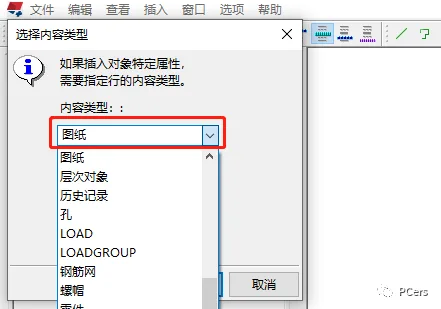
Use the toolbar to insert components: choose Rows, select the drawing, then click OK.
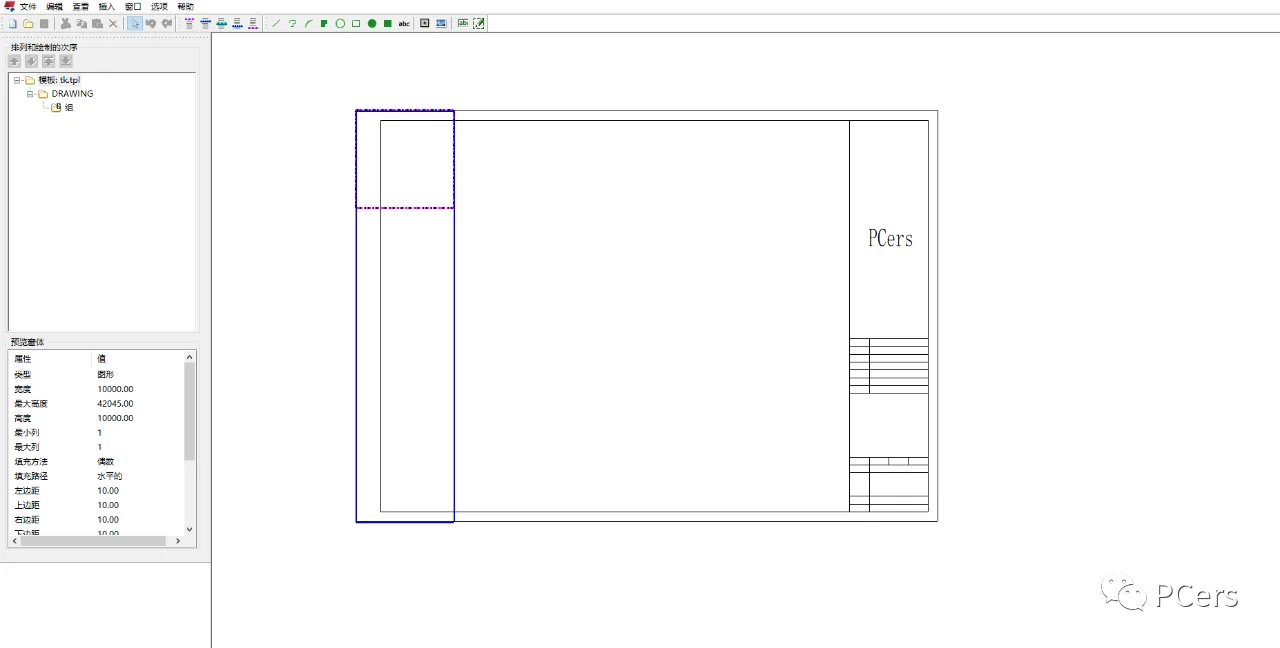
Next, insert a file from the toolbar, select your frame CAD file, and click OK to complete the graphic template creation. You can save this file in the EnvironmentsChinaTemplate folder or the root directory of your model folder.
3. Configure Drawing Layout Properties
As an example, for laminated panel drawings (or when creating new drawing layout properties), go to Drawing Properties > Drawing Layout. Select Bangoujiantu, then click on Table Layout Rotate Ban and choose Table.
In the pop-up window, find your newly created drawing template file in the left list and add it to the right list. Select the template in the right list, set the lock point position and scale for both the drawing frame template and the drawing itself.
Click Apply and then OK to finalize the drawing layout property settings.
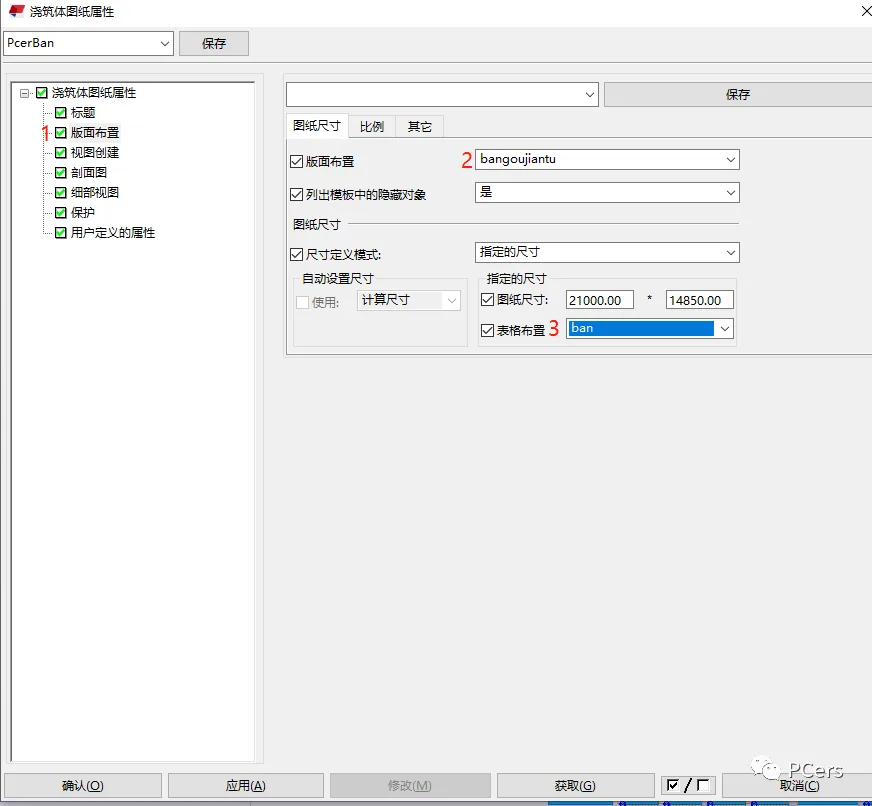
4. Set Properties for Pouring Body Drawings
Using laminated panel pouring body drawings as an example (or creating new pouring body drawing properties), navigate to Drawing Properties > Pouring Body Drawing. Select PcerBan and enable Layout Layout.
Set the drawing size and in the layout settings, choose Bangoujiantu in the Tekla interface. From the drop-down menu in the table layout, select Ban, then click Modify, Apply, and OK to complete the setup.
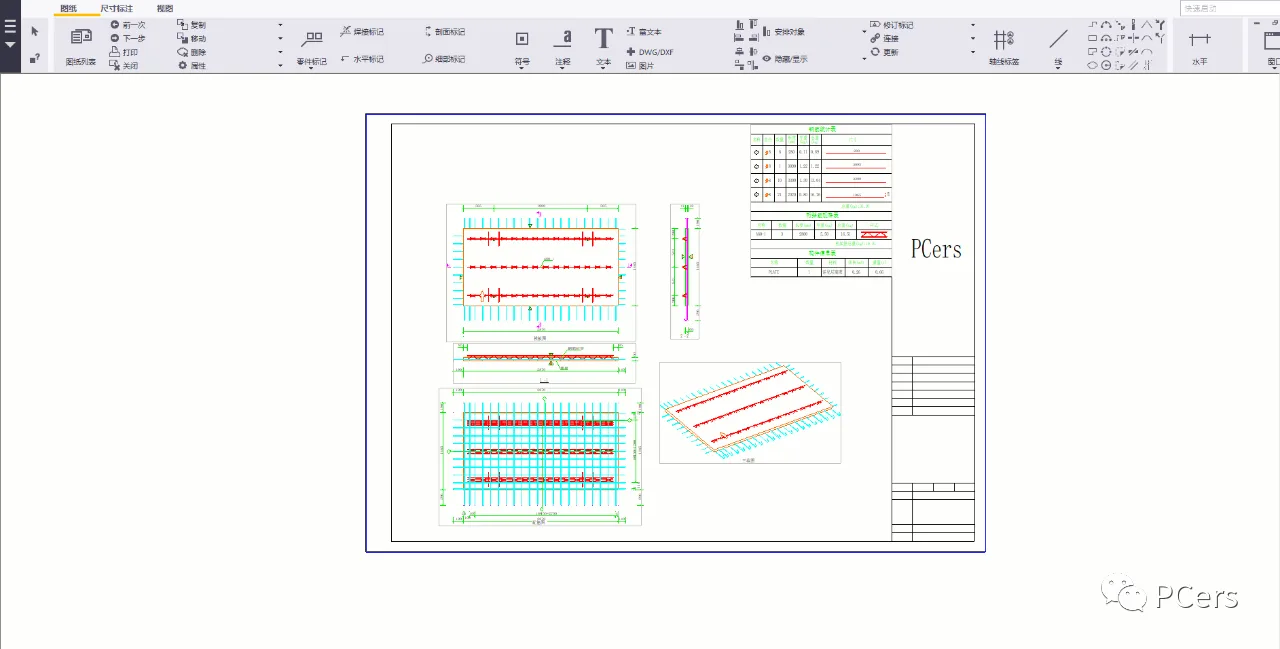
After configuring the pouring body drawing properties, you can proceed with component drawings. You will notice that the frame information has been successfully added to the drawings.
















Must log in before commenting!
Sign Up