
Question:
When launching an Autodesk product, the following error message appears:
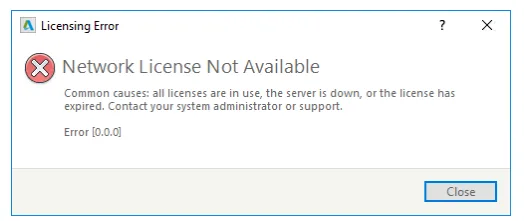
License error
Network license unavailable
Common causes include all licenses being in use, the license server being offline, or the license having expired. Please contact your system administrator or support personnel.
Error [0]. 0. 0]
Possible Causes:
This issue can be triggered by several factors, including:
- The license server is not configured or running.
- Connection attempts to an invalid server or one that does not host Autodesk licenses.
- The selected license type is invalid.
- The network license file is corrupted or invalid.
- An outdated version of the Network License Manager (NLM).
- Damage to the CascadeInfo.cas file.
- Windows Firewall blocking the required ports.
- The INCLUDE command in the options file does not list the client workstation.
- Incorrect licpath.lic file configuration.
- The NLM port is already in use by another application.
- License retrieval request has timed out.
- The license file has expired.
- The license file does not include the required higher version of the license.
- In the LM tools “Configure Services” tab, the path to lmgrd.exe points to an outdated version.
- Incorrect date/time settings on the license server.
Solutions:
1. Verify Server Accessibility:
Start by checking if the server is reachable:
- Open the Windows Search bar and type
cmdto launch the Command Prompt. - Type
ping [server name]and press Enter. - If you receive replies, proceed with the next steps. If the request times out, contact your IT department.
2. Check License Type:
Ensure the correct license is assigned in Autodesk Account. If the software unexpectedly launches in a “multi-user” mode while no corresponding license server exists, the error will occur.
To fix this, change the license type following the guide How to change or reset the license for Autodesk software. Then restart the software and select “Single User” or “Login” on the Quick Start screen.
3. Validate License File:
Confirm the license file is intact and valid. Use the license file analyzer tool to verify it contains the correct product and feature codes and does not report errors.
If the license file is damaged or incorrect, generate a new one from Autodesk Account.
For merging multiple license files, refer to Merge License Files for Multiple Autodesk Products – Network Administrator.
4. Update Network License Manager (NLM):
Ensure the latest NLM version is installed and running:
- Download the latest Network License Manager from the Autodesk website.
- Open LMTOOLS (avoid relying on “Help > About” for version info).
- Navigate to the “Server Status” tab and click “Execute Status Query.”
- If the NLM service is stopped, start it from the “Start/Stop/Reread” tab.
- Confirm the NLM version displayed matches the one downloaded.
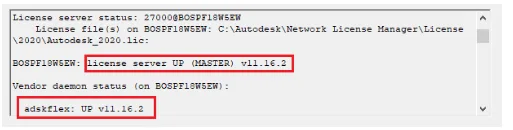
If the latest version is not running, stop the service, uninstall the current NLM, download the correct version, and install it following the guide Install Network License Manager on Windows.
If issues persist after updating, consult the manual: “Network License Unavailable – Error __AI_S_SC_0_” despite LMTOOLS update.
5. Repair CascadeInfo.cas File:
Delete the CascadeInfo.cas file located at:
C:ProgramDataAutodeskAdlmCascadeInfo.cas
A new file will be automatically generated when launching the product again.
6. Configure Windows Firewall and Ports:
Ensure the necessary ports are open:
- Enable ports 2080 and 27000-27009 in Windows Firewall for network licensing. See How to set exceptions for Network License Manager in Windows Firewall.
- Verify that both server and client use the same port. Check the license file’s first three lines for port information; if none is specified, the default is 27000.
- Example license file entry with port 2080:
SERVER Master01 00d0b757050C0 USE_SERVER
VENDOR adskflex port=2080
- If you need to change the port, the entry might look like:
SERVER Master01 00d0b75705C0 27005 USE_SERVER
VENDOR adskflex port=2085
- Check environment variables
ADSKFLEX_LICENSE_FILEandLICPATH.LICto confirm the port in use.
7. Confirm Client Workstation is Listed in Options File:
If the options file uses the INCLUDE command to restrict license usage, ensure the client hostname is included:
- On the server, open
adskflex.optin the same folder as the license file. - Make sure the client’s hostname is listed in the INCLUDE command for the specific license.
- Example for a client named “paul” using AutoCAD:
INCLUDE 64300ACD_T_FUSER paul
- Restart the license server to reload the options file.
- Open the software on the client machine; it should now check out the license successfully.
8. Verify licpath.lic File and Environment Variable:
Check the LICPATH.lic file on the client side:
- Locate
LICPATH.licin the appropriate folder: - For Autodesk 2016 and earlier: typically in the program installation folder.
- For 2017 and 2018 versions:
C:ProgramDataAutodeskCLMLGS_ .0.0.F - For 2020 and later:
C:ProgramDataAutodeskAdskLicensingService_ .0.0.F - Example paths:
AutoCAD 2018: C:ProgramDataAutodeskCLMLGS1J1_2018.0.0.F
AutoCAD 2017: C:ProgramDataAutodeskCLMLGS1I1_2017.0.0.F
AutoCAD 2020: C:ProgramDataAutodeskAdskLicensingService1L1_2020.0.0.Flicpath.lic
- The Autodesk software reads license server info from the
licpath.liclocation or from the__AI_T_SC_0_registry key. - Confirm the
licpath.licfile contains the correct format, such as:SERVER
000000000000 USE_SERVER - Example:
SERVER LICENSE-SERVER-NAME 1000000000000 USE_SERVER
- If using the
ADSKFLEX_LICENSE_FILEenvironment variable, verify its value as detailed in How to use the ADSKFLEX_LICENSE_FILE environment variable.
9. Check for Port Conflicts:
Ensure no other applications are using the ports assigned to NLM (default 27000-27009). If conflicts exist, assign an unused TCP port:
- Edit the license file on the server.
- Add a space after the MAC address in the first line, then specify the new port number.
- Save the license file.
- Stop and restart the license service.
Example entry with port 27004:
SERVER serverName 00112233445566 27004 USE_SERVER
VENDOR adskflex port=2080
...remaining license information...
Note: 00112233445566 represents the server’s MAC address.
10. Increase License Retrieval Timeout:
If license retrieval times out, especially when accessing via VPN, increase the timeout value:
- Create or adjust the
FLEXLM_TIMEOUTenvironment variable to allow more time (in milliseconds) for license retrieval. - Retry running the product.
- If the error continues, gradually increase the timeout up to a maximum of 10,000,000.
11. Correct Server Date and Time:
Ensure the license server’s date and time are accurate. Incorrect settings can cause license errors.
After correcting, restart the license service via LMTOOLS.
















Must log in before commenting!
Sign Up