
With the rapid growth of prefabricated buildings, the importance of dismantling and further detailing these structures has become increasingly evident. As a result, various prefabricated structural design software solutions have sprung up. Many BIM professionals may be more familiar with Revit than with PC-based structural design software. To avoid redundant modeling and achieve the goal of “one model, multiple uses,” this article will guide you through the methods and key considerations for using Revit with YJK.
Step 1: First, launch the “Revit to YJK” software.

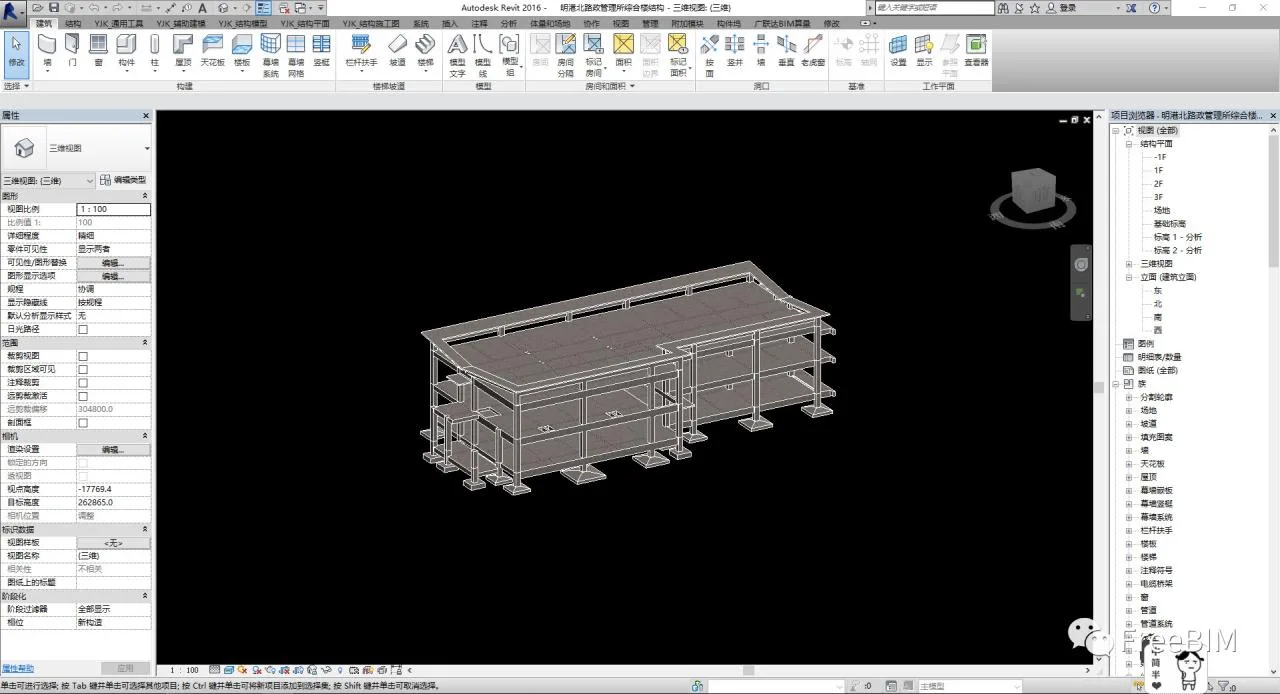
Step 2: Once the interface opens, load or create your model. (For this guide, we will use an existing model as an example.)
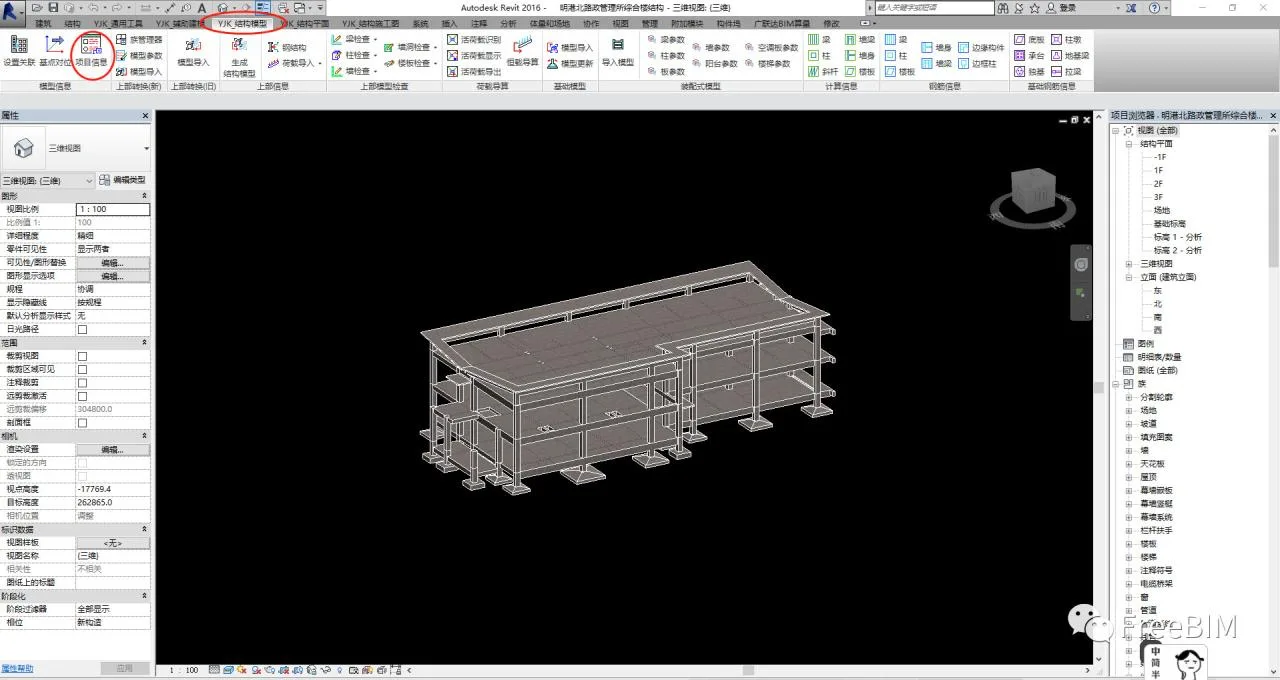
Step 3: Next, click on the project information within the Model Information section of the YJK Structure Model tab.
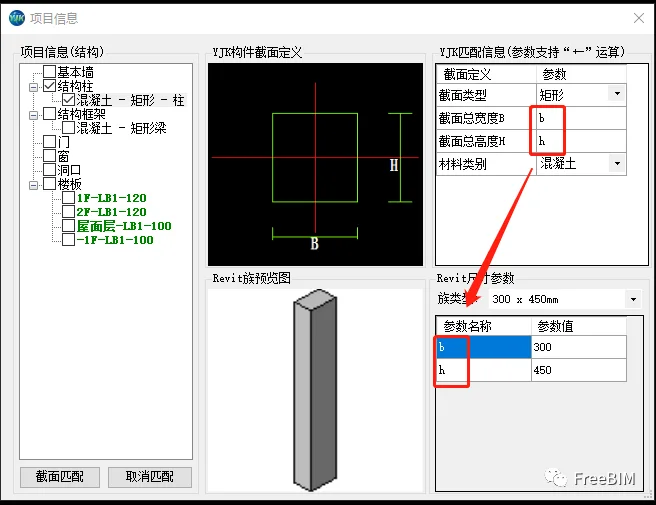
Step 4: Then, match the section information. In the matching information area, select the section type and material category you intend to use. Note that the section width and length parameters correspond to Revit’s size parameter names—not their values.
Note: Successful matches will be highlighted in green.
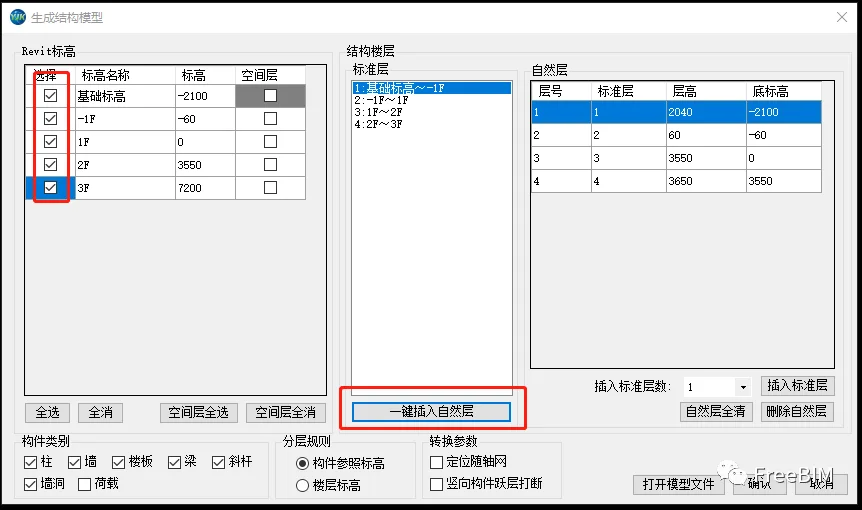
Step 5: After that, generate the structural model. Select the floor you want to import, insert the natural layer with a single click, and confirm. The folder containing your Revit model and the generated YJK format file will be displayed.
Step 6: Open the YJK software, create a new folder, and name your files accordingly.
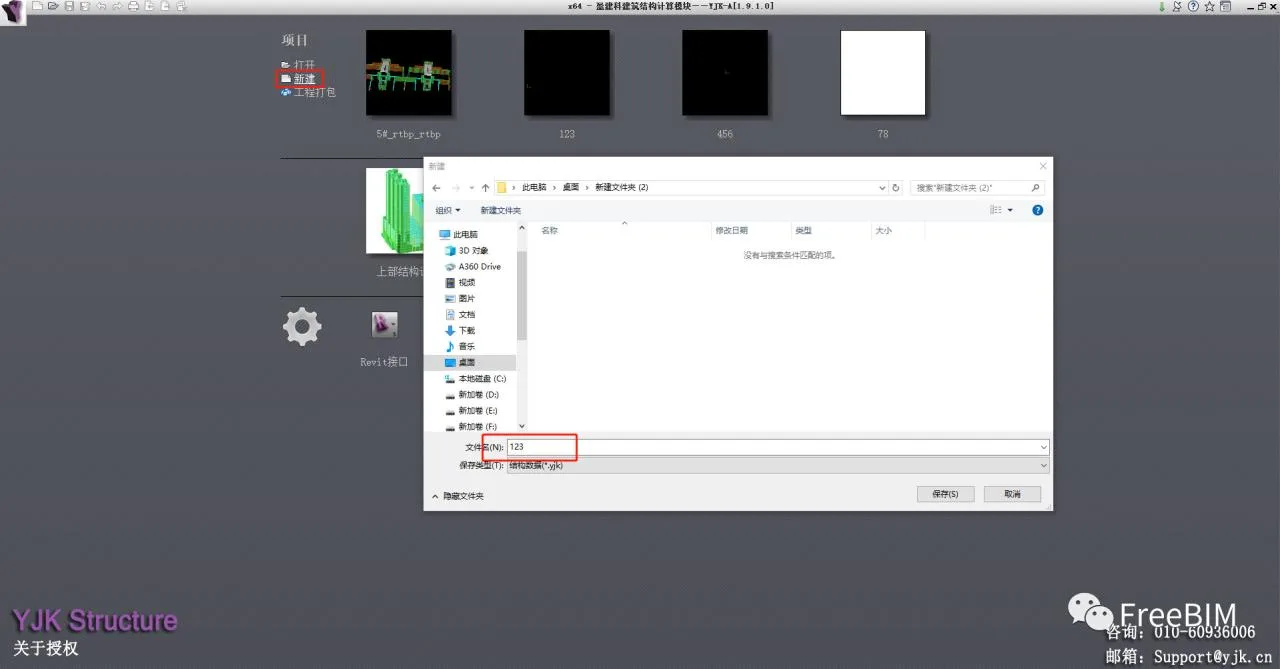
Step 7: Click within the YJK software interface to import the YJK format files generated by other software.
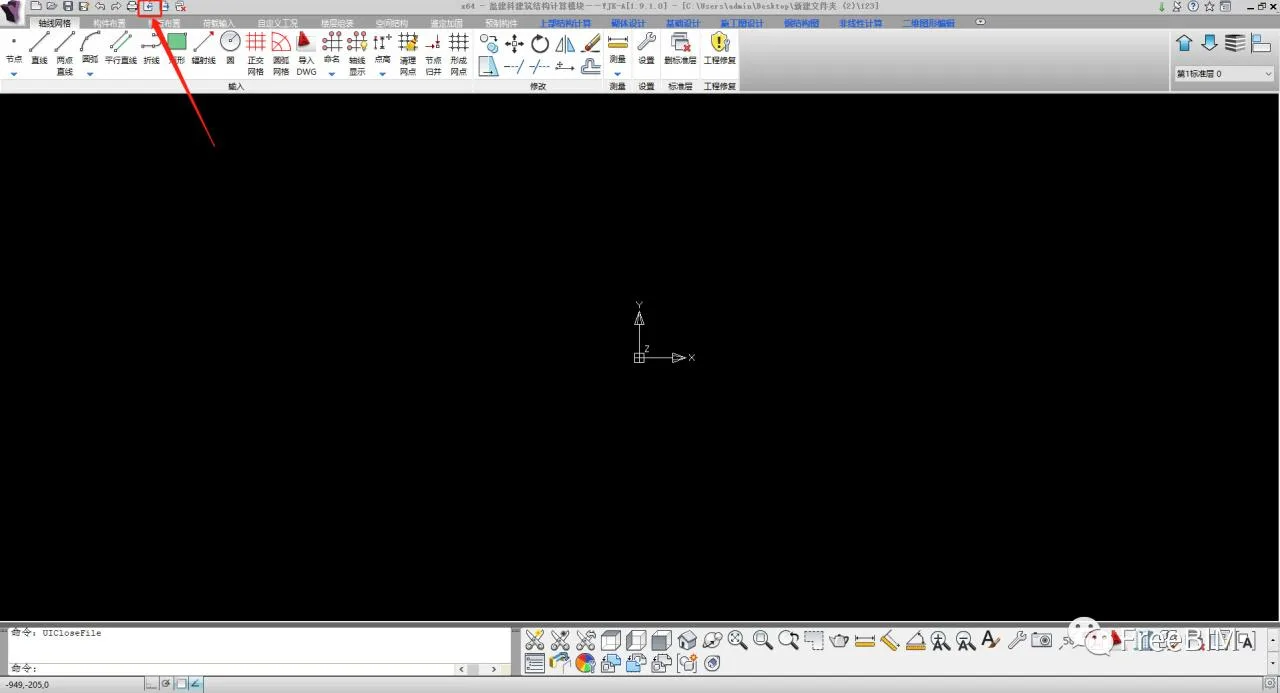
Step 8: Finally, with the YJK model ready, you can specify prefabricated components, perform structural calculations, dismantle the model, and produce construction drawings.
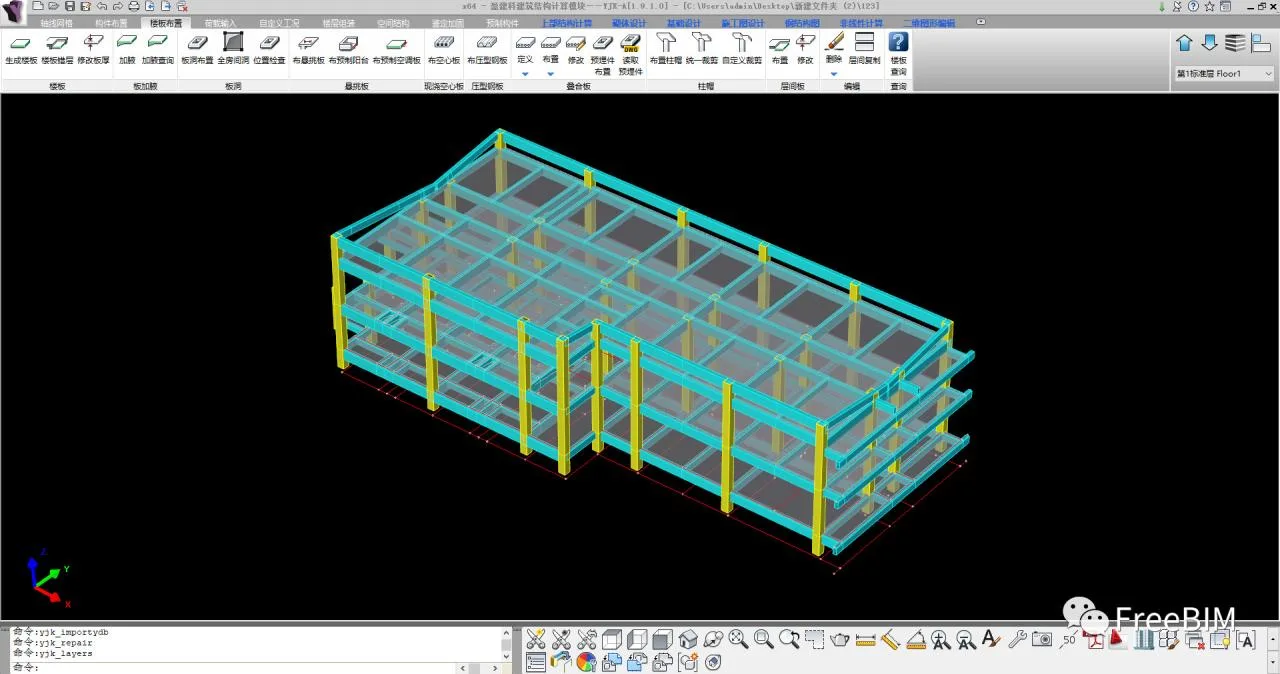
Postscript:
1. When converting based on the reference elevation of components, the success rate can reach up to 95%. However, if conversion is based on floor elevation, components above the highest elevation and diagonal components may disappear.
2. Families without parameters cannot be converted.
3. If a family is parameterized but its parameterized shape differs from the actual shape, the imported components in YJK will reflect the parameterized shape.
Source: FreeBIM
Author: Xiao Sihua
















Must log in before commenting!
Sign Up