
With the rapid growth of prefabricated buildings, various provinces and regions have introduced policy standards emphasizing their significance in the construction industry. In a previous article, we covered how to export Revit models to YJK. However, YJK structural design software is limited to structural design only and does not coordinate with mechanical and electrical systems, making it insufficient for precise positioning of some reserved openings. Fortunately, YJK offers a Revit interface. Today, I will walk you through the method and important considerations for importing Revit files into YJK.
Step-by-Step Guide
1. Prepare a YJK format file. For this tutorial, I will use a model I personally created as an example.
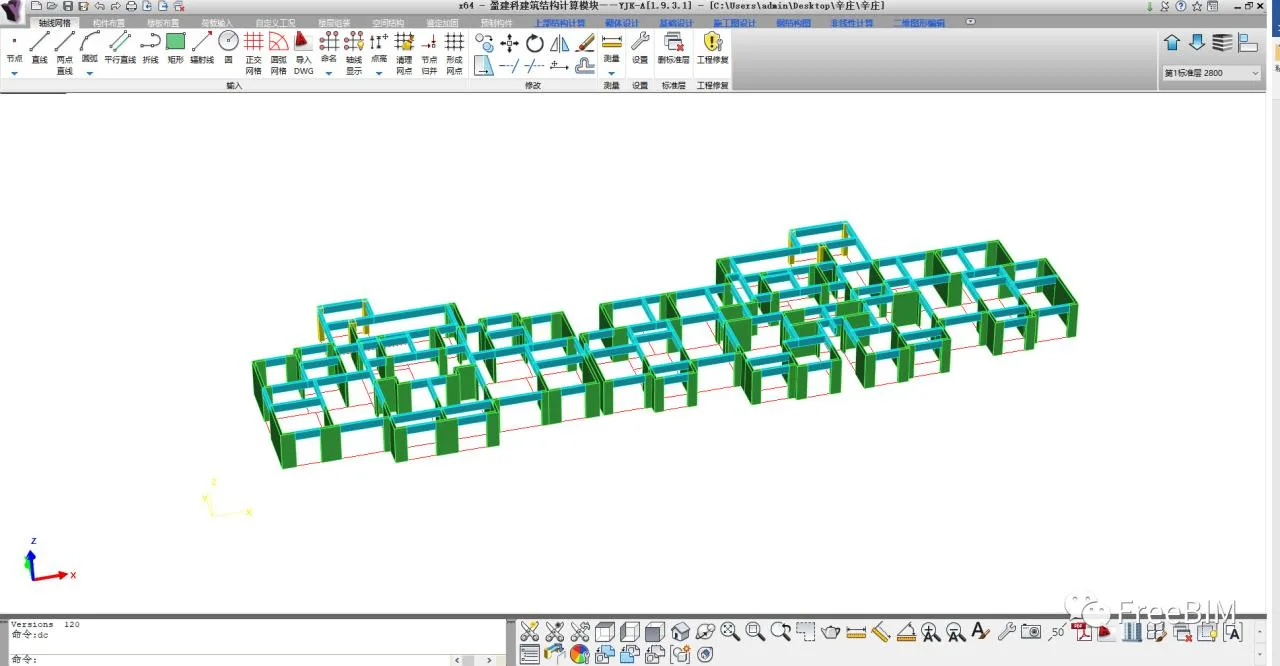
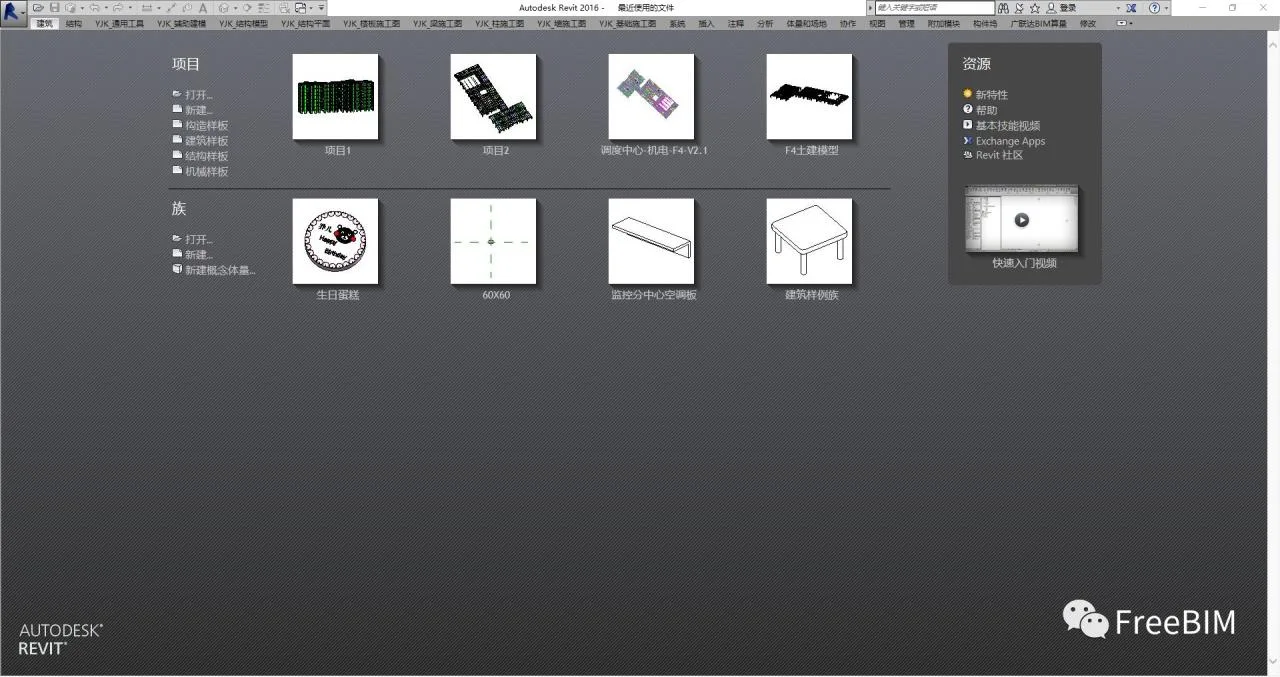
2. Open the Revit YJKS software. Note that the version of Revit YJKS must match the YJK version you are using.

3. Create a new project and save it. I named my project “Project 1.” This step is crucial; otherwise, YJK will not import the Revit model successfully.
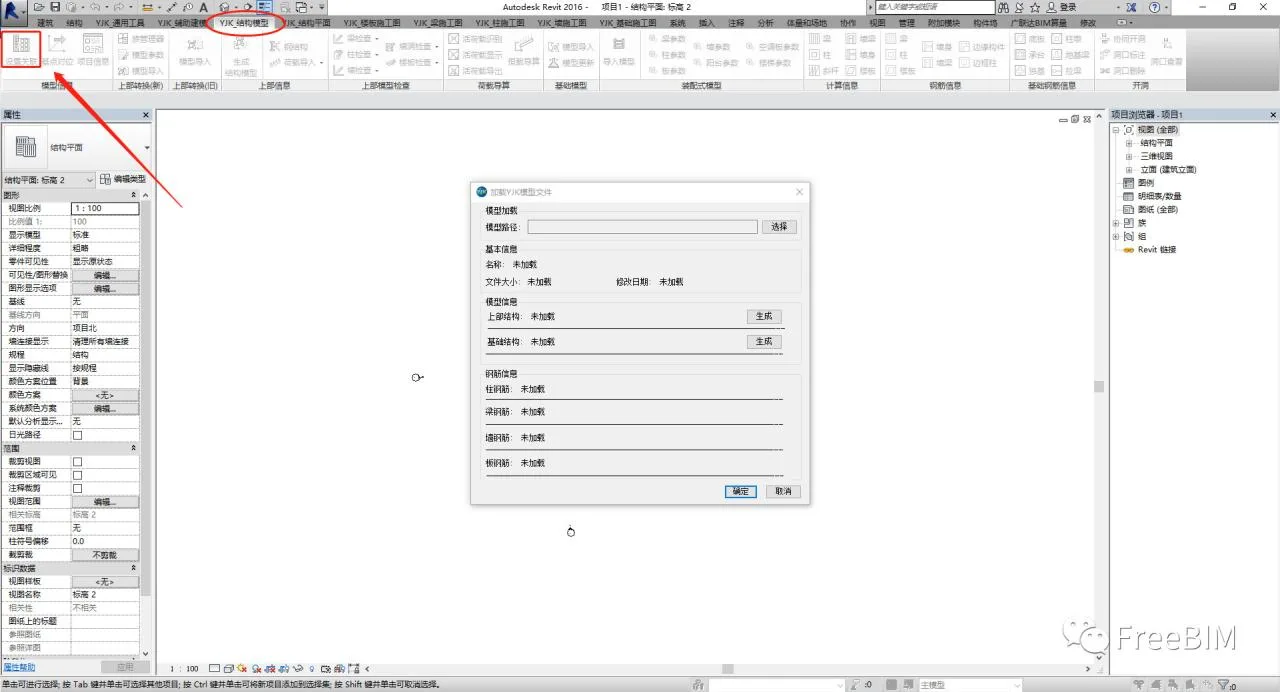
4. Click on ‘Set Association’ within the ‘YJK-Structure Model’ section.
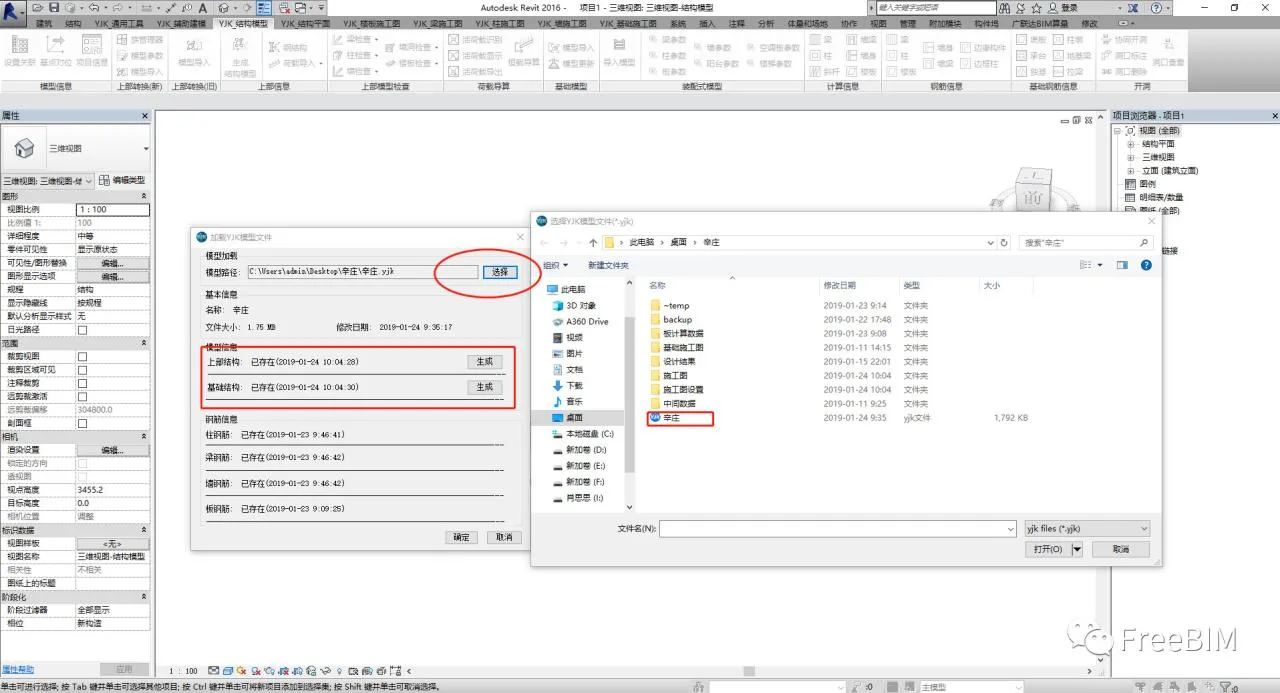
5. Select your YJK format file under ‘Model Path’ and then click ‘Generate’.
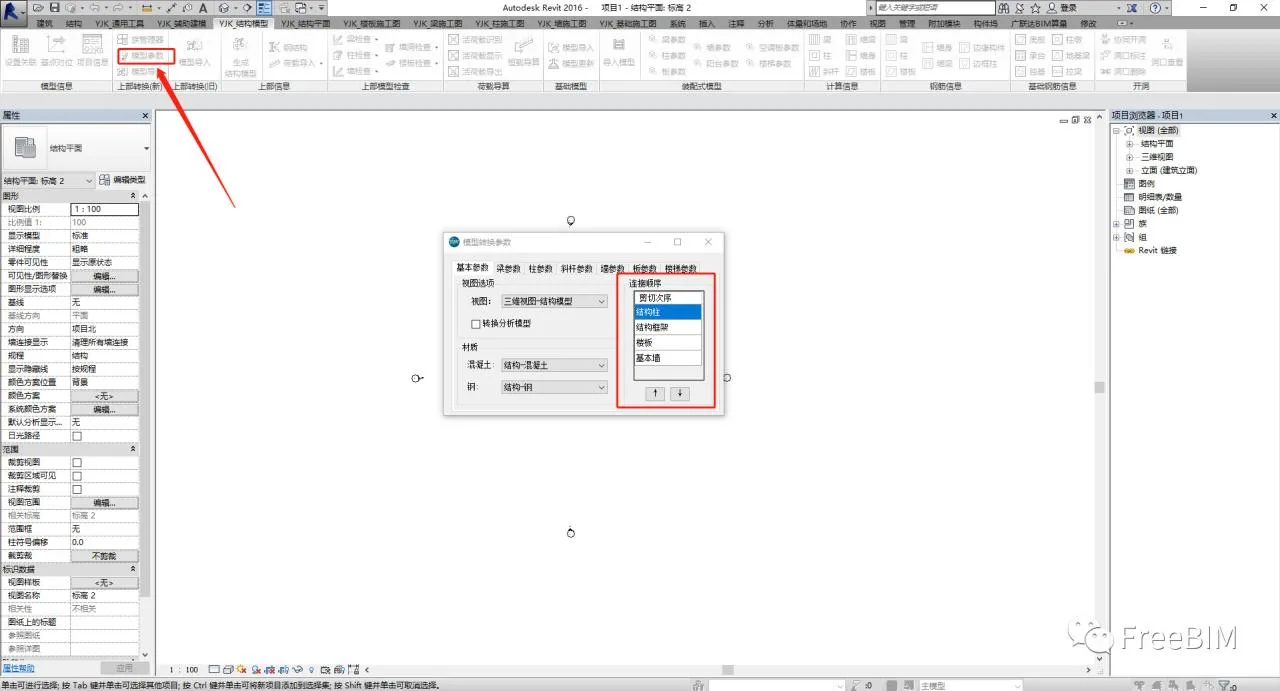
6. In the ‘Model Parameters’ section, you can adjust the cutting order as needed.
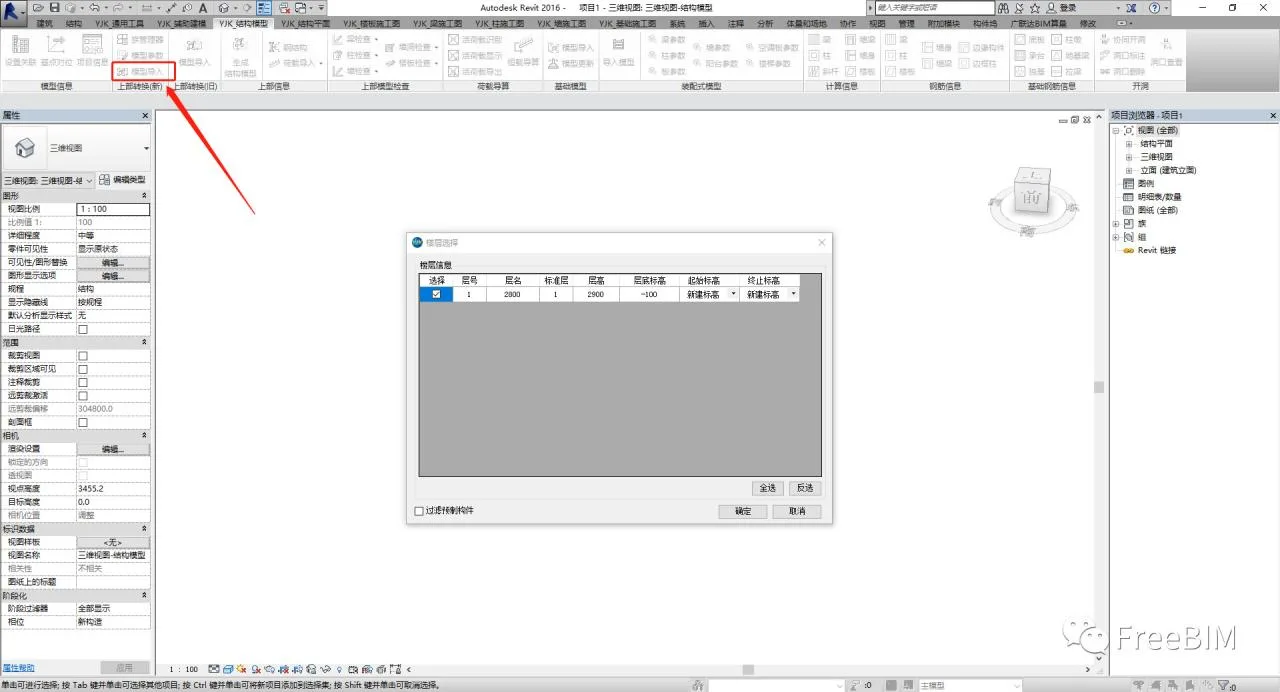
7. In the ‘Model Import’ section, select the floor you want to import.
8. This completes the import, and here is the model ready for use.
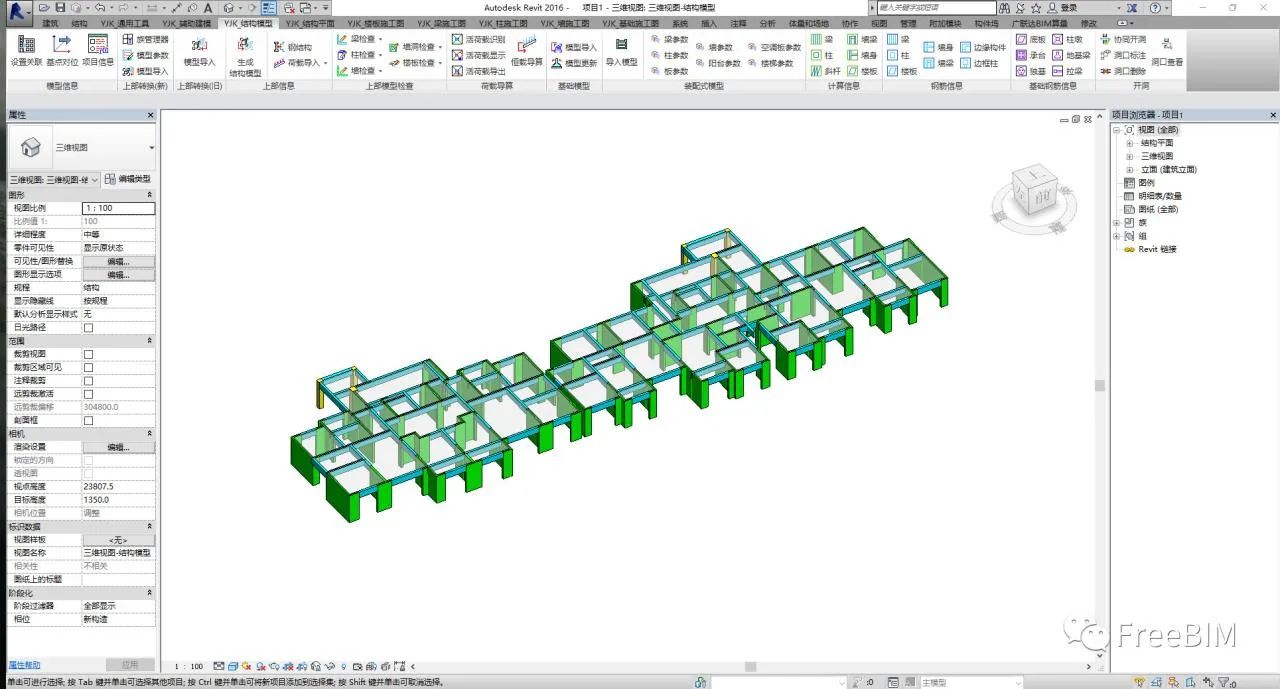
Feel free to explore the available functions after import, and we can discuss any questions or experiences together.
Source: FreeBIM
Author: Xiao Sihua
















Must log in before commenting!
Sign Up