

Xunjie CAD Toolbox is a specialized CAD plugin designed to streamline your workflow. It helps users execute CAD drawing commands more efficiently by offering a variety of shortcut features, including layer management, text processing, command customization, and export settings.

Software Features
Easy to use
Lightweight and convenient
Boosts work efficiency
Customizable shortcut keys
Advantages
1. Comprehensive functionality
The toolbox accelerates CAD command execution by providing tools such as layer management, text editing, command settings, and export configuration.
2. User-friendly operation
Designed specifically for AutoCAD, Swift CAD Toolbox offers an intuitive interface and simple controls.
How to Use
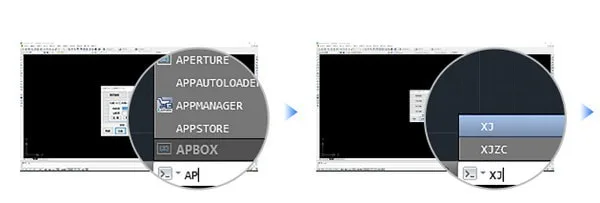
1. Launch AutoCAD, type ap in the command line, and add the Swift CAD plugin.
2. Type xj to activate the plugin.
3. Click “Register” to obtain your application code.
4. Visit the purchase page to buy the registration code, then register to unlock full use.

Frequently Asked Questions
How can I change the color of specific blocks in a CAD drawing?
While working in AutoCAD, you may need to modify the color of certain blocks. Doing this manually for each block can be time-consuming. Swift CAD Toolbox simplifies this process, significantly improving your efficiency. Here’s how to do it:
Open your CAD drawing
Start AutoCAD and follow these steps:
1. Click the “A” icon in the menu bar, then select “Open – Open a File” from the dropdown.
2. Choose the CAD drawing where you want to change block colors.

Load Swift CAD Toolbox
Next, in AutoCAD:
1. Enter the ap command to load the Swift CAD Toolbox plugin.
2. Then enter xj to launch the toolbox.

Access the Block Function
Within the Swift CAD Toolbox v1.0.1 window:
1. Click the “Block Function” button to open the block function panel.
2. Alternatively, type TKGN in the command line to open the same panel.
3. The panel offers 15 block-related features, including library management, block color change, renaming blocks, and changing blocks to the zero layer.

Changing Block Colors
1. Click the block color change icon, then follow the on-screen instructions: move the cursor to select the block(s) you want to recolor, and press Enter.

2. A pop-up window will appear, allowing you to choose the new color for the selected block(s). Click “OK” to apply.
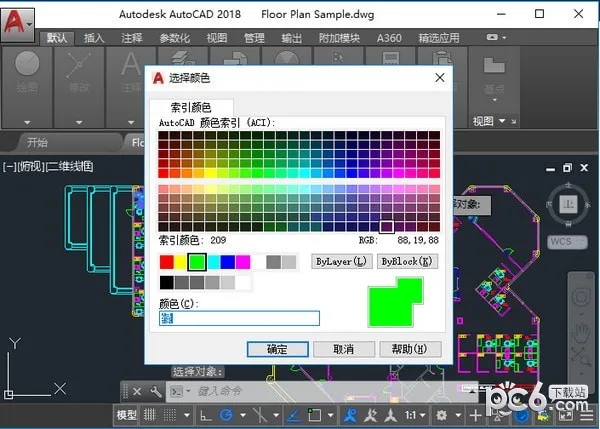
You will now see that the colors of the selected blocks in your original CAD drawing have been updated.
This demonstrates how Swift CAD Toolbox can be used within AutoCAD to efficiently modify the colors of specific blocks in your drawings.














Must log in before commenting!
Sign Up