
Yuanquan Architecture CAD Plugin is a specialized auxiliary drawing tool designed for architectural design, decoration, and related professions. It is powerful, user-friendly, and maintains the original drawing habits of AutoCAD and Tianzheng. The plugin is compatible with multiple versions, including AutoCAD 2004-2019 (32bit/64bit) and Haochen CAD8.
Software Features
“Source Design” is free and registration-free software that is compact and lightweight, with a compressed file size of just over 7MB, including instructions and commonly used word libraries.
It offers three language versions: Simplified Chinese, Traditional Chinese, and English. Please download the appropriate version.
The plugin supports a multi-user environment, allowing simultaneous work for multiple companies with separate complete settings.
You can use various units for drawing, including millimeters, centimeters, decimeters, meters, and inches. Wall thickness, block size, and other settings adjust accordingly.
Powerful yet easy to use, it does not interfere with the original drawing habits of AutoCAD or Tianzheng.
Door and window blocks are fully compatible with Tianzheng 3, allowing seamless interchangeability.
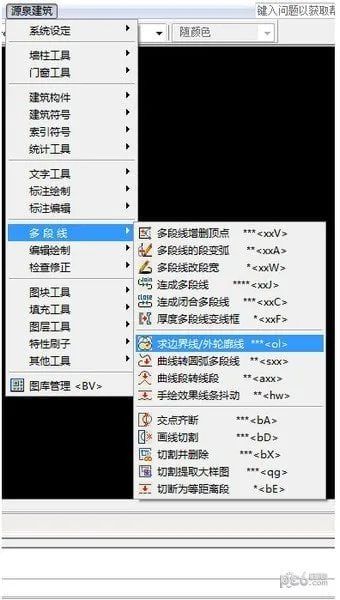
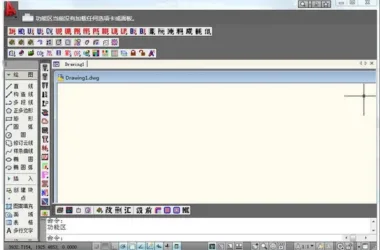
All commands are conveniently organized and added to the last item of the original CAD menu for easy access.
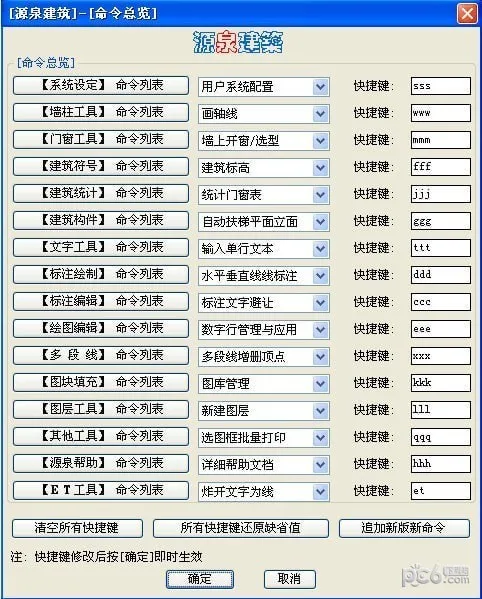
A dynamic overview command allows shortcut keys for all commands to be set and take effect immediately.
The plugin provides a rich collection of decorative components, building components, and architectural symbols. Drawing commands enable automatic trimming of doors, windows, walls, and columns anytime and anywhere.
Library management is similar to ACDSee, featuring intuitive operation and easy maintenance.
Some basic AutoCAD functions are enhanced, including text processing, dimensioning, layer management, editing, and drawing.
It also includes a built-in conversion program for importing graphic elements into Google Earth.

Feature Introduction
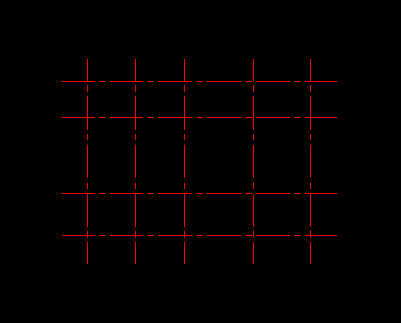
Intelligent Wall Clipper TW
Command: tw
This intelligent wall clipper automatically trims intersections between walls and columns.
To trim walls, select the desired range by picking two points:
The first point of the selection range:
The second point of the selection range:
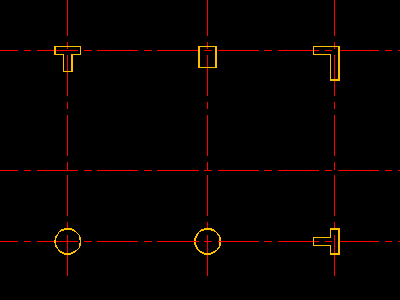
With just one step—selecting the range containing walls and columns—the tool trims the walls inside the columns and trims intersections between walls without affecting other layers.
Draw Automatic Wall
Command: ww
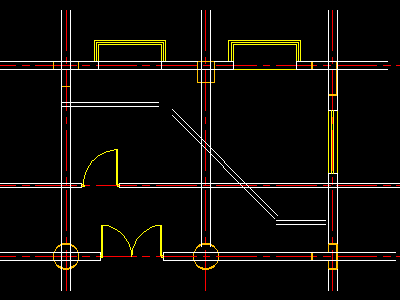
This command allows you to draw automatic walls that trim themselves at intersections with walls and columns.
Current wall thickness is 200, with zero eccentricity.
Enter offset eccentricity and wall thickness for the first point of the wall:
Enter offset eccentricity and wall thickness for the second point of the wall:
Drawing a flat wall is as simple as drawing a straight line.
When the wall touches a pillar, the wall inside the pillar is automatically trimmed, and intersections between walls are trimmed as well.
Press the “W” key to select wall thickness from a list.
This operation does not affect other layers.
Automatic Axis Number Dimension Line
Command: azh
Select an axis line to automatically arrange axis numbers and secondary dimension lines.
Please select a line in the axis layer (supports up to two sets of axis directions):
With just one step—selecting the axis line—the plugin automatically arranges axis numbers and secondary dimension lines based on the selected axis.
This feature does not affect other layers.
Installation Guide
How to Install the Source Building Plugin:
Extract the installation package you downloaded, then run the one-click installation program setup.exe. Follow the prompts to select the AutoCAD user profile to associate with the plugin. The installation and setup process will complete easily.
Installation Instructions:
If the above method fails, drag and drop the sysinstall.vlx file into the AutoCAD drawing area to complete the installation.
We strongly recommend installing AutoCAD Express Tools. AutoCAD 2005 and later versions already include this extension, which can be selected during AutoCAD installation.
If the startup file sysacad.lsp conflicts with your custom scripts, you can delete it after installation. Then, add the Source Building startup file yqstart.lsp to the AutoCAD startup group.
The installation process is the same for the Tianzheng Building environment (versions 5.0-8.5).
Changelog
● Added support for AutoCAD 2020 (32bit/64bit).
● Added the command “Dimensioning – 3-point arc length annotation” (ddA3).
● Updated the command “Set drawing scale and scale various building symbols” (sd) to recommend the current viewport scale when operated in the layout viewport.
● Improved the “Library Management” (BV) command to better suit most laptop small screens and enhance search performance.
● Added an option in the user system configuration file config.txt to use 36 thumbnails for gallery management (default is 25 thumbnails).
● Modified the “Modify Annotation Precision” (dd0) command to default to 5.
● Updated the “Q5 Miscellaneous Command Panel”:
- Modified “Dimension Driven Stretch” (
sdd) command to include the “Circle Intersection” option for window selection. - Fixed a minor bug in the “Disband Group” (
ggX) command.
● Updated shortcut key commands for layer, line type, and color conversions (Ersc, LTSC, erK) to require confirmation before conversion.
● Enhanced the “Draw Window Facade” (WDE) command by adding “2-point Drawing Window Facade”.
● Updated the “Q5 Miscellaneous Command Panel”:
- Modified “Trim Curtain Wall Horizontal Line” (
tq) command to support both single and double horizontal lines.
● Added the “Internal Library” (KK) command to collect dynamic blocks (thanks for the contribution).
● Introduced a new sysblocks folder with periodic upgrades to the internal library.
● Restored the “Merge Overlapping Lines” (lu) command.
● Added the command “Simultaneously Zoom Viewport Frame and Scale” (vvSC).
● Modified the “Element In Place Scaling” (aSC) command to use nine geometric base points.
● Updated numeric text commands (1234, inc, sxZ) to increment Chinese characters from one to nine within strings.
● Updated the “Q5 Miscellaneous Command Panel”:
- Added commands to restore color, linetype, and line width to bylayer (
00). - Added the “Rectangle Diagonal” (
djx) command. - Modified “Calculate Area/Perimeter/Wall Area” (
wmj) command to adjust screen height according to drawing scale.
● Updated the “Q6 Miscellaneous Command Panel”:
- Modified commands such as “Point Area Output Excel Current Grid” to adjust screen font height based on drawing scale.
Note on Antivirus False Positives
Older versions of 360 antivirus software may have falsely detected the “Source Building” plugin as carrying a virus. Other antivirus programs have not reported such issues.
Recently, 360 antivirus software resolved this false positive. Please ensure you upgrade both 360 antivirus software and the ‘Source Building’ plugin to their latest versions.











Must log in before commenting!
Sign Up