
Dynamo’s Python Script is a powerful and extensible tool built on IronPython. Since IronPython can easily reference DLL files, it opens up vast possibilities. If you have experience with Unity3D, you know it supports both C# and JavaScript seamlessly. At the core, this flexibility stems from Python’s robust extensibility.
This same extensibility applies to Dynamo’s Python Script, allowing for enhanced capabilities.
Let’s demonstrate with a straightforward example.
First, create a DLL file using the Visual Studio environment:
using System;
using System.Collections.Generic;
using System.Linq;
using System.Text;
using System.Threading.Tasks;

namespace CalcLib
{
    public class Calc
    {
        public int Add(int a, int b)
        {
            return a + b;
        }

        public int Sub(int a, int b)
        {
            return a - b;
        }
    }
}
Next, place the DLL file in Dynamo’s default folder and write your Python script. The result looks like this: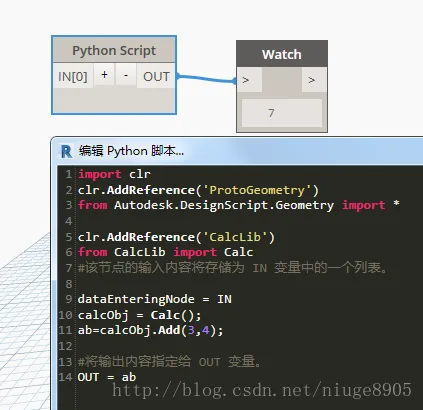
At this point, you might realize the endless possibilities Dynamo offers—such as connecting to databases, web services, and more. While Dynamo provides many nodes, they often fall short of complex requirements.
Follow me and leave a like to stay updated!













Must log in before commenting!
Sign Up