
First, it is essential to choose the right version of Revit for reinforcing complex structures. After testing, the 2016 version proves to be the most suitable, while the 2017 and 2018 versions are less effective for adding steel bars to intricate designs.
Here’s why:
In the 2016 version, steel reinforcement constraints apply to only one surface. By adjusting this restriction, you can position the steel bars exactly where needed.
In contrast, the 2017 version imposes numerous restrictions on steel bars. With complex structures having many faces, these limitations prevent steel bars from reaching the desired placements.
As illustrated below:
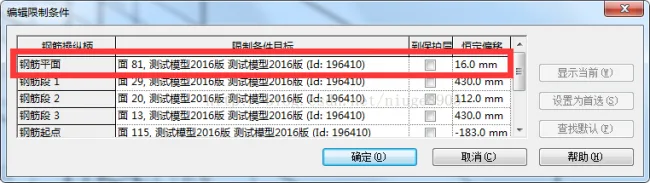
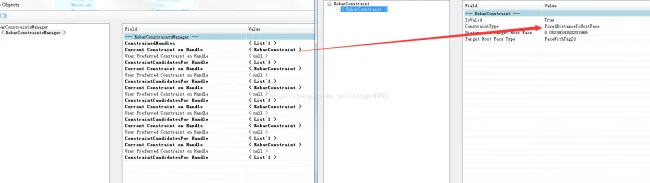
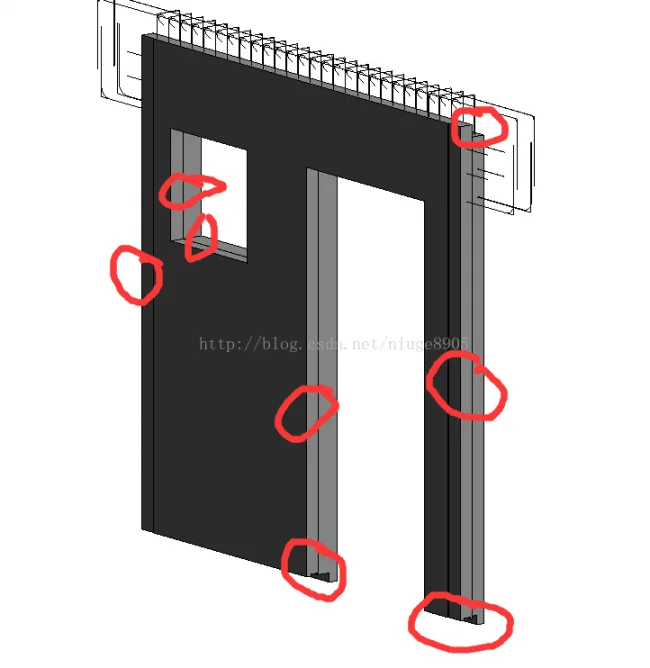
While the 2017 version offers greater convenience, this is mainly due to numerous restrictive algorithms implemented by programmers. These multiple constraints across various surfaces can cause inaccurate steel bar placement, leaving manual modelers unsure of where errors occur. You are encouraged to explore these details yourself, as it’s difficult to elaborate further here.
Now, let’s explore how to efficiently model steel bars for the complex structures shown above:
- Traditionally, use the model line family to manage steel bar families, ideally embedding steel bar information directly.
- Leverage Dynamo to place model line families automatically.
- Use plugins to convert model lines to steel bars in one step. Alternatively, conversion can be done directly within Dynamo through simple programming, which will be explained separately.
For a detailed demonstration, please refer to my video on Youku: __AI_S_TURL_0__













Must log in before commenting!
Sign Up