
Recently, I have been researching how to quickly convert CAD data into Revit data. CAD drawings often contain a wealth of information in DWG files that cannot be found in RVT files. Therefore, my focus has been on efficiently importing data from CAD files into Revit.
Initially, I used the third-party tool Teigha and its DLL files for further development. This allowed me to directly collect CAD data into Revit for clarity. However, after working on numerous projects, I noticed that much of the data was repetitive, complex, and standardized. For example, every project includes a building area, FM data, and other common elements. Repeating the same operations in every project felt inefficient for developers.
At first, I considered using artificial intelligence to identify and automate these tasks, but I currently lack sufficient foundational data for this approach. Instead, I adopted a simpler method by creating a database to store CAD data, establishing a project library. In the future, Revit could directly extract data from this database.
Below is the testing process for using the database:
- Download a database management tool such as Navicat;
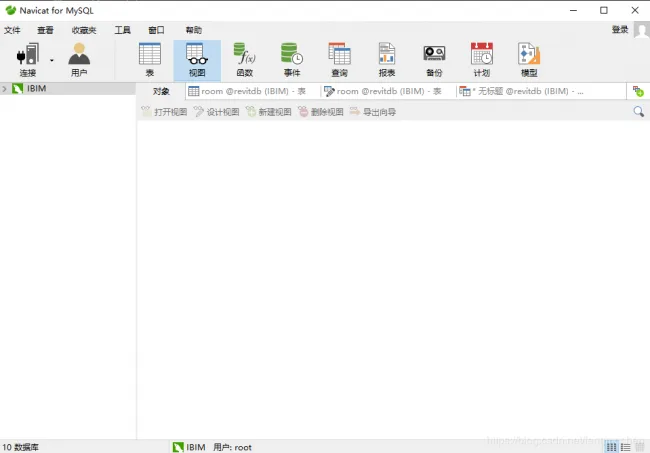
- Create a new table with the required attributes, as shown below:

You can perform this manually with software or programmatically, depending on your preference. - Once the table is created, test database operations using code as shown below:

- Invoke the database operation class methods within the Revit environment as demonstrated:

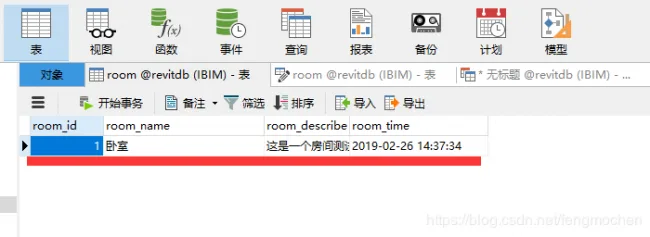
- After compiling, run the program in Revit and successfully refresh the database tables. The results are shown below:
This concludes the test process. If you have any questions or would like to discuss further, please leave a comment!













Must log in before commenting!
Sign Up