
Occasionally, it becomes necessary to extract information from Revit models into Excel for further processing or record-keeping. However, due to Revit’s complex data structure and lack of direct support for exporting data to Excel, this is typically accomplished through secondary development.
There are three common methods for exporting data: using the COM component, the NPOI library, and the EPPlus library.
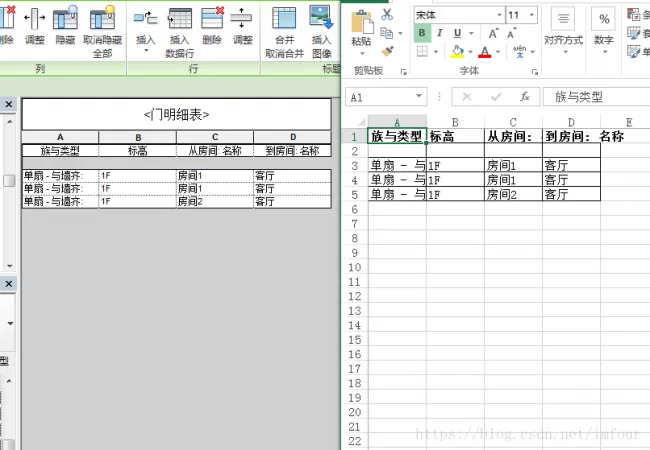
The COM component method requires Excel to be installed on the computer. Because of the many Excel versions available, compatibility issues may arise when exporting. Below is an example demonstrating how to export a detailed schedule from a Revit model using the COM component method.
// Using Excel 2013 and referencing Microsoft Excel 15.0 Object Library
using Autodesk.Revit.DB;
using Autodesk.Revit.UI;
using Autodesk.Revit.Attributes;
using System.IO;
using System.Reflection;
using EXCEL = Microsoft.Office.Interop.Excel;

namespace RevitAddinTestClass
{
 [Transaction(TransactionMode.Manual)]
 class ViewScheduleExport : IExternalCommand
 {
  public Result Execute(ExternalCommandData commandData, ref string message, ElementSet elements)
  {
   Document document = commandData.Application.ActiveUIDocument.Document;
   // Get the detailed schedule of doors in the project
   FilteredElementCollector collector = new FilteredElementCollector(document);
   foreach (ViewSchedule vs in collector.OfClass(typeof(ViewSchedule)))
   {
    if (vs.Name == "Door Detail Table")
    {
     // Excel file path
     string path = @"D:LSTTestViewSchedule.xlsx";
     // Delete the file if it already exists
     if (File.Exists(path)) File.Delete(path);
     // Create Excel file
     object nothing = Missing.Value;
     EXCEL.Application excelApplication = new EXCEL.ApplicationClass();
     EXCEL.Workbook excelWorkBook = excelApplication.Workbooks.Add(nothing);
     EXCEL.Worksheet excelWorkSheet = excelWorkBook.Sheets[1] as EXCEL.Worksheet;
     // Get number of rows and columns in the schedule
     int rows, cols;
     TableSectionData data = vs.GetTableData().GetSectionData(SectionType.Body);
     rows = data.NumberOfRows;
     cols = data.NumberOfColumns;
     // Import data into Excel
     for (int i = 0; i < rows; i++)
     {
      for (int j = 0; j < cols; j++)
      {
       EXCEL.Range cell = excelWorkSheet.Cells[i + 1, j + 1] as EXCEL.Range;
       // Retrieve text from the schedule
       cell.Value = vs.GetCellText(SectionType.Body, i, j);
       // Set header font to bold
       if (cell.Row == 1)
       {
        cell.Font.Bold = true;
       }
       // Add border around cells
       cell.BorderAround2();
      }
     }
     // Save and close the Excel file
     excelWorkBook.Close(true, path);
     excelApplication.Quit();
     excelApplication = null;
     continue;
    }
   }
   return Result.Succeeded;
  }
 }
}
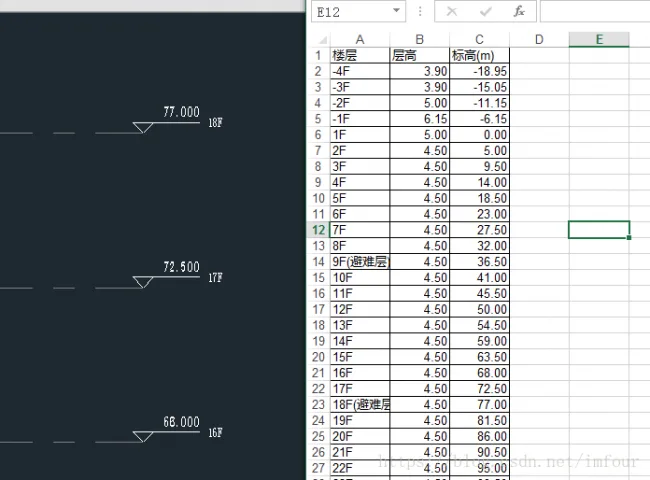
Both NPOI and EPPlus are open-source and free to use. NPOI is less commonly used since it only supports Excel 2003 and 2007 formats but does not require Excel to be installed on the machine. The example below reads building elevation data from the model and creates a floor height schedule in Excel using the NPOI library.
using System;
using System.Collections.Generic;
using System.IO;
using Autodesk.Revit.DB;
using Autodesk.Revit.UI;
using Autodesk.Revit.Attributes;
using NPOI.HSSF.UserModel;
using NPOI.SS.UserModel;
namespace RevitAddinTestClass
{
[Transaction(TransactionMode.Manual)]
class LevelsScheduleExport : IExternalCommand
{
public Result Execute(ExternalCommandData commandData, ref string message, ElementSet elements)
{
Document document = commandData.Application.ActiveUIDocument.Document;
// Retrieve all building levels
Dictionary levelDic = new Dictionary();
List elevationList = new List ();
FilteredElementCollector collector = new FilteredElementCollector(document);
foreach (Level l in collector.OfCategory(BuiltInCategory.OST_Levels).WhereElementIsNotElementType())
{
if (l.get_Parameter(BuiltInParameter.LEVEL_IS_BUILDING_STORY).AsInteger() == 1)
{
double elevation = Math.Round(UnitUtils.ConvertFromInternalUnits(l.Elevation, DisplayUnitType.DUT_METERS), 2);
string levelName = l.Name;
try
{
if (l.GetParameters("避难层")[0].AsInteger() == 1) levelName += "(Refuge Floor)";
}
catch
{
// Parameter may not exist; ignore
}
levelDic.Add(elevation, levelName);
elevationList.Add(elevation);
}
}
// Sort elevations
elevationList.Sort();
// Excel file path
string path = @"D:LSTTestLevelSchedule.xls";
// Delete existing file if present
if (File.Exists(path)) File.Delete(path);
// Create Excel file
HSSFWorkbook excelWorkBook = new HSSFWorkbook();
ISheet excelWorkSheet = excelWorkBook.CreateSheet("Floor Height Schedule");
// Cell style with borders and number format
ICellStyle cellStyle = excelWorkBook.CreateCellStyle();
cellStyle.BorderLeft = BorderStyle.Thin;
cellStyle.BorderTop = BorderStyle.Thin;
cellStyle.BorderRight = BorderStyle.Thin;
cellStyle.BorderBottom = BorderStyle.Thin;
cellStyle.DataFormat = HSSFDataFormat.GetBuiltinFormat("0.00");
// Create header row
IRow hRow = excelWorkSheet.CreateRow(0);
ICell hCell0 = hRow.CreateCell(0);
hCell0.SetCellValue("Level");
hCell0.CellStyle = cellStyle;
ICell hCell1 = hRow.CreateCell(1);
hCell1.SetCellValue("Height");
hCell1.CellStyle = cellStyle;
ICell hCell2 = hRow.CreateCell(2);
hCell2.SetCellValue("Elevation (m)");
hCell2.CellStyle = cellStyle;
// Calculate height differences and write data
for (int i = 0; i < elevationList.Count; i++)
{
double currentElve, upElve, height;
string currentLevel;
currentElve = elevationList[i];
currentLevel = levelDic[currentElve];
if (i == elevationList.Count - 1)
{
upElve = 0;
height = 0;
}
else
{
upElve = elevationList[i + 1];
height = upElve - currentElve;
}
// Write data row
IRow dRow = excelWorkSheet.CreateRow(i + 1);
ICell dCell0 = dRow.CreateCell(0);
dCell0.SetCellValue(currentLevel);
dCell0.CellStyle = cellStyle;
ICell dCell1 = dRow.CreateCell(1);
dCell1.SetCellValue(height == 0 ? "" : height);
dCell1.CellStyle = cellStyle;
ICell dCell2 = dRow.CreateCell(2);
dCell2.SetCellValue(currentElve);
dCell2.CellStyle = cellStyle;
}
// Save the Excel file
using (FileStream fs = new FileStream(path, FileMode.Create, FileAccess.Write))
{
excelWorkBook.Write(fs);
}
return Result.Succeeded;
}
}
} 
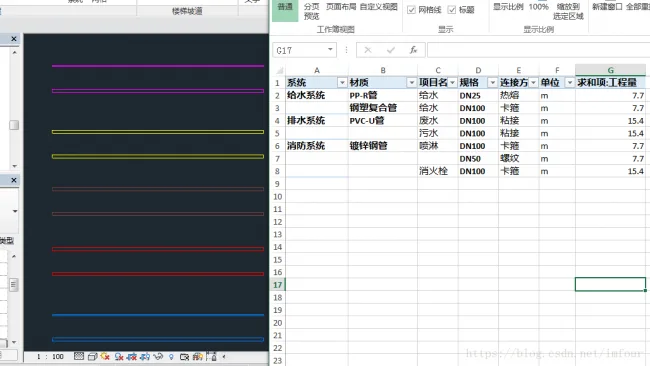
The EPPlus library also does not require Excel to be installed but supports only the XLSX format. Some users report that EPPlus offers better efficiency and stability compared to NPOI, though this has yet to be confirmed with large datasets. The example below processes pipe information from the model according to specific rules and exports it to Excel. Afterward, a simple pivot table can be created in Excel to calculate the corresponding quantities.
using System.IO;
using Autodesk.Revit.DB;
using Autodesk.Revit.UI;
using Autodesk.Revit.Attributes;
using Autodesk.Revit.DB.Plumbing;
using OfficeOpenXml;
using OfficeOpenXml.Style;

namespace RevitAddinTestClass
{
 [Transaction(TransactionMode.Manual)]
 class PipeSchedule : IExternalCommand
 {
  public Result Execute(ExternalCommandData commandData, ref string message, ElementSet elements)
  {
   Document document = commandData.Application.ActiveUIDocument.Document;

   // Excel file path
   string path = @"D:LSTTestPipeSchedule.xlsx";
   // Delete existing file if present
   if (File.Exists(path)) File.Delete(path);
   // Create Excel package
   ExcelPackage package = new ExcelPackage(new FileInfo(path));
   ExcelWorksheet excelWorkSheet = package.Workbook.Worksheets.Add("Pipe Data");
   // Header row
   string[] headerNames = { "Id", "System", "Item Name", "Material", "Specification", "Connection Type", "Unit", "Quantity" };
   for (int i = 0; i < headerNames.Length; i++)
   {
    ExcelRange hCell = excelWorkSheet.Cells[1, i + 1];
    hCell.Value = headerNames[i];
    // Format header cells
    hCell.Style.Font.Bold = true;
    hCell.Style.Border.BorderAround(ExcelBorderStyle.Thin);
   }

   // Collect all pipe data
   List pipeDataList = new List();
   FilteredElementCollector collector = new FilteredElementCollector(document);
   foreach (Pipe p in collector.OfClass(typeof(Pipe)).WhereElementIsNotElementType())
   {
    string pipeId, pipeSys, pipeItemName, pipeSize, pipeMaterial, pipeConnect, pipeUnit;
    double pipeQuantity;
    // System abbreviation
    string abbr = p.get_Parameter(BuiltInParameter.RBS_DUCT_PIPE_SYSTEM_ABBREVIATION_PARAM).AsString();
    // Read parameters
    pipeId = p.Id.ToString();
    pipeSys = GetPipeSys(abbr);
    pipeItemName = p.get_Parameter(BuiltInParameter.RBS_PIPING_SYSTEM_TYPE_PARAM).AsValueString().Split('_')[1];
    pipeSize = p.get_Parameter(BuiltInParameter.RBS_CALCULATED_SIZE).AsString().Split(' ')[0];
    pipeMaterial = GetPipeMaterial(Convert.ToDouble(pipeSize), abbr);
    pipeConnect = GetPipeConnect(Convert.ToDouble(pipeSize), pipeMaterial);
    pipeUnit = "m";
    pipeQuantity = UnitUtils.ConvertFromInternalUnits(p.get_Parameter(BuiltInParameter.CURVE_ELEM_LENGTH).AsDouble(), DisplayUnitType.DUT_METERS);

    object[] pipeData = { pipeId, pipeSys, pipeItemName, pipeMaterial, "DN" + pipeSize, pipeConnect, pipeUnit, pipeQuantity };
    pipeDataList.Add(pipeData);
   }

   // Write data rows
   for (int i = 0; i < pipeDataList.Count; i++)
   {
    object[] pipeData = pipeDataList[i];
    for (int j = 0; j < pipeData.Length; j++)
    {
     ExcelRange dCell = excelWorkSheet.Cells[i + 2, j + 1];
     dCell.Value = pipeData[j];
     dCell.Style.Border.BorderAround(ExcelBorderStyle.Thin);
    }
   }

   // Save and dispose package
   package.Save();
   package.Dispose();

   return Result.Succeeded;
  }

  string GetPipeSys(string abbreviation)
  {
   Dictionary sysDic = new Dictionary
   {
    { "ZP", "Fire Protection System" },
    { "X", "Fire Protection System" },
    { "J", "Water Supply System" },
    { "F", "Drainage System" },
    { "W", "Drainage System" }
   };

   return sysDic.ContainsKey(abbreviation) ? sysDic[abbreviation] : "Unknown System";
  }

  string GetPipeMaterial(double pipeSize, string abbreviation)
  {
   string material = "Undefined";
   switch (abbreviation)
   {
    case "ZP":
    case "X":
     material = "Galvanized Steel Pipe";
     break;
    case "J":
     material = pipeSize > 50 ? "Steel-Plastic Composite Pipe" : "PP-R Pipe";
     break;
    case "F":
    case "W":
     material = "PVC-U Pipe";
     break;
   }
   return material;
  }

  string GetPipeConnect(double pipeSize, string material)
  {
   string connect = "Undefined";
   switch (material)
   {
    case "PVC-U Pipe":
     connect = "Adhesive";
     break;
    case "PP-R Pipe":
     connect = "Heat Fusion";
     break;
    case "Steel-Plastic Composite Pipe":
    case "Galvanized Steel Pipe":
     connect = pipeSize > 65 ? "Clamp" : "Threaded";
     break;
   }
   return connect;
  }
 }
} 













Must log in before commenting!
Sign Up