
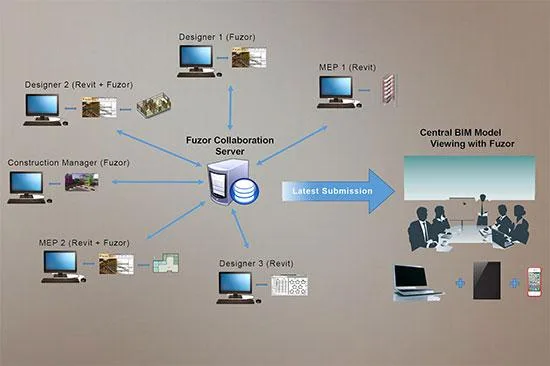
Fuzor is a BIM virtual implementation system developed by Kalloc Studios in the United States. It was the first to introduce multiplayer game engine technology to the construction industry and holds an exclusive patent for two-way real-time seamless connection. While Fuzor can serve as a VR plugin for Revit, its capabilities go far beyond VR, offering a user experience unmatched by similar software.
Fuzor 2016 represents a revolutionary breakthrough. It not only delivers real-time virtual reality scenes but also instantly converts your BIM model data into a highly compatible format similar to a game environment. Importantly, it preserves complete BIM information, allowing all participants to connect to the model via the network for collaborative communication within this virtual space. This enables users to experience “doing BIM while playing games,” making work both easy and enjoyable!
Feature Introduction
1. Bidirectional Real-Time Synchronization
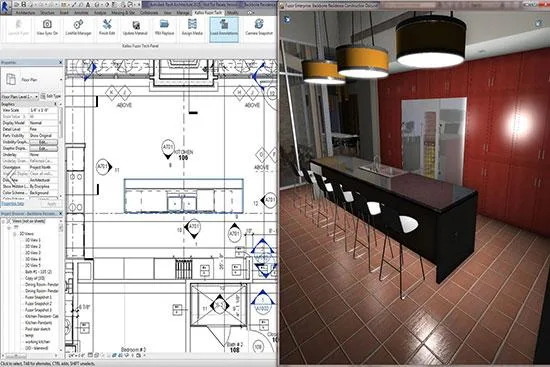
Fuzor’s Live Link acts as a communication bridge between Fuzor, Revit, and ArchiCAD. This feature synchronizes changes in real-time across these platforms, eliminating the hassle of importing and exporting between multiple software to achieve effective visualization.
2. Powerful BIM Virtual Reality Engine
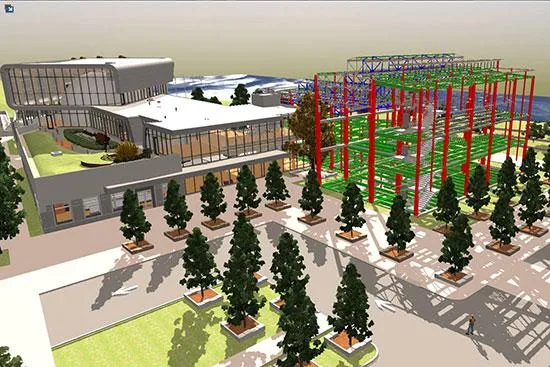
Fuzor has developed its own 3D engine specifically optimized for BIM, supporting large model capacities, enhanced display effects, and extensive data integration. Its lighting simulation and material rendering strike the perfect balance between performance and visual quality.
3. Server and Platform Support
If you’re tired of working solo, Fuzor now supports multi-user collaboration on private servers. Model files and all changes are saved on the server, enabling coordinated teamwork in real-time.
4. Collision Detection
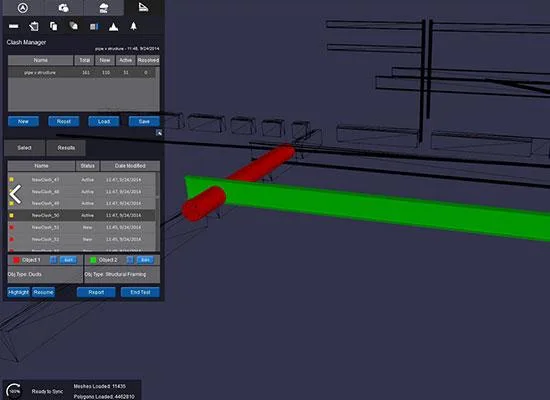
Beyond basic clash detection, Fuzor can quickly run category-based collision tests on different objects, generate detailed conflict reports, adjust objects directly within Fuzor, add conflict comments, and then update these changes back to Revit or Fuzor.
5. Mobile Support
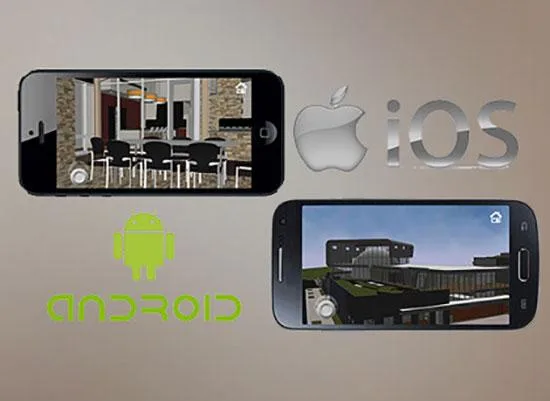
Fuzor supports mobile devices with the capability to display BIM models larger than 5GB. Users can freely browse, annotate, measure, and view BIM model parameters on their mobile devices, enabling flexible work on the go.
6. Client Browser
Fuzor can package models into standalone EXE files, allowing team members who don’t have Fuzor installed to review models in a game-like environment. They can also annotate BIM results, making collaboration smooth and convenient.
Installation Guide
- Extract the files and open the folder. Double-click the file named “click me to install” to start the installation process.
- Once the automatic installation completes, copy the “Fuzor.exe” file from the installation package into the installation directory (usually
C:Program Files) to finalize the installation of Fuzor 2016 in Chinese.
















Why does it get an error when I open it? It doesn’t work
I haven’t encountered this issue. Please try modifying the software compatibility,
Professional, that’s bull